
Fortdows Fortdows 9-inch Android Car Radio for Dodge Ram (2002-2005)
Contents
Fortdows Car Radio Upgrade User Manual
Model: 4 Core 2GB RAM+64GB ROM
For Dodge Ram 1500 2500 3500 (2002-2005)
Introduction
This manual provides detailed instructions for the installation, operation, and maintenance of your Fortdows 9-inch 1280x800 IPS Touchscreen Car Radio Upgrade. Designed specifically for Dodge Ram 1500, 2500, and 3500 models from 2002 to 2005, this head unit features Wireless CarPlay/Android Auto, Bluetooth, WiFi, GPS navigation, FM radio, and support for a 1080P backup camera. It runs on Android 12 with a 4 Core CPU, 2GB RAM, and 64GB ROM, offering a smooth and enhanced in-car entertainment experience.
Safety Information
- Read all instructions carefully before installation and operation.
- Do not attempt to disassemble or modify the unit. This may void the warranty and pose safety risks.
- Ensure all wiring is correctly connected to prevent short circuits or damage.
- Avoid operating the unit in extreme temperatures or high humidity.
- Do not operate the unit in a way that distracts you from driving. Always prioritize road safety.
- Keep the unit away from water and other liquids.
Package Contents
Please verify that all items listed below are included in your package:

Image: Overview of the Fortdows car radio unit and its accompanying accessories, including cables, camera, and tools.
- Fortdows 9-inch Car Radio Head Unit
- Power Cable
- Original USB Cable
- USB Cable (x2)
- RCA Cable
- CanBus Decoder
- GPS Antenna
- Reversing Line/Cable
- Backup Camera
- External Microphone
- Crowbar (Installation Tool)
Setup and Installation
The Fortdows car radio is designed for a comprehensive plug-and-play installation in compatible Dodge Ram models (2002-2005). It is engineered to retain factory steering wheel controls, the original reverse camera, and the factory antenna adapter, simplifying the upgrade process.

Image: A visual comparison showing the original Dodge Ram dashboard radio setup ("Before") and the new Fortdows 9-inch car radio seamlessly integrated ("After").
General Installation Steps:
- Preparation: Disconnect the vehicle's battery before starting any electrical work.
- Remove Old Unit: Carefully remove the existing factory radio unit from your dashboard. Use the provided crowbar tool if necessary to avoid damaging the trim.
- Connect Wiring: Connect the Fortdows head unit's wiring harness to the vehicle's factory harness. Ensure all necessary cables (power, USB, RCA, CanBus, GPS antenna, reversing line, external microphone) are securely connected as per the wiring diagram (refer to the diagram provided with your unit, if applicable).
- Install Backup Camera (Optional): If installing the backup camera, route its cable to the rear of the vehicle and connect it to the appropriate input on the head unit. Mount the camera securely.
- Test Functionality: Before fully reassembling the dashboard, reconnect the battery and perform a quick test of the unit's basic functions (power on, audio, touchscreen response, steering wheel controls, backup camera).
- Secure Unit: Once confirmed working, securely mount the new head unit into the dashboard opening.
- Reassemble: Reassemble any removed dashboard trim pieces.
Note: While designed for plug-and-play, professional installation is recommended if you are unfamiliar with car audio system installations.
Operating Instructions
Wireless CarPlay & Android Auto
The unit supports both wired and wireless Apple CarPlay and Android Auto. This allows you to seamlessly integrate your smartphone for navigation, music, calls, and messaging directly on the car stereo's screen. Voice control features enable safer operation while driving.

Image: Displays of the Apple CarPlay and Android Auto user interfaces, showing various app icons and navigation screens.
- Connection: Connect your iPhone or Android phone via Bluetooth for wireless connection, or use a USB cable for wired connection.
- Access: Once connected, the CarPlay or Android Auto interface will appear on the screen, providing access to compatible apps.
- Voice Control: Use voice commands (e.g., "Hey Siri" or "OK Google") to control navigation, make calls, send messages, and play music hands-free.
GPS Navigation & WiFi Connection
The unit features built-in GPS for both online and offline navigation. Connect to a 5G WiFi network for enhanced online mapping, real-time traffic updates, and access to the Google Play Store to download various applications like Spotify, Google Maps, and more.

Image: A visual representation highlighting the improved network performance and user experience provided by the 5G WiFi function.
- WiFi Connection: Go to Settings > Network & Internet > Wi-Fi to connect to an available network.
- Navigation: Use the pre-installed navigation app or download your preferred navigation app from the Google Play Store.
- App Downloads: Access the Google Play Store to download and install additional applications.
FM Radio & Bluetooth
Enjoy local radio broadcasts with the built-in FM radio, providing access to traffic updates, news, and weather forecasts. The integrated Bluetooth 4.0 module offers fast and stable connections for hands-free calling, phonebook synchronization, and audio streaming from your smartphone.

Image: A detailed view of the digital sound processing (DSP) interface, illustrating the 15-band equalizer settings for audio customization.
- FM Radio: Select the FM Radio application to scan for stations and listen to broadcasts.
- Bluetooth Pairing: Enable Bluetooth on your smartphone and search for the car radio unit. Pair the devices to enable hands-free calls and music playback.
- Audio Equalizer: Access the built-in EQ settings to customize your audio experience with a 15-band equalizer.
1080P Rear-View Camera & Steering Wheel Controls (SWC)
The unit supports a 1080P AHD backup camera, providing a clear and wide 170° viewing angle for safer reversing. The display automatically switches to the camera view when the vehicle is in reverse. Additionally, the unit retains compatibility with your vehicle's original steering wheel controls for convenient operation.
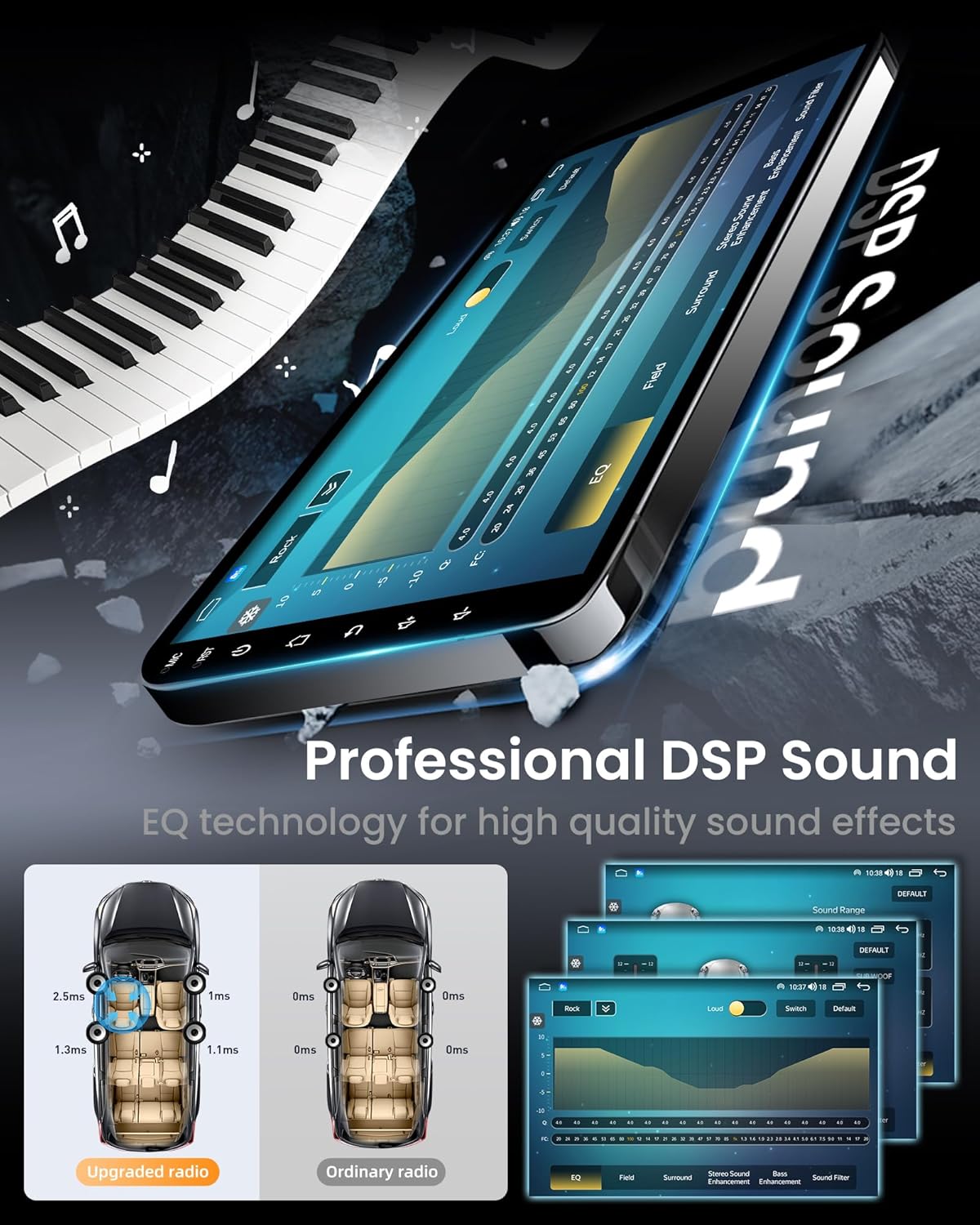
Image: A visual guide showing how the car radio integrates with existing steering wheel controls, allowing for safe operation without diverting attention from the road.
- Backup Camera: Ensure the backup camera is properly installed and connected. The display will automatically switch when shifting into reverse.
- SWC Configuration: If steering wheel controls do not function automatically, refer to the unit's settings menu for SWC learning or configuration options.
1280*800 IPS Touchscreen & Split-Screen Function
Experience superior visual clarity and vivid colors on the 9-inch 1280*800 IPS touchscreen. The split-screen function allows you to run and display two applications simultaneously, such as navigation and music, enhancing multitasking capabilities.

Image: A side-by-side comparison demonstrating the enhanced clarity and color saturation of the 1280*800 IPS touchscreen compared to lower resolution displays.
- Touchscreen Operation: Navigate the interface by tapping, swiping, and pinching on the screen.
- Split-Screen Mode: To activate, open one app, then long-press the recent apps button or drag another app from the recent apps list to the side of the screen.
Maintenance
- Cleaning: Use a soft, dry cloth to clean the touchscreen and unit exterior. For stubborn smudges, slightly dampen the cloth with water or a screen-safe cleaner. Avoid abrasive cleaners or solvents.
- Software Updates: Periodically check for software updates through the unit's settings menu (if available) or the manufacturer's website to ensure optimal performance and access to new features.
- Environmental Care: Protect the unit from direct sunlight for prolonged periods and extreme temperatures to prevent damage to the screen and internal components.
Troubleshooting
| Problem | Possible Cause | Solution |
|---|---|---|
| Unit does not power on. | Loose power connection; Blown fuse; Vehicle battery issues. | Check power cables and connections. Inspect vehicle fuses. Ensure vehicle battery is charged. |
| No sound from speakers. | Volume too low; Mute activated; Speaker wiring issues; Incorrect audio source. | Increase volume. Check mute setting. Verify speaker connections. Select correct audio source. |
| GPS signal weak or inaccurate. | GPS antenna obstructed or improperly installed; Poor satellite coverage. | Ensure GPS antenna has a clear view of the sky and is securely connected. Move to an open area. |
| Bluetooth connection issues. | Device not in pairing mode; Interference; Incorrect pairing process. | Ensure both devices are in pairing mode. Restart Bluetooth on both devices. Clear previous pairings and try again. |
| Touchscreen unresponsive. | Temporary software glitch; Screen protector interference. | Restart the unit. Check if a screen protector is causing issues. If problem persists, contact support. |
Specifications
| Feature | Detail |
|---|---|
| Model Compatibility | Dodge Ram 1500, 2500, 3500 (2002-2005) |
| Operating System | Android 12 |
| CPU | 4 Core |
| RAM | 2GB |
| ROM | 64GB |
| Display Size | 9 Inches |
| Display Type | IPS Touchscreen |
| Display Resolution | 1280x800P |
| Connectivity Technology | Bluetooth (4.0), USB, Wi-Fi (5G) |
| Special Features | Wireless CarPlay/Android Auto, Built-In GPS, FM Radio, 15-band EQ, Split-Screen Function, Steering Wheel Control Support |
| Backup Camera Support | 1080P AHD (170° viewing angle) |
| Audio Output Mode | Stereo |
| Control Method | App, Touch, Voice |
| Item Weight | 4.8 pounds |
| Package Dimensions | 13.74 x 12.36 x 5.2 inches |
| UPC | 750872695346 |
Warranty and Support
For warranty information, technical support, or any inquiries regarding your Fortdows car radio, please contact the seller or manufacturer directly. Keep your purchase receipt as proof of purchase.
You can visit the official Fortdows store for more information and support:
Ask a question about this manual
Ask about setup, troubleshooting, compatibility, parts, safety, or missing instructions. Manuals+ will review the question and use this page’s manual context to help answer it.