
1. Introduction
Thank you for choosing the ULTIMEA Skywave F40 U4122 5.1.2ch Dolby Atmos Sound Bar System. This manual provides essential information for setting up, operating, and maintaining your new audio system. Please read it thoroughly before use and retain it for future reference.

An overview of the ULTIMEA Skywave F40 U4122 5.1.2ch Dolby Atmos Sound Bar System, including the main soundbar unit, wireless subwoofer, and two satellite surround speakers.
2. Important Safety Information
To ensure safe operation and prevent damage, observe the following precautions:
- Do not expose the unit to rain, moisture, or extreme temperatures.
- Do not open the casing; refer all servicing to qualified personnel.
- Ensure proper ventilation and avoid blocking any ventilation openings.
- Use only the power adapters supplied with the system.
- Keep the system away from heat sources, direct sunlight, and strong magnetic fields.
- Disconnect the power plug during lightning storms or when unused for long periods.
3. Package Contents
Verify that all items are present in the package:
- 1 x Soundbar
- 1 x Subwoofer
- 2 x Surround Speakers
- 1 x Remote Control (Battery not included)
- 1 x User Manual
- 1 x Soundbar Power Adaptor
- 1 x Surround Speaker Power Adaptor
- 1 x Rear Surround Cable (6m)
- 1 x HDMI eARC Cable (1.5m)
- 1 x Digital Optical Cable (1.5m)
- 1 x HDMI Right Angle Adapter
- 8 x Wall Mount Kit
- 4 x Wall Bracket
- 4 x Mounting Screw on Speakers
4. Setup
4.1 Placement
The ULTIMEA Skywave F40 U4122 system offers flexible placement options:
- Tabletop Mount: Place the soundbar on a stable, flat surface directly below your television. Position the subwoofer and surround speakers as desired for optimal sound.
- Wall Mount: The soundbar can be mounted on a wall using the provided wall mount kit. Ensure the wall can support the weight of the soundbar.

Detailed dimensions for the soundbar (31.50 inches length, 1.81 inches depth, 3.54 inches height), subwoofer (11.10 inches width, 4.17 inches depth, 12.48 inches height), and surround speakers (2.72 inches width, 2.72 inches depth, 4.72 inches height).
An illustration of the soundbar's dual-unit design, indicating how it can be separated or combined for flexible placement options.
4.2 Connecting the Components
Connect the soundbar, subwoofer, and surround speakers to power outlets. The subwoofer and surround speakers will automatically pair wirelessly with the soundbar upon power-up.

This diagram illustrates the wireless pairing of the soundbar with the subwoofer and surround speakers, simplifying setup and reducing cable clutter.
4.3 Connecting to Your TV
The soundbar offers multiple connection options to your television:
HDMI eARC (Recommended for Dolby Atmos)
For the best audio quality, especially with Dolby Atmos content, connect your TV to the soundbar using the provided HDMI eARC cable. Ensure your TV's HDMI port supports eARC/ARC.
- Connect one end of the HDMI eARC cable to the HDMI TO TV (eARC/ARC) port on the soundbar.
- Connect the other end to the HDMI eARC/ARC port on your TV.
- Select the HDMI eARC input on the soundbar using the remote or control panel.

The rear panel of the soundbar showing available input ports: HDMI to TV (eARC/ARC), Optical, USB, Sub Out, and DC In for power.

A visual guide for connecting the soundbar to a television using the HDMI eARC port, ensuring optimal audio transmission and CEC synchronization.
Optical Connection
If your TV does not support HDMI eARC/ARC, use the Optical connection.
- Connect one end of the Digital Optical Cable to the OPTICAL port on the soundbar.
- Connect the other end to the Optical Digital Audio Out port on your TV.
- Select the Optical input on the soundbar.

Instructions for connecting the soundbar to a television via the Optical audio port, an alternative for high-quality digital audio.
5. Operating Instructions
5.1 Basic Operation
- Power On/Off: Press the power button on the soundbar or remote control.
- Input Selection: Use the 'Input' button on the remote or soundbar to cycle through HDMI eARC, Optical, Bluetooth, and USB inputs.
- Volume Control: Adjust volume using the '+' and '-' buttons on the remote or soundbar.

The included remote control for the ULTIMEA Skywave F40 U4122 soundbar system, providing direct access to power, input selection, volume, sound modes, and individual speaker level adjustments.
5.2 Bluetooth Pairing
To connect a Bluetooth device:
- Press the 'BT' button on the remote or soundbar to enter Bluetooth pairing mode. The indicator light will flash.
- On your device, search for 'ULTIMEA Skywave F40' and select it to pair.
- Once connected, the indicator light will be solid.

A user wirelessly streaming audio to the soundbar via Bluetooth 5.4, highlighting the stable and responsive connection for music, movies, and gaming.
5.3 Sound Modes and Customization
The soundbar features various preset sound modes and extensive customization options:
- Preset Modes: Select from Movie, Music, Voice, Sport, Game, and Night modes using the remote or the Ultimea App.
- BassMX Technology: Adjust bass levels from -6 to +6 using the remote control. The default setting is 0.
- SurroundX Audio: This technology, combined with the two rear surround speakers and dual up-firing Atmos drivers, creates a 360° sound field.

This diagram illustrates the immersive sound experience of the 5.1.2 channel Dolby Atmos system, with sound emanating from the soundbar and overhead, creating a three-dimensional audio environment for viewers.

A detailed view highlighting the placement of the eight high-performance drivers within the soundbar (Left, Center, Right, Left Up-firing, Right Up-firing), subwoofer, and two rear surround speakers (Left Rear Channel, Right Rear Channel).

This image demonstrates how the two integrated up-firing speakers project sound towards the ceiling, which then reflects down to the listener, creating an overhead audio dimension for Dolby Atmos content.

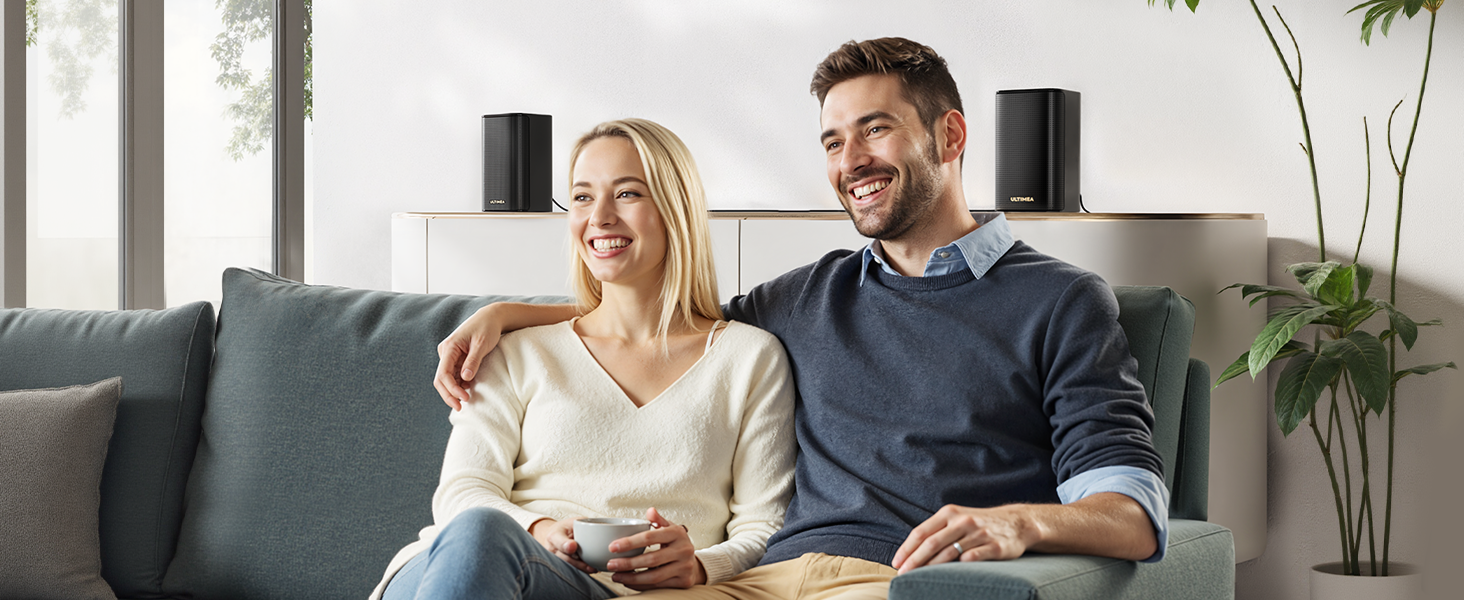
Two compact rear speakers are positioned to deliver a truly immersive surround sound experience, enhancing the audio from the main soundbar.

The powerful subwoofer featuring BassMX technology, capable of bass adjustments from -6 to +6, with a default setting of 0, allowing users to customize their low-frequency experience.
5.4 Advanced App Control
Download the Ultimea App for comprehensive control and customization:
- 13-step Level Adjustment: Fine-tune surround sound levels (-6 to +6).
- 10-band Graphic EQ: Optimize audio with detailed equalizer settings.
- 121 Preset Sound Settings: Choose from a wide range of pre-configured audio profiles.
- OTA Updates: Receive seamless firmware updates to unlock new features and maintain peak performance.

A screenshot of the Ultimea mobile application, showcasing various controls for sound modes (Movie, Music, Voice, Sport, Game, Night), Bluetooth music playback, EQ settings, and firmware upgrade options for the Skywave F40.

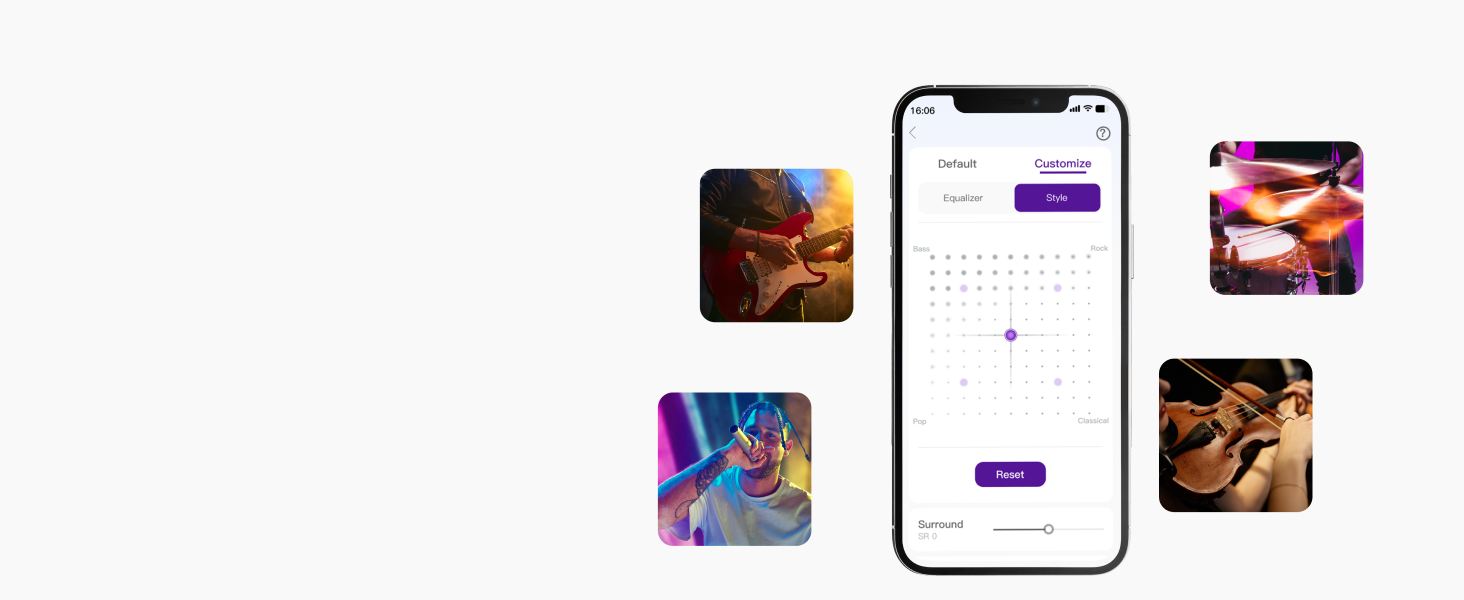
The Ultimea App's 10-band graphic equalizer interface, allowing users to fine-tune audio frequencies for a personalized listening experience.
The Ultimea App's interface for customizing sound styles and adjusting surround and up-firing speaker levels, providing granular control over the audio output.
6. Maintenance
To ensure the longevity and optimal performance of your soundbar system:
- Cleaning: Use a soft, dry cloth to clean the surfaces of the soundbar, subwoofer, and speakers. Do not use liquid cleaners or abrasive materials.
- Ventilation: Ensure that all ventilation openings are clear and not obstructed to prevent overheating.
- Storage: If storing the system for an extended period, disconnect it from power and store it in a cool, dry place.
7. Troubleshooting
If you encounter issues with your ULTIMEA Skywave F40 U4122, refer to the following common problems and solutions:
| Problem | Possible Cause | Solution |
|---|---|---|
| No sound from the soundbar. | Incorrect input selected, loose cables, TV audio settings incorrect. | Verify input source matches TV connection. Check all cables are securely connected. Ensure TV audio output is set to external speakers (PCM for Optical). |
| No sound from surround speakers/subwoofer. | Not paired, power issue. | Ensure surround speakers and subwoofer are powered on. They should automatically pair; if not, refer to the manual for manual pairing instructions (if available). |
| Distorted or crackling audio. | Poor quality HDMI cable, interference, high bass levels. | Try a high-speed HDMI cable if using HDMI eARC. Ensure no other wireless devices are causing interference. Reduce bass levels using the remote or app. |
| Dolby Atmos not working. | TV/source not supporting Dolby Atmos, incorrect connection. | Ensure your TV and content source (e.g., streaming device, Blu-ray player) support Dolby Atmos. Use HDMI eARC connection. Verify TV audio output settings are set to 'Passthrough' or 'Bitstream'. |
| Remote control not working. | Dead batteries, obstruction. | Replace batteries (AAA, not included). Ensure no obstructions between the remote and the soundbar's IR receiver. |
| App control issues. | App not updated, Bluetooth connection issue. | Ensure the Ultimea App is updated to the latest version. Verify your phone's Bluetooth is on and connected to the soundbar. Check for soundbar firmware updates via the app. |
| Not compatible with DTS. | System limitation. | The ULTIMEA Skywave F40 U4122 system is not compatible with DTS audio formats. Ensure your audio source is set to output Dolby Digital or PCM. |
8. Specifications
| Feature | Detail |
|---|---|
| Model Name | Skywave F40 |
| Item Model Number | U4122 |
| Speaker Type | 5.1.2ch Surround Sound with Dolby Atmos |
| Surround Sound Channel Configuration | 5.1.2 |
| Speaker Maximum Output Power | 400 Watts |
| Frequency Response | 40 Hz |
| Signal-to-Noise Ratio | 96 dB |
| Connectivity Technology | HDMI-eARC, Bluetooth 5.4, Optical |
| Wireless Communication Technology | Bluetooth |
| Bluetooth Range | 15 Meters |
| Subwoofer Connectivity Technology | Wired |
| Woofer Diameter | 5.25 Inches |
| Control Method | App, Remote |
| Product Dimensions | 31.5"D x 1.81"W x 3.54"H |
| Item Weight | 15.78 pounds |
| Power Source | Corded Electric |
| Mounting Type | Tabletop Mount, Wall Mount |
9. Warranty and Support
9.1 Limited Warranty
The ULTIMEA Skywave F40 U4122 comes with a limited warranty. Please refer to the warranty card included in your package or visit the official ULTIMEA website for detailed terms and conditions.
9.2 Customer Support
For any questions, technical assistance, or support needs, please contact ULTIMEA customer service. ULTIMEA is committed to providing:
- Pre-Sale Consultation
- 7/24 Service
- Worry-Free Warranty
You can typically find contact information on the ULTIMEA official website or through your purchase platform.