Introduction
The Razer Joro is an ultra-portable wireless gaming keyboard designed for seamless performance across multiple devices. This manual provides detailed instructions for setting up, operating, maintaining, and troubleshooting your Razer Joro keyboard.
Key Features:
- Thin, Light, and Compact Design
- Razer Chroma RGB Lighting
- Ultra Low-Profile Switches
- Bluetooth 5.0 Multi-Device Pairing (up to 3 devices)
- Long-Lasting Battery Life
- Razer Snap Tap Technology
What's in the Box
- Razer Joro Portable Wireless Gaming Keyboard
- USB Type-C to Type-C Cable
- Important Product Information Guide

Image: The Razer Joro keyboard, showcasing its full layout with vibrant green backlighting.
Setup
1. Charging the Keyboard
Before first use, fully charge your Razer Joro keyboard. Connect the included USB Type-C to Type-C cable to the keyboard's charging port and to a powered USB port (e.g., computer, wall adapter).
- The LED indicator will show charging status.
- A full charge typically takes approximately 2-3 hours.

Image: A user working with the Razer Joro keyboard connected to a laptop, highlighting its long-lasting battery life.
2. Connecting via Bluetooth
The Razer Joro supports Bluetooth 5.0 and can pair with up to three devices simultaneously.
- Ensure the keyboard is powered on.
- Press and hold the Fn key and one of the Bluetooth pairing keys (F1, F2, or F3) for 3 seconds to enter pairing mode. The LED indicator will blink rapidly.
- On your device (PC, Mac, smartphone, tablet, Steam Deck), navigate to Bluetooth settings and select "Razer Joro" from the list of available devices.
- Follow any on-screen prompts to complete the pairing process.
- Once paired, the LED indicator will turn solid for a few seconds and then turn off.
To switch between paired devices, simply press Fn + F1, F2, or F3 corresponding to the desired device.

Image: A user typing on the Razer Joro keyboard while connected to a tablet, illustrating its multi-device Bluetooth capabilities.
3. Installing Razer Synapse (Optional but Recommended)
For full customization of Chroma RGB lighting, key remapping, and advanced features like Razer Snap Tap, download and install Razer Synapse 4 from the official Razer website.
- Visit www.razer.com/synapse to download.
- Follow the on-screen instructions for installation.
Operating the Keyboard
Function Keys and Shortcuts
The Razer Joro features a full function row and full-sized arrow keys. Many functions are accessible via the Fn key combinations:
| Key Combination | Function |
|---|---|
| Fn + F1/F2/F3 | Switch Bluetooth Device (1, 2, or 3) |
| Fn + F5/F6/F7 | Media Controls (Previous, Play/Pause, Next) |
| Fn + F8/F9/F10 | Volume Controls (Mute, Volume Down, Volume Up) |
| Fn + F11/F12 | Brightness Control (Decrease, Increase) |
| Fn + Prt Sc | Toggle Chroma RGB Lighting Effects |
| Fn + Ins | Toggle Power Saving Mode |

Image: The Razer Joro keyboard layout, emphasizing the convenient function key shortcuts for various operations.
Razer Chroma RGB Lighting
The Razer Joro features per-key RGB lighting with 16.8 million colors. Customize lighting effects using Razer Synapse 4. You can also cycle through pre-set effects by pressing Fn + Prt Sc.

Image: The Razer Joro keyboard illuminated with Chroma RGB lighting on a desk setup, demonstrating its immersive lighting capabilities.
Razer Snap Tap Technology
Razer Snap Tap, configurable via Razer Synapse 4, allows you to prioritize inputs between two keys without releasing the previous one. This is particularly useful for rapid directional changes in gaming.
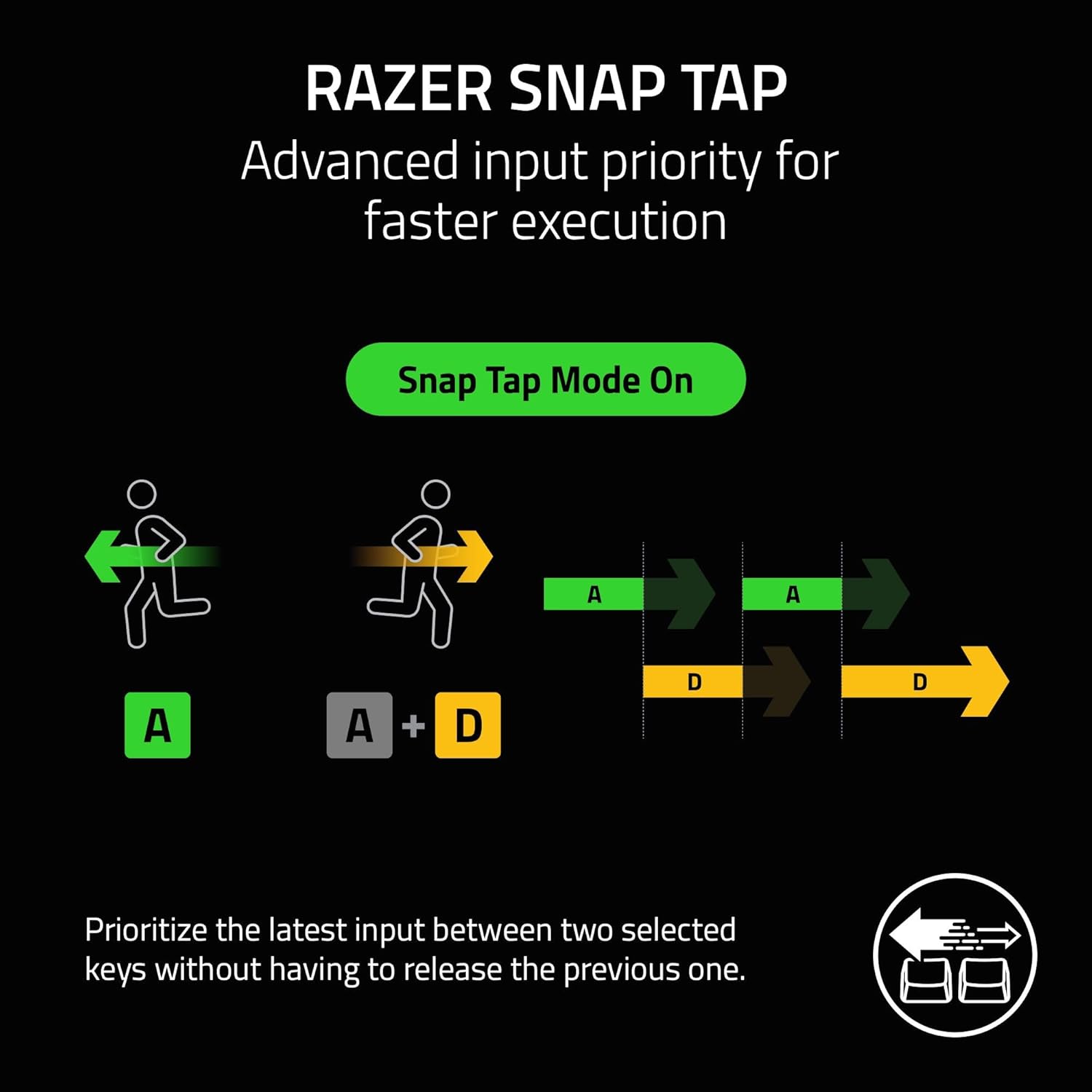
Image: A visual representation of Razer Snap Tap technology, illustrating how it prioritizes inputs for faster execution in gaming scenarios.
Maintenance
Cleaning the Keyboard
To maintain the performance and appearance of your Razer Joro keyboard:
- Use a soft, lint-free cloth to wipe down the surface.
- For stubborn dirt, slightly dampen the cloth with water or a mild cleaning solution.
- Avoid using harsh chemicals, abrasive materials, or excessive moisture.
- Do not spray cleaners directly onto the keyboard.
Battery Care
To maximize battery lifespan:
- Avoid fully discharging the battery frequently.
- Store the keyboard in a cool, dry place when not in use for extended periods.
- Activate Power Saving Mode (Fn + Ins) to conserve battery life during periods of inactivity.
Troubleshooting
Keyboard Not Connecting via Bluetooth
- Ensure the keyboard is charged and powered on.
- Verify the keyboard is in pairing mode (LED blinking rapidly).
- Check your device's Bluetooth settings to ensure Bluetooth is enabled and the keyboard is visible.
- Try unpairing and re-pairing the keyboard on your device.
- Ensure no other devices are actively connected to the same Bluetooth channel (F1, F2, F3).
- Restart both the keyboard and your device.
RGB Lighting Not Working or Incorrect
- Ensure Razer Synapse 4 is installed and updated to the latest version.
- Check lighting settings within Razer Synapse.
- Try cycling through pre-set effects using Fn + Prt Sc.
- Ensure Power Saving Mode is not active, as it may dim or turn off lighting.
Input Lag or Unresponsive Keys
- Ensure the keyboard battery is sufficiently charged.
- Reduce interference by moving closer to your device or away from other wireless devices.
- If using Razer Snap Tap, ensure it is configured correctly in Razer Synapse.
- Update keyboard firmware via Razer Synapse.
Specifications
| Feature | Detail |
|---|---|
| Brand | Razer |
| Model Name | Joro |
| Item Model Number | RZ03-02360200-R3U1 |
| Connectivity Technology | Bluetooth 5.0, USB-C Wired |
| Keyboard Description | Gaming |
| Special Feature | Portable, Chroma RGB, Low-Profile Switches, Snap Tap |
| Item Weight | 1.56 pounds (approx. 707 grams) |
| Product Dimensions (LxWxH) | 0.65 x 0.65 x 0.65 inches (approx. 16.5 x 16.5 x 16.5 mm) |
| Power Source | Battery Powered |
| Compatible Devices | PC, Mac, Handheld Consoles (e.g., Steam Deck), Mobile Devices (Smartphone, Tablet) |
Note: The listed product dimensions (0.65 x 0.65 x 0.65 inches) from specifications appear to be placeholder or incorrect for a full keyboard. The product description states the keyboard is "16.5 mm thin" and weighs "374 grams".
Warranty and Support
Razer products come with a limited warranty. For detailed warranty information, please refer to the "Important Product Information Guide" included in your package or visit the official Razer website.
For technical support, driver downloads, and frequently asked questions, please visit the Razer Support page:
You can also find more information and products at the official Razer Store:


