
FOIFKIN 120mm PWM ARGB PC Case Fan
FOIFKIN 120mm PWM ARGB PC Case Fan User Manual
Model: 120mm PWM ARGB PC Case Fan
1. Introduction
This manual provides detailed instructions for the installation, operation, and maintenance of your FOIFKIN 120mm PWM ARGB PC Case Fan. Please read this manual thoroughly before installation to ensure proper function and longevity of the product.
2. Product Overview
The FOIFKIN 120mm PWM ARGB PC Case Fan is designed to provide efficient cooling for your desktop computer system while offering customizable lighting effects. Key features include:
- 120mm Standard Size: Compatible with most PC cases.
- PWM Control: Allows for precise fan speed adjustment based on system temperature, optimizing cooling performance and noise levels.
- Addressable RGB (ARGB) Lighting: Features 8 individually addressable LEDs for dynamic and customizable lighting effects, synchronizable with compatible motherboard software.
- Forward Airflow Design: Optimized to push air into the case.
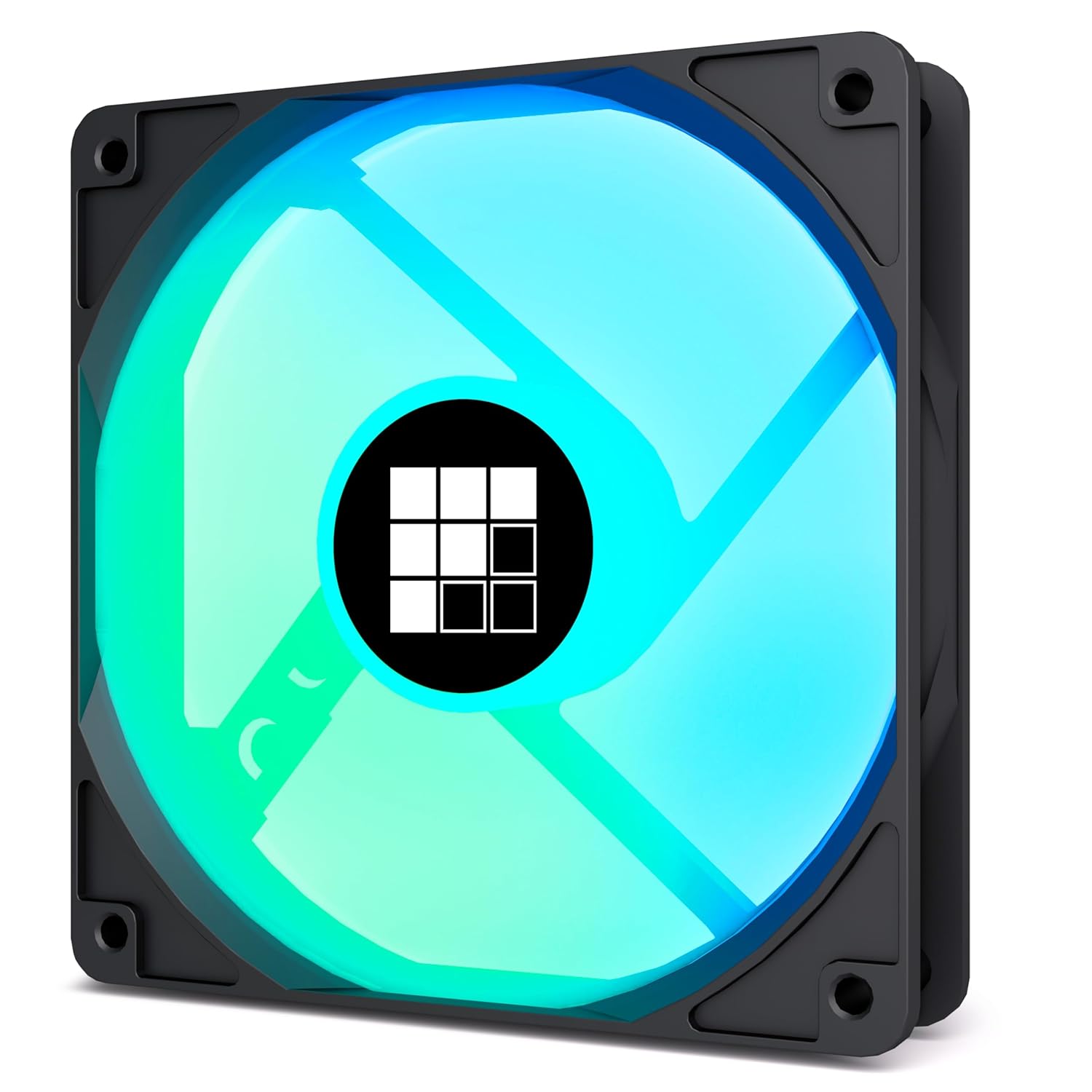
Figure 1: FOIFKIN 120mm PWM ARGB PC Case Fan. This image shows the fan from the front, highlighting its 120mm size and the vibrant, customizable ARGB lighting emanating from the fan blades.
3. Package Contents
Verify that all components are present in the package:
- FOIFKIN 120mm PWM ARGB PC Case Fan (Model: FX003)
- Mounting Screws (typically 4 screws per fan)
4. Specifications
| Feature | Detail |
|---|---|
| Model | FX003 |
| Dimensions | 120mm x 120mm x 25mm |
| Power Connector Type | 4-Pin PWM |
| ARGB Connector Type | 3-Pin 5V ARGB |
| Cooling Method | Air Fan |
| Compatible Devices | Desktop PC Cases |
| Noise Level | 10 dB |
| Maximum Rotational Speed | 1600 RPM |
| Airflow Direction | Forward (Intake) |
5. Setup and Installation
Before beginning installation, ensure your computer is powered off and unplugged from the wall outlet. It is recommended to wear an anti-static wrist strap to prevent electrostatic discharge (ESD) damage to components.
5.1. Pre-Installation Check
- Verify that your PC case has available 120mm fan mounts.
- Ensure your motherboard has a 4-pin PWM fan header and a 3-pin 5V ARGB header (sometimes labeled as "D_LED" or "ADD_HEADER").
5.2. Physical Installation
- Open your PC case.
- Identify the desired fan mounting location (e.g., front, top, rear, bottom).
- Position the FOIFKIN fan against the mounting holes, ensuring the airflow direction is correct for your system's cooling strategy (this fan is designed for forward airflow, typically intake).
- Secure the fan to the case using the provided mounting screws. Do not overtighten.

Figure 2: Fan Airflow Direction and PWM Control. This image demonstrates the forward airflow direction of the fan, indicating it is designed to pull air into the PC case. It also highlights the PWM control feature, allowing for dynamic fan speed adjustment between 700-1600 RPM.
5.3. Electrical Connections
- Connect the 4-Pin PWM Cable: Locate an available 4-pin fan header on your motherboard (often labeled "CPU_FAN", "SYS_FAN", or "CHA_FAN"). Connect the fan's 4-pin cable to this header.
- Connect the 3-Pin ARGB Cable: Locate an available 3-pin 5V ARGB header on your motherboard. Connect the fan's 3-pin ARGB cable to this header. Warning: Do not connect to a 4-pin 12V RGB header, as this will damage the fan's LEDs.
- If installing multiple ARGB fans, you may need an ARGB hub or splitter (not included) if your motherboard has insufficient headers.
6. Operating Instructions
6.1. Fan Speed Control (PWM)
The fan's speed is controlled via the 4-pin PWM connection. Most modern motherboards allow you to configure fan curves in the BIOS/UEFI settings or through dedicated motherboard software (e.g., ASUS AI Suite, MSI Dragon Center, Gigabyte SIV, ASRock A-Tuning). You can set the fan to automatically adjust its speed based on CPU or system temperature, or manually set a fixed speed.
6.2. ARGB Lighting Control
The Addressable RGB lighting can be controlled through your motherboard's ARGB software. Examples include:
- ASUS Aura Sync
- MSI Mystic Light Sync
- Gigabyte RGB Fusion
- ASRock Polychrome Sync
Install the appropriate software for your motherboard to customize lighting effects, colors, and synchronization with other ARGB components.

Figure 3: ARGB Lighting. This image showcases the vibrant ARGB lighting capabilities of the fan, emphasizing the 8 individually addressable LEDs that create diverse and customizable light patterns.
7. Maintenance
Regular maintenance helps ensure optimal performance and extends the lifespan of your fan.
- Dust Removal: Periodically clean dust from the fan blades and frame using compressed air or a soft brush. Ensure the fan is powered off before cleaning.
- Inspection: Check for any obstructions or loose cables around the fan.
- Avoid Liquids: Do not use liquid cleaners directly on the fan or its electrical components.
8. Troubleshooting
| Problem | Possible Cause | Solution |
|---|---|---|
| Fan not spinning |
|
|
| ARGB lighting not working |
|
|
| Excessive noise |
|
|
9. Warranty and Support
FOIFKIN products are manufactured to high quality standards. For warranty information, technical support, or to report issues, please refer to the official FOIFKIN website or contact their customer service department. Keep your proof of purchase for warranty claims.
For further assistance, visit: FOIFKIN Official Store
Ask a question about this manual
Ask about setup, troubleshooting, compatibility, parts, safety, or missing instructions. Manuals+ will review the question and use this page’s manual context to help answer it.