
Introduction
This manual provides essential information for setting up, operating, maintaining, and troubleshooting your MSI Aegis ZS2 Gaming Desktop PC. Please read this guide thoroughly to ensure optimal performance and longevity of your system. Keep this manual for future reference.
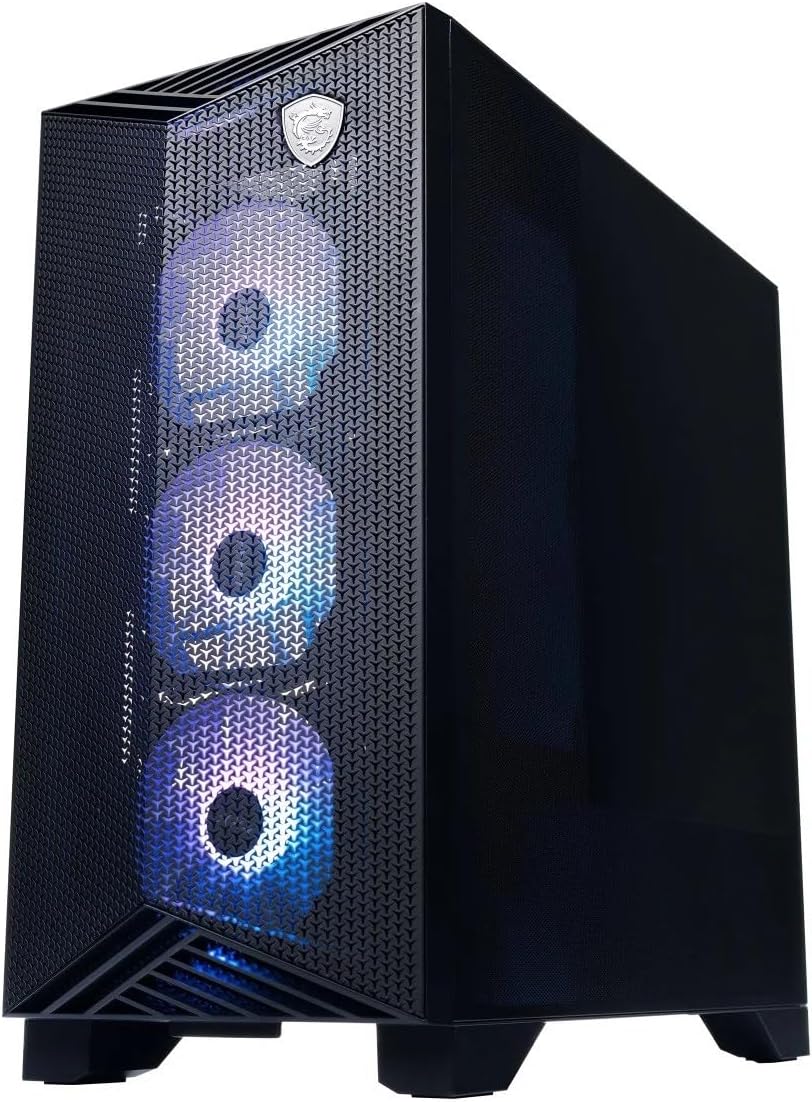
Image: Front view of the MSI Aegis ZS2 Gaming Desktop PC, showcasing its sleek design and illuminated front fans.
Setup Guide
Follow these steps to set up your new MSI Aegis ZS2 Gaming Desktop PC.
1. Unboxing and Initial Inspection
Carefully remove the PC and all accessories from the packaging. Inspect for any visible damage. Ensure all components listed in the packing contents are present. Remove any internal packaging materials or foam inserts from inside the PC chassis before powering on.

Image: Included accessories for the MSI Aegis ZS2, featuring the gaming keyboard, gaming mouse, power cable, and Wi-Fi antennas.
2. Connecting Peripherals
- Monitor: Connect your monitor to the NVIDIA GeForce RTX 5080 graphics card ports (HDMI or DisplayPort) located at the rear of the PC. Avoid using the motherboard's video outputs unless specifically instructed.
- Keyboard and Mouse: Connect the included MSI gaming keyboard and mouse to the available USB ports on the rear or front of the PC.
- Audio: Connect speakers or headphones to the audio output jacks on the rear or front panel.

Image: Rear panel of the MSI Aegis ZS2, displaying the array of connectivity options including USB ports, HDMI, DisplayPort, and audio jacks.

Image: Close-up of the top-front I/O panel on the MSI Aegis ZS2, featuring convenient access to USB-A, USB-C, and audio ports.
3. Power Connection
Connect the power cable to the power supply unit (PSU) at the rear of the PC, then plug the other end into a grounded electrical outlet. Ensure the power switch on the PSU is in the 'ON' position.
4. Network Connection
For wired internet, connect an Ethernet cable to the LAN port on the rear of the PC. For wireless internet, attach the included Wi-Fi antennas to the designated ports on the rear panel to utilize the Wi-Fi 7 capabilities.
5. First Power On
Press the power button located on the top-front panel of the PC. The system will boot into Windows 11 Home. Follow the on-screen instructions for initial setup.
Operating Your PC
Your MSI Aegis ZS2 comes pre-installed with Windows 11 Home, offering a user-friendly interface for all your computing needs.
General Usage
Familiarize yourself with the Windows 11 environment. Access applications from the Start Menu, manage files with File Explorer, and browse the internet using your preferred browser. Regular software updates are recommended for security and performance.
Gaming Performance
The MSI Aegis ZS2 is equipped with an AMD Ryzen 9 9900X processor and an NVIDIA GeForce RTX 5080 graphics card, providing exceptional performance for demanding games and applications. Ensure your graphics drivers are always up to date for the best gaming experience. Adjust in-game settings to balance visual quality and frame rates according to your preference.

Image: Internal view of the MSI Aegis ZS2, highlighting the NVIDIA GeForce RTX 5080 graphics card and the liquid cooling system.
Maintenance
Proper maintenance ensures the longevity and optimal performance of your PC.
- Cleaning: Regularly clean the exterior of the PC with a soft, dry cloth. Use compressed air to clear dust from ventilation grilles and internal components (fans, heatsinks) every few months. Ensure the PC is powered off and unplugged before cleaning.
- Software Updates: Keep your operating system (Windows 11) and all drivers (especially graphics drivers) updated. This improves security, stability, and performance.
- Liquid Cooling System: The 360mm liquid cooler is a closed-loop system and generally requires minimal maintenance. However, periodically check for any signs of leaks or unusual noises from the pump or fans. Ensure adequate airflow around the PC to assist with heat dissipation.
Troubleshooting
Here are solutions to common issues you might encounter.
- No Power:
- Check if the power cable is securely connected to both the PC and the wall outlet.
- Ensure the power switch on the PSU at the rear of the PC is in the 'ON' position.
- Try a different power outlet.
- No Display on Monitor:
- Verify that the monitor is powered on and the video cable is securely connected to the graphics card (NVIDIA GeForce RTX 5080) on the PC's rear.
- Ensure the correct input source is selected on your monitor.
- If you have multiple monitors, try connecting only one.
- Network Connectivity Issues:
- For wired connections, check the Ethernet cable and your router/modem.
- For Wi-Fi, ensure the antennas are properly attached and that you are connected to the correct network with the correct password.
- Restart your router/modem and the PC.
Technical Specifications
| Component | Specification |
|---|---|
| Operating System | Windows 11 Home |
| Processor | AMD Ryzen 9 9900X (12-core, 5.6 GHz) |
| Graphics Card | NVIDIA GeForce RTX 5080 16GB GDDR6 |
| RAM | 64GB DDR5 6000MHz |
| Storage | 4TB SSD (Solid State Drive) |
| CPU Cooler | 360mm Liquid Cooler |
| Wireless Communication | Wi-Fi 7, Bluetooth 5.3 |
| LAN | Realtek 8111H 1 Gigabit LAN |
| Power Supply | 850W 80+ Gold |
| Dimensions | 19.4'' x 9.1'' x 19'' |
| Weight | 36.9 lbs |
Warranty and Support
Your MSI Aegis ZS2 Gaming Desktop PC is covered by a manufacturer's warranty. For specific details regarding warranty terms, duration, and service procedures, please refer to the documentation included with your product or visit the official MSI website.
For technical assistance, driver downloads, or further support, please visit the official MSI support website or contact MSI customer service. Have your product model and serial number ready when seeking support.
MSI Official Website: www.msi.com