
1. Introduction
This manual provides essential information for the setup, operation, and maintenance of your TCL 50C7K QD-Mini LED TV. Please read this manual thoroughly before using the television and retain it for future reference.
2. Safety Information
Always observe the following basic safety precautions when using this television:
- Do not expose the TV to rain or moisture to prevent fire or electric shock.
- Do not open the cabinet. Refer servicing to qualified personnel only.
- Ensure proper ventilation. Do not block ventilation openings.
- Place the TV on a stable, level surface to prevent it from falling.
- Unplug the TV during lightning storms or when unused for long periods.
- Keep the TV away from direct sunlight, heat sources, and strong magnetic fields.
3. What's in the Box
Verify that all components are present upon unpacking:
- TCL 50C7K QD-Mini LED TV
- Remote Control
- Power Cable
- User Manual (this document)
- TV Stand and Support Screws
4. Setup
4.1 Physical Installation
You can install your TV using the included stand or by wall-mounting it (wall mount sold separately).

Image: Rear view of the TV with the stand. Ensure the stand is securely fastened to the TV and placed on a stable surface.

Image: Illustration of seamless wall mounting and integrated cable management for a clean installation.
4.2 Connecting Devices
Connect your external devices to the appropriate ports on the TV. The TCL 50C7K features multiple connectivity options.
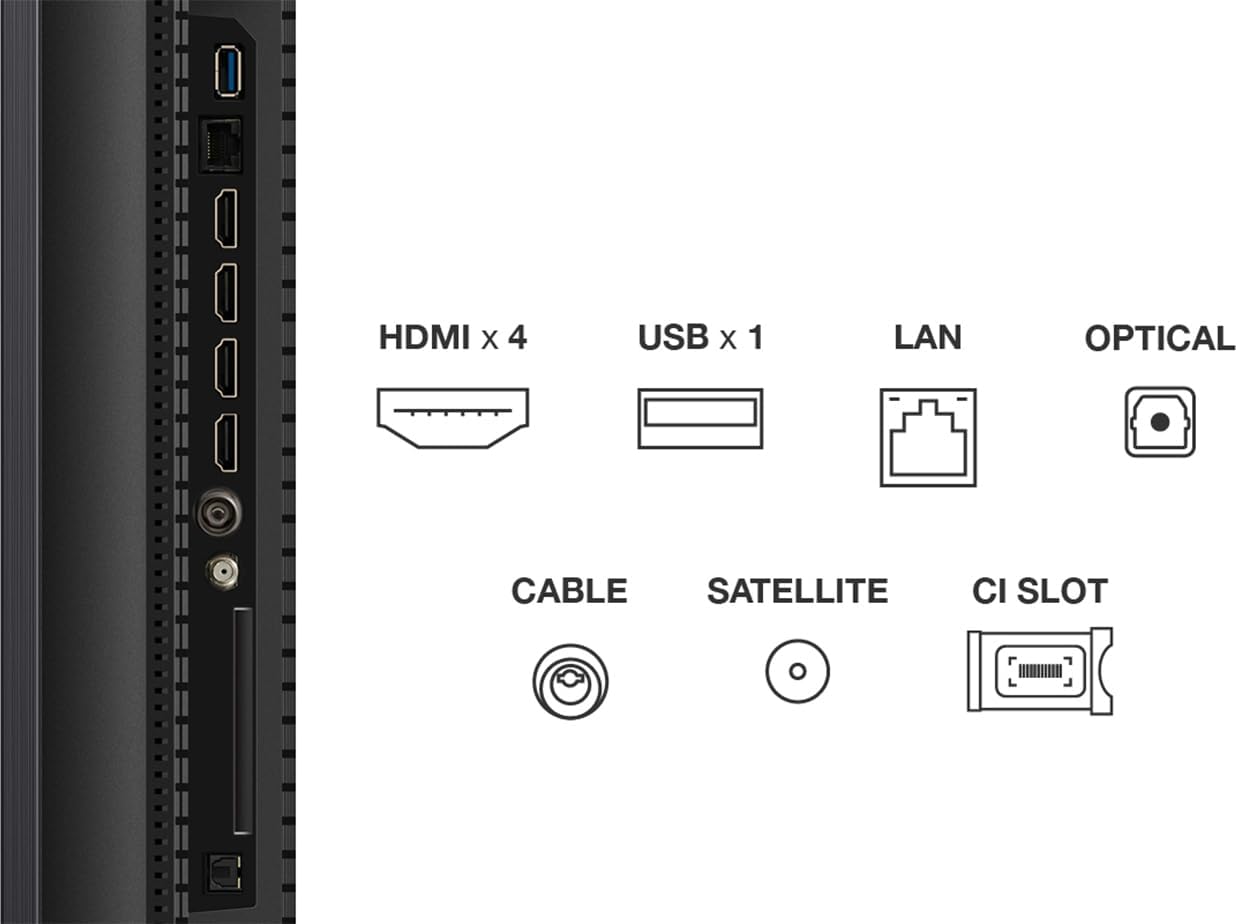
Image: Detailed view of the TV's connectivity panel, showing 4 HDMI ports, 1 USB port, LAN, Optical audio out, Cable input, Satellite input, and a CI Slot.
- HDMI: Connect Blu-ray players, game consoles, and other HDMI-enabled devices.
- USB: For connecting USB storage devices to play media files.
- LAN: For wired internet connection.
- OPTICAL: For digital audio output to soundbars or home theater systems.
- CABLE/SATELLITE: For connecting antenna or satellite feeds.
4.3 Initial Power-On and Google TV Setup
After connecting the power cable and any desired devices, press the power button on the remote control. Follow the on-screen instructions to complete the initial setup of Google TV, including network connection, Google account login, and channel scanning.
5. Operating the TV
5.1 Remote Control Functions

Image: The TCL 50C7K television alongside its remote control (RC833A), highlighting the layout of buttons for navigation, volume, channel selection, and smart features.
The remote control (RC833A) allows you to navigate the TV's interface and control various functions:
- Power Button: Turns the TV on or off.
- Navigation Pad (Up/Down/Left/Right/OK): For menu navigation and selection.
- Volume Up/Down: Adjusts the sound level.
- Channel Up/Down: Changes TV channels.
- Google Assistant Button: Activates voice control for Google TV.
- App Shortcut Buttons: Quick access to popular streaming services.
5.2 Smart TV Features (Google TV)
Your TCL 50C7K is equipped with Google TV, providing access to a vast library of apps, movies, and shows. Use the Google Assistant for hands-free voice control to search for content, control smart home devices, and more.
5.3 Picture and Sound Settings
Access the TV's settings menu to customize picture and sound. The TV supports various HDR formats including HDR10, HDR HLG, HDR10+, Dolby Vision, and Dolby Vision IQ, ensuring optimal visual quality for compatible content. For audio, Dolby Atmos provides an immersive sound experience.
5.4 Gaming Features (Game Master)
The Game Master feature optimizes your gaming experience. With HDMI 2.1 support, Automatic Low Latency Mode (ALLM), 144Hz Variable Refresh Rate (VRR), and FreeSync Premium Pro certification, the TV delivers smooth, responsive gameplay with minimal input lag.
6. Maintenance
6.1 Cleaning the TV
- Screen: Gently wipe the screen with a soft, lint-free cloth. For stubborn marks, use a screen cleaning solution specifically designed for TVs, applied to the cloth, not directly to the screen.
- Cabinet: Use a soft, dry cloth to wipe the TV cabinet. Do not use abrasive cleaners or solvents.
6.2 Software Updates
Ensure your TV's software is up-to-date for optimal performance and new features. You can check for updates through the Google TV settings menu. The TV will typically notify you when updates are available.
7. Troubleshooting
If you encounter issues with your TV, refer to the following common problems and solutions:
| Problem | Possible Solution |
|---|---|
| No power | Check if the power cable is securely connected to the TV and the power outlet. Ensure the outlet is functional. |
| No picture, but sound is present | Verify the correct input source is selected. Check cable connections to external devices. |
| No sound, but picture is present | Check volume level and mute settings. Ensure external audio systems are properly connected and powered on. |
| Remote control not working | Replace batteries. Ensure there are no obstructions between the remote and the TV's IR sensor. |
| Network connection issues | Restart your router/modem. Check Wi-Fi password. For wired connections, ensure the Ethernet cable is properly connected. |
8. Specifications
Key technical specifications for the TCL 50C7K QD-Mini LED TV:
- Brand: TCL
- Model Number: 50C7K
- Screen Size: 50 Inches
- Display Technology: Mini LED
- Resolution: 4K (3840 x 2160)
- Native Refresh Rate: 144 Hz (with Motion Clarity Pro)
- Special Features: QD-Mini LED, HDR Premium 2000, 144 Hz Motion Clarity Pro, Game Master, Google TV with Google Assistant built-in
- Connectivity: Bluetooth, Wi-Fi, Ethernet, HDMI (x4), USB (x1), Optical Audio Out
- Dimensions (W x D x H): 111.3 cm x 27 cm x 71.2 cm (with stand)
Image: Front view of the TCL 50C7K TV with its remote control, illustrating key dimensions including width (1111.2 mm), height (710.04 mm with stand, 645.82 mm without), and thickness (66.72 mm).
9. Warranty and Support
For warranty information, please refer to the warranty card included with your product or visit the official TCL website. Specific details regarding spare parts availability and guaranteed software updates are not available in this document.
For technical support or service inquiries, please contact TCL customer service through their official channels.


