
1. Introduction
Thank you for choosing the YHV Keyless Entry Door Lock with Camera. This smart deadbolt offers advanced security and convenience features, including multiple access methods, integrated camera, and app control. Please read this manual thoroughly before installation and operation to ensure proper use and optimal performance.
2. Key Features
- Multi-Access Unlock: Biometric fingerprint recognition, app control, customizable passcodes, and traditional keys. Integrated doorbell and camera for enhanced security.
- Enhanced Security: Secure encrypted connection, alarm for unauthorized entry attempts, and BHMA certification for durability.
- App Remote Control: Built-in Wi-Fi (2.4GHz band only) for real-time notifications, remote unlocking, live video viewing, and photo/video capture via the TuYa app.
- Convenient Auto-Lock: One-touch lock/unlock and adjustable auto-lock feature (10 to 90 seconds) to prevent accidental unlocking.
- Password Security: Stores up to 50 fingerprints and passwords. Supports anti-peep passwords and temporary access codes.
- Durable Design: Operates in temperatures from -31℉ to 158℉ (-35℃ to 70℃) with an IP54 protection rating.
- Voice Navigation: User-friendly interface with real voice navigation for intuitive setup and operation.
3. Package Contents
Ensure all components are present before beginning installation:
- Smart Lock Assembly
- Doorbell Unit
- Keys (2)
- Mounting Accessories (screws, plates, etc.)
- User Manual
4. Setup and Installation
Before you begin, gather the necessary tools: a screwdriver and a drilling machine. For detailed visual guidance, please refer to the official installation video provided by YHV-Shop.
Video 1: Official YHV Smart Lock Installation Guide. This video provides a step-by-step walkthrough of the physical installation process and initial setup of the smart lock, including connecting wires and securing components.
4.1 Door Compatibility
The YHV Smart Lock is designed to work with most standard doors. Ensure your door meets the following specifications:
- Backset: 2-3/8" (60mm) to 2-3/4" (70mm)
- Door Hole: Fits 1.5" (38mm) to 2.21" (54mm)
- Door Thickness: 1.38"-2.17" (35-55mm)
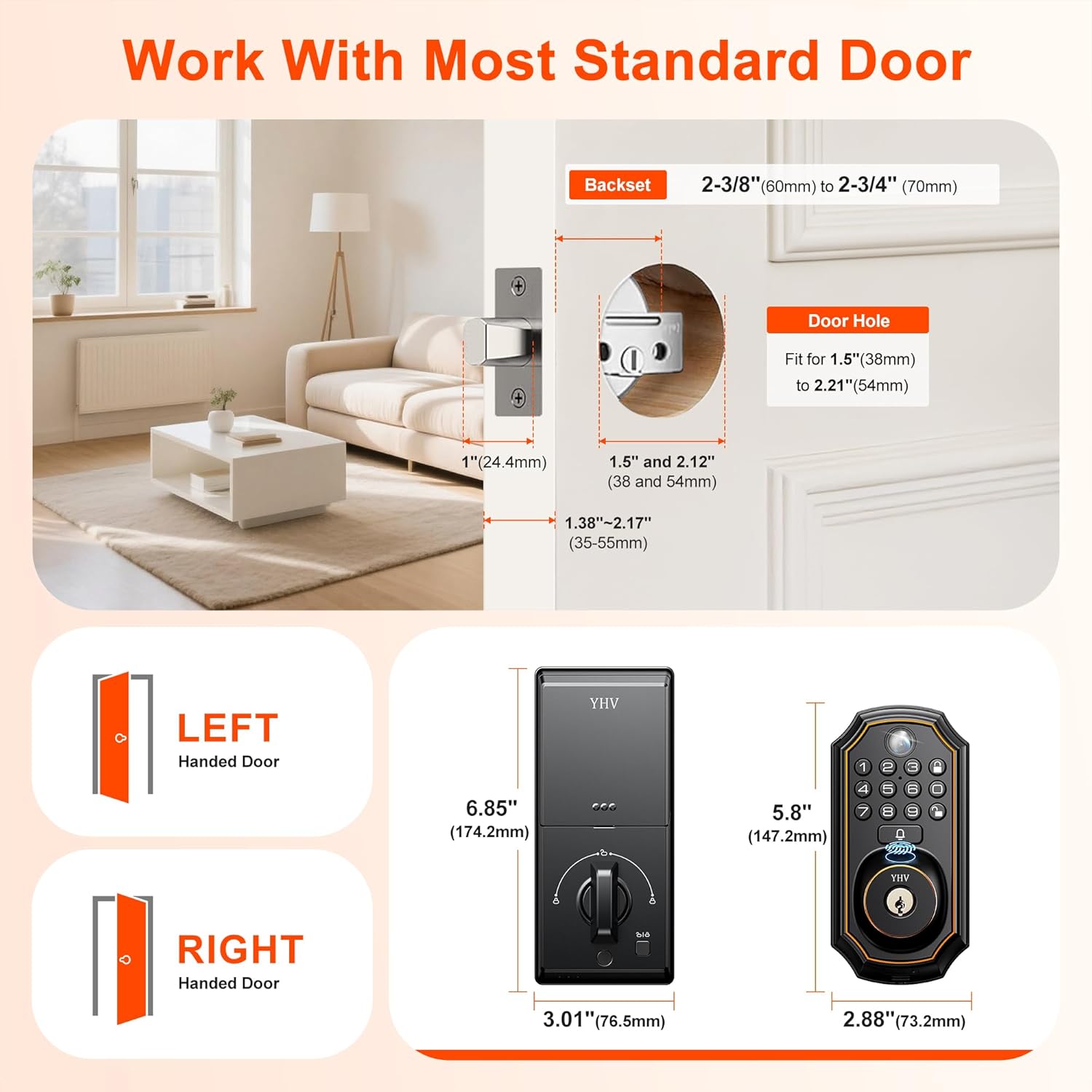
Image 1: Diagram illustrating door dimensions and the internal/external components of the YHV Smart Lock, showing compatibility for left and right-handed doors.
4.2 Physical Installation Steps
- Remove your existing deadbolt.
- Install the new deadbolt latch into the door edge.
- Mount the exterior keypad assembly, ensuring the spindle passes through the latch.
- Install the interior mounting plate.
- Connect the wiring harness from the exterior assembly to the interior assembly.
- Attach the interior assembly to the mounting plate and secure it with screws.
- Insert 4 AA batteries (not included) into the battery compartment.
- Perform the door handing identification process as guided by the lock's voice prompts.

Image 2: A person using a drill to install the YHV smart lock onto a door, demonstrating the ease of installation.
5. Operating Instructions
5.1 Multi-Access Unlock Methods

Image 3: The YHV smart lock displaying its various unlocking methods, including app, fingerprint, password, key, and one-touch unlock.
- Fingerprint Unlock: Place your registered finger on the fingerprint sensor. The lock will unlock in approximately 0.3 seconds.
- Keypad Unlock (Passcode): Enter your programmed 6-8 digit passcode on the keypad, then press the unlock button. The lock supports anti-peep passwords, allowing you to enter random digits before or after your actual code to prevent others from guessing it.
- Physical Key: In case of battery depletion or electronic malfunction, use the provided physical key to manually unlock the deadbolt.
- One-Touch Lock: Press the lock button on the keypad to instantly lock the door.

Image 4: A hand demonstrating the quick fingerprint unlock feature of the YHV smart lock, highlighting its AI self-learning and high recognition rate.
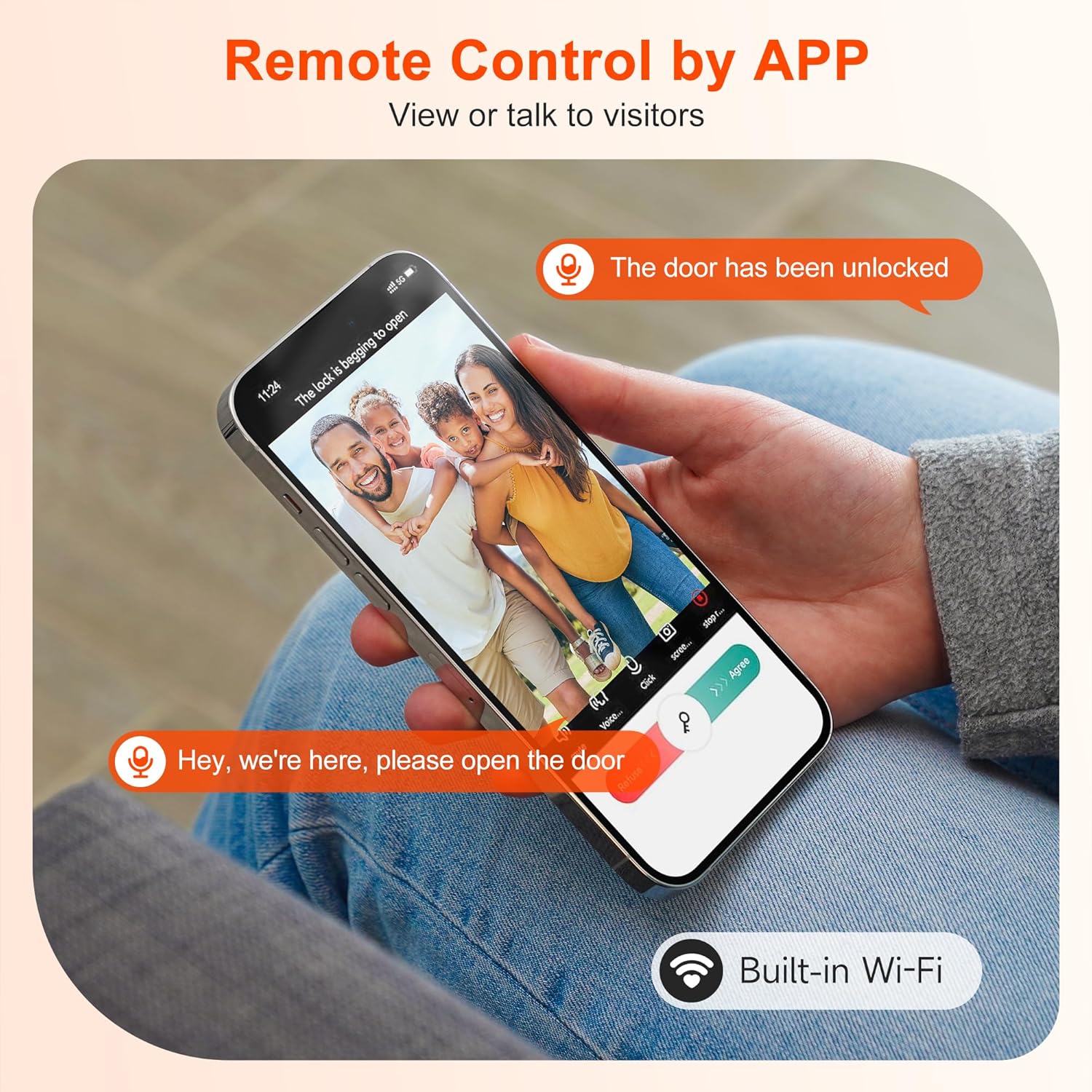
Image 5: The YHV smart lock keypad, showing how to enter a passcode for secure access. It highlights the ability to store up to 50 fingerprints and passwords, including one-time codes.
5.2 Automatic Locking
The auto-lock feature can be configured to automatically lock the door after a set period (10 to 90 seconds) once it has been unlocked. This provides an extra layer of security and peace of mind.

Image 6: The YHV smart lock demonstrating its smart auto-lock feature, which can be set to lock the door automatically between 10 and 90 seconds after unlocking.
6. App Control (TuYa App)
The YHV Smart Lock integrates with the TuYa app for comprehensive remote control and monitoring. Ensure your Wi-Fi router supports the 2.4GHz band, as 5GHz is not compatible.
6.1 Connecting to the App
- Download the TuYa app from your smartphone's app store.
- Create an account or log in.
- Follow the in-app instructions to add your YHV Smart Lock, ensuring your phone is connected to a 2.4GHz Wi-Fi network during the pairing process.
6.2 App Features
- Remote Unlock: Unlock your door from anywhere using your smartphone.
- Real-time Notifications: Receive instant alerts when the doorbell is pressed or if there are any security events.
- Live Video & Recording: View live video from the integrated camera, take photos, or record video clips.
- Temporary Passwords: Generate and manage temporary access codes for guests or service providers.
- Access Logs: Review a history of who entered and when.

Image 7: A smartphone screen showing the TuYa app, which allows users to view live video from the smart lock's camera and communicate with visitors remotely.
7. Maintenance
7.1 Battery Replacement
The smart lock requires 4 AA batteries (not included). You will hear beeps and the unlock button will turn red when it's time to change the batteries. Replace all four batteries simultaneously for optimal performance.
7.2 Environmental Conditions
The YHV Smart Lock is designed for durability and can operate in temperatures ranging from -31℉ to 158℉ (-35℃ to 70℃). It has an IP54 protection rating, making it resistant to dust and splashes of water.
8. Troubleshooting
If you encounter any issues, please refer to the following common troubleshooting tips:
- Lock Not Responding: Check battery levels and replace if necessary. Ensure the lock is properly installed and all connections are secure.
- App Connectivity Issues: Verify your smartphone is connected to a 2.4GHz Wi-Fi network. Restart your router and the smart lock. Ensure the TuYa app is updated to the latest version.
- Fingerprint Recognition Failure: Ensure your finger is clean and dry. Re-register your fingerprint if issues persist.
- Passcode Entry Problems: Double-check the entered passcode. Ensure the anti-peep function is not causing confusion.
- Doorbell Not Ringing: Check the doorbell unit's connection and ensure it's powered. Verify app notification settings.
For more detailed troubleshooting or persistent issues, please consult the full user manual or contact YHV customer support.
9. Specifications
| Feature | Detail |
|---|---|
| Brand | YHV |
| Model Name | CA00 |
| Item Model Number | FYL-CA00-1 |
| Lock Type | Biometric, Combination Lock, Deadbolt, Keypad |
| Special Features | Anti-Peeping Password, Auto-Lock, Fingerprint, One-Touch Lock, Passcode Unlock |
| Material | Stainless Steel, Zinc |
| Item Dimensions (L x W x H) | 3 x 1.97 x 6.85 inches |
| Item Weight | 2.92 pounds (1.33 Kilograms) |
| Color | Matte Black |
| Connectivity Protocol | Bluetooth, Wi-Fi (2.4GHz) |
| Controller Type | iOS or Android (TuYa App) |
| Power Source | 4 AA Batteries (not included) |
| Operating Temperature | -31℉ to 158℉ (-35℃ to 70℃) |
| Protection Rating | IP54 |
| Certifications | BHMA Certified |
10. Warranty and Support
For warranty information and customer support, please refer to the documentation included in your product packaging or visit the official YHV website. If you have any questions or require assistance with your smart lock, do not hesitate to contact our support team.