1. Introduction
This user manual provides essential information for the setup, operation, and maintenance of your TCL 85C6K QLED-MiniLED Smart Google TV. Please read this manual thoroughly before operating your television and retain it for future reference.
The TCL 85C6K is an advanced 85-inch television featuring QD-MiniLED technology, 4K UHD resolution, a 144Hz refresh rate, and an integrated ONKYO 2.1 Hi-Fi audio system. It runs on the Google TV platform, offering a wide range of smart features and content.
2. Key Features
- Premium QD-Mini LED Display: Combines QLED and Mini LED technologies for pixel-level precision backlighting, exceptional contrast, and superior peak brightness.
- Advanced Local Dimming: Up to 512 precise local dimming zones for deep blacks and brilliant highlights, enhancing HDR content.
- 144Hz Native Refresh Rate: Ensures ultra-smooth motion handling, ideal for fast-paced content and gaming.
- ONKYO 2.1 Hi-Fi Audio System: Integrated sound system delivering rich, room-filling audio with enhanced bass.
- AiPQ Pro Processor: Optimizes picture quality in real-time for superior 4K UHD (3840 x 2160) resolution with support for HDR10+ and Dolby Vision.
- Google TV Platform: Access to a vast library of apps, streaming services, and voice control capabilities.
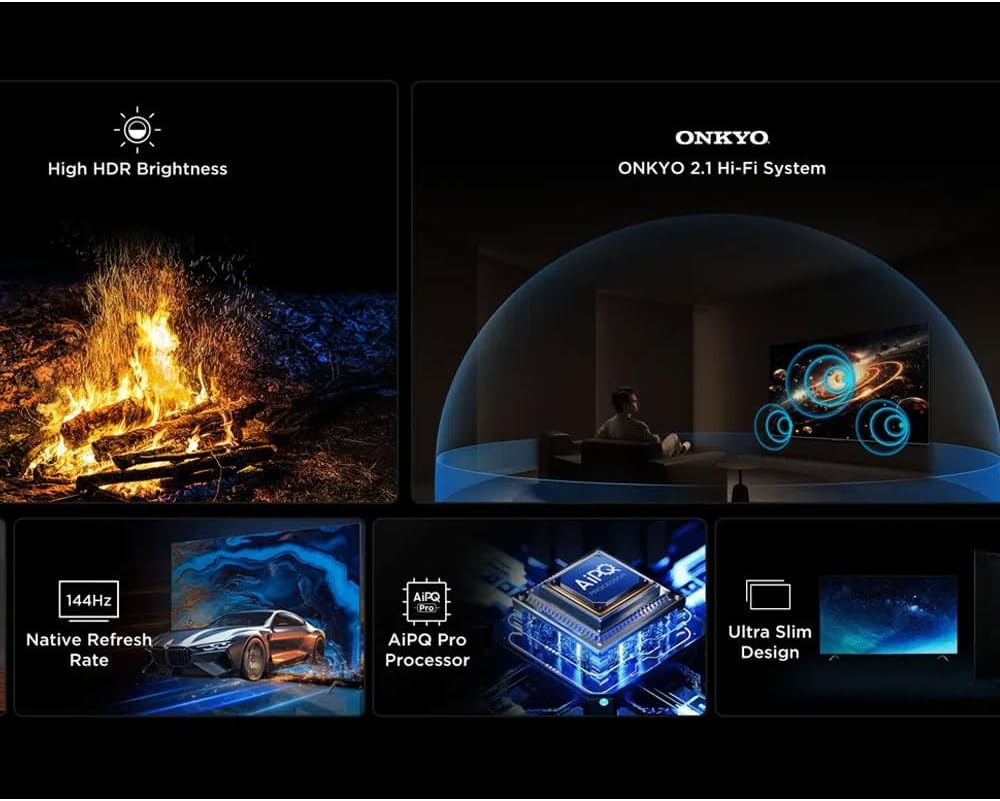
Image 2.1: Visual representation of the TCL 85C6K's core features, including its high HDR brightness, ONKYO audio system, 144Hz refresh rate, AiPQ Pro processor, and ultra-slim design.

Image 2.2: Illustration of the precise dimming series with up to 512 zones, QLED color technology, and the anti-reflective matte HVA panel of the TCL 85C6K.

Image 2.3: Detailed explanation of QD-Mini LED technology, showcasing how it combines QLED and Mini LED for superior visual performance, including ultra-high peak brightness, contrast, color gamut, and long lifespan.
3. Setup Guide
3.1 Unboxing and Initial Placement
Carefully remove the television and all accessories from the packaging. It is recommended that two people handle the TV due to its size and weight. Place the TV on a stable, flat surface or mount it securely to a wall using a compatible VESA mount (sold separately).
- Ensure adequate ventilation around the TV.
- Keep the TV away from direct sunlight, heat sources, and moisture.
- If using the included stand, ensure it is assembled correctly and securely attached to the TV.

Image 3.1: The TCL 85C6K television, ready for setup.
3.2 Connecting Power
- Ensure the TV is turned off before connecting the power cable.
- Connect the power cable firmly into the TV's power input.
- Plug the other end of the power cable into a suitable electrical outlet.
3.3 Connecting External Devices
Your TCL 85C6K TV offers various ports for connecting external devices such as gaming consoles, Blu-ray players, soundbars, and more.
- HDMI Ports: Use HDMI cables to connect devices like set-top boxes, game consoles, or Blu-ray players. The TV supports HDMI 2.1 for 4K 144Hz input.
- USB Ports: Connect USB drives for media playback or to power compatible devices.
- Ethernet Port: For a stable wired internet connection.
- Optical Digital Audio Out: For connecting to external audio systems or soundbars.
Note: Refer to the port labels on the back of your TV for specific connection points.
4. Operating Instructions
4.1 Basic TV Functions
- Power On/Off: Press the power button on the remote control or on the TV.
- Input Selection: Use the "Input" button on the remote to switch between connected devices (HDMI 1, HDMI 2, TV, etc.).
- Volume Control: Use the Volume Up/Down buttons on the remote.
- Channel Navigation: Use the Channel Up/Down buttons for broadcast TV.
4.2 Smart Google TV Features
Your TCL 85C6K runs on the Google TV operating system, providing a personalized content experience.
- Home Screen: Access personalized recommendations, installed apps, and content libraries from the home screen.
- Voice Control: Use the built-in Google Assistant by pressing the microphone button on your remote and speaking commands.
- App Store: Download and install additional applications from the Google Play Store.
- Chromecast Built-in: Cast content from your compatible mobile devices directly to the TV.
4.3 Picture Settings
Optimize your viewing experience by adjusting picture settings. Access these through the TV's settings menu.
- Picture Mode: Select from preset modes like Standard, Vivid, Movie, Game, or customize your own.
- Brightness & Contrast: Adjust these to suit your viewing environment.
- Color & Tint: Fine-tune color saturation and hue.
- Advanced Settings: Explore options for local dimming, motion clarity (144Hz), and HDR settings (Dolby Vision, HDR10+).

Image 4.1: The TCL 85C6K's precise dimming zones enhance the viewing experience in various lighting conditions.

Image 4.2: Visual comparison showing the improvement in image clarity and detail after the TV's advanced processing.
4.4 Sound Settings
The integrated ONKYO 2.1 Hi-Fi system provides high-quality audio. You can adjust sound settings via the TV's menu.
- Sound Mode: Choose from presets like Standard, Music, Movie, or customize equalizer settings.
- Dolby Atmos: Enable or disable Dolby Atmos for immersive audio experiences with compatible content.
- Digital Audio Out: Configure settings for external sound systems connected via optical or HDMI ARC/eARC.
5. Maintenance
5.1 Cleaning Your TV
- Always unplug the TV before cleaning.
- Use a soft, dry, lint-free cloth to gently wipe the screen and TV body.
- For stubborn marks, lightly dampen the cloth with water or a specialized screen cleaner. Never spray cleaner directly onto the screen.
- Avoid using abrasive cleaners, waxes, or solvents.
5.2 Software Updates
Regular software updates ensure your TV has the latest features and performance improvements.
- Automatic Updates: Ensure your TV is connected to the internet for automatic updates.
- Manual Check: You can manually check for updates in the TV's settings menu (typically under System > About > System update).
- Do not power off the TV during a software update.
6. Troubleshooting
This section addresses common issues you might encounter. If the problem persists, please contact customer support.
| Problem | Possible Cause | Solution |
|---|---|---|
| No Power | Power cable not connected; Power outlet not working. | Ensure power cable is securely connected; Test outlet with another device. |
| No Picture / No Sound | Incorrect input selected; Device not powered on; Loose cable connection. | Select correct input source; Power on external device; Check all cable connections. |
| Remote Control Not Working | Dead batteries; Obstruction between remote and TV; Remote not paired. | Replace batteries; Remove obstructions; Re-pair remote if it's a Bluetooth remote. |
| Poor Wi-Fi Connection | Router too far; Interference; Router issues. | Move router closer; Reduce interference; Restart router. Consider wired connection. |
| Smart TV Apps Not Loading | Internet connection issue; App cache full; App needs update. | Check internet connection; Clear app cache/data; Update the app or TV software. |
7. Specifications
| Feature | Detail |
|---|---|
| Model Number | 85C6K |
| Screen Size | 85 inches (Diagonal) |
| Display Technology | QLED-MiniLED |
| Resolution | 4K UHD (3840 x 2160) |
| Refresh Rate | 144Hz |
| HDR Support | Dolby Vision, HDR10, HDR10+, HLG |
| Audio System | ONKYO 2.1 Hi-Fi System |
| Operating System | Google TV |
| Connectivity | Wired (Ethernet), Wireless (Wi-Fi), HDMI, USB |
| Included Components | TV, Stand, Remote Control, User Manual |
| Product Dimensions (W x H x D) | 131 cm x 95 cm x 6.9 cm (without stand) |
| Weight | 24 kg |
| Country of Origin | China |
8. Warranty and Support
For warranty information, please refer to the warranty card included with your product or visit the official TCL website for your region. Keep your purchase receipt as proof of purchase for warranty claims.
If you encounter any issues not covered in this manual or require further assistance, please contact TCL Customer Support:
- TCL Official Website: www.tcl.com
- Customer Service Hotline: Refer to your regional TCL support page for contact numbers.
When contacting support, please have your TV's model number (85C6K) and serial number ready. The serial number is typically located on a sticker on the back of the TV.


