1. Introduction
This manual provides essential information for setting up, operating, maintaining, and troubleshooting your HP 255 G8 Laptop. Please read this guide thoroughly to ensure proper use and to maximize the lifespan of your device. Keep this manual for future reference.

Figure 1.1: HP 255 G8 Laptop, front view.
2. Product Overview
The HP 255 G8 is a versatile laptop designed for everyday computing tasks. It features an AMD Ryzen 5 processor, a 15.6-inch Full HD display, and runs on Windows 11 Pro. Its robust design is MIL-STD-810H certified, offering enhanced durability.
2.1 Key Features
- Processor: AMD Ryzen 5 5500U (6 Cores, 12 Threads, up to 4.0GHz)
- Graphics: Integrated AMD Radeon Graphics
- Operating System: Windows 11 Pro
- Memory: Up to 64GB DDR4 RAM
- Storage: Up to 2TB SSD
- Display: 15.6" FHD (1920x1080) Anti-glare, narrow bezel
- Connectivity: Wi-Fi 6 (802.11ax), Bluetooth 5.2
- Security: HD 720p Webcam with Privacy Shutter, Firmware TPM 2.0
- Durability: MIL-STD-810H certified, reinforced chassis

Figure 2.1: Visual summary of key features.
2.2 Package Contents
Ensure all items are present in the box:
- HP 255 G8 Laptop
- Power Adapter

Figure 2.2: HP 255 G8 Notebook PC.
3. Setup
Follow these steps to set up your HP 255 G8 Laptop for the first time.
3.1 Connecting the Power Adapter
- Connect the AC adapter to the power connector on the side of the laptop.
- Plug the power cord into an electrical outlet.
- Allow the battery to charge fully before initial use, though you can begin using the laptop while it charges.
3.2 Initial Power On
- Open the laptop lid.
- Press the power button, typically located on the top right of the keyboard deck.
- Follow the on-screen instructions to complete the Windows 11 Pro setup, including language selection, network connection, and user account creation.
3.3 Connecting Peripherals
Your laptop includes various ports for connecting external devices:
- USB Type-C (5Gbps): For modern USB-C devices, data transfer.
- USB Type-A (SuperSpeed): For standard USB devices like mice, keyboards, and external drives.
- HDMI 1.4b: For connecting to external displays or projectors.
- Ethernet (RJ-45): For wired network connection.
- Headphone/Microphone Combo Jack (3.5mm): For audio headsets.
- SD Card Reader: For reading data from SD memory cards.
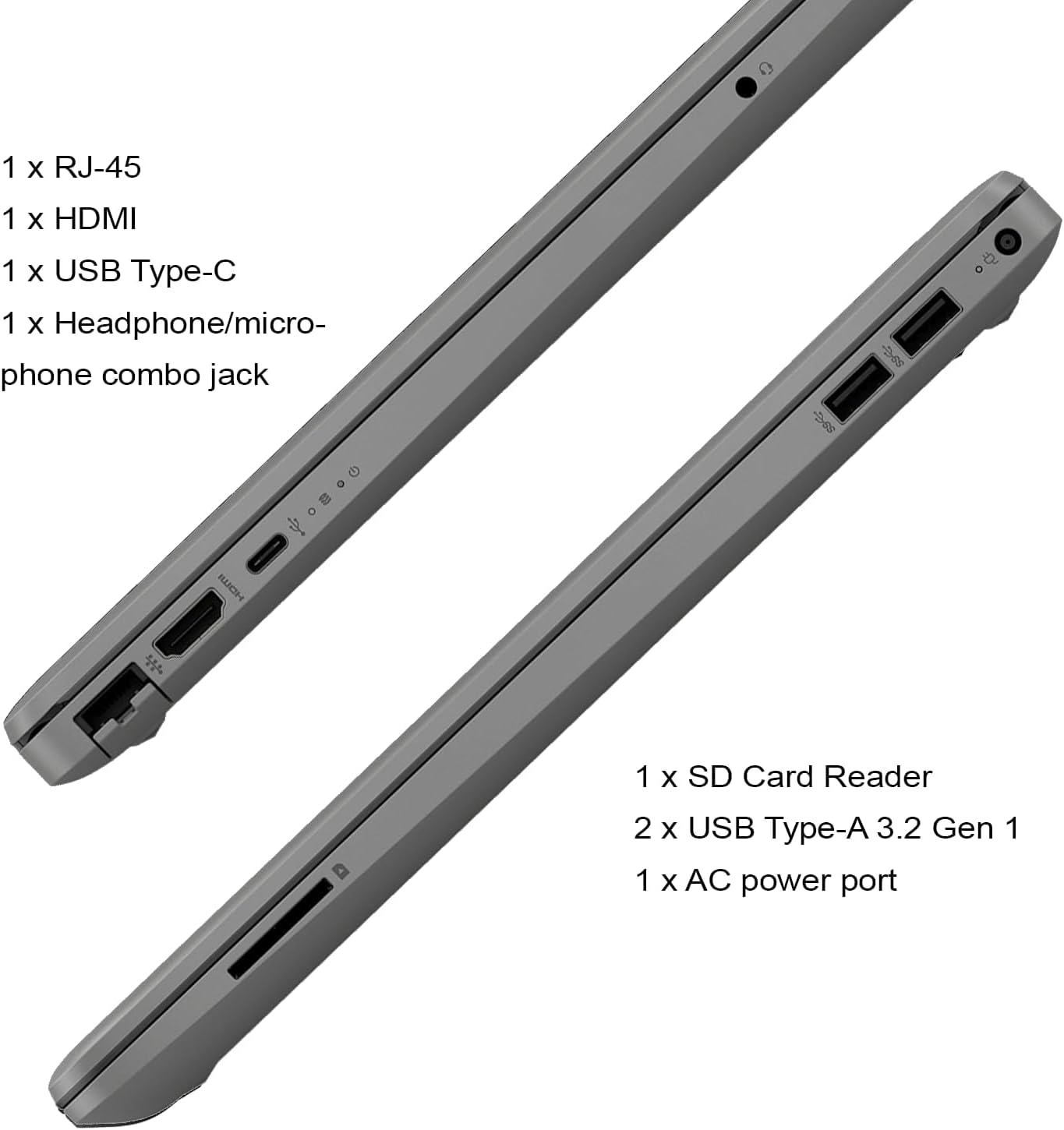
Figure 3.1: Laptop side view illustrating available ports.
4. Operating the Laptop
This section covers basic operation of your HP 255 G8 Laptop.
4.1 Keyboard and Touchpad
- Keyboard: The full-size keyboard includes a numeric keypad for efficient data entry.
- Touchpad: Use the touchpad for navigation. It supports multi-touch gestures for scrolling, zooming, and other functions. Refer to Windows settings for touchpad customization.
4.2 Wireless Connectivity
- Wi-Fi: To connect to a wireless network, click the Wi-Fi icon in the system tray, select your desired network, and enter the password if required.
- Bluetooth: To pair Bluetooth devices, go to Windows Settings > Bluetooth & devices, and follow the instructions to add a new device.
4.3 Webcam Privacy Shutter
The integrated HD 720p webcam features a physical privacy shutter. Slide the shutter to cover the camera lens when not in use to ensure privacy.
5. Maintenance
Regular maintenance helps ensure the longevity and optimal performance of your laptop.
5.1 Cleaning the Laptop
- Screen: Use a soft, lint-free cloth lightly dampened with water or a screen cleaner. Do not spray liquid directly onto the screen.
- Keyboard and Chassis: Use a soft, dry cloth. For stubborn dirt, a slightly damp cloth can be used. Avoid harsh chemicals.
- Vents: Periodically clean the ventilation openings with compressed air to prevent dust buildup, which can affect cooling.
5.2 Software Updates
Regularly update your operating system and drivers to ensure security, stability, and performance.
- Windows Updates: Go to Windows Settings > Windows Update to check for and install available updates.
- Driver Updates: Visit the official HP support website for your model to download the latest drivers.
5.3 Battery Care
- Avoid fully discharging the battery frequently.
- Store the laptop in a cool, dry place if not used for extended periods.
- For optimal battery health, avoid prolonged exposure to extreme temperatures.
6. Troubleshooting
This section addresses common issues you might encounter with your HP 255 G8 Laptop.
6.1 Laptop Does Not Power On
- Ensure the power adapter is securely connected to both the laptop and a working electrical outlet.
- Verify the power outlet is functional by plugging in another device.
- If the battery is completely drained, it may take a few minutes of charging before the laptop can power on.
6.2 No Display on Screen
- Check if the laptop is powered on (power indicator light).
- Adjust the screen brightness using the function keys (Fn + F2/F3, or similar, depending on keyboard layout).
- If an external monitor is connected, try disconnecting it or pressing Fn + F4 (or similar) to cycle display outputs.
6.3 Wi-Fi Connectivity Issues
- Ensure Wi-Fi is enabled in Windows settings.
- Restart your router and modem.
- Forget the network and reconnect, entering the password again.
- Update your Wi-Fi drivers from the HP support website.
6.4 Slow Performance
- Close unnecessary applications running in the background.
- Check for and install any pending Windows updates.
- Run a disk cleanup and defragmentation (for HDD, not necessary for SSD).
- Scan for malware or viruses.
7. Specifications
Detailed technical specifications for the HP 255 G8 Laptop.
| Component | Specification |
| Model Name | 255 G8 |
| Processor | AMD Ryzen 5 5500U (6C, 12T, up to 4.0GHz) |
| Graphics | Integrated AMD Radeon Graphics |
| Operating System | Windows 11 Pro |
| RAM | 64GB DDR4 |
| Storage | 2TB SSD |
| Display | 15.6" FHD (1920x1080) Anti-glare, 250 nits, 45% NTSC |
| Wireless Connectivity | Wi-Fi 6 (802.11ax), Bluetooth 5.2 |
| Audio | High Definition Audio, Dual-array Digital Microphone, Stereo Speakers |
| Webcam | HD 720p with Privacy Shutter |
| Ports | 1x USB Type-C 5Gbps, 2x USB Type-A, 1x Ethernet (RJ-45), 1x HDMI 1.4b, 1x Headphone/Mic Combo, 1x SD Card Reader |
| Battery | 3-cell, 41Wh Li-ion (Up to 10 hours 15 minutes) |
| Power Adapter | 45W Smart AC Adapter |
| Dimensions (LxWxH) | 14.14 x 9.28 x 0.78 inches |
| Weight | 3.84 lbs |
| Color | Gray |

Figure 7.1: Laptop dimensions and weight.
8. Warranty and Support
8.1 Warranty Information
Your HP 255 G8 Laptop comes with a standard manufacturer's warranty. Please refer to the warranty card included with your product or visit the official HP website for detailed terms and conditions regarding warranty coverage, duration, and service procedures.
8.2 Technical Support
For technical assistance, driver downloads, or further support, please visit the official HP support website. You can find contact information for customer service and access online resources, FAQs, and troubleshooting guides specific to your model.
HP Support Website: support.hp.com