1. Introduction
This manual provides essential information for setting up, operating, maintaining, and troubleshooting your HP 255 15.6-inch laptop. Please read this manual thoroughly to ensure proper use and to maximize the lifespan of your device.
The HP 255 laptop is designed for everyday tasks, productivity, and general computing. It features an AMD Ryzen 3 7330U processor, a 15.6-inch Full HD display, Wi-Fi 6, Bluetooth 5.3, and runs on Windows 11 Pro.
2. Setup
2.1 Unboxing and Initial Inspection
Carefully remove all components from the packaging. Ensure the following items are present:
- HP 255 15.6-inch Laptop
- Power Adapter
- Documentation (this manual, warranty information)
Inspect the laptop for any physical damage. If any damage is found, contact your retailer or HP support immediately.
2.2 Connecting the Power Adapter
- Connect the power adapter cable to the power-adapter port on the laptop.
- Plug the power adapter into a grounded electrical outlet.
- Allow the battery to charge for at least 30 minutes before initial use, or until the battery indicator shows a sufficient charge.
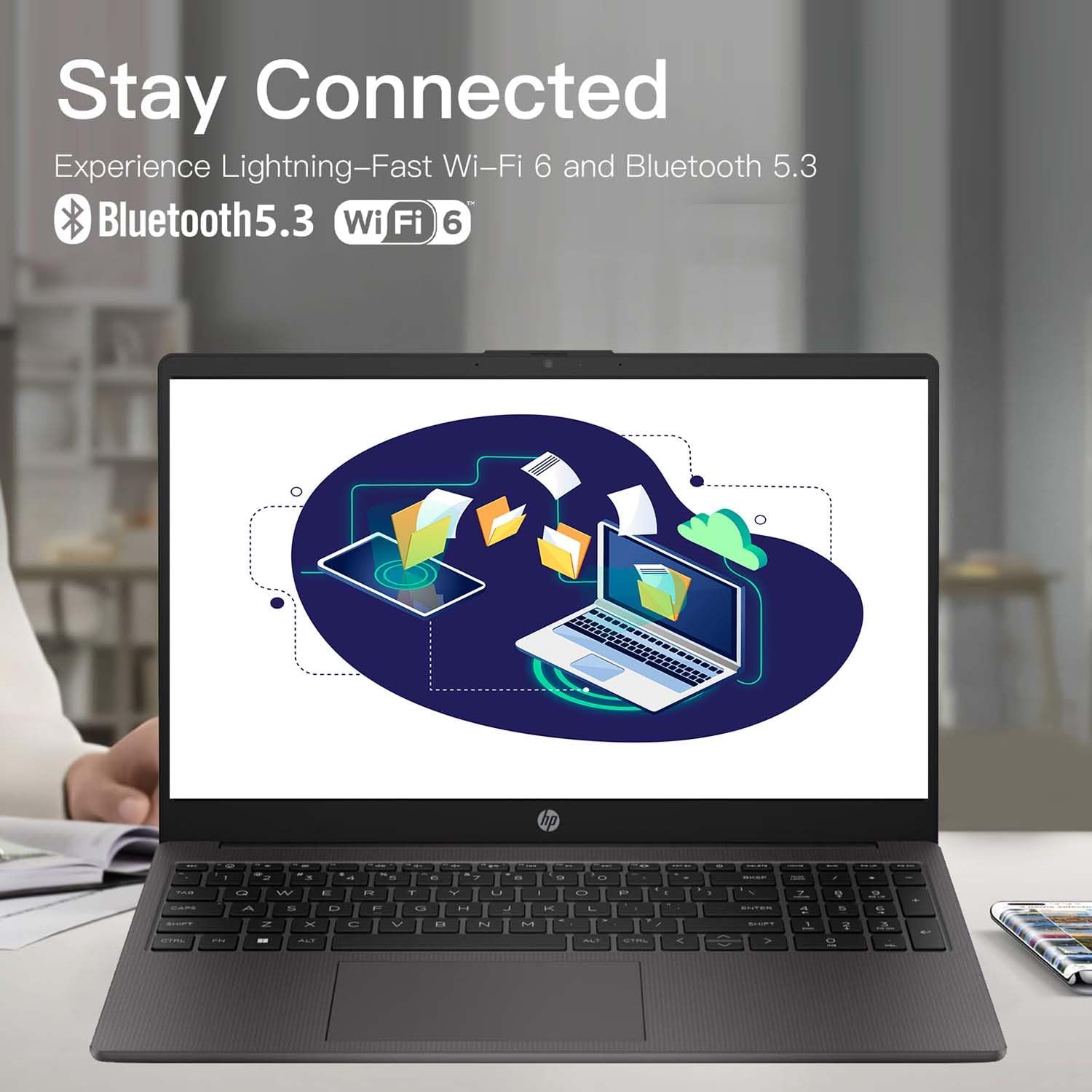
Image: Diagram illustrating the various ports and slots on the HP 255 laptop, with labels for USB Type-A, HDMI 1.4, USB Type-C (data only), 3.5mm Headset Jack, and Power-adapter port. This helps identify where to connect the power adapter.
2.3 Initial Power On and Windows Setup
- Open the laptop lid.
- Press the power button, typically located on the keyboard deck.
- Follow the on-screen instructions to complete the Windows 11 Pro setup. This includes selecting your region, language, connecting to a network, and creating a user account.
3. Operating Instructions
3.1 Power Management
- Power On: Press the power button.
- Shut Down: Click the Start button, then Power, then Shut down.
- Restart: Click the Start button, then Power, then Restart.
- Sleep: Close the lid or click the Start button, then Power, then Sleep.
3.2 Keyboard and Touchpad
The laptop features a full-size keyboard and a multi-touch touchpad. Refer to the Windows 11 Pro documentation for detailed gestures and keyboard shortcuts.
3.3 Connecting to Networks and Devices

Image: The HP 255 laptop screen showing icons for Wi-Fi 6 and Bluetooth 5.3, indicating its wireless connectivity capabilities.
- Wi-Fi 6: To connect to a wireless network, click the Wi-Fi icon in the taskbar, select your desired network, and enter the password if prompted.
- Bluetooth 5.3: To pair Bluetooth devices, go to Windows Settings > Bluetooth & devices, and follow the instructions to add a new device.
- Ethernet: Connect an Ethernet cable to the Ethernet port for a wired network connection.
- USB Devices: Connect USB devices (e.g., mouse, external drive) to the available USB Type-A or USB Type-C ports.
- External Display: Use the HDMI 1.4 port to connect an external monitor or projector.
3.4 Battery Life and Charging
The laptop is equipped with a 3-cell 41WH Li-Ion battery. For optimal battery performance:
- Charge the battery fully before first use.
- Avoid completely discharging the battery frequently.
- Use the provided HP power adapter for charging.

Image: A user operating the HP laptop in an outdoor setting, emphasizing its design and battery endurance for mobile use.
3.5 Multitasking and Productivity
The HP 255 laptop, powered by the AMD Ryzen 3 7330U processor and ample memory, is designed to handle multiple applications simultaneously, enhancing your productivity.

Image: The HP 255 laptop screen showcasing various applications running concurrently, such as video editing, document creation, and web browsing, demonstrating its multitasking capabilities.
4. Maintenance
4.1 Cleaning the Laptop
- Screen: Use a soft, lint-free cloth lightly dampened with water or a screen cleaner. Do not spray liquid directly onto the screen.
- Keyboard and Chassis: Use a soft, dry cloth. For stubborn dirt, a slightly damp cloth can be used. Avoid harsh chemicals.
- Ports: Keep ports free of dust and debris. Use compressed air if necessary, but avoid inserting objects into the ports.
4.2 Software Updates
Regularly update your Windows operating system and drivers to ensure optimal performance and security. Go to Windows Settings > Windows Update to check for and install updates.
4.3 Storage Management
Periodically clean up unnecessary files and applications to maintain system performance. The laptop comes with a 1TB PCIe SSD.
5. Troubleshooting
This section addresses common issues you might encounter with your HP 255 laptop.
5.1 Power Issues
- Laptop does not turn on:
- Ensure the power adapter is securely connected to both the laptop and a working electrical outlet.
- Verify the power outlet is functional by plugging in another device.
- If the battery is completely drained, it may take a few minutes of charging before the laptop can power on.
- Battery not charging:
- Check the power adapter and cable for damage.
- Ensure the power adapter is correctly seated in the laptop's power port.
- Try a different power outlet.
5.2 Display Issues
- Screen is blank or black:
- Ensure the laptop is powered on and not in sleep mode.
- Press Fn + F2 (or the appropriate function key with a display icon) to toggle the display output.
- If an external monitor is connected, ensure it is powered on and correctly configured.
5.3 Performance and System Stability
- System crashes or freezes during Windows installation:
- Ensure the laptop is receiving adequate power and is not overheating.
- If repeated crashes occur during initial setup, this may indicate a hardware issue. Contact HP support for assistance.
- Overheating or fan noise:
- Ensure the laptop's vents are not blocked.
- Use the laptop on a hard, flat surface to allow for proper airflow.
- If cooling fans are reported as inoperable (e.g., via a blue screen error), immediately power off the laptop and contact HP support. Continued use can cause damage.
6. Specifications
The following table outlines the key technical specifications of the HP 255 15.6-inch Laptop (16GB RAM | 1TB PCIe configuration):

Image: The HP 255 laptop with its physical dimensions indicated as 14.17 inches in width and 9.29 inches in depth, illustrating its compact and portable design.
| Feature | Specification |
|---|---|
| Model Name | HP 255 |
| Screen Size | 15.6 inches |
| Max Screen Resolution | 1920x1080 Pixels (Full HD) |
| Processor | AMD Ryzen 3 7330U (up to 4.6 GHz) |
| RAM | 16 GB DDR4 |
| Storage | 1 TB PCIe SSD |
| Graphics Coprocessor | AMD Radeon Graphics (Integrated) |
| Operating System | Windows 11 Pro |
| Wireless Connectivity | Wi-Fi 6 (802.11ax), Bluetooth 5.3 |
| Ports | 3x USB 3.0 (Type-A), 1x HDMI 1.4, 1x USB Type-C (data only), 1x 3.5mm Headset Jack, Ethernet Port, Power-adapter port |
| Battery | 3-Cell 41WH Li-Ion |
| Dimensions (LxWxH) | 14.11 x 0.7 x 9.5 inches |
| Item Weight | 5 pounds |
| Color | Gray |
| Special Features | Anti Glare Coating, HD Audio, Numeric Keypad, Spill Resistant |
Image: A bar chart comparing the performance metrics of the AMD Ryzen 3 7330U processor against the Intel i5-1135G7, showing scores for single-core, multi-core, power efficiency, and integrated graphics.
7. Warranty and Support
7.1 Warranty Information
Your HP 255 laptop comes with a standard manufacturer's warranty. For detailed information regarding warranty terms, conditions, and duration, please refer to the warranty card included in your product packaging or visit the official HP support website.
7.2 Technical Support
If you encounter issues that cannot be resolved using the troubleshooting steps in this manual, please contact HP technical support. You can find contact information and additional resources on the official HP support website:
When contacting support, please have your laptop's serial number and model number (HP 255) ready.