
1. Introduction
Thank you for choosing the Bettdow AC1073 1080P 4K Full HD Projector. This manual provides essential information for the safe and efficient operation of your device. Please read it thoroughly before use and retain it for future reference.
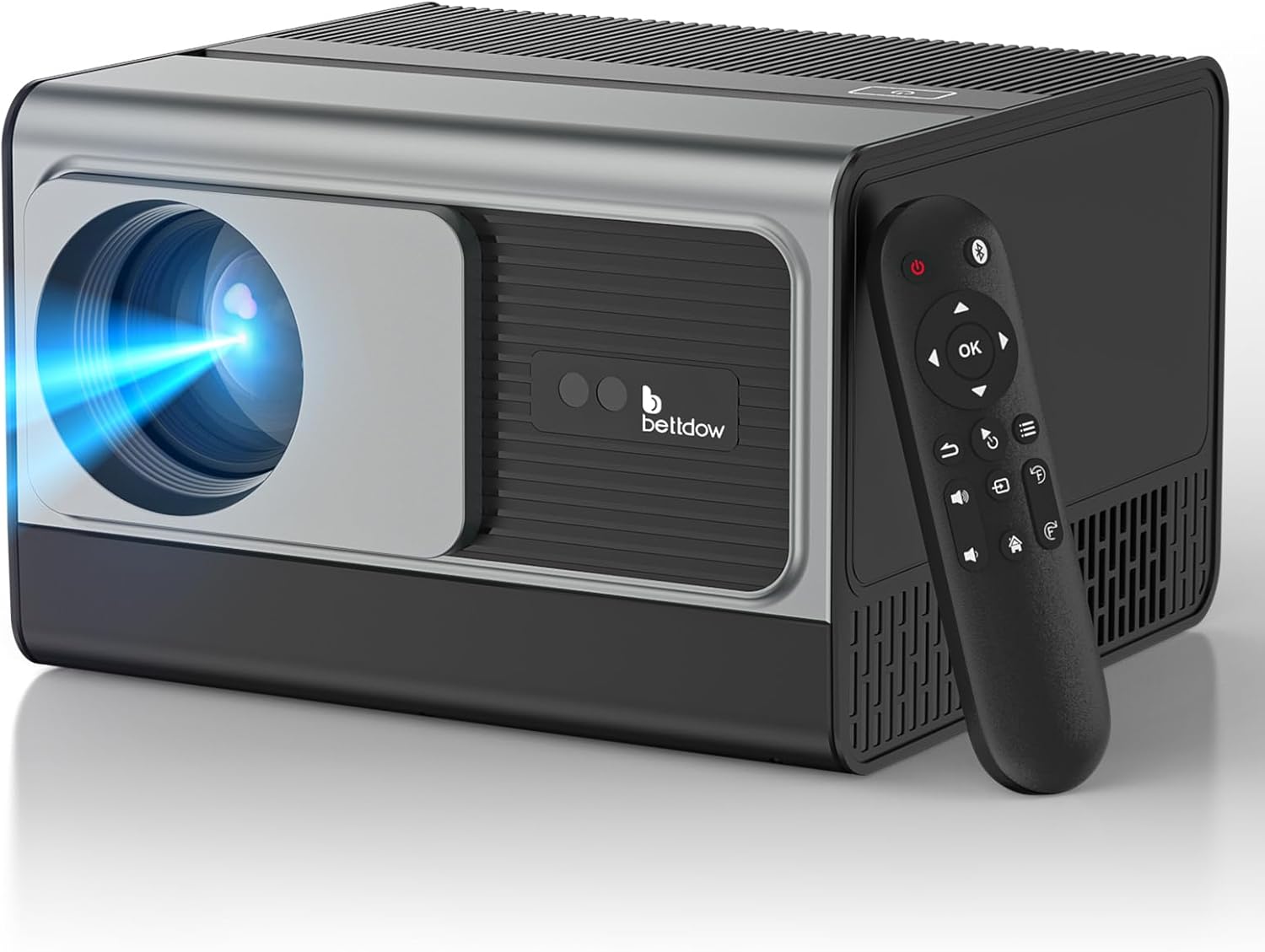
Image 1.1: Bettdow AC1073 Projector and Remote Control.
This image displays the Bettdow AC1073 projector in black and silver, accompanied by its remote control. The projector features a prominent lens on the front panel.
2. Safety Information
To ensure safe operation and prevent damage to the projector, please observe the following safety precautions:
- Power Supply: Use only the specified power adapter. Ensure the voltage is compatible with your region.
- Ventilation: Do not block ventilation openings. Maintain adequate space around the projector for proper airflow to prevent overheating.
- Heat: The projector lamp generates heat. Avoid touching the lens or vents immediately after use.
- Water and Moisture: Do not expose the projector to rain, moisture, or liquids. Operate in a dry environment.
- Cleaning: Disconnect the power before cleaning. Use a soft, dry cloth. Avoid abrasive cleaners or solvents.
- Light Source: Do not look directly into the projector lens when the lamp is on, as the intense light can cause eye damage.
- Children: Keep the projector out of reach of children.
- Servicing: Do not attempt to repair the projector yourself. Refer all servicing to qualified personnel.
3. Package Contents
Verify that all items are present in the package:
- Bettdow AC1073 Projector
- Remote Control
- HDMI Cable
- Power Adapter
- User Manual (this document)
4. Product Overview
4.1 Key Features
- Native 1920x1080p Resolution with 4K Support
- 900 ANSI Lumens Brightness
- Android 12 Operating System with 2GB RAM + 32GB ROM
- Dual-band WiFi (2.4G/6G) and Bluetooth 5.0
- Automatic Keystone Correction and Electronic Focus
- Integrated Dual 8W Stereo Speakers (16W total)
- Closed Optical System for Dust Protection
- Versatile Connectivity: HDMI 2.0, USB 3.0, USB 2.0, RJ45, 3.5mm Audio
4.2 Projector Components

Image 4.1: Bettdow AC1073 Projector highlighting key features.
This image shows the Bettdow AC1073 projector from an angled front view, with icons representing its features such as 4K compatibility, 700 ANSI lumens, automatic correction, automatic focus, WiFi 6, Bluetooth 5.2, Android 12, and dual speakers.

Image 4.2: Rear view of the Bettdow AC1073 Projector with port labels.
This image illustrates the rear panel of the Bettdow AC1073 projector, detailing its various input and output ports including AV, USB, HDMI, and LAN (RJ45). It also shows examples of devices that can be connected.
The Bettdow AC1073 features a robust design with a sealed optical engine, protecting the lens from dust and moisture, which contributes to a longer lifespan of 30,000 hours.

Image 4.3: Diagram of the Bettdow AC1073 Projector's 5-inch closed optical system.
This diagram visually explains the benefits of the projector's closed optical system, including improved brightness, a 30,000-hour lifespan, and low noise levels (35dB).
5. Setup
5.1 Placement
Position the projector on a stable, flat surface or mount it according to your preference. Ensure there are no obstructions to the projection path or ventilation.
- Projection Distance: The optimal projection distance ranges from 1 to 4 meters, producing screen sizes from 40 to 200 inches.
- Projection Modes: Supports front, rear, and ceiling projection modes. Adjust the setting in the projector's menu as needed.

Image 5.1: Illustration of various projector placement options and corresponding screen sizes.
This image demonstrates flexible placement options for the Bettdow AC1073 projector, including table placement, tripod mounting, and ceiling installation. It also shows how projection distance (1m, 2.5m, 4m) affects screen size (40", 120", 200").
5.2 Power Connection
- Connect the power adapter to the projector's power input port.
- Plug the power adapter into a suitable electrical outlet.
- Press the power button on the projector or the remote control to turn on the device.
5.3 Automatic Correction and Focus
The Bettdow AC1073 projector features automatic keystone correction and electronic focus. Upon startup, the projector will automatically adjust the image for optimal clarity and shape.

Image 5.2: Automatic correction and focus in action.
This image shows a projected image on a wall, with a target icon indicating the automatic focus and keystone correction feature. The surrounding dotted lines illustrate how the projector automatically adjusts the image to be perfectly rectangular within approximately 3 seconds.

Image 5.3: Detailed view of automatic keystone and focus capabilities.
This image illustrates the projector's automatic keystone correction and focus features. It shows the projector casting an image onto a screen, with smaller inset diagrams demonstrating omnidirectional keystone correction (±30°), 50% to 100% zoom, automatic screen alignment, and automatic obstacle avoidance.
6. Operating Instructions
6.1 Remote Control
The included remote control features Bluetooth connectivity and a motion sensor for flexible navigation.

Image 6.1: Remote control with motion detection feature.
This image shows a hand holding the Bettdow AC1073 projector's remote control, pointing it towards a projected screen displaying various streaming service icons. An inset highlights the "mouse on/off" button, indicating the motion-sensing capability of the remote.
6.2 Android 12 OS Navigation
The projector runs on Android 12, providing access to various applications and streaming services.
- Use the remote control's directional pad or motion sensor to navigate the Android interface.
- Select applications like Netflix, Disney+, YouTube, and more from the home screen.
- Access settings to customize display, sound, and network options.
6.3 Screen Mirroring
The projector supports AirPlay and i-OS Cast for screen mirroring from your smartphone, tablet, or computer.
- Ensure your device and the projector are connected to the same Wi-Fi network.
- Select the screen mirroring function on the projector's interface.
- On your mobile device, activate screen mirroring (e.g., AirPlay for iOS, Cast for Android) and select the projector from the list of available devices.

Image 6.2: WiFi 2.4+5G for fast screen mirroring.
This image illustrates the projector's dual-band WiFi (2.4G + 5G) capability for fast screen mirroring. It shows a smartphone mirroring a football match to the projector, with icons representing compatibility with Android, Windows, and Apple devices. A comparison highlights the speed difference between 2.4G and 5G WiFi.
6.4 Audio Output
The projector includes dual 8W stereo speakers for an immersive audio experience.

Image 6.3: Dual impactful speakers for enhanced audio.
This image shows a family enjoying a movie projected by the Bettdow AC1073, emphasizing the immersive audio experience provided by its dual speakers.
For external audio, connect Bluetooth speakers or headphones via Bluetooth 5.0, or use the 3.5mm audio output jack.
7. Connectivity
7.1 Wi-Fi Connection
The projector supports dual-band Wi-Fi (2.4G and 6G) for stable and fast internet access.
- Navigate to "Settings" on the Android home screen.
- Select "Network & Internet" and then "Wi-Fi".
- Choose your desired Wi-Fi network and enter the password if prompted.

Image 7.1: Dual-band WiFi and Bluetooth 5.2 for stable and fast connections.
This image shows the Bettdow AC1073 projector in a living room setting, projecting a video game onto a wall. Text highlights the dual-band WiFi and Bluetooth 5.2 features, emphasizing stable and fast transmission.
7.2 Bluetooth Connection
Connect Bluetooth devices such as speakers, headphones, or game controllers.
- Navigate to "Settings" on the Android home screen.
- Select "Connected devices" and then "Pair new device".
- Put your Bluetooth device into pairing mode.
- Select your device from the list and confirm pairing.
7.3 Wired Connections
The projector offers multiple wired input options:
- HDMI 2.0: Connect laptops, gaming consoles, TV boxes, or other HDMI-enabled devices.
- USB 3.0 / USB 2.0: Connect USB drives for media playback or external peripherals.
- RJ45 (LAN): For a wired internet connection.
- AV: Connect older devices using an AV cable.
- 3.5mm Audio Out: Connect external speakers or headphones.
8. Maintenance
8.1 Cleaning the Lens
Use a soft, lint-free cloth specifically designed for optical lenses. Gently wipe the lens in a circular motion. Avoid using abrasive materials or harsh chemicals.
8.2 Cleaning the Projector Body
Wipe the exterior of the projector with a soft, dry cloth. Do not use liquid cleaners or sprays directly on the device.
8.3 Storage
When not in use for extended periods, store the projector in a cool, dry place, away from direct sunlight and excessive dust.

Image 8.1: Projector used outdoors, highlighting its durability and 30,000-hour lifespan.
This image shows a group of friends enjoying a movie projected outdoors at night, emphasizing the projector's suitability for various environments and its long operational life due to the closed light machine design.
9. Troubleshooting
| Problem | Possible Cause | Solution |
|---|---|---|
| No image displayed | Power not connected; Input source incorrect; Lens cap on. | Check power connection; Select correct input source (HDMI, USB, etc.); Remove lens cap. |
| Image is blurry | Out of focus; Projector too far/close; Lens dirty. | Allow automatic focus to adjust or manually adjust focus; Adjust projection distance; Clean the lens. |
| Image is distorted (trapezoid shape) | Projector not perpendicular to screen. | Allow automatic keystone correction to adjust or manually adjust keystone in settings. |
| No sound | Volume too low; Muted; External audio device not connected properly. | Increase volume; Unmute; Check external audio connections or Bluetooth pairing. |
| Wi-Fi connection issues | Incorrect password; Router too far; Network interference. | Verify Wi-Fi password; Move projector closer to router; Try 2.4G or 6G band. |
10. Specifications
| Feature | Detail |
|---|---|
| Brand | Bettdow |
| Model | AC1073 |
| Native Resolution | 1920 x 1080 (Full HD) |
| Supported Resolution | Up to 4K |
| Brightness | 900 ANSI Lumens (22000 Lumens) |
| Contrast Ratio | 1500:1 |
| Display Technology | LED, 4K HDR |
| Operating System | Android 12 |
| Processor | Quad-Core Cortex-A55, Mali-G52 GPU |
| Memory | 2GB RAM + 32GB ROM |
| Wi-Fi | Dual-band (2.4G/6G) |
| Bluetooth | 5.0 |
| Keystone Correction | Automatic and Digital |
| Focus | Electronic |
| Aspect Ratio | 16:9, 16:10, 4:3 |
| Projection Size | 40" - 200" |
| Projection Distance | 1 - 4 meters |
| Speakers | Dual 8W Stereo (16W total) |
| Noise Level | 30 dB |
| Lamp Life | 30,000 hours |
| Input Interfaces | HDMI 2.0, USB 3.0, USB 2.0, RJ45, AV, 3.5mm Audio |
| Refresh Rate | 60 Hz |
| Dimensions | 31.9 x 27 x 20.3 cm |
| Weight | 3.84 kg |
Note on Brightness: The product title and feature bullets mention 900 ANSI lumens, while the specifications list 22000 lumens. ANSI lumens is a standardized measurement, typically lower than marketing lumens. For clarity, both values are provided as found in the source data.
11. Warranty and Support
For warranty information and technical support, please refer to the documentation provided with your purchase or contact Bettdow customer service through their official channels.
You can visit the Bettdow brand store for additional product information and support: Bettdow Official Store.
