
1. Introduction
The Jeecoo G10 Wireless Gaming Headset offers versatile connectivity and high-quality audio for an immersive gaming experience. It supports dual connection modes: a 2.4 GHz USB dongle for low-latency wireless connectivity and Bluetooth 5.3 for stable connections with mobile devices. This headset is compatible with multiple platforms including PC, PS5, PS4, laptops, Mac, smartphones, and Nintendo Switch. Featuring 50mm drivers, it delivers clear stereo sound, allowing users to perceive in-game audio cues effectively. The headset also includes a sensitive omnidirectional noise-canceling microphone for clear communication and an ergonomic design with a fabric suspension headband and memory protein earmuffs for comfort during extended use. A powerful 1200mAh battery provides over 50 hours of gaming time on a single charge.

Image: Jeecoo G10 Wireless Gaming Headset highlighting dual connection modes and device compatibility.
2. What's in the Box
- G10 wireless gaming headset
- Wireless USB Receiver
- Charging Cable
- User Manual

Image: The Jeecoo G10 Wireless Gaming Headset and its included accessories.
3. Product Overview
Controls and Features
- Power On/Off Button: Press for 3 seconds to turn on/off. Double-click to open Bluetooth mode.
- Volume Wheel: Adjusts volume up or down.
- Mic Mute Button: Mutes or unmutes the microphone.
- Type-C Charging Port: For charging the headset.
- Flexible Microphone: The microphone arm can be adjusted for optimal voice pickup.
- Comfort Design: Features a fabric suspension headband and soft, breathable memory protein earmuffs for extended comfort.

Image: Multi-function controls on the Jeecoo G10 headset.

Image: AI Mic Noise Reduction feature.
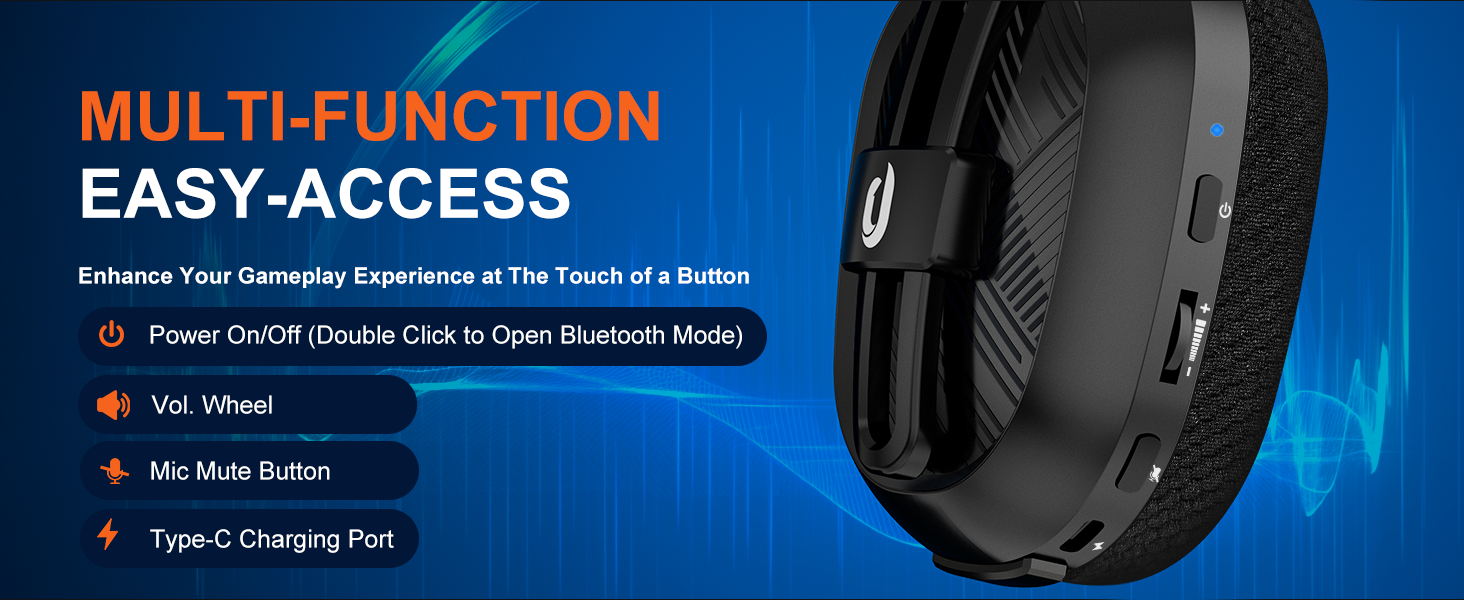
Image: Device compatibility table for the G10 headset.
4. Setup Instructions
4.1. USB Adapter Mode (PC, Laptop, Macbook)
- Connect the USB adapter into a USB port on your device.
- Press the power button for 3 seconds to turn on the headset. (Note: You will hear an "adapter mode" prompt sound when the headset is turned on and successfully connected).
- Fix the settings: Go to system settings > sound settings. Choose "G10" as your Output Device and choose "G10" as your Input Device.
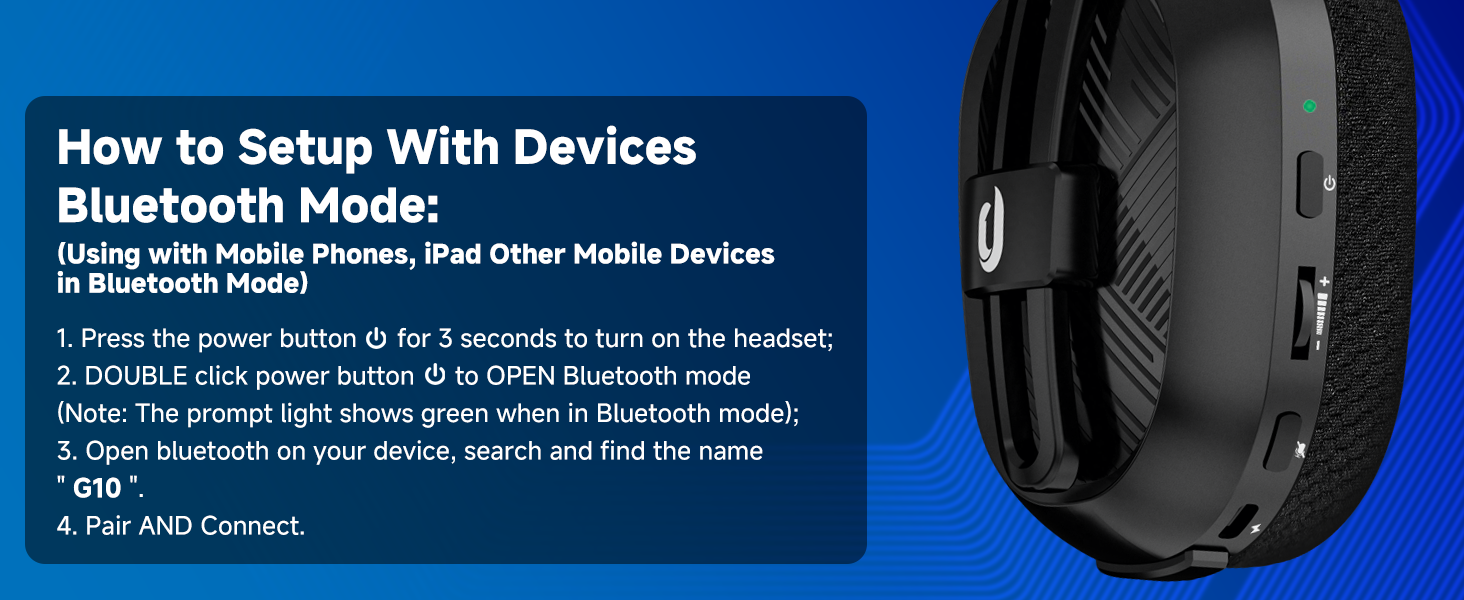
Image: PC setup for USB Adapter Mode.
4.2. USB Adapter Mode (PS4/PS5)
- Connect the USB adapter into a USB port on your PS4/PS5 console.
- Press the power button for 3 seconds to turn on the headset. (Note: You will hear an "adapter mode" prompt sound when the headset is turned on and successfully connected).
- Fix PS4/PS5 console settings: Go to main menu > settings > devices > audio devices. Set "G10" as both the Input Device and Output Device.
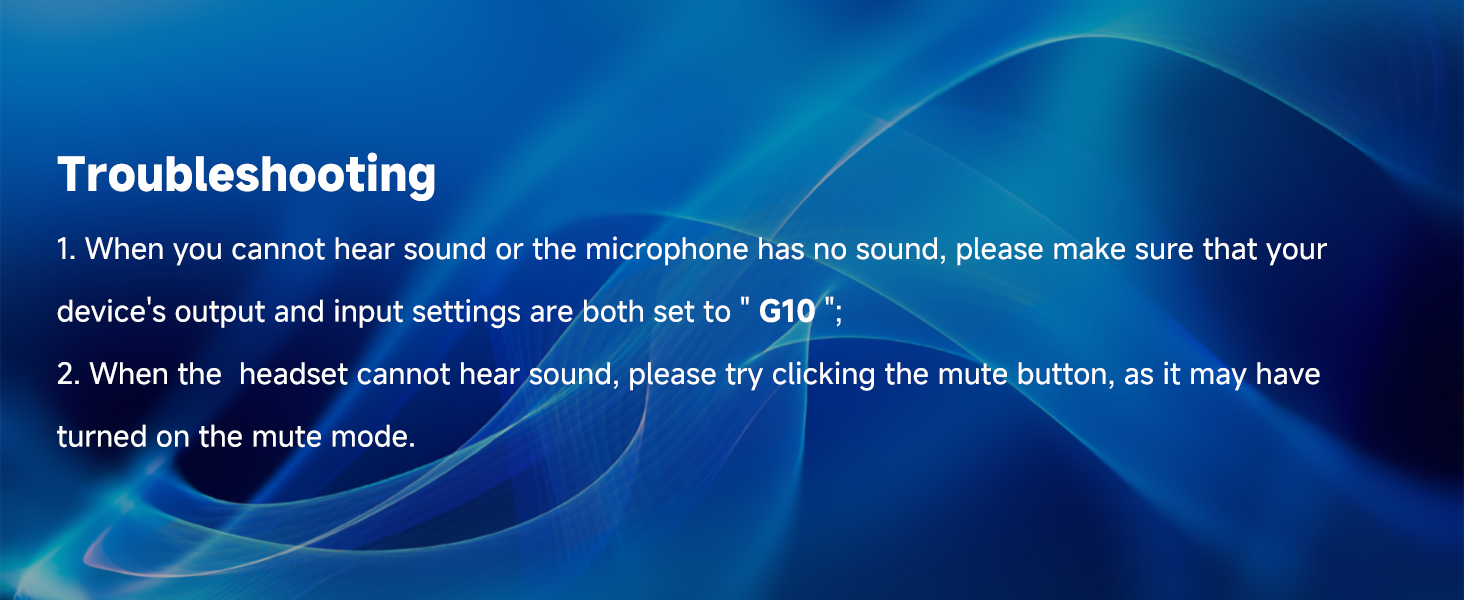
Image: PS4/PS5 setup for USB Adapter Mode.
4.3. Bluetooth Mode (Mobile Phones, iPad, Other Mobile Devices)
- Press the power button for 3 seconds to turn on the headset.
- Double-click the power button to open Bluetooth mode. (Note: The prompt light shows green when in Bluetooth mode).
- Open Bluetooth on your device, search, and find the name "G10".
- Pair and Connect.
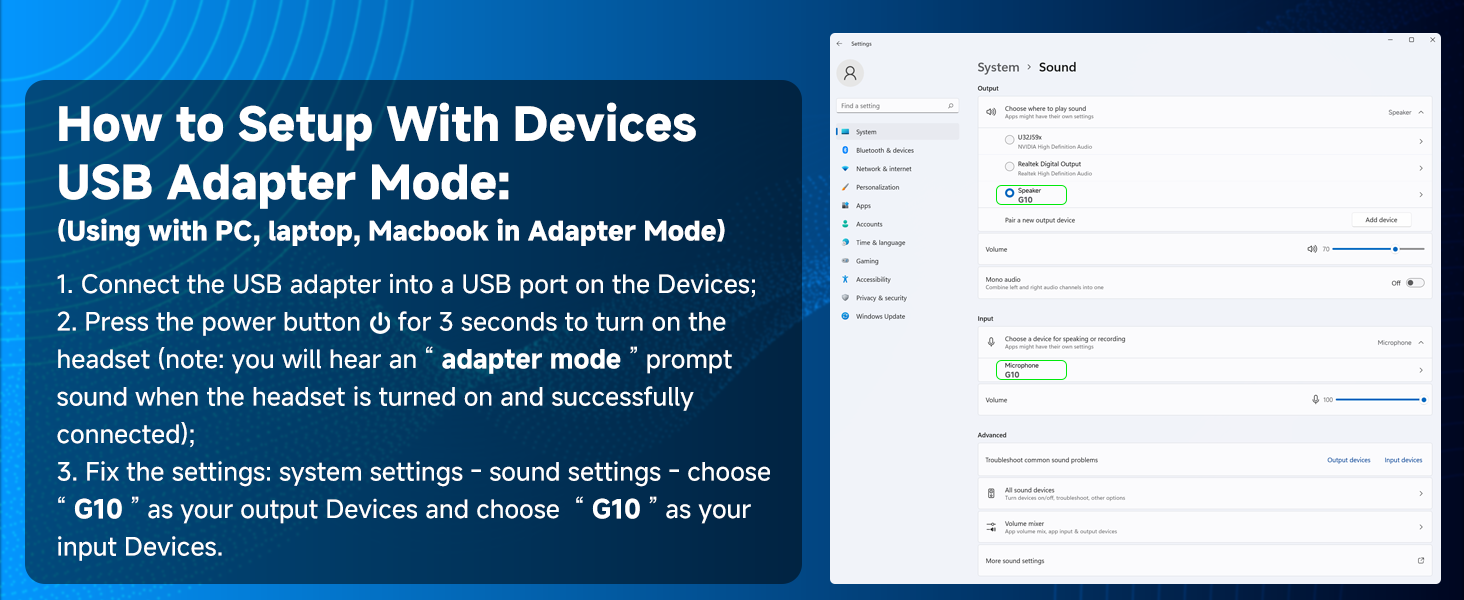
Image: Bluetooth setup for mobile devices.
Video: Overview of the Jeecoo G10 Wireless Gaming Headset's features and multi-platform compatibility, including setup for PC, PS5, PS4, and Nintendo Switch.
5. Operating Instructions
5.1. Adjusting Volume
Use the volume wheel located on the left earcup to increase or decrease the audio volume. Roll the wheel up to increase volume and down to decrease it.
5.2. Microphone Usage
The flexible microphone arm can be bent and positioned closer to your mouth for clearer voice pickup. Press the mic mute button on the left earcup to toggle the microphone on or off. A visual indicator may show the microphone's status.
5.3. Charging the Headset
Connect the provided Type-C charging cable to the charging port on the headset and to a compatible USB power source. The headset requires approximately 3 hours for a full charge, providing up to 50 hours of gaming time.

Image: Battery life and charging details.
6. Maintenance
6.1. Cleaning
Wipe the headset with a soft, dry cloth. Avoid using harsh chemicals or abrasive materials. For earmuffs, gently clean with a damp cloth if necessary and allow to air dry completely.
6.2. Storage
Store the headset in a cool, dry place away from direct sunlight and extreme temperatures. When storing for a long period, ensure the battery is partially charged (around 50%) to maintain battery health.
7. Troubleshooting
- No Sound or Microphone Not Working: Ensure your device's output and input settings are both set to "G10".
- Headset Cannot Hear Sound: Try clicking the mute button, as it may have been accidentally turned on.
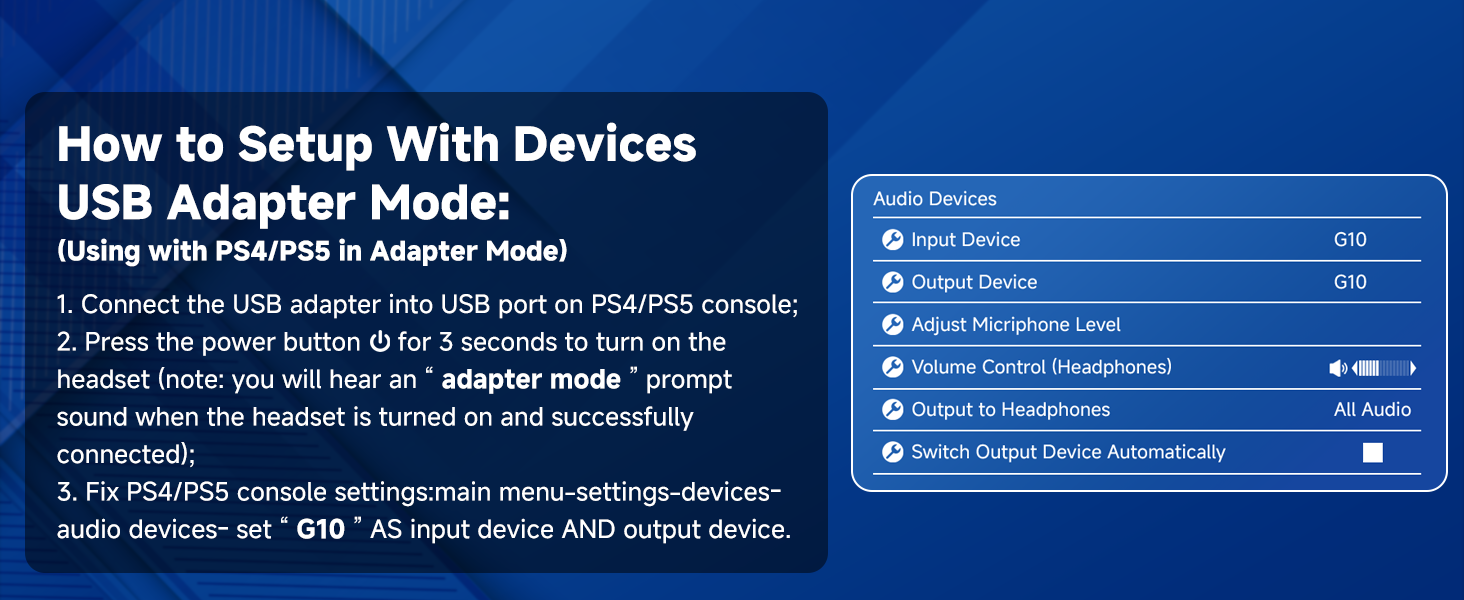
Image: Troubleshooting steps for common issues.
8. Specifications
| Feature | Specification |
|---|---|
| Model Name | G10 |
| Connectivity Technology | Bluetooth 5.3, 2.4GHz Wireless |
| Wireless Communication Range | Up to 49 Feet |
| Audio Driver Type | Dynamic Driver (50mm) |
| Frequency Response | 20 Hz - 20000 Hz |
| Microphone Feature | Noise Cancellation, Omnidirectional |
| Battery Life | 50 Hours |
| Charging Time | 3 Hours |
| Weight | 13.4 ounces (0.38 Kilograms) |
| Material | Fabric, Memory Foam, Plastic |
| Compatible Devices | PS5, PS4, PC, Nintendo Switch, phones, laptops, Mac, iPad (Not compatible with Xbox) |
9. Warranty and Support
For warranty information and customer support, please refer to the contact details provided in the included User Manual or visit the official Jeecoo website. Keep your purchase receipt for any warranty claims.
