1. Introduction
This manual provides essential information for the proper use and maintenance of your HOTWAV R9 Pro Rugged Tablet. Please read it thoroughly before operating the device to ensure optimal performance and longevity.

Image: Front and back view of the HOTWAV R9 Pro Rugged Tablet, highlighting its robust design and 11-inch display.
2. What's in the Box
Verify that all items are present in the packaging:
- 1x HOTWAV R9 Pro Rugged Tablet
- 1x Manual (this document)
- 1x Packing Box
- 1x Explosion-proof Film
- 1x USB Type-C Cable
- 1x OTG Cable
3. Product Overview and Key Features
3.1. Rugged Design and Durability
The HOTWAV R9 Pro is engineered for extreme environments, featuring IP68/IP69K waterproof and dustproof ratings, and MIL-STD-810H certification for shock resistance. Its construction includes a double-shot TPU+PC+glass fiber back cover for enhanced protection.

Image: Visual representation of the tablet's ruggedness, showing it submerged in water, covered in dust, and surviving a drop, alongside its LED camping light in use.
3.2. Battery and Charging
Equipped with a large 20080mAh battery, the R9 Pro offers extended usage times. It supports 20W fast charging to quickly replenish power.

Image: Diagram illustrating the 20080mAh battery capacity and 20W fast charging capability of the tablet.
3.3. Display
The tablet features an 11-inch FHD+ display with a resolution of 1200x1920 pixels and 450cd/m² brightness. It is protected by Corning Glass 3 and supports glove touch functionality, making it suitable for outdoor use.

Image: The tablet's 11-inch display showing various applications, alongside icons indicating FHD+ resolution, 60Hz refresh rate, and dual SIM support.
3.4. Performance and Storage
Powered by an Octa-Core Unisoc T606 processor, the R9 Pro includes 20GB RAM (6GB physical + 14GB virtual) and 256GB internal storage. Storage can be expanded up to 2TB using a T-flash card.

Image: A visual representation of the Unisoc T606 octa-core chipset, detailing 20GB RAM and 256GB ROM with 2TB expandable memory.
3.5. Camera System
The tablet features a 64MP rear camera with PDAF and f/1.8 aperture, and a 16MP front camera for photography and video calls.

Image: Examples of photos taken with the 64MP rear camera and the 16MP front camera, demonstrating their capabilities.
3.6. Integrated Camping Light
A unique 6W camping light with 350 lumens and 246 LEDs is integrated into the tablet, providing illumination for various outdoor activities or emergencies.
4. Setup
4.1. Charging the Tablet
Before first use, fully charge the tablet using the provided USB Type-C cable and a compatible 20W power adapter (not included). Connect the cable to the tablet's USB-C port and the adapter to a power outlet. The charging indicator will show the charging status.
4.2. Installing SIM and T-flash Cards
The tablet supports dual SIM cards and a T-flash (microSD) card for expandable storage.
- Locate the SIM/SD card tray on the side of the tablet.
- Use the provided SIM ejector tool to open the tray.
- Carefully place your Nano-SIM cards and/or T-flash card into the designated slots. Ensure correct orientation.
- Gently push the tray back into the tablet until it clicks into place.
4.3. Powering On/Off
- To Power On: Press and hold the Power button until the HOTWAV logo appears.
- To Power Off: Press and hold the Power button until the power options menu appears, then select "Power Off".
- To Restart: Press and hold the Power button until the power options menu appears, then select "Restart".
5. Operating Instructions
5.1. Android 14 Operating System
The HOTWAV R9 Pro runs on Android 14, offering a user-friendly interface and access to a wide range of applications via the Google Play Store.
5.2. Navigation
Navigate the tablet using touch gestures:
- Tap: Select an item.
- Swipe: Scroll through screens or lists.
- Pinch: Zoom in or out on images and web pages.
- Long Press: Access contextual menus or move icons.
5.3. Glove Touch Mode
The display supports glove touch, allowing you to operate the tablet while wearing gloves. This feature is automatically enabled.
5.4. Face Unlock
For convenient and secure unlocking, set up Face Unlock:
- Go to Settings > Security & privacy > Face unlock.
- Follow the on-screen instructions to register your face.
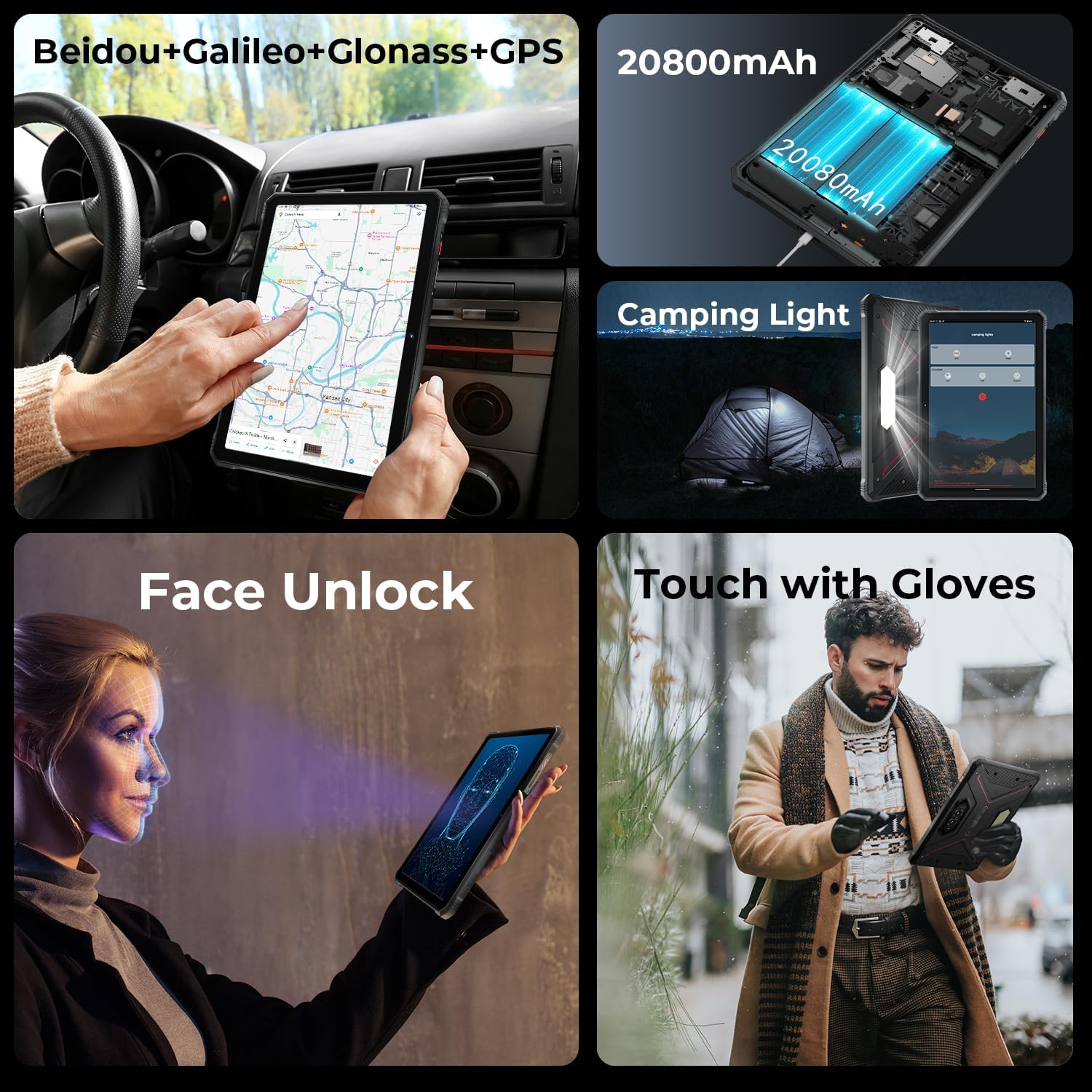
Image: A collage showing the tablet's GPS navigation, camping light in action, face unlock in progress, and a user operating the tablet with gloves.
5.5. Dual SIM Functionality
The tablet supports two SIM cards, allowing you to manage two different phone numbers or network providers simultaneously. You can configure preferred SIM for calls, messages, and data in Settings > Network & internet > SIMs.
6. Camera Usage
The HOTWAV R9 Pro is equipped with a 64MP rear camera and a 16MP front camera.
- Opening the Camera: Tap the Camera icon on the home screen or app drawer.
- Switching Cameras: Tap the camera switch icon to toggle between the front and rear cameras.
- Taking Photos: Tap the shutter button to capture an image.
- Recording Videos: Switch to video mode and tap the record button to start/stop recording.
- Camera Settings: Access various settings like resolution, flash, and modes from within the camera app.
7. Camping Light Functionality
The integrated 6W camping light provides powerful illumination.
- Activating the Light: The camping light can typically be activated via a dedicated button (if present) or through a quick settings toggle in the notification panel.
- Adjusting Brightness/Modes: Some models may offer adjustable brightness levels or different lighting modes. Refer to the on-screen controls once the light is activated.
8. Connectivity
- Wi-Fi: Connect to wireless networks via Settings > Network & internet > Internet.
- Bluetooth: Pair with Bluetooth devices (headphones, speakers) via Settings > Connected devices > Connection preferences > Bluetooth.
- GPS: The tablet supports Beidou, Galileo, Glonass, and GPS for accurate location services. Ensure location services are enabled in Settings > Location.
9. Maintenance
- Cleaning: Use a soft, damp cloth to clean the tablet's surface. Avoid harsh chemicals or abrasive materials.
- Water Exposure: While waterproof, ensure all ports are securely closed before exposing the tablet to water. After water exposure, dry the tablet thoroughly, especially the charging port, before charging.
- Temperature: Avoid exposing the tablet to extreme temperatures (hot or cold) for prolonged periods.
- Storage: When not in use for extended periods, store the tablet in a cool, dry place.
10. Troubleshooting
| Problem | Possible Solution |
|---|---|
| Tablet does not power on. | Ensure the battery is charged. Connect to a charger for at least 30 minutes. If still unresponsive, perform a forced restart by holding the Power button for 10-15 seconds. |
| Slow performance. | Close unused applications. Clear cache regularly. Consider uninstalling unnecessary apps. Restart the tablet. |
| Wi-Fi connection issues. | Toggle Wi-Fi off and on. Restart your router. Forget the network and reconnect. |
| Battery drains quickly. | Reduce screen brightness. Close background apps. Disable unused features like GPS, Bluetooth, or Wi-Fi when not needed. Check battery usage in settings to identify power-hungry apps. |
| Camera not working. | Ensure the camera app has necessary permissions. Restart the tablet. Clear the camera app's cache and data in Settings > Apps. |
11. Specifications
| Feature | Detail |
|---|---|
| Model | R9 Pro |
| Operating System | Android 14 |
| Display Size | 11 Inches |
| Screen Resolution | 1200 x 1920 pixels (FHD+) |
| Processor | Unisoc T606 Octa-Core (1.6 GHz) |
| Graphics Coprocessor | Mali G57 MP1@650MHz |
| RAM | 20GB (6GB physical + 14GB virtual) |
| Internal Storage | 256GB |
| Expandable Storage | Up to 2TB (T-flash card) |
| Rear Camera | 64MP (PDAF, f/1.8 aperture) |
| Front Camera | 16MP |
| Battery Capacity | 20080mAh |
| Charging | 20W Fast Charge |
| Ruggedness | IP68/IP69K Waterproof & Dustproof, MIL-STD-810H |
| Connectivity | Dual SIM, Wi-Fi, Bluetooth, GPS (Beidou, Galileo, Glonass) |
| Camping Light | 6W (350 lumens, 246 LEDs) |
| Dimensions (LxWxH) | 10.61 x 0.7 x 7.16 inches |
| Weight | 2.35 pounds |
12. Warranty and Support
HOTWAV offers comprehensive after-sales service for the R9 Pro Rugged Tablet:
- Return Policy: 30-day no-reason return.
- Warranty: 2-year free warranty.
- Technical Support: Lifetime technical support.
- Online Service: 24/7 online customer service.
For support, please contact HOTWAV customer service through their official channels or visit their website.


