
1. Safety Information
Please read all safety instructions carefully before using the monitor. Keep this manual for future reference.
- Do not expose the monitor to rain or moisture to avoid electric shock.
- Do not disassemble the monitor. Refer all servicing to qualified personnel.
- Avoid placing the monitor in direct sunlight or near heat sources.
- Use only the power adapter provided with the monitor.
- Clean the screen with a soft, lint-free cloth. Do not use liquid cleaners.
2. Package Contents
Verify that all items are present in your package:
- Acouto Zen24 Portable Monitor Unit
- AC Adapter
- HDMI to Mini HDMI Cable (1.5m)
- USB Type-C to Type-C Cable (1.5m) x2
- Instruction Manual

Image: All items included in the Acouto Zen24 package.
3. Product Overview
3.1 Monitor Features
- Display: 23.8-inch FHD (1920x1080) IPS Non-glare Panel
- Color Gamut: 100% sRGB wide color gamut, ΔE<1 color accuracy
- Refresh Rate: 100Hz high-speed response
- Contrast Ratio: 1500:1
- Brightness: 400 nits
- Viewing Angle: 178° wide viewing angle
- HDR Support: Yes
- Eye Care: Blue light reduction and flicker-free technology
- Audio: Built-in speakers, 3.5mm audio jack
- Stand: Integrated adjustable stand (0-180°), VESA mount compatible (100x100mm)
- Material: Lightweight aerospace aluminum alloy body
3.2 Ports and Buttons
The monitor features a variety of ports for versatile connectivity and control buttons for easy navigation.

Image: Side view of the monitor highlighting the input/output ports and control buttons.
- USB Type-C (Full Function) x2: For video, audio, and power delivery with a single cable.
- HDMI: For video and audio input from various devices.
- USB Type-A: For connecting peripherals like a keyboard or mouse.
- 3.5mm Audio Jack: For connecting headphones or external speakers.
- Power Button: To turn the monitor on/off.
- Menu Button: To access the On-Screen Display (OSD) menu.
- Up/Down Buttons: For navigating the OSD menu and adjusting settings.
4. Setup Guide
4.1 Initial Setup
- Unpack: Carefully remove the monitor and all accessories from the packaging.
- Position the Stand: The monitor features an integrated stand. Adjust it to your desired viewing angle (0-180 degrees). Ensure the stand is stable on a flat surface.
- Connect Power: Connect the AC adapter to the monitor's power input and then plug it into a power outlet.
- Connect to Device: Use the appropriate cable (USB Type-C or HDMI) to connect the monitor to your source device (laptop, smartphone, game console, etc.).
- Power On: Press the Power button on the monitor to turn it on.
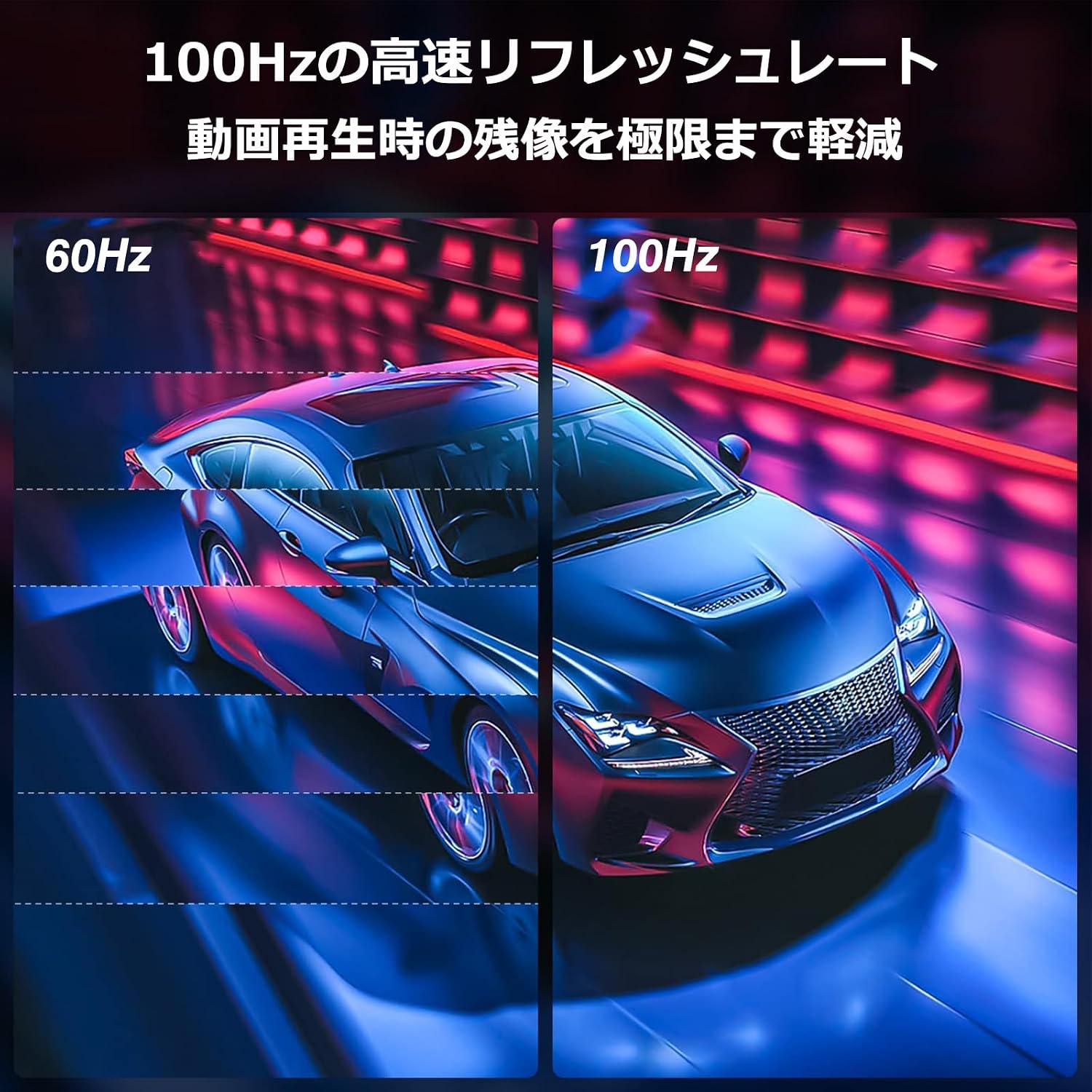
Image: The monitor's integrated stand allows for flexible angle adjustments.
4.2 VESA Mounting (Optional)
The monitor supports VESA 100x100mm mounting for use with monitor arms or wall mounts. To use VESA mounting:
- Ensure the monitor is powered off and disconnected from all cables.
- Fold the integrated stand flat against the back of the monitor.
- Align your VESA-compatible mount with the four screw holes on the back of the monitor.
- Secure the mount using M4*5mm screws (not included with the monitor, typically provided with the VESA mount).

Image: Illustration of VESA mounting compatibility (100x100mm) for monitor arms.
5. Operating Instructions
5.1 On-Screen Display (OSD) Menu
The OSD menu allows you to adjust various display settings. To access and navigate the OSD menu:
- Press the Menu button to open the OSD menu.
- Use the Up/Down buttons to navigate through the menu options.
- Press the Menu button again to select an option or enter a sub-menu.
- Use the Up/Down buttons to adjust values or select sub-options.
- Press the Back button to return to the previous menu or exit the OSD.
5.2 Common Settings
- Brightness/Contrast: Adjust the display's luminance and contrast levels.
- Color Settings: Modify color temperature, hue, and saturation.
- Input Source: Manually select between USB Type-C and HDMI inputs.
- Aspect Ratio: Choose between 16:9, 4:3, or other available aspect ratios.
- HDR Mode: Enable or disable HDR (High Dynamic Range) for compatible content.
- Blue Light Filter: Adjust the blue light reduction level to reduce eye strain.
- Volume: Control the volume of the built-in speakers or connected headphones.
6. Connectivity
6.1 USB Type-C Connection
The Acouto Zen24 monitor supports full-function USB Type-C, allowing for video, audio, and power delivery through a single cable. This simplifies your setup and reduces cable clutter.
- Connect one end of the USB Type-C to Type-C cable to the monitor's USB Type-C port.
- Connect the other end to a full-function USB Type-C port on your laptop, smartphone, or other compatible device.
- Note: Your device's USB Type-C port must support DisplayPort Alternate Mode (DP Alt Mode) for video output.

Image: Monitor connected to a laptop using a single USB Type-C cable.
6.2 HDMI Connection
Use the HDMI port to connect to devices that do not support USB Type-C DP Alt Mode, such as older laptops, desktop PCs, or gaming consoles.
- Connect one end of the HDMI to Mini HDMI cable to the monitor's HDMI port.
- Connect the other end (standard HDMI) to your source device's HDMI output.
- When using HDMI, ensure the monitor is also powered via the AC adapter or a separate USB Type-C power source.

Image: Monitor connected to a gaming console via HDMI for an enhanced gaming experience.
6.3 USB Type-A and Audio Jack
- USB Type-A: Connect a keyboard, mouse, or other USB peripherals to this port.
- 3.5mm Audio Jack: Plug in headphones or external speakers for private listening or enhanced audio.
7. Maintenance and Care
- Cleaning the Screen: Gently wipe the screen with a soft, dry, lint-free cloth. For stubborn marks, lightly dampen the cloth with water. Do not spray liquid directly onto the screen.
- Cleaning the Casing: Use a soft, dry cloth to wipe the monitor casing. Avoid abrasive cleaners or solvents.
- Storage: When not in use for extended periods, store the monitor in a cool, dry place, preferably in its original packaging or a protective case.
- Environmental Considerations: The monitor is designed with eco-friendly materials, including PCR plastic and recycled paper packaging. Please dispose of the product and its components responsibly according to local regulations.
8. Troubleshooting
If you encounter issues with your Acouto Zen24 monitor, refer to the following common problems and solutions:
| Problem | Possible Cause | Solution |
|---|---|---|
| No display/Black screen | No power; Incorrect input source; Loose cable connection; Device not outputting signal. | Ensure power adapter is connected and power button is on. Select correct input source in OSD. Check all cable connections. Verify source device is powered on and configured for external display. |
| Flickering screen | Cable issue; Refresh rate mismatch; Interference. | Try a different cable. Ensure refresh rate is set correctly on source device. Move monitor away from other electronic devices. |
| No sound | Volume too low/muted; Incorrect audio output selected; Cable issue. | Increase volume on monitor and source device. Check audio output settings on source device. Ensure cables are fully connected. |
| Image too dark/bright | Brightness/contrast settings. | Adjust brightness and contrast settings via the OSD menu. |
| USB-C connection not working | Source device USB-C port does not support DP Alt Mode; Cable issue. | Verify your device's USB-C port supports DisplayPort Alt Mode. Try a different USB-C cable. Ensure external power is supplied to the monitor if needed. |
If the problem persists after trying these solutions, please contact Acouto customer support.
9. Specifications
| Feature | Detail |
|---|---|
| Brand | Acouto |
| Model | Zen24 |
| Screen Size | 23.8 inches |
| Resolution | 1920 x 1080 (FHD 1080p) |
| Panel Type | IPS, Non-glare |
| Aspect Ratio | 16:9 |
| Refresh Rate | 100 Hz |
| Response Time | 1 ms |
| Brightness | 400 cd/m² |
| Contrast Ratio | 1500:1 |
| Color Gamut | 100% sRGB |
| Viewing Angle | 178 degrees |
| HDR Support | Yes |
| Connectivity | 2x USB Type-C (Full Function), 1x HDMI, 1x USB Type-A, 1x 3.5mm Audio Jack |
| Built-in Speakers | Yes |
| VESA Mount | 100x100mm |
| Dimensions (D x W x H) | 1.5 x 54 x 31.5 cm (approx.) |
| Weight | 2.39 kg |
10. Warranty and Support
10.1 Warranty Information
The Acouto Zen24 Portable Monitor comes with a 2-year manufacturer's warranty from the date of purchase. This warranty covers defects in materials and workmanship under normal use. It does not cover damage caused by misuse, accidents, unauthorized modifications, or external factors.
Please retain your proof of purchase for warranty claims.
10.2 Customer Support
For technical assistance, troubleshooting, or warranty inquiries, please contact Acouto customer support through the following channels:
- Email: Refer to the contact information provided on the official Acouto website or your product packaging.
- Online Support: Visit the Acouto brand store on Amazon or the official Acouto website for FAQs and support resources.
When contacting support, please have your product model (Zen24) and purchase details ready.