
1. Product Overview
The Newmen GM325Pro is a 104-key wired mechanical keyboard designed for gaming and general use. It features a durable metal panel, hot-swappable linear red switches, rainbow LED backlighting, and customizable software. This manual provides instructions for setup, operation, maintenance, and troubleshooting.

Image 1.1: Newmen GM325Pro Mechanical Keyboard. This image displays the full 104-key layout of the keyboard, highlighting its black keycaps, gray metal panel, and the included detachable USB-C cable. A single red mechanical switch is also shown separately.
Key Features:
- 104-Key Layout: Full-size keyboard for comprehensive functionality.
- Metal Panel: Durable construction for enhanced stability and longevity.
- Wired USB-C Connection: Detachable cable for stable and fast data transmission.
- Rainbow LED Backlighting: 13 preset effects and RGB side-edge illumination.
- Linear Red Switches: Smooth, responsive, and quiet operation with 45g actuation force and 50 million click durability.
- Hot-Swappable Design: Supports 3-pin switches for easy replacement without soldering.
- Full-Key Rollover: Ensures every keystroke is registered accurately.
- Customization Software: Allows remapping keys, recording macros, and personalizing lighting.
- Ergonomic Design: Dual-layer adjustable feet and anti-slip pads for comfortable use.
2. Setup Instructions
2.1 Package Contents
- 1 x Newmen GM325Pro Wired Mechanical Keyboard
- 1 x Type-C USB Cable
- 1 x User Manual (this document)
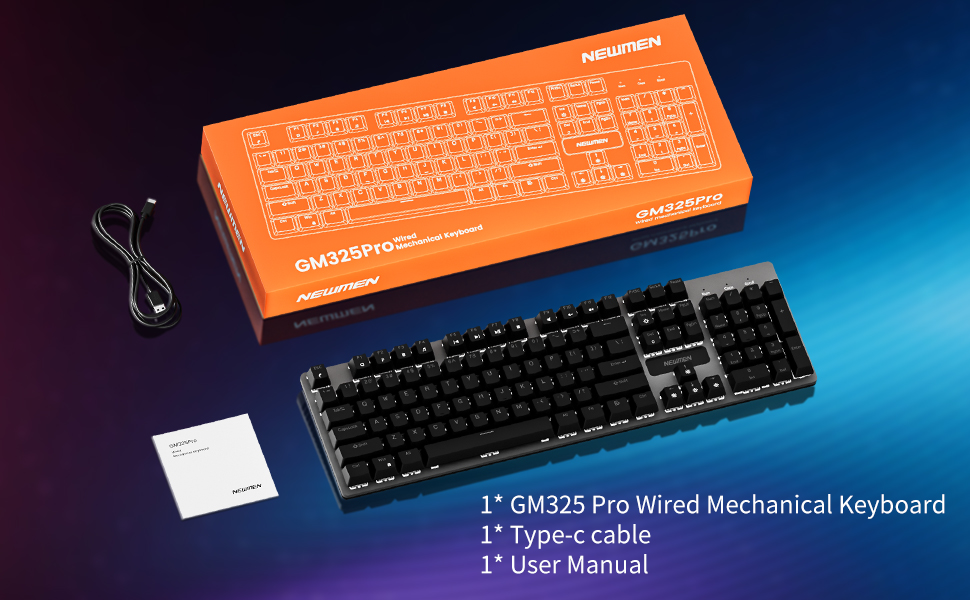
Image 2.1: Package contents of the Newmen GM325Pro Mechanical Keyboard, including the keyboard, USB-C cable, and user manual, displayed alongside the product packaging.
2.2 Connecting the Keyboard
- Locate the detachable USB-C cable provided in the package.
- Connect the USB-C end of the cable to the port on the Newmen GM325Pro keyboard.
- Connect the USB-A end of the cable to an available USB port on your computer (desktop PC or laptop).
- The keyboard is plug-and-play and should be automatically recognized by your operating system (Windows, macOS). No drivers are typically required for basic functionality.

Image 2.2: Detachable Wired Connection. This image shows the Newmen GM325Pro keyboard connected to a laptop via its USB-C cable, illustrating the plug-and-play setup for stable and fast transmission.
2.3 Adjusting Keyboard Feet
The keyboard features dual-layer adjustable feet and four anti-slip pads on the underside. Adjust the feet to your preferred typing angle for ergonomic comfort and stability.
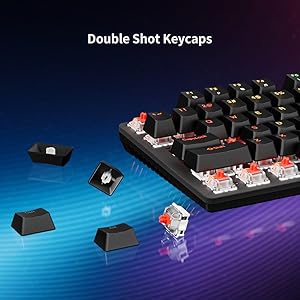
Image 2.3: Dual-Layer Feet + 4 Anti-Slip Pads. This image highlights the adjustable dual-angle feet and reinforced anti-slip pads on the keyboard's underside, designed for ergonomic typing and stability.
3. Operating Instructions
3.1 Basic Typing and Gaming
The Newmen GM325Pro uses linear red mechanical switches, providing a smooth and responsive keystroke. The full-key rollover feature ensures that all simultaneous key presses are registered accurately, which is beneficial for fast-paced gaming and typing.

Image 3.1: Responsive Mechanical Red Switches. This image provides a close-up of the keyboard's linear red switches, illustrating their design for smooth actuation and durability.
3.2 Lighting Control
The keyboard features rainbow LED backlighting with 13 preset effects and RGB side-edge illumination. Use the following FN key combinations to control the lighting:
- FN + PrtSc: Switch Backlight Effects
- FN + ScrLk: Toggle Side LED Effects
- FN + Pause: Increase Brightness
- FN + Ins: Decrease Brightness
- FN + Home: Slow Down Lighting Effects
- FN + PgUp: Speed Up Lighting Effects

Image 3.2: Immersive Rainbow Backlight. This image showcases the vibrant rainbow LED backlighting across the keyboard keys.

Image 3.3: Vibrant LED & Side Glow Lights. This image highlights the dynamic LED backlighting and the distinct side glow lights of the keyboard.
3.3 Multimedia and Shortcut Functions
Access various multimedia and system functions using the FN key in combination with the F1-F11 keys:
- FN + F1: Open File Explorer (My Computer)
- FN + F2: Quick Search
- FN + F3: Calculator
- FN + F4: Media Player
- FN + F5: Previous Track
- FN + F6: Next Track
- FN + F7: Play/Pause
- FN + F8: Stop Playback
- FN + F9: Mute
- FN + F10: Volume Down
- FN + F11: Volume Up
- FN + Win: Locks both Windows and App keys; press again to unlock.

Image 3.4: Support for Multiple Key Combinations. This diagram visually represents the FN key shortcuts for multimedia control and lighting adjustments.
3.4 Software Customization
For advanced customization, including key remapping, macro recording, and detailed lighting personalization, download the official Newmen software. This software allows you to tailor the keyboard's functions to your specific needs.
- Visit the official Newmen website to download the latest version of the customization software.
- Install the software on your computer and follow the on-screen instructions.
- Use the software interface to create profiles, assign macros, and adjust lighting effects beyond the default presets.

Image 3.5: Custom Software. This image displays the user interface of the Newmen customization software, showing options for macro editing and lighting adjustments.
4. Maintenance
4.1 Cleaning the Keyboard
- Disconnect the keyboard from your computer before cleaning.
- Use a soft, lint-free cloth slightly dampened with water or a mild cleaning solution to wipe down the keycaps and metal panel.
- For dust and debris between keys, use compressed air.
- Avoid spraying liquids directly onto the keyboard.
4.2 Hot-Swappable Switches
The Newmen GM325Pro features hot-swappable sockets, allowing you to change mechanical switches without soldering. This keyboard supports 3-pin switches.
- Gently remove the keycap using a keycap puller (not included).
- Use a switch puller (not included) to carefully extract the mechanical switch from its socket.
- Align the pins of the new 3-pin switch with the holes in the PCB and press it firmly until it clicks into place. Ensure the pins are straight to avoid bending.
- Replace the keycap.

Image 4.1: Hot Swappable Linear Switch. This image demonstrates the hot-swappable nature of the switches, showing a keycap and switch removed from the keyboard.
5. Troubleshooting
5.1 Keyboard Not Responding
- Ensure the USB-C cable is securely connected to both the keyboard and the computer.
- Try connecting the keyboard to a different USB port on your computer.
- Test the keyboard on another computer to determine if the issue is with the keyboard or the computer's USB port.
- Restart your computer.
5.2 Lighting Issues
- Verify that the lighting is not turned off or set to minimum brightness using the FN key combinations (FN + Pause/Ins).
- If using custom software, ensure the lighting profile is correctly applied and the software is running.
- Perform a factory reset: Press and hold FN + ESC for 3 seconds to restore default settings.
5.3 Key Input Errors (Ghosting/Missed Presses)
- The GM325Pro supports full-key rollover, so ghosting should not occur under normal operation.
- Ensure the keyboard is clean and free of debris that might obstruct key switches.
- If a specific key is consistently failing, consider replacing the hot-swappable switch for that key (refer to Section 4.2).
6. Specifications
| Feature | Detail |
|---|---|
| Model Name | GM325 Pro |
| Brand | Newmen |
| Layout | 104 Keys (Full-size) |
| Switch Type | Linear Red Mechanical Switches (Hot-swappable, 3-pin) |
| Actuation Force | 45g |
| Durability | 50 Million Clicks |
| Backlighting | Rainbow LED Backlit, RGB Side Lighting |
| Connectivity | Wired (Detachable USB-C) |
| Material | Metal Panel |
| Compatible Devices | Laptop, PC |
| Operating System | Windows, macOS (basic functionality) |
| Item Weight | 2.18 pounds |
| Package Dimensions | 17.72 x 7.48 x 1.97 inches |
7. Warranty and Support
For information regarding warranty coverage, terms, and conditions, please refer to the documentation included with your product packaging or visit the official Newmen website. For technical support or further assistance, please contact Newmen customer service through their official channels.
Newmen Official Website: Visit Newmen Store on Amazon


