
Introduction
The ActivPro Smart Station is a versatile 6-in-1 device designed to enhance your living space with multiple functionalities. It integrates a 15W fast wireless charging pad, a high-quality Bluetooth speaker, a digital alarm clock with temperature display, and a multi-functional bedside lamp. This manual provides detailed instructions for setting up, operating, and maintaining your Smart Station to ensure optimal performance and longevity.
What's in the Box

Upon unboxing your ActivPro Smart Station, please verify that all components are present and in good condition. The package should contain the following items:
- Smart Station Unit
- Charging Cable
- Power Plug
- User Manual (this document)
Setup Guide
- Power Connection: Connect the provided charging cable to the Smart Station's power input port, typically located at the rear. Plug the power plug into a standard wall outlet. The digital display will illuminate upon successful connection.
- Initial Placement: Place the Smart Station on a stable, flat surface, such as a bedside table or desk. Ensure there is adequate space around the device for optimal wireless charging and sound projection.
- Time and Date Setting: Refer to the 'Digital Clock & Temperature Display' section for detailed instructions on setting the correct time and date.
Operating Instructions
1. 15W Fast Wireless Charging

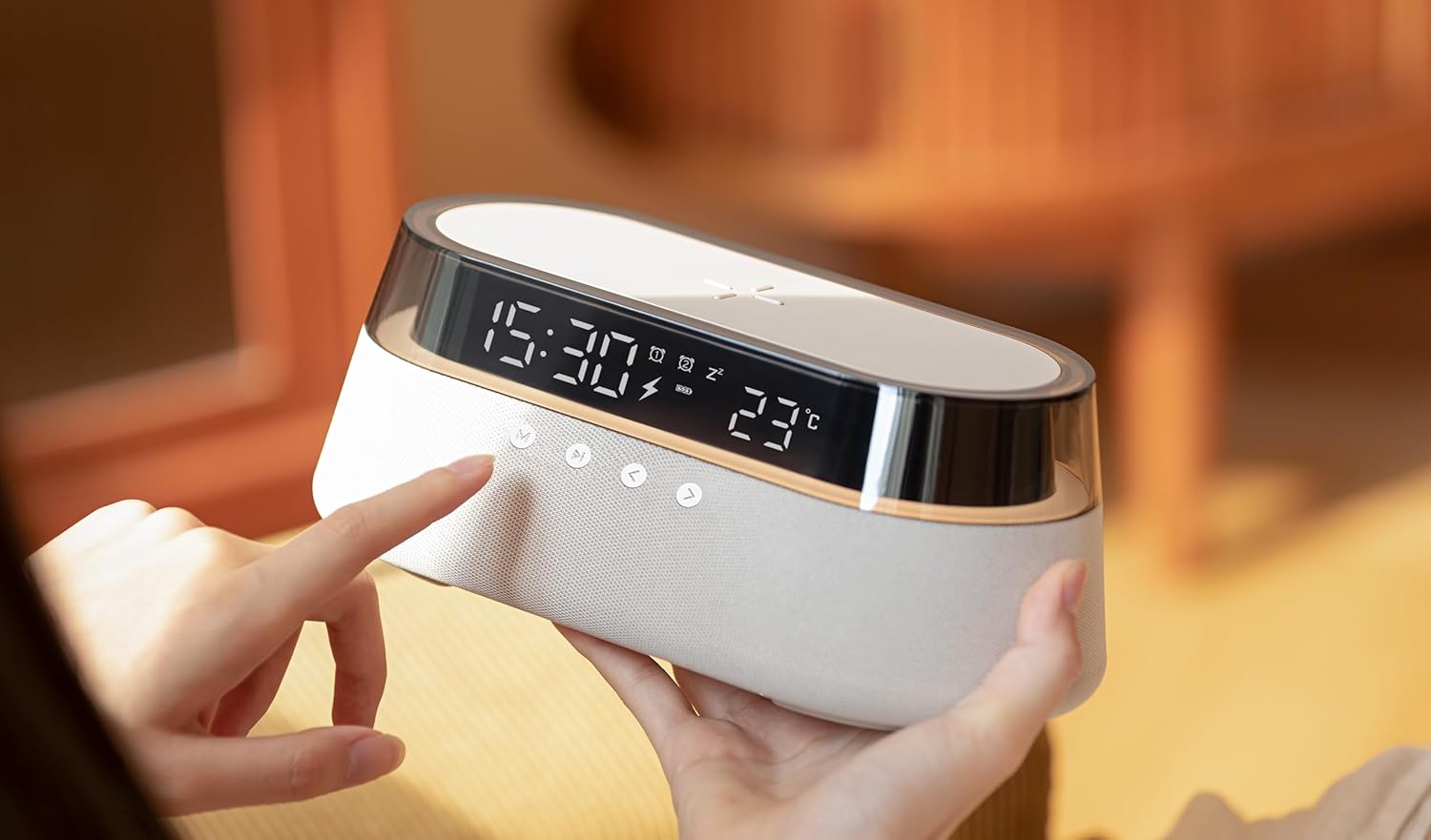
The Smart Station features a 15W fast wireless charging pad on its top surface, compatible with Qi-enabled smartphones and devices. To charge your device, simply place it centrally on the charging pad. A charging indicator icon will appear on the digital display, confirming that charging has commenced. For optimal charging speed, ensure your device is properly aligned and remove any thick cases that may interfere with the connection.
2. Bluetooth Speaker

The integrated Bluetooth speaker allows for high-quality audio playback. To connect your device:
- Press the 'M' (Mode) button on the front panel until the Bluetooth icon appears on the display. The speaker will enter pairing mode.
- On your smartphone or audio device, enable Bluetooth and search for available devices.
- Select 'Smart Station' from the list of devices to pair. A confirmation sound will indicate successful pairing.
- Use the volume controls on the Smart Station or your connected device to adjust audio levels. The play/pause and track skip buttons on the Smart Station can also control media playback.
3. Digital Clock & Temperature Display

The Smart Station features a clear digital display showing the current time and ambient temperature. The brightness of the display is adjustable to suit day and night use.
- Setting Time: Press and hold the 'M' button to enter time setting mode. Use the '<' and '>' buttons to adjust hours and minutes. Press 'M' again to confirm each setting.
- Setting Alarm: Press the alarm icon button (usually depicted as a bell) to enter alarm setting mode. Use '<' and '>' to set the alarm time. Press the alarm button again to confirm.
- Display Brightness: Short press the light bulb icon button to cycle through different brightness levels for the display.
4. Bedside Lamp
The Smart Station includes a multi-functional bedside lamp with adjustable brightness and customizable RGB color options. This feature can enhance the ambiance of any room.
- Turning On/Off: Short press the light bulb icon button to turn the lamp on or off.
- Adjusting Brightness: When the lamp is on, press and hold the light bulb icon button to continuously adjust the brightness. Release when the desired brightness is reached.
- Changing Colors: Double-press the light bulb icon button to cycle through different light modes, including warm white and various RGB color options.
Maintenance
To ensure the longevity and optimal performance of your ActivPro Smart Station, follow these maintenance guidelines:
- Cleaning: Use a soft, dry, lint-free cloth to clean the exterior surfaces of the device. Do not use abrasive cleaners, solvents, or strong chemicals, as these can damage the finish.
- Avoid Liquids: Keep the device away from water and other liquids. In case of accidental spills, immediately disconnect power and allow the device to dry completely before reconnecting.
- Ventilation: Ensure that the ventilation openings (if any) are not blocked to prevent overheating.
- Storage: When not in use for extended periods, store the device in a cool, dry place away from direct sunlight and extreme temperatures.
Troubleshooting
If you encounter issues with your Smart Station, please refer to the following common problems and their solutions:
| Problem | Possible Cause | Solution |
|---|---|---|
| Device not powering on | Power cable not connected properly; Power outlet issue | Ensure power cable is securely plugged into the device and wall outlet. Test the outlet with another device. |
| Wireless charging not working | Phone not aligned; Thick phone case; Non-Qi compatible device | Reposition phone centrally on the charging pad. Remove phone case. Ensure your device supports Qi wireless charging. |
| Bluetooth speaker not pairing | Device not in pairing mode; Bluetooth disabled on phone | Ensure Smart Station is in Bluetooth pairing mode (Bluetooth icon flashing). Enable Bluetooth on your phone and search for 'Smart Station'. |
| Alarm not sounding | Alarm not set; Volume too low | Verify alarm time is correctly set and activated. Increase the device's volume. |
| Lamp not changing colors/brightness | Incorrect button press sequence | Refer to the 'Bedside Lamp' section for correct button operations (short press, long press, double press). |
If the problem persists after attempting these solutions, please contact ActivPro Global customer support for further assistance.
Specifications
| Model Number | SD332 |
| Product Dimensions | 9.25 x 4.53 x 3.62 inches (23.5 x 11.5 x 9.2 cm) |
| Item Weight | 1.52 pounds (689 Grams) |
| Wireless Charging Output | 15W Fast Wireless Charging |
| Hardware Interface | Bluetooth |
| Compatible Devices | Cellular Phones (Qi-enabled) |
| Total USB Ports | 1 (for power input) |
| Input Voltage | 9 Volts (DC) |
| Manufacturer | ACTIVPRO GLOBAL UK |
| Date First Available | May 16, 2025 |
Warranty and Support
For warranty information or technical support regarding your ActivPro Smart Station, please contact ActivPro Global customer service. Details for contacting support are typically provided on the product packaging or through the official ActivPro website. Please have your model number (SD332) and purchase information ready when contacting support.
ActivPro Global Customer Service: Please refer to your product packaging or the official ActivPro website for the most current contact information.