
1. Introduction
Thank you for purchasing the VINNFIER V18 Bluetooth & USB Computer Speakers. This manual provides essential information for setting up, operating, and maintaining your new speakers. Please read this manual thoroughly before use to ensure proper functionality and to maximize your audio experience.
2. Safety Information
To prevent damage and ensure safe operation, please observe the following precautions:
- Do not expose the speakers to water, moisture, or extreme temperatures.
- Avoid placing the speakers near heat sources or in direct sunlight.
- Use only the provided USB cable for power. Ensure the power source is 5V.
- Do not attempt to open or repair the speakers yourself. Refer all servicing to qualified personnel.
- Clean the speakers with a soft, dry cloth. Do not use liquid cleaners or aerosols.
- Keep out of reach of children.
3. Package Contents
Verify that all items are present in your package:
- VINNFIER V18 Speaker Unit
- Integrated USB Power/Audio Cable
- User Manual (this document)
4. Product Overview
The VINNFIER V18 is a versatile soundbar designed for computers, laptops, and other compatible devices. It features both Bluetooth wireless connectivity and a USB wired connection for audio and power, along with dynamic RGB lighting.
Speaker Components
- Volume Control Knob: Located on the front-left side for adjusting audio output.
- RGB Light Bars: Integrated on both ends of the speaker for customizable lighting effects.
- USB Cable: Permanently attached for both power supply and digital audio input.
- Touch Control Area: Located on the top surface for changing RGB lighting modes.
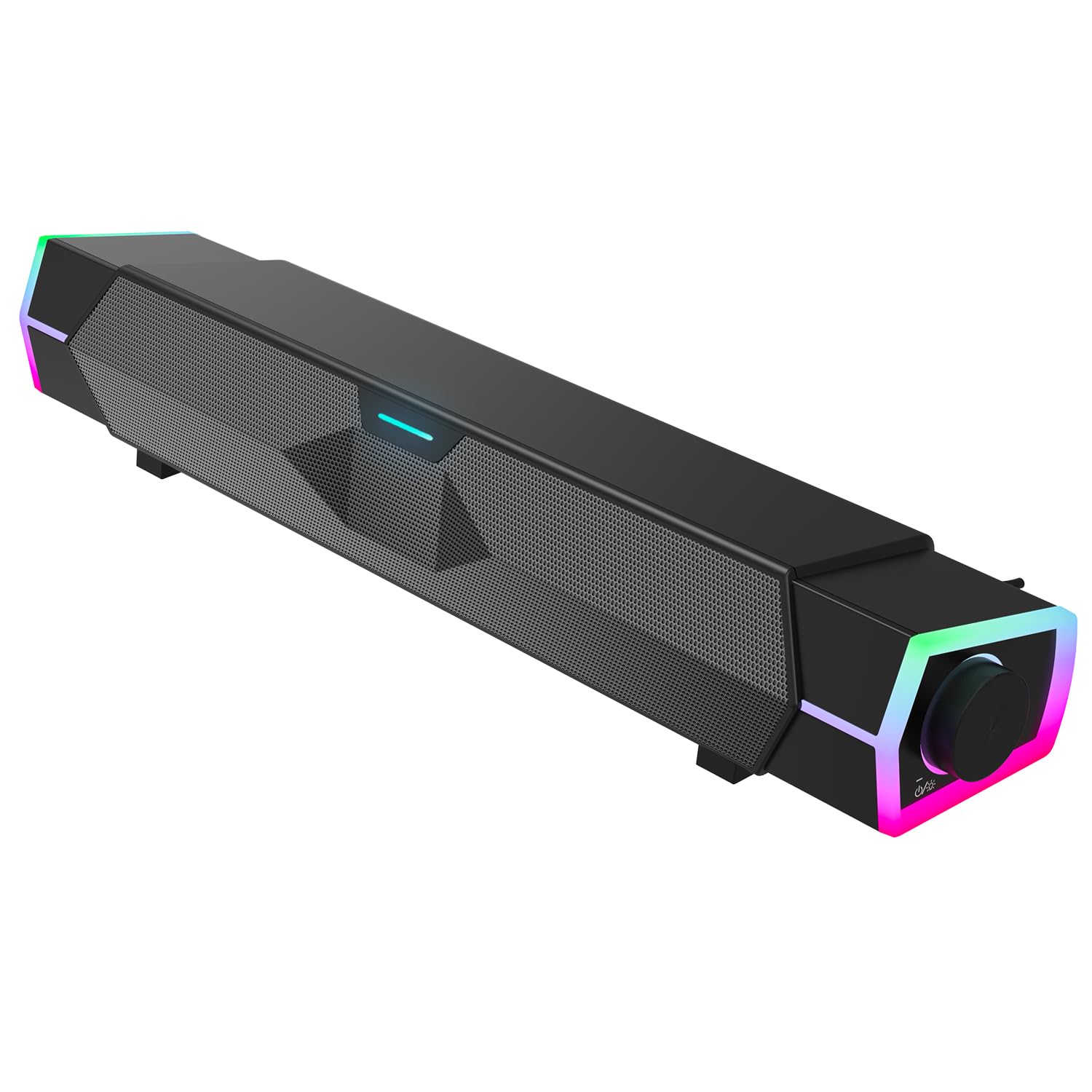
This image shows the VINNFIER V18 speaker unit from a side angle, highlighting its compact soundbar design and the integrated USB cable for power and audio connection.

A front view of the VINNFIER V18 speaker, showcasing the speaker grille and the subtle LED indicator light.
5. Setup
5.1 USB Connection (Plug and Play)
For a wired audio connection and power, use the integrated USB cable:
- Plug the USB-A connector of the speaker's cable into an available USB port on your computer, laptop, or a 5V USB power adapter.
- The speaker will power on automatically and be recognized as an audio output device by your computer.
- Adjust the volume using the speaker's volume knob or your computer's system volume controls.

This image illustrates the VINNFIER V18 speaker connected to a computer monitor via its USB cable, demonstrating the simple plug-and-play setup.
5.2 Bluetooth Connection
To connect wirelessly via Bluetooth:
- Ensure the speaker is powered on via its USB connection.
- On your device (smartphone, tablet, laptop), enable Bluetooth and search for available devices.
- Select "V18" from the list of discovered devices to pair.
- Once paired, the speaker will emit a confirmation sound, and audio will be routed wirelessly.
- Adjust the volume using the speaker's volume knob or your connected device's volume controls.

This image demonstrates the VINNFIER V18 speaker's dual compatibility, showing it connected to a laptop via USB and wirelessly to a smartphone via Bluetooth.
6. Operating Instructions
6.1 Power On/Off
The V18 speaker powers on automatically when connected to a 5V USB power source. To power off, disconnect the USB cable.
6.2 Volume Adjustment
Rotate the volume control knob on the front-left side of the speaker clockwise to increase volume and counter-clockwise to decrease volume.
6.3 Audio Source Switching
The speaker prioritizes the USB audio input when connected. If a Bluetooth device is paired and playing, the speaker will switch to Bluetooth audio. To switch back to USB, ensure no Bluetooth audio is actively playing or disconnect the Bluetooth device.
6.4 RGB Lighting Control
The V18 speaker features dynamic RGB lighting. To cycle through the available lighting modes, gently touch the designated control area on the top surface of the speaker. Available modes include Rainbow light mode and multi-color breathing light mode.

This image displays the various colorful RGB lighting modes available on the VINNFIER V18 speaker, including rainbow and solid color options.
7. Maintenance
Proper maintenance ensures the longevity of your speakers:
- Cleaning: Use a soft, dry, lint-free cloth to wipe the speaker's surface. Do not use abrasive cleaners, waxes, or solvents.
- Storage: When not in use for extended periods, store the speakers in a cool, dry place away from direct sunlight and extreme temperatures.
- Cable Care: Avoid bending or twisting the USB cable excessively to prevent internal damage.
8. Troubleshooting
If you encounter issues with your VINNFIER V18 speakers, refer to the following solutions:
| Problem | Possible Cause | Solution |
|---|---|---|
| No sound from speakers (USB) |
|
|
| No sound from speakers (Bluetooth) |
|
|
| RGB lighting not working |
|
|
| Distorted audio |
|
|
9. Specifications
| Model Name | V18 |
| Brand | VINNFIER |
| Speaker Type | Stereo Soundbar |
| Connectivity Technology | Bluetooth, USB |
| Wireless Communication | Bluetooth |
| Bluetooth Range | Up to 10 meters (33 feet) |
| Power Source | Wired Electric (USB 5V) |
| Speaker Maximum Output Power | 10 Watts |
| Audio Driver Type | Dynamic Driver |
| Lower Frequency Response Limit | 200 Hz |
| Control Method | Volume Knob, Touch (for RGB) |
| Product Dimensions (L x W x H) | 41.5 x 7.8 x 6.8 cm (16.4 x 3.5 x 2.7 inches) |
| Color | Black |
| Waterproof | No |
| Compatible Devices | Desktop, Laptop, Smartphone, Tablet |

This diagram illustrates the internal structure of the VINNFIER V18, highlighting its two full-range speaker drivers designed for a clear stereo sound experience.

An exploded view demonstrating the dual 5W speakers and the HiFi stereo sound technology integrated into the VINNFIER V18 for high-quality audio output.
10. Warranty and Support
The VINNFIER V18 speakers are covered by a manufacturer's warranty. For specific warranty terms and conditions, please refer to the documentation provided with your purchase or contact the retailer.
If you have any questions, concerns, or require technical assistance, please contact our customer service team. Our team is available to provide support and solutions for your product.
For support inquiries, please refer to the contact information provided by your point of purchase or the official VINNFIER website.