
Ubiquiti UX7
Ubiquiti UniFi Express 7 (UX7) User Manual
Model: UX7
Brand: Ubiquiti
1. Introduction
This manual provides comprehensive instructions for the setup, operation, and maintenance of your Ubiquiti UniFi Express 7 (UX7) router. The UX7 is a compact, high-performance cloud gateway designed to deliver WiFi 7 speed and flexibility for homes and small businesses. It offers ultra-fast wireless performance across 6 GHz, 5 GHz, and 2.4 GHz bands, supported by 6-stream MU-MIMO technology. With a 10G WAN port and 2.5G LAN port, it supports both wired and wireless mesh networking, device management, and scalability, all managed through the intuitive UniFi Controller.
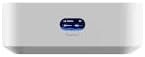
Figure 1: Front view of the Ubiquiti UniFi Express 7 (UX7) router, showcasing its compact design and the illuminated status display.
2. Safety Information
- Read all instructions carefully before operating the device.
- Do not expose the device to water or excessive humidity.
- Ensure proper ventilation around the device to prevent overheating.
- Use only the power adapter supplied with the device.
- Do not attempt to open or repair the device yourself. Refer all servicing to qualified personnel.
- Keep the device away from direct sunlight and heat sources.
3. Package Contents
Verify that all items are present in your package:
- UniFi Express 7 (UX7) Router
- Power Adapter
- Mounting Plate
- Quick Start Guide
4. Product Overview
The UniFi Express 7 (UX7) is designed for optimal network performance and ease of management. Key features include:
- WiFi 7 Performance: Tri-band (6/5/2.4 GHz) connectivity with 6-stream MU-MIMO technology, offering speeds up to 5.7 Gbps on the 6 GHz band.
- 10G Wired Connectivity: Equipped with a 10 Gigabit Ethernet (GbE) WAN port and a 2.5 GbE LAN port for high-speed wired network backbone.
- Mesh-Ready: Functions as a standalone router or seamlessly integrates into existing UniFi mesh networks for expanded coverage.
- Network Control: Capable of managing over 30 UniFi devices and supporting more than 300 clients with ease through the UniFi Controller.
- Compact & Stylish: Features a small footprint and a front display for real-time network status monitoring.
Ports and Indicators:
The UX7 includes essential ports for connectivity and an intuitive display for status updates. Refer to the device's physical layout for exact port locations (e.g., WAN, LAN, Power) and LED indicators (e.g., Power, Status, Activity).
5. Setup
- Power On: Connect the supplied power adapter to the UX7 and plug it into a power outlet. Wait for the device to power on and initialize.
- Connect to Internet (WAN): Connect your modem or internet service provider's (ISP) Ethernet cable to the 10G WAN port on the UX7.
- Connect to Local Network (LAN): If connecting a wired device, use an Ethernet cable to connect it to the 2.5G LAN port.
- Initial Configuration:
- Mobile App Setup: Download the UniFi Network mobile app (available on iOS and Android). Follow the on-screen instructions to discover and set up your UX7.
- Web Browser Setup: Alternatively, connect a computer to the UX7's LAN port or its default Wi-Fi network. Open a web browser and navigate to the default UniFi IP address (usually 192.168.1.1 or unifi.ui.com) to access the UniFi Controller setup wizard.
- Create/Adopt UniFi Network: Follow the wizard to create a new UniFi network or adopt the UX7 into an existing UniFi system. Configure your Wi-Fi network name (SSID) and password.
6. Operation
Once set up, the UniFi Express 7 (UX7) operates as the central point of your network. Here's how to manage and utilize its features:
- Connecting Devices: Devices can connect to the UX7 via Wi-Fi (using the configured SSIDs) or via Ethernet cables to the LAN port.
- Network Management: All network settings, device monitoring, and advanced configurations are performed through the UniFi Controller interface. Access it via the UniFi Network mobile app or a web browser (unifi.ui.com or your local UniFi Controller IP).
- Guest Networks: Create isolated guest networks for visitors, providing secure internet access without compromising your main network.
- Traffic Management: Utilize the UniFi Controller to monitor network traffic, set up Quality of Service (QoS) rules, and manage bandwidth for different applications or users.
- Mesh Networking: If you have other UniFi access points, the UX7 can seamlessly integrate them into a mesh network, extending Wi-Fi coverage throughout your property.
7. Maintenance
- Firmware Updates: Regularly check for and install firmware updates through the UniFi Controller. Updates provide new features, performance improvements, and security patches.
- Cleaning: Use a soft, dry cloth to clean the exterior of the device. Do not use liquid cleaners or aerosols.
- Placement: Ensure the UX7 is placed in an open area, away from obstructions, large metal objects, and other electronic devices that may cause interference. Optimal placement improves Wi-Fi signal strength and coverage.
- Backup Configuration: Periodically back up your UniFi Controller configuration to prevent data loss in case of unforeseen issues.
8. Troubleshooting
If you encounter issues with your UniFi Express 7 (UX7), try the following common troubleshooting steps:
- No Internet Connection:
- Check if your modem is working correctly.
- Ensure the Ethernet cable from your modem is securely connected to the UX7's 10G WAN port.
- Restart both your modem and the UX7.
- Wi-Fi Not Visible/Connecting:
- Verify that the UX7 is powered on and its status indicator is normal.
- Check your Wi-Fi settings in the UniFi Controller to ensure the SSID is broadcast and the password is correct.
- Try restarting the UX7.
- Slow Network Speed:
- Check your internet service provider's speed.
- Ensure the UX7 is placed in an optimal location, free from interference.
- Monitor network usage through the UniFi Controller to identify bandwidth-heavy applications or devices.
- Consider adjusting Wi-Fi channels in the UniFi Controller to avoid congestion.
- Device Not Adopted in UniFi Controller:
- Ensure the UX7 is on the same network segment as your UniFi Controller.
- Try resetting the UX7 to factory defaults (refer to the Quick Start Guide for reset instructions) and attempt adoption again.
9. Specifications
| Feature | Detail |
|---|---|
| Model Name | UX7 |
| Brand | Ubiquiti |
| Frequency Band Class | Tri-Band (6 GHz, 5 GHz, 2.4 GHz) |
| Wireless Communication Standard | 802.11ax (Wi-Fi 6E/7 capable) |
| WAN Port | 10 Gigabit Ethernet (10GbE) |
| LAN Port | 2.5 Gigabit Ethernet (2.5GbE) |
| Compatible Devices | Laptop, Personal Computer, Smartphone, Tablet |
| Recommended Uses | Home, Small Office |
| Operating System | UniFi OS |
| Package Dimensions | 6 x 4 x 3 inches |
10. Warranty and Support
Warranty Information: This Ubiquiti product comes with a limited warranty. Please refer to the official Ubiquiti website or the warranty card included in your package for detailed terms and conditions regarding warranty coverage and duration.
Technical Support: For technical assistance, troubleshooting beyond this manual, or to report issues, please visit the official Ubiquiti support portal. You can find FAQs, knowledge base articles, and contact information for customer support at community.ui.com or help.ui.com.
Always ensure you have your product model and serial number ready when contacting support.
Related documentsUX7


Ask a question about this manual
Ask about setup, troubleshooting, compatibility, parts, safety, or missing instructions. Manuals+ will review the question and use this page’s manual context to help answer it.