
1. Introduction
This manual provides essential information for the safe and efficient use of your BOOX Go 7 ePaper Tablet. Please read it thoroughly before operating the device and retain it for future reference.

Figure 1.1: BOOX Go 7 ePaper Tablet
2. Safety Information
- Do not expose the device to extreme temperatures, direct sunlight, or high humidity.
- Avoid dropping or subjecting the device to strong impacts.
- Use only the provided USB cable for charging.
- Keep the device away from water and liquids, despite its water-repellent features.
- Do not attempt to disassemble or repair the device yourself. Contact authorized service personnel.
3. Package Contents
Verify that all items are present in the package:
- BOOX Go 7 ePaper Tablet
- USB Cable
- Quick Start Guide (may vary by region)

Figure 3.1: BOOX Go 7 Package Contents
4. Device Overview
4.1 Physical Components
Familiarize yourself with the main components of your BOOX Go 7 tablet:
- E Ink Screen: 7-inch monochrome display with 300 ppi resolution.
- Frontlight: Adjustable illumination for reading in various lighting conditions.
- Page-Turn Buttons: Ergonomically designed buttons for easy navigation.
- USB-C Port: For charging and data transfer.
- Power Button: Located on the top edge.
- Built-in Microphone: For audio input.
- Built-in Dual Speakers: For audio output.

Figure 4.1: Page-Turn Buttons and Water-Repellent Protection
5. Setup
5.1 Initial Charging
Before first use, fully charge your BOOX Go 7 tablet. Connect the provided USB-C cable to the device and a compatible power adapter (not included) or a computer's USB port. The charging indicator will show the charging status.
5.2 Power On/Off
- To Power On: Press and hold the Power button until the BOOX logo appears.
- To Power Off: Press and hold the Power button, then select "Power Off" from the options on the screen.
- To Sleep/Wake: Briefly press the Power button.
5.3 Network Connection (Wi-Fi)
- From the home screen, swipe down from the top to access the Quick Settings panel.
- Tap the Wi-Fi icon to enable Wi-Fi.
- Tap and hold the Wi-Fi icon to open Wi-Fi settings.
- Select your desired network from the list and enter the password if prompted.
- Once connected, the Wi-Fi icon will indicate a successful connection.
6. Operating Instructions
6.1 Basic Navigation
- Touchscreen: Tap, swipe, and pinch to navigate menus, open applications, and interact with content.
- Page-Turn Buttons: Use the physical buttons on the side to turn pages in documents and books.
6.2 Reading Documents and Books
The BOOX Go 7 supports various document formats. Open your desired file from the library. Use the page-turn buttons or swipe gestures to navigate through pages. Adjust font size, contrast, and frontlight settings for optimal reading comfort.
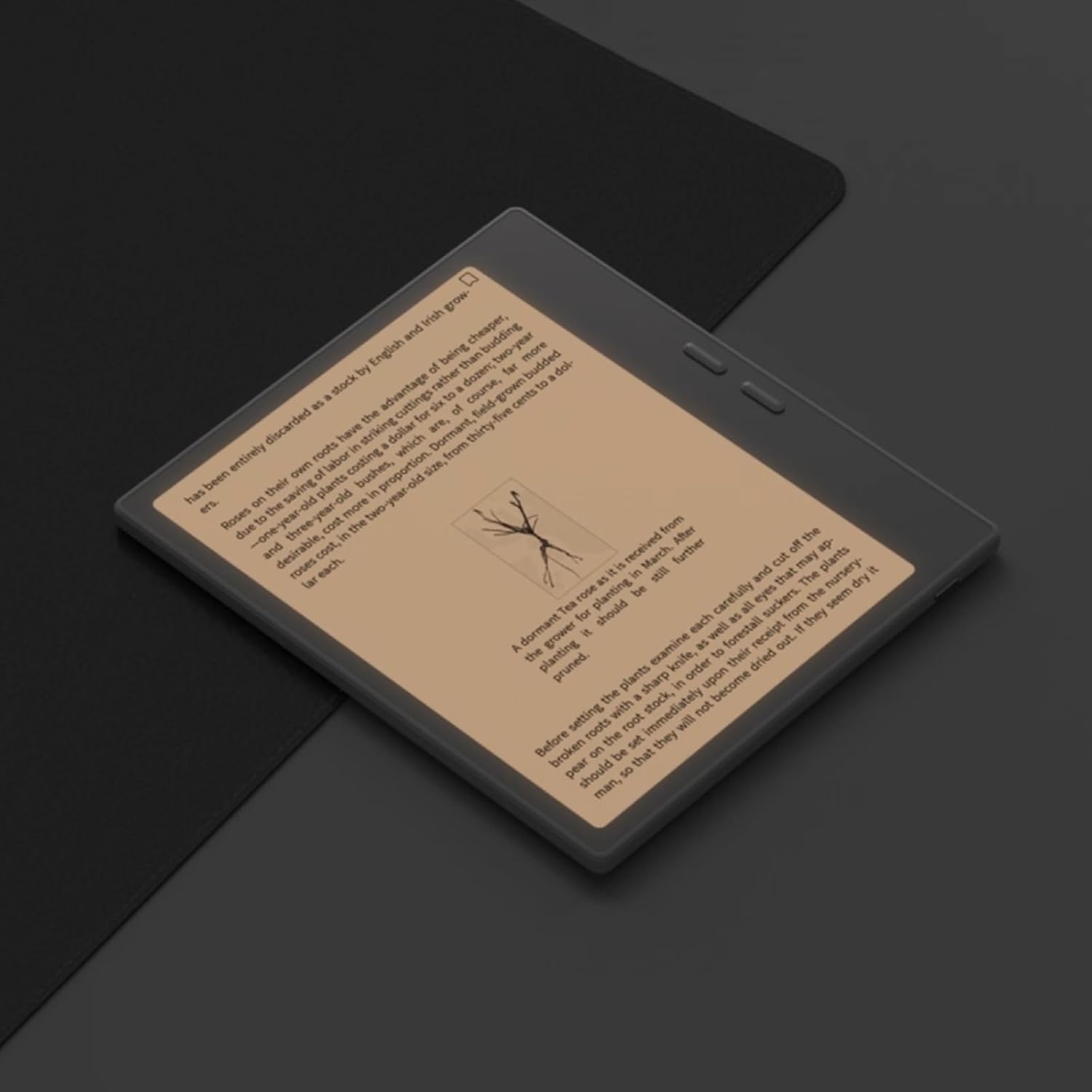
Figure 6.1: Reading with Frontlight
6.3 Using Android Applications
As an Android 13 device, the BOOX Go 7 allows installation of various applications from the Google Play Store. Navigate to the App Store, search for your desired application, and install it. Note that some applications may not be fully optimized for ePaper displays.

Figure 6.2: Various Android Applications on BOOX Go 7
6.4 Note-Taking and Drawing
Utilize the stylus (if included or purchased separately) for note-taking, sketching, and annotating documents. The device offers various templates and tools for creative and organizational tasks.

Figure 6.3: Stylus Use for Note-Taking

Figure 6.4: Handwriting to Text Conversion
7. Maintenance
7.1 Cleaning the Device
Use a soft, lint-free cloth to gently wipe the screen and body of the device. Do not use harsh chemicals, abrasive cleaners, or excessive moisture.
7.2 Software Updates
Regularly check for and install software updates to ensure optimal performance and access to new features. Connect to Wi-Fi and navigate to Settings > System > System Update to check for available updates.
8. Troubleshooting
- Device not turning on: Ensure the device is charged. Connect it to a power source and try again.
- Screen not responding: Perform a soft reset by holding the Power button for 10-15 seconds.
- Wi-Fi connection issues: Verify your Wi-Fi password and router settings. Try restarting your router and the device.
- Applications crashing: Ensure applications are updated to their latest versions. Clear the app's cache or reinstall if issues persist.
9. Specifications
| Brand | BOOX |
| Model Name | Go 7 |
| Storage Capacity | 64 GB |
| Screen Size | 7 Inches |
| Max Display Resolution | 300 Pixels per inch |
| Operating System | Android 13 |
| Color | Noir (Black) |
| Installed RAM Size | 4 GB |
| Special Features | USB OTG support, Expandable storage, Stylus support |
| Model Year | 2025 |
| Battery Type | Lithium-ion |
| Battery Energy Content | 8.8 Watt-hours |
| Processor Brand | Qualcomm |
| Processor Description | Qualcomm Snapdragon |
| Camera | No camera |
| Sensor Type | Gyroscope |
| Item Dimensions (LxWxT) | 15.6L x 0.6W x 13.7T centimeters |
| Input Method | Touchscreen with stylus |
| Graphics Card Description | Integrated |
| Compatible Devices | Stylus |
| Display Type | Electronic Ink |
| Screen Resolution | 1280 x 800 pixels |
| Aspect Ratio | 16:10 |
| Hardware Connectivity | USB |
| Wireless Technology | Bluetooth, Wi-Fi (802.11ax) |
| Total USB Ports | 1 |

Figure 9.1: BOOX Go 7 Energy Label (EPREL Link)
10. Warranty Information
The BOOX Go 7 ePaper Tablet comes with a 2-year limited warranty. This warranty covers manufacturing defects under normal use. For specific terms and conditions, please refer to the warranty card included in your package or contact customer support.
The standard return policy allows for returns within 30 days of purchase for refund or replacement.
11. Support
For technical assistance, troubleshooting, or warranty claims, please contact BOOX customer service. You can find support resources and submit inquiries through the official BOOX help center.
- Firmware Updates: BOOX commits to at least 3 years of firmware updates for each product.
- Cloud Storage: 10 GB of free cloud storage is provided for each user.
- Response Time: Customer inquiries are typically responded to within 24 hours.
For more information, visit the BOOX Brand Store on Amazon.


