
Roinvou Roinvou 4+64G
Roinvou 4+64G Android Car Radio User Manual
Model: Roinvou 4+64G | Brand: Roinvou
1. Introduction
This manual provides detailed instructions for the installation, operation, and maintenance of your Roinvou 4+64G Android Car Radio. Designed for Seat Altea (2004-2015) and Toledo (2004-2009) vehicles, this unit offers advanced features including wireless CarPlay, Android Auto, GPS navigation, Bluetooth connectivity, and a 9-inch touchscreen display. Please read this manual thoroughly before use to ensure proper functionality and safety.
2. Safety Information
- Always operate the device responsibly and in accordance with local traffic laws.
- Do not attempt to install or repair the unit if you are not qualified. Refer to professional assistance.
- Ensure all wiring is correctly connected to prevent short circuits or damage.
- Keep the volume at a safe level to remain aware of surrounding traffic conditions.
- Avoid prolonged exposure to direct sunlight or extreme temperatures.
3. Package Contents
Verify that all items listed below are included in your package:
- Roinvou Android Car Radio for Seat Altea 2004-2015 / Toledo 2004-2009
- Power Cable
- CANBUS Decoder
- Radio Antenna
- RCA Cable
- Rear Camera Input Cable
- GPS Antenna
- Dual USB Cable
- Rear Camera (AHD)
- External Microphone
- Installation Tool

Image: Main unit and included accessories.

Image: Product dimensions and a visual list of package contents.
4. Product Overview
The Roinvou Android Car Radio features a 9-inch QLED touchscreen with 1280x720 HD resolution, providing a clear and responsive interface for all functions.

Image: High-definition QLED touchscreen details.
Key Features:
- Android System (4GB RAM + 64GB ROM): Ensures stable and fluid operation.
- Wireless CarPlay & Android Auto: Seamless smartphone integration.
- MirrorLink: Project your smartphone screen onto the car radio.
- Built-in WiFi & GPS: Online/offline navigation and internet access.
- Bluetooth 5.1: Hands-free calling and audio streaming.
- FM/RDS Radio: Clear radio reception with station information.
- 32-Band Equalizer: Customizable audio settings.
- Steering Wheel Control (SWC): Manage functions safely from your steering wheel.
- AHD Rear Camera Support: Enhanced parking assistance with 170° wide-angle and night vision.
- Split Screen Mode: Use two applications simultaneously.
5. Setup & Installation
Professional installation is recommended. Ensure the vehicle's power is disconnected before beginning installation.
5.1 Wiring Connections
Refer to the wiring diagram for correct connections. Each port is labeled for clarity.

Image: Main wiring port connections.
- Power Cable: Connect to the vehicle's power harness.
- RCA Cable: For audio/video output and input.
- USB Cable: For USB devices and data transfer.
- Camera Input: Connect the rear camera cable here.
- Radio Antenna: Connect the vehicle's radio antenna.
- GPS Antenna: Position the GPS antenna in a location with clear sky view.
5.2 Reversing Camera Wiring
Proper connection of the reversing camera is crucial for its functionality and to avoid interference with Bluetooth and WiFi signals.

Image: Reversing camera wiring diagram.
- Red Cable (1): Connects to the positive terminal of the car's reverse light cable.
- Black Cable (2): Connects to the negative terminal of the car's reverse light cable.
- Important: The reverse input cable must be plugged in even if the reverse camera is not being used. Otherwise, it may affect Bluetooth and WiFi signal reception.
5.3 Steering Wheel Control (SWC) Setup
The method for setting up steering wheel controls depends on whether your vehicle uses a CANBUS decoder.

Image: Steering wheel control setup instructions.
Without CANBUS Decoder:
Connect the plugs or the steering wheel control wires (Key1/Key2) in the power cable to the corresponding port or wire of your original car. Then, navigate to "SteeringWheel Key" in the unit's settings for manual matching to activate the button functions.
With CANBUS Decoder:
Connect the CANBUS decoder before powering on the machine. Then, follow this path: Apps > Settings > Factory Settings (8888/8317) > Vehicle > Automotive type to ensure SWC works correctly. First, select the brand of the CANBUS decoder, then select the matching model and year according to your actual vehicle situation.
6. Operating Instructions
6.1 Android System & Split Screen
The unit runs on the latest Android system, providing a familiar and intuitive interface. The 4GB RAM and 64GB internal storage ensure smooth performance. Utilize the split-screen mode to run two applications simultaneously, such as navigation and music playback.

Image: Android interface with split-screen feature.
6.2 Wireless CarPlay & Android Auto
Connect your smartphone wirelessly to access navigation, communication, music, and other functions directly on the car radio display.
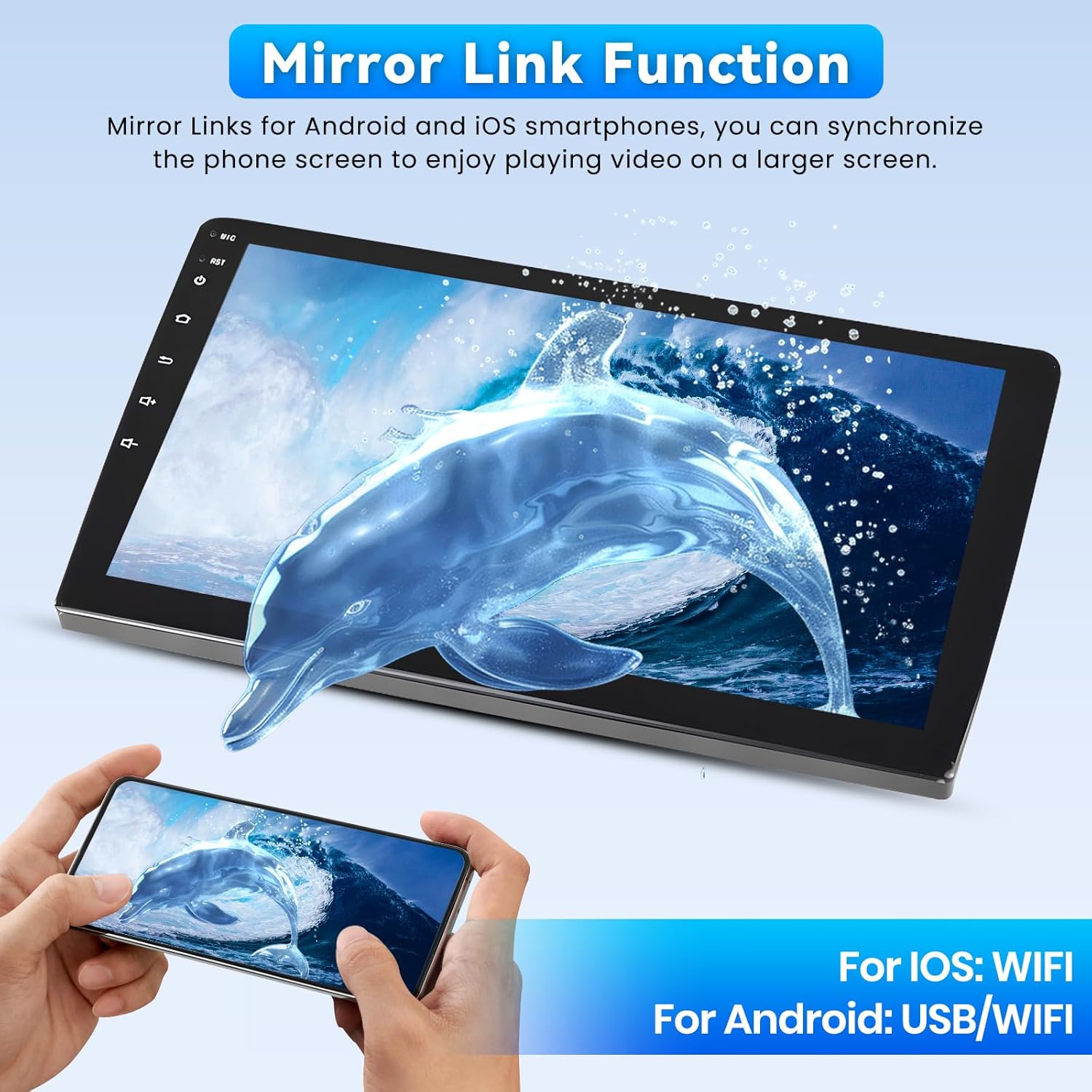
Image: Wireless CarPlay and Android Auto functionality.

Image: Wireless connectivity for smartphone integration.
- Ensure your phone's Bluetooth and Wi-Fi are enabled.
- Pair your phone with the car radio via Bluetooth.
- Follow on-screen prompts to activate CarPlay or Android Auto.
6.3 MirrorLink Function
MirrorLink allows you to project your smartphone's screen onto the car radio display. This is useful for viewing content or using apps not natively supported by CarPlay/Android Auto.

Image: MirrorLink function in action.
- For iOS devices: Connect via Wi-Fi.
- For Android devices: Connect via USB or Wi-Fi.
- Follow the instructions on the car radio screen to establish the connection.
6.4 GPS Navigation & WiFi
The unit features built-in GPS navigation. You can download offline maps from the Play Store or use online maps when connected to Wi-Fi.

Image: GPS navigation and WiFi capabilities.
- Connect to a Wi-Fi hotspot (e.g., from your smartphone) to access online features, stream media, and download apps.
- Use the pre-installed navigation app or download your preferred navigation app from the Google Play Store.
6.5 Bluetooth Connectivity
The integrated Bluetooth 5.1 module allows for hands-free calling and seamless music streaming.

Image: Bluetooth 5.1 for calls and music.
- Go to the Bluetooth settings on the car radio.
- Enable Bluetooth on your smartphone and search for available devices.
- Select "Roinvou" (or similar device name) from the list and pair.
- Once paired, you can make/receive calls and play music wirelessly.
6.6 FM/RDS Radio
Enjoy clear radio reception with FM/RDS functionality. RDS (Radio Data System) displays station information, song titles, and traffic updates.

Image: FM/RDS radio interface.
- Select the "Radio" application from the main menu.
- Use the scan function to find available stations or manually tune to a frequency.
- RDS information will be displayed automatically if available.
6.7 32-Band Equalizer
Customize your audio experience with the integrated 32-band equalizer. Adjust frequencies to achieve your preferred sound profile, from powerful bass to crisp highs.

Image: 32-band equalizer settings.
- Access the "EQ" or "Sound Settings" application.
- Adjust the sliders for each frequency band to fine-tune the audio output.
- Pre-set equalizer modes may also be available for quick selection.
6.8 Steering Wheel Control
Once configured (see Section 5.3), your steering wheel controls allow for safe and convenient operation of the car radio's functions without taking your hands off the wheel.

Image: Steering wheel control interface and mapping.
6.9 Rear Camera Functionality
The included AHD rear camera provides a 170° wide-angle view, IP68 waterproofing, and HD night vision for clear images in various conditions, assisting with safe reversing and parking.
Image: Rear camera view and features.
- When the vehicle is shifted into reverse gear, the car radio automatically displays the rear camera feed.
- Ensure the camera is clean and free from obstructions for optimal visibility.
7. Maintenance
- Cleaning: Use a soft, dry cloth to clean the screen and unit. Avoid abrasive cleaners or solvents.
- Software Updates: Periodically check for software updates to ensure optimal performance and access to new features. Updates can usually be found via the system settings or the manufacturer's website.
- Temperature: Avoid exposing the unit to extreme temperatures, which can affect its lifespan.
8. Troubleshooting
| Problem | Possible Cause | Solution |
|---|---|---|
| Unit does not power on. | Incorrect power wiring; Blown fuse; Vehicle battery low. | Check power cable connections. Inspect vehicle fuses. Ensure battery has sufficient charge. |
| No sound. | Volume too low; Mute activated; Speaker wiring incorrect; RCA cables disconnected. | Increase volume. Check mute setting. Verify speaker and RCA cable connections. |
| Bluetooth/WiFi signal issues. | Reverse input cable not connected; Antenna issues; Interference. | Ensure reverse input cable is plugged in (even if camera not used). Check antenna connections. Reduce interference sources. |
| Steering wheel controls not working. | Incorrect wiring; CANBUS not configured; Manual mapping needed. | Review Section 5.3 for SWC setup. Check wiring. Configure CANBUS or perform manual mapping. |
| GPS signal weak or inaccurate. | GPS antenna obstructed or improperly placed; Software issue. | Relocate GPS antenna to a clear area. Ensure antenna is securely connected. Restart the unit. |
| Touchscreen unresponsive. | Temporary software glitch; Unit frozen. | Restart the unit. If issue persists, perform a factory reset (consult support if unsure). |
9. Specifications
| Feature | Detail |
|---|---|
| Brand | Roinvou |
| Model Number | Roinvou 4+64G |
| Operating System | Android |
| RAM | 4GB |
| Internal Storage | 64GB |
| Screen Size | 9 Inches |
| Screen Type | QLED Touchscreen |
| Resolution | 1280x720P |
| Connectivity | Bluetooth 5.1, USB, WiFi, FM RDS |
| Special Features | Wireless CarPlay, Android Auto, MirrorLink, GPS, 32-Band EQ, SWC, Rear Camera Support |
| Compatible Devices | Smartphone |
| Audio Output Mode | APE/FLAC/WAV/MP3/WMA |
| Video Encoding | MKV/RMVB/AVI/MP4/MDV |
| Power Output | 4 x 45 Watts |
10. Warranty & Support
Roinvou products come with a manufacturer's warranty and dedicated customer support.
- Manufacturer Warranty: 24 months.
- Online Assistance: Lifetime online assistance for inquiries, with responses typically within 24 hours.
- Installation/Usage Support: A dedicated after-sales team is available to assist with any installation or usage issues.
- Contact: For support, please refer to the seller's contact information on the purchase platform or use the provided email address: roinvouservices@163.com.

Image: Customer support contact details.
Related documentsRoinvou 4+64G


Ask a question about this manual
Ask about setup, troubleshooting, compatibility, parts, safety, or missing instructions. Manuals+ will review the question and use this page’s manual context to help answer it.