
Roinvou B0F543XZVB
Roinvou 4+64G Android Autoradio Instruction Manual
Model: B0F543XZVB for Peugeot 208/2008 (2012-2018)
1. Introduction
This manual provides comprehensive instructions for the installation, operation, and maintenance of your Roinvou 4+64G Android Autoradio. Please read this manual thoroughly before using the product to ensure proper function and safety. This unit is specifically designed for Peugeot 208 and 2008 models manufactured between 2012 and 2018.
2. Safety Information
- Always consult a professional for installation if you are unsure about any steps.
- Do not operate the device in a way that distracts you from driving.
- Ensure all cables are securely connected to prevent short circuits or damage.
- Avoid exposing the unit to extreme temperatures, direct sunlight for prolonged periods, or moisture.
- Do not attempt to disassemble or modify the unit. This will void the warranty.
3. Package Contents
Verify that all items listed below are included in your package:
- Roinvou Android Autoradio Unit
- Double Power Cable
- CANBUS Decoder
- Radio Antenna
- Original USB Cable
- RCA Cable
- Rear Camera Input Cable
- GPS Antenna
- Dual USB Cable
- Rear Camera
- External Microphone
- Installation Accessories and Tool Kit
- User Manual (this document)
4. Setup and Installation
Proper installation is crucial for the optimal performance of your autoradio. It is recommended to have this unit installed by a qualified technician.
4.1 Pre-Installation Check
- Ensure the vehicle's ignition is off and the battery is disconnected before starting installation.
- Confirm compatibility with your Peugeot 208/2008 (2012-2018) model.
- Familiarize yourself with your vehicle's dashboard and existing wiring.
4.2 Installation Steps
- Remove the Original Radio: Carefully remove the existing car radio and trim panels using the provided installation tools. Refer to your vehicle's specific service manual for detailed instructions on panel removal.
- Connect Wiring Harness: Connect the double power cable, CANBUS decoder, radio antenna, original USB cable, RCA cable, and rear camera input cable to the corresponding ports on the new autoradio and your vehicle's wiring harness. The CANBUS decoder ensures proper communication with your vehicle's systems, including steering wheel controls.
- Install GPS Antenna: Mount the GPS antenna in a location with a clear view of the sky, typically on the dashboard or under the windshield, ensuring it is not obstructed by metal.
- Connect Rear Camera: Route the rear camera cable from the back of the vehicle to the autoradio. Connect the camera's power to the reverse light circuit and the video signal to the rear camera input cable on the autoradio.
- Connect External Microphone: Plug in the external microphone and position it in a suitable location for clear voice pickup, such as near the rearview mirror or on the steering column.
- Test Connections: Before fully reassembling the dashboard, reconnect the car battery and turn on the ignition to test all functions: power, audio, radio, GPS, Bluetooth, CarPlay/Android Auto, and the rear camera.
- Secure the Unit: Once all functions are verified, carefully secure the Roinvou autoradio into the dashboard opening and reattach all trim panels.
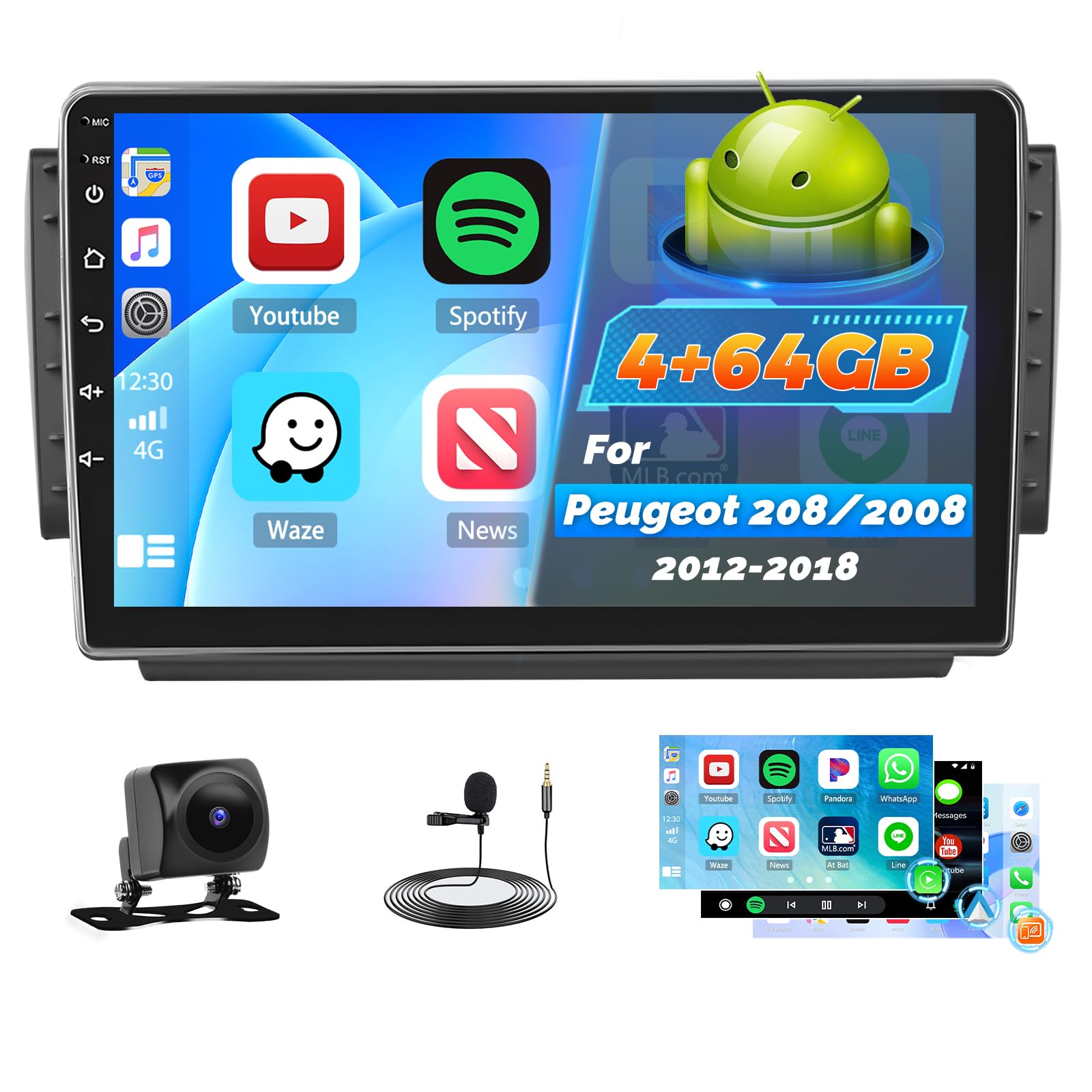
Image: Comparison of the car dashboard before and after installing the Roinvou Android Autoradio. The top image shows the new 10-inch touchscreen unit installed, displaying various app icons. The bottom image shows the original car radio slot.
5. Operating Instructions
5.1 System Overview (Android 4GB+64GB)
Your autoradio runs on the latest Android system with 4GB RAM and 64GB internal storage, ensuring stable and fluid operation. It supports split-screen mode, allowing you to use two applications simultaneously.

Image: Close-up views of the touchscreen car multimedia system displaying various interface screens and mounting options.

Image: The 10-inch QLED touchscreen of the Roinvou Autoradio, highlighting its 1280x720 HD resolution.
5.2 Wireless CarPlay, Android Auto, and MirrorLink
These features allow seamless integration with your smartphone.
- Wireless CarPlay & Android Auto: Connect your smartphone wirelessly to access navigation, communication, music, and other functions directly on the autoradio screen.
- MirrorLink: Project your smartphone's screen onto the autoradio display via Wi-Fi (for iOS) or USB/Wi-Fi (for Android) to enjoy content on a larger screen.

Image: The autoradio display showing the Wireless CarPlay and Android Auto interface, with a smartphone connected wirelessly. Icons for voice control, hands-free calling, online music, and online maps are visible.
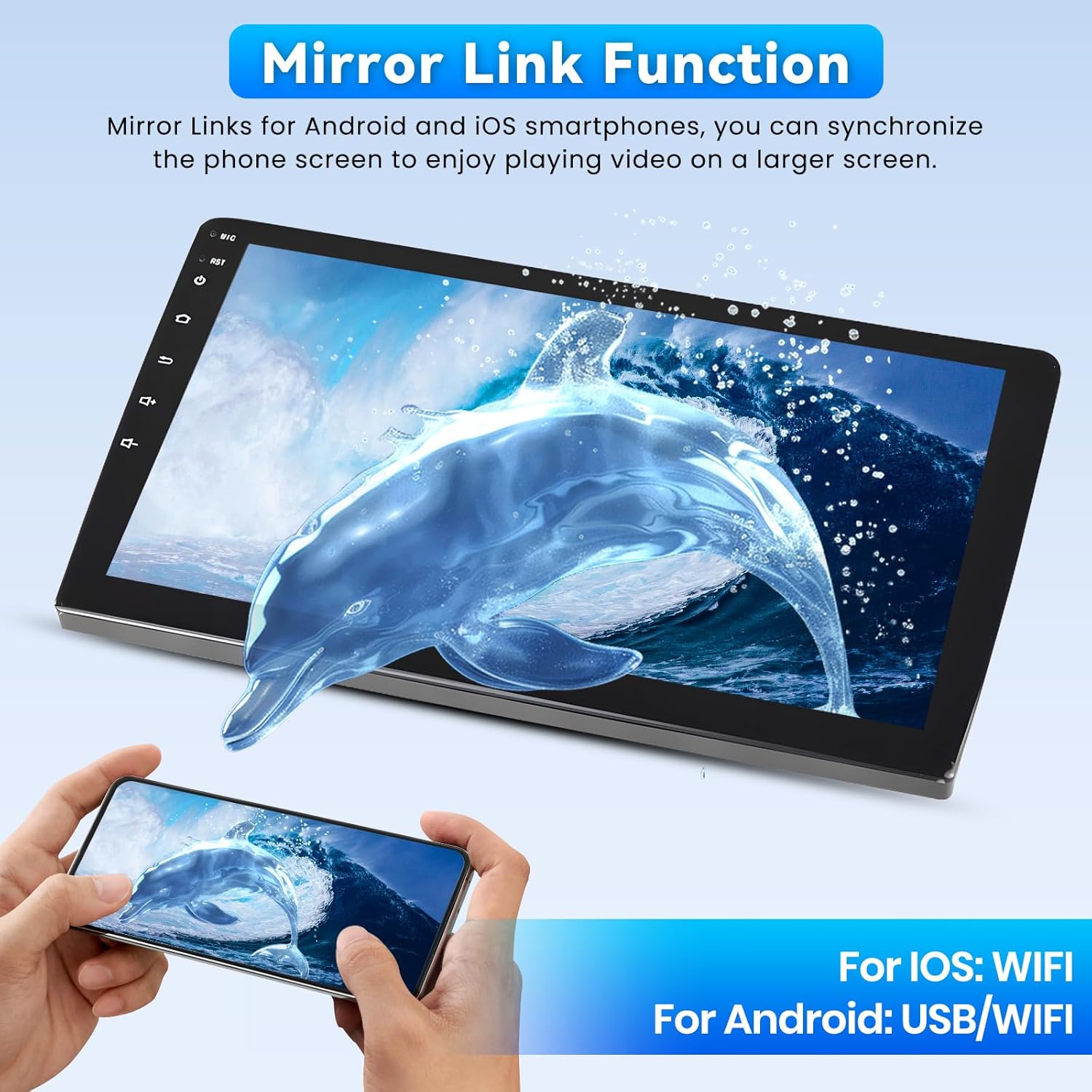
Image: The MirrorLink function in action, showing a smartphone screen mirrored onto the larger autoradio display, featuring a dolphin image.
5.3 Wi-Fi, GPS, and Bluetooth
- Wi-Fi: Connect to a Wi-Fi hotspot to access online maps, stream videos (e.g., YouTube), download apps, and browse the internet.
- GPS Navigation: The unit supports both online and offline navigation. Download offline maps from the Play Store for use without an internet connection.
- Bluetooth: Enjoy hands-free calls and seamless music streaming from your Bluetooth-enabled devices.

Image: The autoradio screen displaying GPS navigation with a map of London, alongside various social media and streaming app icons, illustrating Wi-Fi connectivity.
5.4 FM/RDS Radio and 32-Band Equalizer
- FM/RDS: The radio provides clear signal reception and displays station information, song titles, and traffic updates directly on the screen.
- 32-Band Equalizer: Customize your audio experience with precise adjustments to audio frequencies, enhancing bass, mids, and treble to your preference. Multiple user interfaces are available for personalization.
5.5 Steering Wheel Control (SWC) and Backup Camera
- Steering Wheel Control: Manage audio functions, calls, and navigation directly from your steering wheel for safe and convenient operation.
- AHD Backup Camera: The included AHD backup camera offers a 170° ultra-wide viewing angle, IP68 waterproof rating, and HD night vision for clear images in various conditions, assisting with safe parking.

Image: The top section shows the steering wheel controls and their corresponding functions on the autoradio. The bottom section displays the wide-angle view from the AHD backup camera, assisting with parking.
6. Maintenance
- Cleaning: Use a soft, dry cloth to clean the screen and unit. For stubborn smudges, slightly dampen the cloth with water or a screen-safe cleaner. Avoid abrasive materials or harsh chemicals.
- Software Updates: Periodically check for system software updates to ensure optimal performance and access to new features. Updates can usually be found in the system settings menu.
- Environmental Conditions: Protect the unit from extreme heat or cold, which can affect its lifespan and performance.
7. Troubleshooting
| Problem | Possible Cause | Solution |
|---|---|---|
| Unit does not power on. | Loose power connection, blown fuse, vehicle battery issue. | Check power cables and connections. Inspect vehicle fuses. Ensure car battery is charged. |
| No sound. | Volume too low, mute activated, incorrect audio source, speaker wiring issue. | Increase volume. Check if mute is active. Select correct audio source. Verify speaker connections. |
| GPS signal lost or inaccurate. | GPS antenna obstructed, poor satellite reception, software issue. | Ensure GPS antenna has a clear view of the sky. Move to an open area. Restart the unit. Update GPS software. |
| CarPlay/Android Auto not connecting. | Bluetooth/Wi-Fi off on phone, incorrect settings, phone software issue. | Ensure Bluetooth and Wi-Fi are enabled on your phone. Check connection settings on the autoradio. Restart phone and autoradio. |
| Rear camera not displaying. | Loose camera connection, incorrect wiring to reverse light, camera malfunction. | Check camera cable connections. Verify power supply to the camera when in reverse. Test camera functionality. |
If you encounter issues not listed here or if the suggested solutions do not resolve the problem, please contact Roinvou customer support.
8. Specifications
| Feature | Detail |
|---|---|
| Brand | Roinvou |
| Model Number | B0F543XZVB |
| Operating System | Android |
| RAM + Storage | 4GB RAM + 64GB Internal Storage |
| Screen Size | 10 inches |
| Screen Type | 2.5D Touch Screen, QLED, HD Resolution (1280x720) |
| Connectivity Technology | Bluetooth, USB, Wi-Fi, FM/RDS |
| Special Features | Wireless CarPlay, Android Auto, Mirror Link, 32-Band EQ, GPS, Steering Wheel Control (SWC), Backup Camera Support |
| Compatible Devices | Smartphone |
| Audio Output Modes | APE/FLAC/WAV/MP3/WMA |
| Video Encoding | MKV/RMVB/AVI/MP4/MDV |
| Power Output | 45 Watts x 4 Channels |
| Internet Applications | Netflix, YouTube, iTunes (via Wi-Fi) |
| Control Method | Application, Touch Screen, Steering Wheel Control |
| Origin | China |
9. Warranty and Support
Your Roinvou Autoradio comes with a 24-month warranty. For any inquiries or technical assistance, Roinvou provides lifetime online support, with responses typically within 24 hours.
For support, please refer to the contact information provided with your purchase or visit the official Roinvou website.
Related documentsB0F543XZVB

Ask a question about this manual
Ask about setup, troubleshooting, compatibility, parts, safety, or missing instructions. Manuals+ will review the question and use this page’s manual context to help answer it.