Introduction
This manual provides comprehensive instructions for the installation, operation, and maintenance of your Zomolither 4GB+64GB 8-Core Qualcomm Car Stereo Radio. This unit is specifically designed for Honda CRV models manufactured between 2002 and 2006, offering advanced features such as Android 13, Wireless CarPlay, Android Auto, GPS navigation, Bluetooth 5.1, DSP audio processing, and WiFi connectivity. Please read this manual thoroughly before installation and use to ensure optimal performance and safety.
Product Overview
Key Features
- Operating System: Android 13 with Qualcomm 8-Core Processor (1.8GHz)
- Memory: 4GB RAM + 64GB ROM
- Display: 9-inch HD Capacitive 2.5D IPS Touchscreen (1280*720 resolution)
- Connectivity: Wireless CarPlay, Wireless Android Auto, Mirror Link (iOS/Android), Bluetooth 5.1, WiFi 6 (2.4G & 5GHz dual bands)
- Navigation: Built-in GPS with offline map support (Here We GO) and online map capabilities
- Audio: Built-in DSP (Digital Signal Processing) with 32-band EQ, noise reduction, and bass boost
- Radio: FM/RDS with 18 preset stations
- Camera Support: AHD Backup Camera (included) with night vision and automatic reversing image display
- Control: Steering Wheel Control (SWC) function support
- Additional Functions: Split Screen, Picture-in-Picture, UI Color Adjustment, Optional DAB+ and OBD2 support
What's in the Box
- 1x Android Car Radio & Frame
- 1x User Manual
- 1x Backup Camera
- 1x Cam-in Cable
- 1x GPS Antenna
- 1x Microphone (MIC)
- 1x Installation Tools Set
- 1x Power Cable
- 1x RCA Cable
- 2x USB Cables

Image: Contents of the Zomolither car stereo package, showing the main unit, wiring harnesses, GPS antenna, microphone, backup camera, and installation tools.
Setup and Installation
Compatibility Check
This car stereo is compatible with Honda CRV models from 2002 to 2006. Before installation, carefully compare your car's center console with the product images to ensure proper fitment. If you are unsure, it is recommended to consult with a professional installer or contact Zomolither support with pictures of your dashboard.

Image: Visual guide demonstrating compatibility with different Honda CRV 2002-2006 dashboard configurations. Ensure your vehicle's console matches the "Fit" examples.
Installation Steps
The unit comes with a plug-and-play wiring harness designed for easy installation. Basic steps typically involve:
- Preparation: Disconnect the car battery's negative terminal.
- Remove Old Unit: Carefully remove the existing car stereo and dashboard trim.
- Connect Wiring: Connect the provided wiring harness to your car's existing harness. Refer to the wiring diagram for specific connections (Power, RCA, USB, Camera Input, GPS Antenna, Radio Cable).
- Install Accessories: Mount the GPS antenna in a clear location, install the microphone for hands-free calling, and route the backup camera cable to the rear of the vehicle.
- Mount New Unit: Secure the Zomolither stereo into the dashboard opening.
- Test: Reconnect the car battery and perform initial function tests before fully reassembling the dashboard.
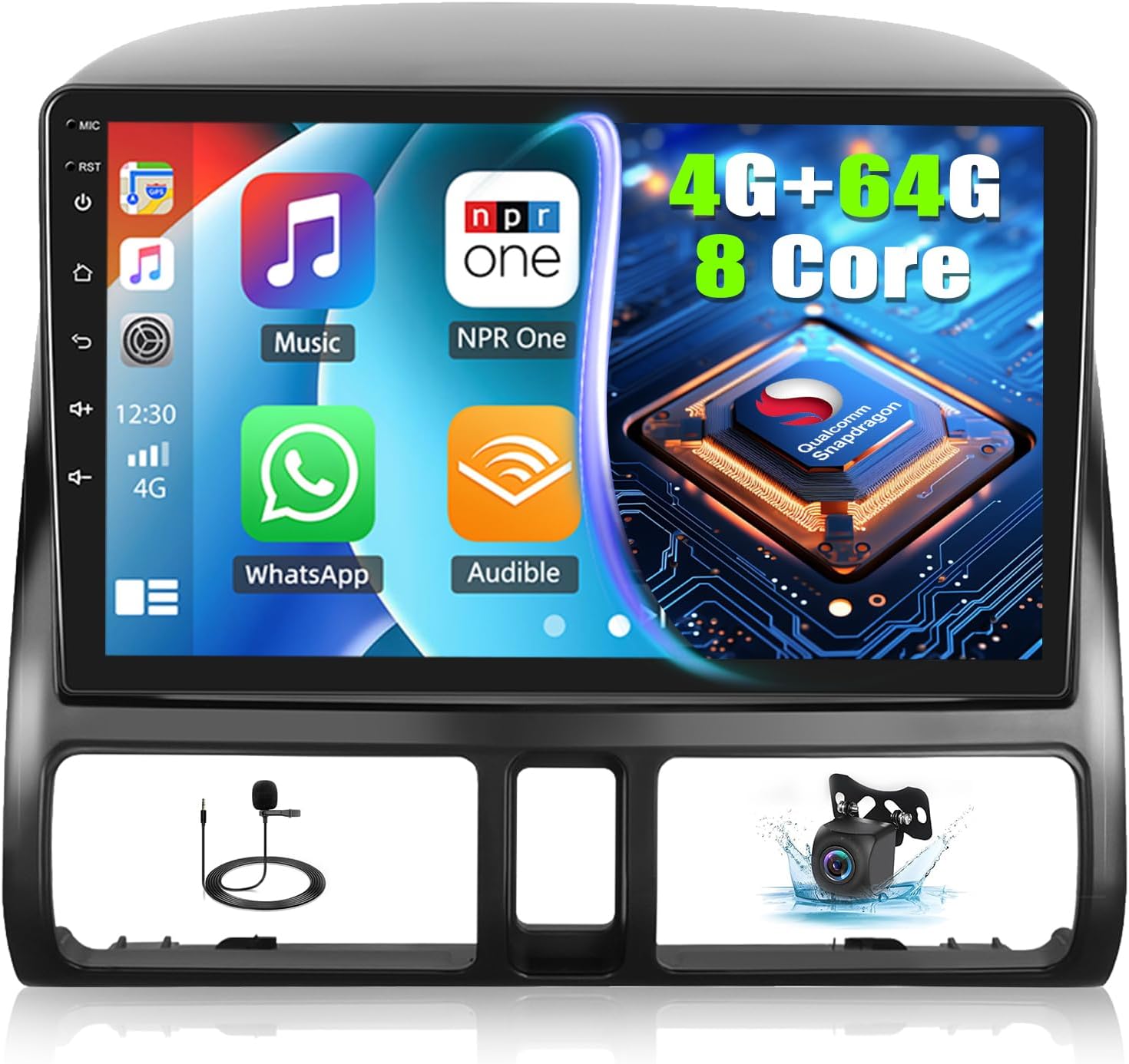
Image: The Zomolither car stereo head unit, showing the main display, microphone, and backup camera components.
Operating Instructions
Basic Operation
The 9-inch IPS touchscreen provides intuitive control over all functions. Navigate through menus by tapping icons and swiping. The system runs on Android 13, allowing for a familiar smartphone-like experience.
Wireless CarPlay & Android Auto
Connect your smartphone wirelessly via Bluetooth to activate CarPlay (for iOS devices) or Android Auto (for Android devices). This allows access to phone navigation, calls, messages, and music directly on the car stereo screen. Voice assistants can be activated for hands-free control.

Image: Illustration of wireless CarPlay, Android Auto, and Mirror Link functionalities, demonstrating how to connect smartphones to the head unit.
GPS Navigation
The unit includes a built-in GPS module. It comes pre-installed with the "Here We GO" APK for offline North America maps. For online navigation, connect the unit to WiFi or a mobile hotspot to use Google Maps or other navigation applications downloaded from the Play Store.

Image: Display of the built-in GPS navigation system, highlighting its ability to use both online and pre-loaded offline maps for guidance.
Radio (FM/RDS)
Access FM radio stations with RDS support. The unit allows for 18 preset stations. Note that the radio interface may require manual tuning through frequencies rather than an automatic "seek" function.
Digital Sound Processor (DSP)
Utilize the integrated DSP with 32-band EQ settings to customize your audio experience. Adjust noise reduction, bass boost, and other parameters to achieve your preferred sound quality.

Image: Screenshot of the DSP (Digital Signal Processor) interface, showing detailed audio equalization and sound field customization options.
Bluetooth 5.1 & WiFi 6
Bluetooth 5.1 provides stable connections for hands-free calls and audio streaming. WiFi 6 supports both 2.4G and 5GHz bands, enabling fast internet access for app downloads, online video streaming, and browsing.
AHD Backup Camera
When reversing your vehicle, the included AHD backup camera automatically displays a clear image on the 9-inch screen, assisting with safer parking maneuvers. The camera features night vision capabilities.
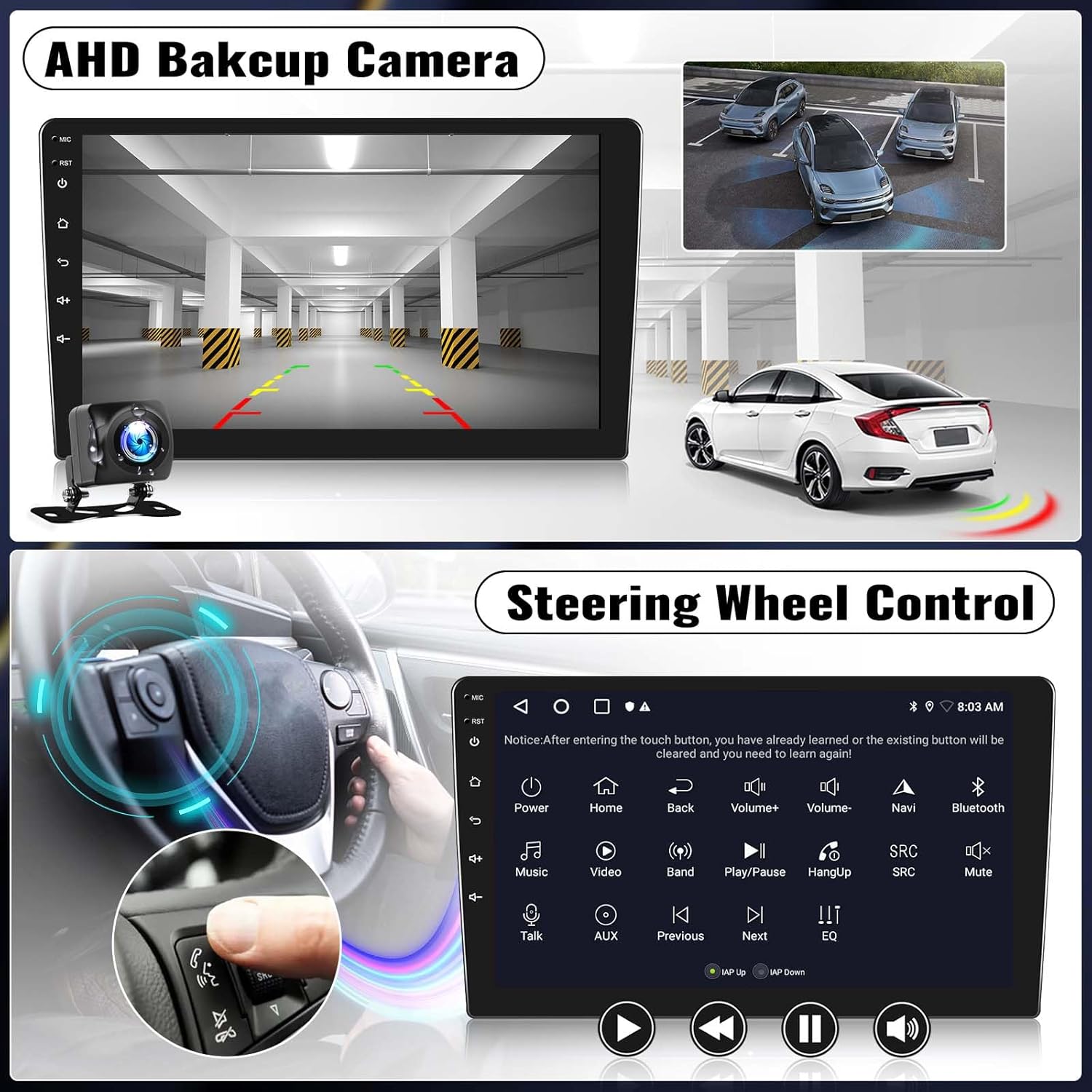
Image: The car stereo display showing the view from the AHD backup camera with parking guidelines, alongside an illustration of steering wheel control buttons.
Steering Wheel Control (SWC)
The unit supports your vehicle's existing steering wheel controls. These can be configured through the system settings to operate various functions such as volume, track changes, and mode selection, enhancing driving convenience.
Advanced Display Features
- UI Color Adjustment: Personalize the user interface colors to match your preference or car interior.
- Picture-in-Picture (PiP): Display a secondary application in a smaller window while using a primary application.
- Split Screen: Run two applications side-by-side on the screen for multitasking.

Image: Screenshots illustrating the UI color adjustment options and the Picture-in-Picture feature, allowing multiple applications to be viewed simultaneously.
Maintenance
- Screen Cleaning: Use a soft, lint-free cloth to gently wipe the touchscreen. Avoid abrasive cleaners or harsh chemicals.
- Software Updates: Periodically check for system updates via the WiFi connection to ensure optimal performance and access to the latest features.
- Environmental Conditions: Avoid exposing the unit to extreme temperatures or direct sunlight for prolonged periods.
Troubleshooting
- Unit Does Not Power On:
Ensure all power cables are securely connected and the car battery is properly charged. Check the fuse in the car's fuse box and the unit's wiring harness.
- No Sound:
Verify speaker connections. Check volume levels on the unit and ensure the mute function is not active. Confirm RCA cable connections if using external amplifiers.
- GPS Signal Issues / Offline Map Download Failure:
Ensure the GPS antenna is mounted in a location with a clear view of the sky. For offline maps, ensure a stable internet connection during download attempts. If issues persist, try resetting the device to factory settings (note: this will erase all user data) or contact support for assistance with map reinstallation.
- Slow Performance / Unresponsive Touchscreen:
Close unnecessary background applications. Clear system cache if available in settings. If performance remains slow, a factory reset might be necessary. Ensure the unit's firmware is up to date.
- Radio Cannot Find Stations (No "Seek" Function):
The radio interface may require manual tuning through frequencies. Use the up/down arrows to incrementally adjust the frequency. Preset your favorite stations for quick access.
- CarPlay/Android Auto Not Connecting:
Ensure Bluetooth is enabled on both the stereo and your smartphone. Confirm your phone is discoverable. Try forgetting the device on both ends and re-pairing. Ensure your phone's operating system is up to date.
- Backup Camera Not Displaying:
Check the camera's power and video input connections. Ensure the "CAM-IN" cable is properly connected to the stereo. Verify the camera is receiving power when the vehicle is in reverse.
Specifications
| Operating System | Android 13 |
| Processor | Qualcomm 8-Core, 1.8GHz |
| RAM | 4GB |
| Internal Storage (ROM) | 64GB |
| Display Size | 9 Inches |
| Display Resolution | 1280*720 IPS |
| Bluetooth Version | 5.1 |
| WiFi Standard | WiFi 6 (2.4G & 5GHz) |
| GPS | Built-in, supports online/offline maps (North America, Worldwide) |
| Audio Processing | 32EQ DSP |
| Included Components | Android car radio & Frame, Manual, Backup camera, Cam-in cable, GPS Antenna, MIC, Installation Tools, Power cable, RCA cable, 2x USB cables |
| Product Dimensions | 12 x 10 x 4 inches (approx.) |
| Item Weight | 2.2 pounds (approx.) |
Warranty and Support
Warranty Information
The Zomolither Car Stereo Radio comes with a 1-year warranty from the date of purchase, covering manufacturing defects. Please retain your proof of purchase for warranty claims.
Customer Support
For technical assistance, troubleshooting, or any product-related inquiries, please contact Zomolither customer support. We offer lifetime technical support to ensure your satisfaction.
Online Support Email: Zomolither@126.com

Image: Zomolither UI color adjustment screen, which also displays the online support email address for customer assistance.