1. Introduction and Overview
The ACEMAGIC K1 Mini PC is a high-performance computing device designed for a wide range of applications, from business tasks and creative work to entertainment and light gaming. It features an AMD Ryzen 5 7430U processor, offering 6 cores and 12 threads with a maximum clock speed of 4.3GHz, ensuring smooth and efficient operation.
This compact and lightweight mini PC comes pre-installed with Windows 11 Pro, allowing for immediate use upon setup. Its small footprint (12.8 x 12.8 x 4.1 cm, approximately 0.5 kg) makes it an ideal choice for space-constrained environments, and it supports VESA mounting for integration behind a monitor.
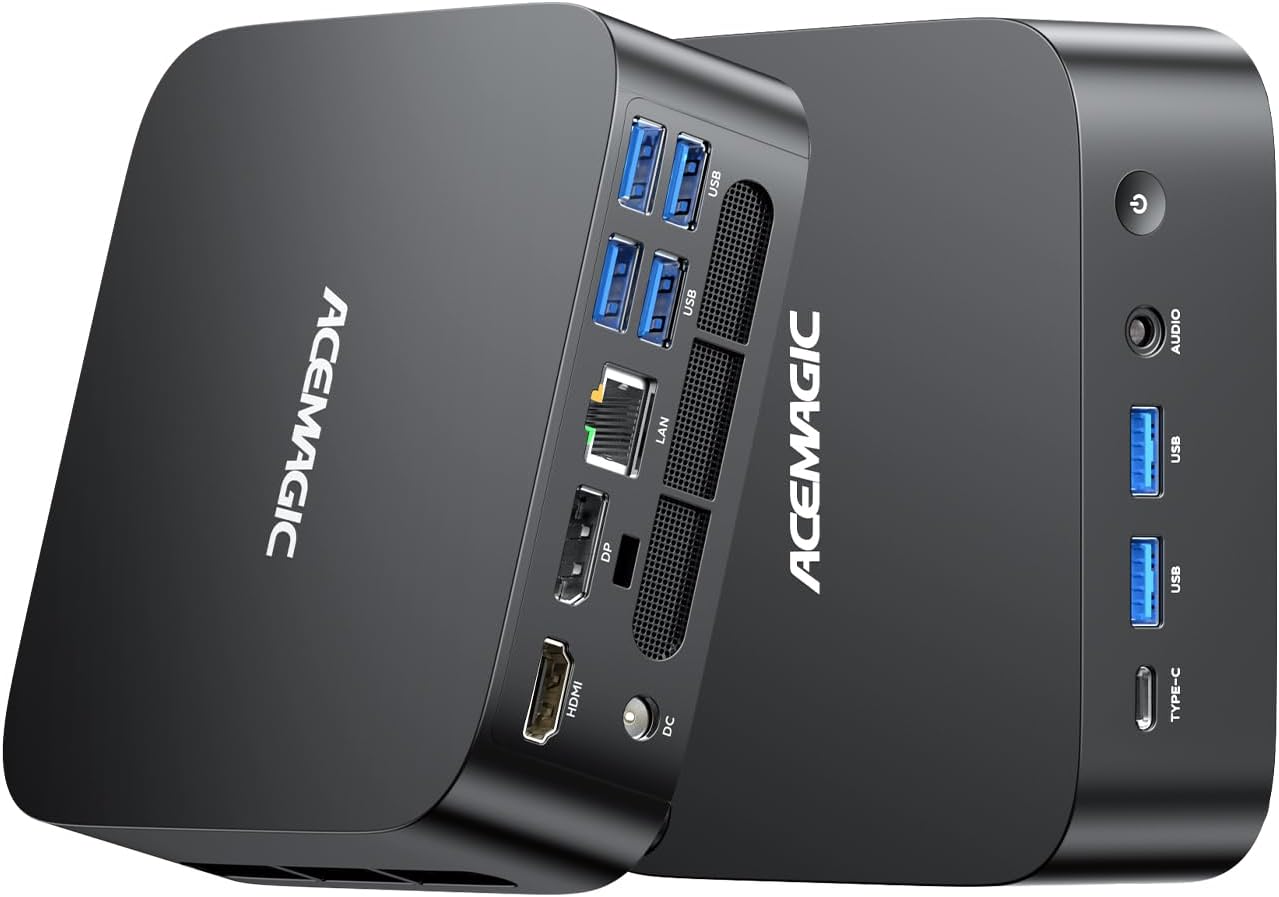
Image: The ACEMAGIC K1 Mini PC, a compact and powerful computing solution.
2. Setup Guide
Follow these steps to set up your ACEMAGIC K1 Mini PC:
- Connect Power: Connect the power adapter to the DC IN port on the mini PC and then to a power outlet.
- Connect Display: Use an HDMI, DisplayPort, or Type-C cable to connect your monitor(s) to the corresponding ports on the mini PC. The device supports up to three 4K@60Hz displays simultaneously.
- Connect Peripherals: Plug in your keyboard, mouse, and other USB devices into the available USB 3.2 ports.
- Network Connection: For wired internet, connect an Ethernet cable to the RJ45 LAN port. For wireless internet, the device supports Wi-Fi 6.
- Power On: Press the power button located on the front of the mini PC. The system will boot into Windows 11 Pro.

Image: Front and rear view of the ACEMAGIC K1 Mini PC, highlighting its various ports for connectivity.
3. Operating Instructions
3.1 Multi-Display Setup
The ACEMAGIC K1 supports connecting up to three displays simultaneously at 4K@60Hz. Use a combination of the HDMI 2.0, DisplayPort 1.4b, and full-function Type-C ports. After connecting, Windows will automatically detect the displays. You can configure display settings (e.g., extend, duplicate) via the Windows Display Settings.

Image: The ACEMAGIC K1 Mini PC connected to multiple monitors, demonstrating its multi-display capability for an expanded workspace.
3.2 Network and Bluetooth Connectivity
For wireless internet, connect to a Wi-Fi 6 network through Windows settings. For stable wired connectivity, use the Gigabit LAN port. Bluetooth 5.2 allows for seamless pairing with wireless accessories like keyboards, mice, and speakers. Access Bluetooth settings in Windows to pair new devices.
3.3 Storage and Memory Expansion
The mini PC comes with 32GB DDR4 RAM and a 512GB SSD. For increased performance or storage, the device supports expansion:
- Memory: Two DDR4 SO-DIMM slots allow for memory upgrades up to a maximum of 64GB.
- Storage: One M.2 2280 PCIe 3.0 SSD slot and one SATA SSD slot are available, each supporting up to 2TB for a total of 4TB additional storage.

Image: Diagram illustrating the memory and storage expansion capabilities of the ACEMAGIC K1 Mini PC, showing support for up to 64GB RAM and 4TB SSD.
3.4 Usage Scenarios
The ACEMAGIC K1 is versatile for various uses:
- Business & Productivity: Efficiently handle office applications, web conferencing, and data analysis.
- Creative Work: Smoothly run image editing and other creative software.
- Entertainment: Enjoy 4K video streaming and light gaming.
- Education: Ideal for online learning and research.

Image: Collage showing various applications of the ACEMAGIC K1 Mini PC, including multitasking, remote work, and 4K gaming.
Video Demonstration: Genshin Impact Gameplay
This video demonstrates the ACEMAGIC K1 Mini PC's performance during gameplay of Genshin Impact, showcasing its capability for light gaming.
4. Maintenance
4.1 Cooling System
The ACEMAGIC K1 features an efficient and silent cooling system, including a large fan, wide heat dissipation fins, and dual exhaust ports. This design ensures rapid and quiet heat dissipation, maintaining stable operation even during extended use. The low-noise operation helps prevent distractions.

Image: An exploded view of the ACEMAGIC K1 Mini PC, illustrating its internal cooling fan and heat dissipation components for efficient thermal management.
4.2 General Care
- Keep the device in a clean, dust-free environment.
- Ensure proper ventilation by not blocking the air vents.
- Clean the exterior with a soft, dry cloth. Avoid liquid cleaners.
- Regularly update Windows and drivers for optimal performance and security.
5. Troubleshooting
If you encounter issues with your ACEMAGIC K1 Mini PC, consider the following common solutions:
- No Power: Ensure the power adapter is securely connected to both the mini PC and a working power outlet. Try a different outlet if necessary.
- No Display: Check all display cable connections (HDMI, DisplayPort, Type-C). Ensure your monitor is set to the correct input source. Try connecting to a different monitor or using a different cable.
- No Internet (Wi-Fi): Verify that Wi-Fi is enabled in Windows settings and that you are connected to the correct network. Restart your router and the mini PC.
- No Internet (Wired LAN): Ensure the Ethernet cable is securely connected to both the mini PC and your router/modem. Check router status.
- Bluetooth Device Issues: Ensure Bluetooth is enabled. Try re-pairing the device. If experiencing audio issues, ensure drivers are up to date or try a different Bluetooth dongle if the integrated one is problematic.
- System Slowdown/Overheating: Ensure the mini PC's vents are clear and not obstructed. Consider reducing background applications. If persistent, check for dust buildup in vents.
- Windows Activation: If you encounter activation issues, contact ACEMAGIC support with your product details.
For further assistance, refer to the support section or contact ACEMAGIC customer service.
6. Specifications
| Feature | Detail |
|---|---|
| Brand | ACEMAGIC |
| Model Number | K1-743032 |
| CPU Brand | AMD |
| CPU Type | AMD R Series (Ryzen 5 7430U) |
| CPU Speed | 4.3 GHz (Max Turbo) |
| Processor Count | 6 Cores |
| RAM Capacity | 32 GB |
| Memory Type | DDR4 SODIMM |
| Max Memory Capacity | 64 GB |
| Memory Clock Speed | 2666 MHz |
| HDD Capacity | 512 GB |
| Hard Disk Type | SSD |
| Graphics Accelerator | AMD Radeon Graphics (Integrated) |
| VRAM Type | DDR4 SDRAM |
| Communication Format | Bluetooth 5.2, WiFi 6 |
| Wireless Type | 802.11ax, Bluetooth |
| USB 3.0 Ports | 7 (USB3.2 Gen2 Type-A x2, USB3.2 Gen1 Type-A x4, Type-C x1) |
| HDMI Ports | 1 (HDMI 2.0) |
| DisplayPort | 1 (DP 1.4b) |
| Optical Drive Type | None |
| Hardware Platform | PC |
| Operating System | Windows 11 Pro |
| Product Weight | 1.26 Kilograms |
| Product Dimensions | 12.8 x 12.8 x 4.1 cm |
7. Warranty and Support
ACEMAGIC provides comprehensive support for your K1 Mini PC:
- Quality Guarantee: The product comes with an 18-month quality guarantee from the date of purchase.
- Customer Service: 24/7 customer service is available to assist with any inquiries or issues.
- Technical Support: Dedicated technical support is provided to help with setup, troubleshooting, and other technical concerns.
- Returns & Replacements: Prompt assistance is offered for any defects, damage, or incorrect items received.
For support, please refer to the contact information provided with your product or visit the official ACEMAGIC website.