
1. Introduction
This manual provides detailed instructions for the installation, setup, operation, and maintenance of your Haudio 10.1" Android 13 Car Stereo. Please read this manual thoroughly before using the product to ensure proper functionality and safety. Keep this manual for future reference.
2. Product Overview
Key Features:
- Android 13 Operating System: Enhanced performance and user interface.
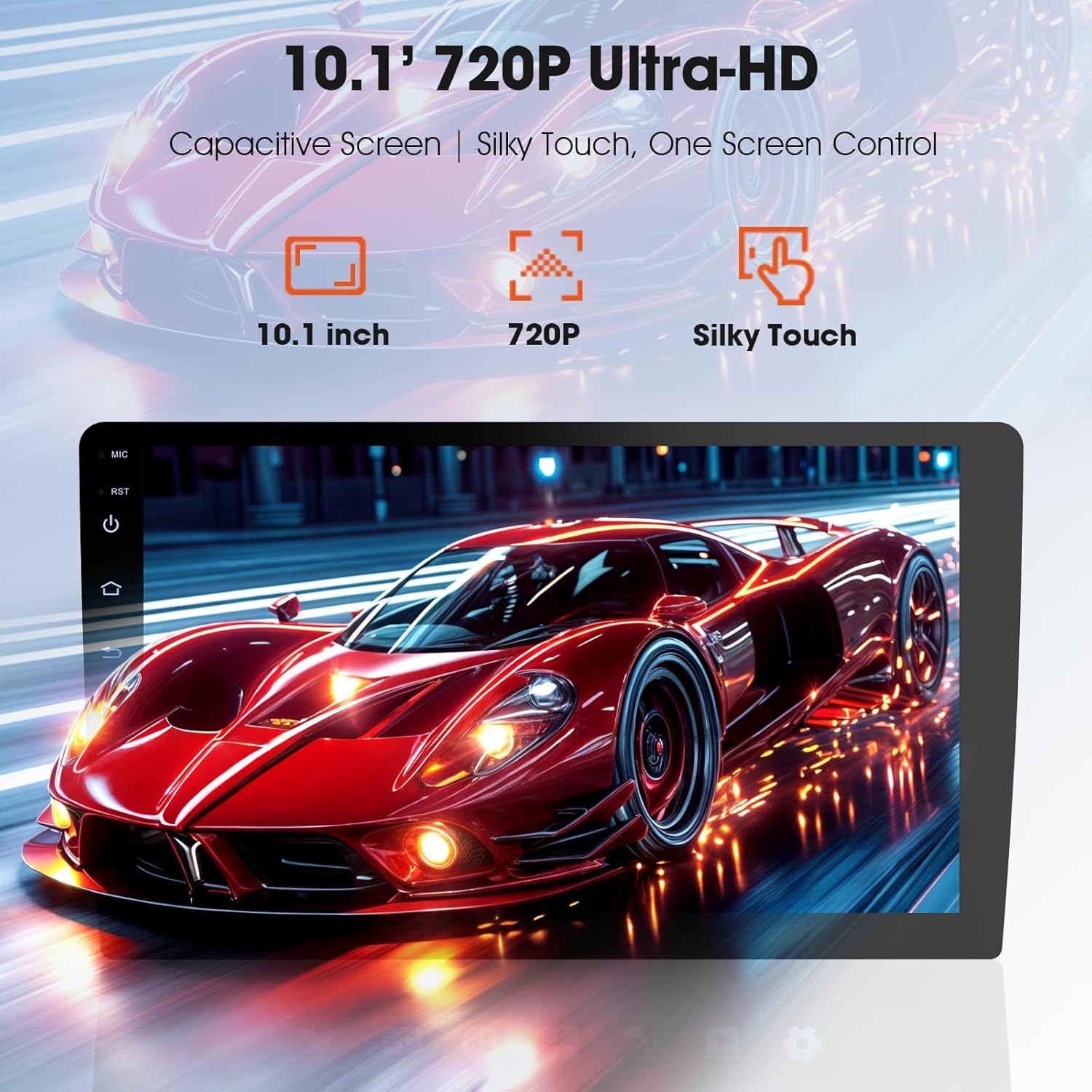
- 10.1" HD IPS Touch Screen (720P): Clear visuals and responsive touch control.
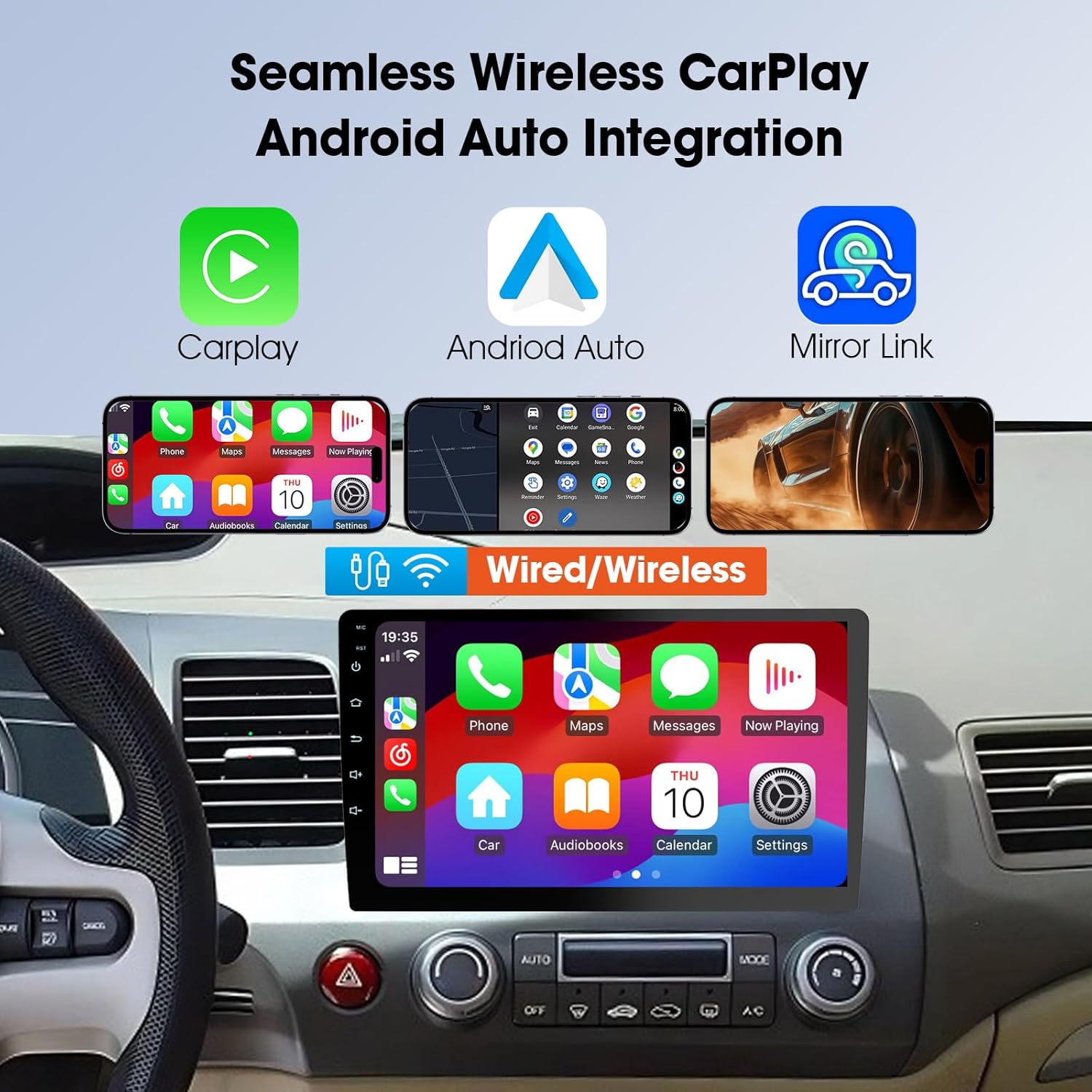
- Wireless CarPlay & Android Auto: Seamless smartphone integration without cables.
- 2GB RAM + 64GB Storage: Smooth multitasking and ample space for apps and media.
- Built-in GPS: Navigation support for various map applications.
- Bluetooth 5.0: Stable wireless connectivity for calls and audio streaming.
- Dual-Band WiFi (2.4GHz/5GHz): Fast internet access and hotspot capabilities.
- FM/AM/RDS Radio: Reliable radio reception with station information display.
- Built-in DSP: Advanced digital sound processing for audio customization.
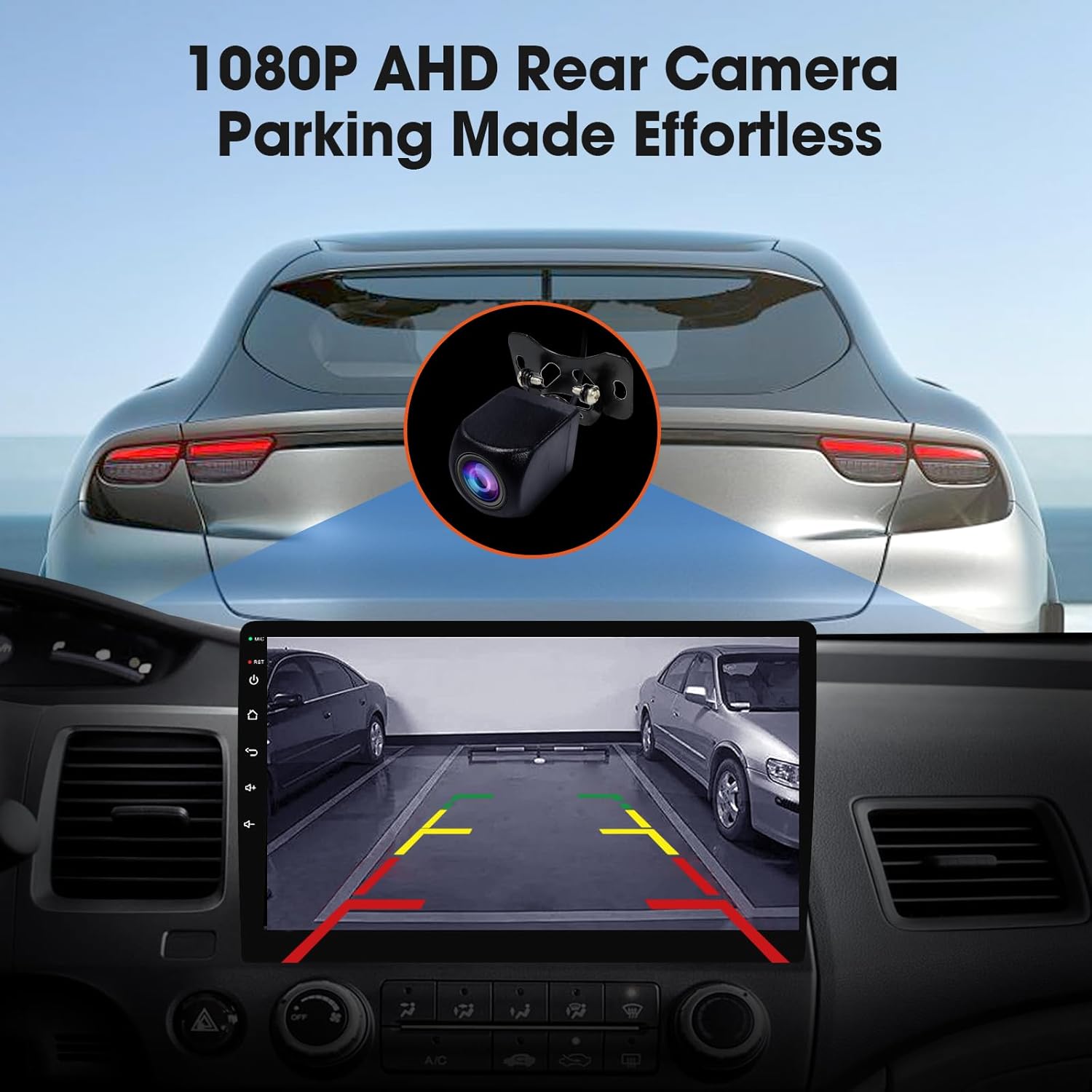
- 1080P AHD Rear Camera Support: Enhanced safety with clear backup visuals.
- Split-Screen Functionality: Run two applications simultaneously.
- APK Freedom: Download and install various Android applications.
What's in the Box:
- Haudio 10.1" Android 13 Car Stereo Unit
- Power Cables (x2)
- GPS Antenna (x1)
- Rearview Camera (x1)
- 20-Pin RCA Cable (x1)
- Mounting Brackets (x2)
- Screw Kit (x1)
- User Manual (x1)

3. Safety Information
- Always ensure the vehicle is parked safely before operating the stereo's advanced features or making adjustments.
- Do not attempt to install or repair the unit if you are not qualified. Consult a professional installer.
- Avoid prolonged exposure to direct sunlight or extreme temperatures, which can damage the unit.
- Keep the volume at a level that allows you to hear outside traffic sounds.
- Ensure all wiring is correctly connected to prevent short circuits or electrical hazards.
- Use only the provided accessories and cables to avoid damage or malfunction.
4. Installation Guide
This section provides general guidance for installing your Haudio car stereo. Specific vehicle models may require slight variations. It is recommended to consult a professional for installation if you are unsure.
4.1 Pre-Installation Check:
- Verify all components listed in "What's in the Box" are present.
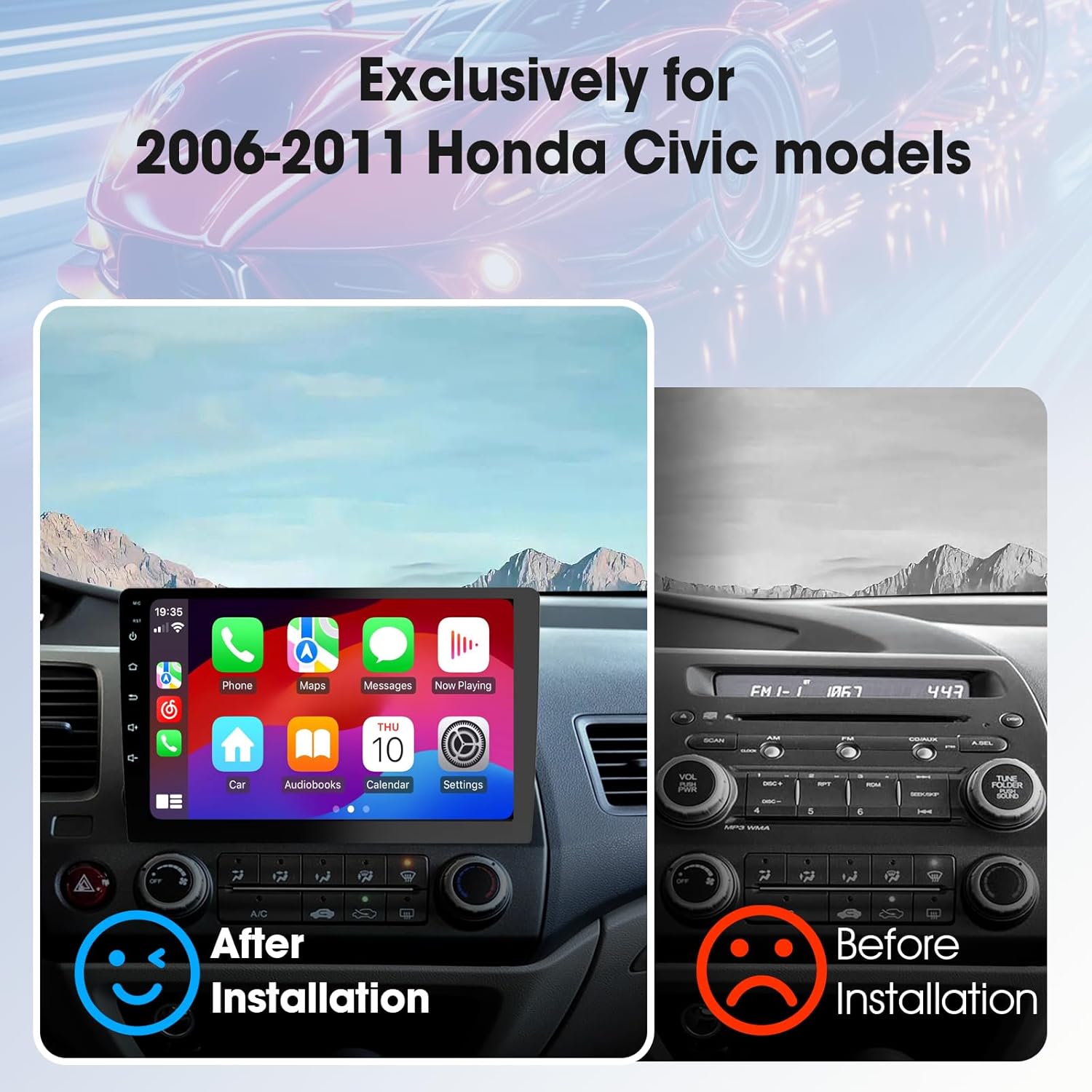
- Ensure your vehicle is compatible with the 10.1" unit (specifically Honda Civic 2006-2011).
- Disconnect the vehicle's battery before starting any electrical work.
4.2 Main Unit Installation:
- Carefully remove the original car stereo and dashboard trim.
- Connect the provided power cables and RCA cables to the new unit and the vehicle's wiring harness.
- Mount the new 10.1" car stereo into the dashboard opening using the provided mounting brackets and screw kit.
- Secure the unit firmly to prevent vibrations.
4.3 Rear Camera Installation:
The included 1080P AHD rear camera enhances parking safety. Follow these steps for installation:
- Locate a suitable mounting position for the camera, typically near the license plate light or trunk handle.
- Route the camera's video cable through the vehicle's interior to the main stereo unit.
- Connect the camera's power wire to the vehicle's reverse light circuit for automatic activation.
- Connect the video cable to the "CAM IN" port on the car stereo.
Video 4.1: This video demonstrates the installation process for the rearview camera, including routing cables and connecting to the car stereo system.
5. Initial Setup and Configuration
After successful installation, power on the unit and follow these steps for initial setup.
5.1 First Boot and System Settings:
- Upon first boot, the system may guide you through basic language and time zone settings.
- Navigate to Settings to configure Wi-Fi, Bluetooth, and display preferences.
- Verify the Android version and storage capacity under Device Info in settings.
5.2 Steering Wheel Control (SWC) Learning:
To use your vehicle's steering wheel buttons with the car stereo, you need to perform SWC learning:
- Go to Car Settings on the main interface.
- Select SWC Type and choose Learning Type.
- Enter the SWC setting interface.
- On the screen, press a function icon (e.g., Volume Up). A prompt will appear.
- While the prompt is active, press the corresponding button on your steering wheel. The prompt will disappear, indicating successful learning.
- Repeat for all desired steering wheel buttons.
Video 5.1: This video demonstrates how to configure and synchronize the steering wheel control buttons with the car stereo for convenient operation.
6. Operating Instructions
6.1 Wireless CarPlay & Android Auto:
Connect your smartphone wirelessly for seamless access to navigation, music, calls, and messages.
- Ensure Bluetooth is enabled on your phone and the car stereo.
- Pair your phone with the car stereo via Bluetooth.
- Once paired, the CarPlay or Android Auto icon will appear on the stereo screen. Tap to launch.
6.2 Audio Playback and DSP:
The unit supports various audio formats including FLAC/WAV/APE for lossless quality. Use the built-in DSP for advanced sound customization.
- Access the DSP settings from the main menu to adjust equalizer, balance, and fader settings.
- Choose from preset sound modes or create custom profiles.

6.3 Split Screen and Picture-in-Picture:
Enhance your experience by running multiple applications simultaneously.
- To activate split-screen, long-press the recent apps button or drag an app to one side of the screen.
- Picture-in-Picture mode allows a video to play in a small window while you use other apps.
Video 6.1: This video provides a comprehensive overview of the 10.1-inch car stereo for Honda Civic 2006-2011, demonstrating its various features and user interface.
7. Maintenance
- Screen Cleaning: Use a soft, lint-free cloth to gently wipe the touchscreen. Avoid abrasive cleaners or solvents.
- Software Updates: Periodically check for system updates via Wi-Fi in the settings menu to ensure optimal performance and access to new features.
- Cable Connections: Ensure all cables are securely connected and free from damage.
- Environmental Care: Protect the unit from extreme temperatures, moisture, and direct sunlight when not in use.
8. Troubleshooting
| Problem | Possible Cause | Solution |
|---|---|---|
| Unit does not power on. | Loose power connection, blown fuse, vehicle battery issue. | Check power cables, inspect fuses, ensure battery is charged. |
| No sound from speakers. | Volume too low, mute activated, incorrect wiring, speaker issues. | Increase volume, check mute status, verify speaker wiring, test speakers. |
| CarPlay/Android Auto not connecting. | Bluetooth not paired, phone settings, app issues. | Ensure Bluetooth is on and paired, restart phone and stereo, check phone's CarPlay/Android Auto settings. |
| Rear camera not displaying. | Loose camera connection, incorrect wiring to reverse light, camera malfunction. | Check camera video and power connections, ensure reverse gear is engaged, test camera. |
| Touchscreen unresponsive. | System freeze, screen damage. | Restart the unit (use the RST button if available), contact support if issue persists. |
9. Specifications
| Feature | Detail |
|---|---|
| Product Dimensions | 18 x 8.9 x 11 inches |
| Item Weight | 5.79 pounds |
| ASIN | B0F53V178H |
| Item Model Number | Haudio 2025 |
| Brand | Haudio |
| Connectivity Technology | Bluetooth, Bluetooth 5.0, Dual-Band Wi-Fi (2.4GHz/5GHz), USB 2.0x2, AUX-IN, HDMI Input, Ethernet, Wi-Fi |
| Controller Type | Capacitive Touchscreen (10-point touch) + Physical Knob (volume/power) |
| Special Features | Android Auto, Wireless Carplay/Android Auto, Bluetooth 5.0, Wi-Fi, Upgraded UI to Android 13 Style, MediaTek MT8163 Quad-Core 1.3GHz Processor, 10.1 Inches Screen Size |
| Compatible Devices | Honda Civic 2006-2011 models (direct OEM wiring harness), works with Android/iOS screen mirroring |
| Total HDMI Ports | 1 |
| Connector Type | RCA |
| Audio Output Mode | Stereo/Surround/Bass Boost (supports FLAC/WAV/APE lossless formats) |
| Surround Sound Channel Configuration | 4.1-Channel Surround Sound (supports independent front/rear audio adjustment, theater-like immersion) |
| Video Encoding | H.264, H.265/HEVC, MPEG-4, AVC, MPEG-2, MJPEG, WMV, RM, DIVX, DAT |
10. Warranty and Support
- 1-Year Warranty: The product comes with a 1-year warranty for free replacement in case of manufacturing defects.
- 24/7 Technical Support: Access video guides and live chat support for any technical assistance.
- For further inquiries or support, please refer to the contact information provided with your purchase or visit the Haudio official website.


