
TELESIN TX-JP-P1-MP-10
TELESIN Magnetic Phone Grip User Manual
Model: TX-JP-P1-MP-10
Brand: TELESIN
Introduction
Thank you for choosing the TELESIN Magnetic Phone Grip. This innovative accessory is designed to enhance your mobile photography and videography experience, providing a comfortable and stable grip, advanced control features, and broad compatibility. Please read this manual thoroughly before use to ensure proper operation and to maximize the product's potential.
Safety Information
- Keep the device away from water and moisture.
- Do not expose to extreme temperatures or direct sunlight for prolonged periods.
- Avoid dropping or subjecting the device to strong impacts.
- Do not attempt to disassemble or repair the device yourself. Contact customer support if issues arise.
- Ensure your phone is securely attached to the grip before use, especially during active movements.
- Keep out of reach of children.
Package Contents
Please check the package for the following items:
- TELESIN Magnetic Phone Grip x 1
- Magnetic Ring Sticker x 1 (for non-MagSafe devices)
- Cleaning Bag x 1
- Portable Protection Strap x 1
- Battery Removal Tool x 1
- Instruction Manual x 1
Setup
1. Attaching the Phone Grip
The TELESIN Magnetic Phone Grip utilizes a strong magnetic connection for secure attachment to your smartphone.
For MagSafe Compatible iPhones (iPhone 12 series and later):
Simply align the magnetic phone grip with the MagSafe area on the back of your iPhone. The magnets will automatically snap into place, providing a strong and secure hold. No additional accessories are needed.

Image: The phone grip magnetically attached to the back of an iPhone, illustrating the direct MagSafe compatibility.
For Non-MagSafe iPhones and Android Smartphones:
For devices without built-in MagSafe compatibility, use the included magnetic ring sticker. Attach the sticker to the back of your phone or phone case, ensuring it is centered for optimal magnetic strength. Once the magnetic ring is applied, the phone grip can be attached to it.

Image: An exploded view showing the magnetic ring sticker being applied to a phone, and the phone grip then attaching to the ring, demonstrating the strong magnetic hold.
The magnetic attachment provides 8 times the holding power of the phone's weight, ensuring stability during use. It supports both vertical and horizontal orientations.
2. Bluetooth Pairing (Remote Control)
The phone grip features a detachable Bluetooth remote control for wireless operation. The remote uses a button battery (CR1632, pre-installed).
- Ensure the remote control is powered on.
- On your smartphone, go to Settings > Bluetooth.
- Turn on Bluetooth and search for available devices.
- Select "TELESIN" or a similar name from the list to pair.
- Once paired, the remote control is ready for use.

Image: Visual guide for Bluetooth pairing on both Android and iPhone devices, and specific settings for iPhone zoom functionality.
3. iPhone Zoom Function Setup
For iPhone users, after initial pairing, you need to enable the zoom function. Follow these steps:
- Go to Settings > Accessibility > Zoom.
- Enable the Zoom function.
- Once enabled, you can use the zoom button on the grip.
- To exit zoom mode, double-tap with three fingers.
- Other settings will not be changed.
Operating Instructions
Key Functions Overview

Image: An illustration highlighting the main control features on the grip: the two-stage shutter button, zoom lever, mode switch, and the quick camera launch function.
- 2-Stage Shutter Button: Similar to a DSLR camera, half-press to focus, full-press to take a photo or start/stop video recording.
- Zoom Lever: Use the lever to smoothly zoom in and out. (Requires iPhone zoom function setup as described above).
- Mode Switch: Quickly switch between front and rear cameras.
- Quick Camera Launch: The grip is designed for quick activation of your phone's camera.
Using the Detachable Remote Control
The Bluetooth remote control can be detached from the grip for remote shooting, with an effective range of up to 10 meters (33 feet).

Image: The detachable remote control shown separately from the grip, demonstrating its use for remote photography with a smartphone mounted on a tripod.
- To detach, gently pull the remote from its slot on the grip.
- Use the shutter button on the remote to capture photos or start/stop videos from a distance.
- To reattach, simply align it with the slot and push it back until it clicks into place.
Tripod Mounting
The TELESIN Magnetic Phone Grip features a standard 1/4-inch screw hole at the bottom, allowing it to be mounted on tripods, monopods, or selfie sticks for stable shooting.
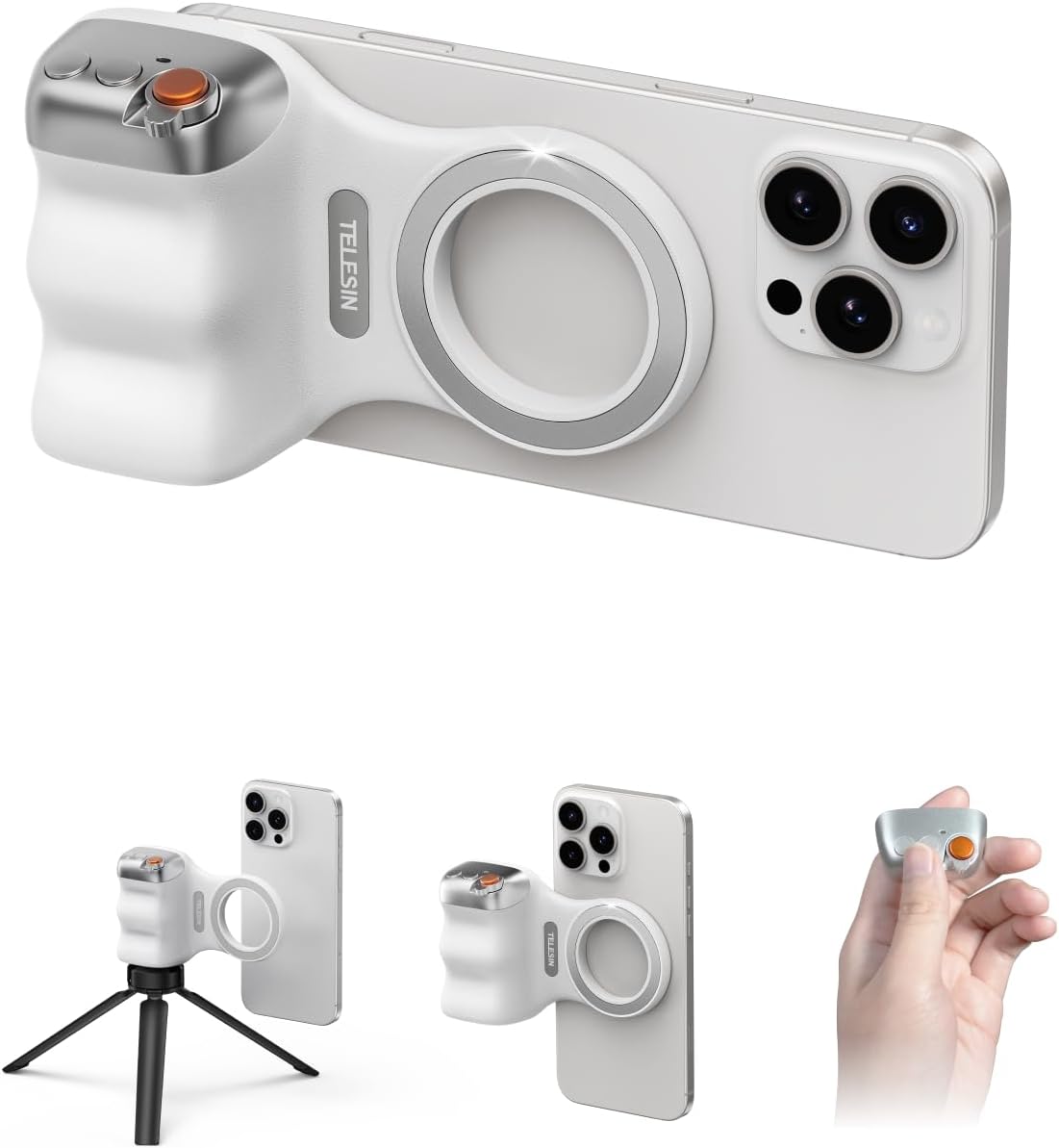
Image: The phone grip attached to a smartphone, with an inset showing the grip mounted on a small tripod, demonstrating its compatibility with standard tripod mounts.
- Screw the grip onto the 1/4-inch screw of your tripod or monopod until secure.
- Ensure the phone is firmly attached to the grip before mounting on a tripod.
Maintenance
- Clean the grip regularly with a soft, dry cloth. For stubborn dirt, use a slightly damp cloth and wipe dry immediately.
- Do not use harsh chemicals, solvents, or abrasive cleaners.
- Store the grip in a cool, dry place away from direct sunlight and extreme temperatures when not in use.
- If the magnetic ring sticker is used, ensure its surface is clean before attaching the grip to maintain optimal magnetic strength.
Troubleshooting
| Problem | Possible Cause | Solution |
|---|---|---|
| Grip not attaching securely. | Misalignment; dirty magnetic surface; phone not MagSafe compatible (without sticker). | Ensure proper alignment. Clean the magnetic surfaces on both the grip and phone/sticker. If not MagSafe compatible, ensure the magnetic ring sticker is correctly applied. |
| Bluetooth remote not connecting. | Remote off; low battery; not paired; interference. | Ensure remote is on. Replace battery if needed. Re-pair the remote via Bluetooth settings. Move closer to the phone. |
| Shutter button not working. | Not connected via Bluetooth; app not open; phone settings. | Verify Bluetooth connection. Open your phone's camera app. Check phone's volume button settings (some phones use volume buttons as shutter). |
| Zoom function not working (iPhone). | iPhone Zoom Accessibility setting not enabled. | Follow the "iPhone Zoom Function Setup" steps in the Setup section to enable it. |
Specifications
| Brand | TELESIN |
| Model Number | TX-JP-P1-MP-10 |
| Color | Premium Silver Gray |
| Material | ABS + PC + Aluminum alloy |
| Dimensions (L x W x H) | 124.7mm x 79.6mm x 37.7mm (4.91 x 3.13 x 1.48 inches) |
| Weight | 109g |
| Wireless Connectivity | Bluetooth |
| Remote Control Battery | Button Battery (CR1632, 130mAh) |
| Compatible Devices | iPhone (12 series and later directly; older models with magnetic ring/case), HUAWEI, HONOR, Xiaomi, OPPO, vivo, OnePlus, Redmi, iQOO, and other Android smartphones. |
| Mounting | Standard 1/4-inch screw hole |
Warranty and Support
For warranty information and customer support, please refer to the official TELESIN website or contact your local distributor. Keep your purchase receipt as proof of purchase for warranty claims.
The product includes a multi-language instruction manual. The Japanese section starts around page 54. Please consult the full manual for comprehensive details.
Related documentsTX-JP-P1-MP-10


Ask a question about this manual
Ask about setup, troubleshooting, compatibility, parts, safety, or missing instructions. Manuals+ will review the question and use this page’s manual context to help answer it.