1. Introduction
This manual provides comprehensive instructions for the Dell Latitude 5420 laptop. It is designed to assist users with initial setup, daily operation, maintenance, and basic troubleshooting. Please read this manual thoroughly to ensure proper use and longevity of your device.
The Dell Latitude 5420 is a 14-inch business laptop featuring an Intel Quad-Core i5-1145G7 processor, 16GB DDR4 RAM, and a 256GB SSD, running Windows 11 Pro. This particular unit is a renewed product, which means it has been inspected and restored to full functionality.
2. Product Overview
The Dell Latitude 5420 is engineered for productivity and reliability. Its compact design and robust specifications make it suitable for various professional tasks.
Key Features:
- Processor: Intel Quad-Core i5-1145G7 for efficient performance.
- Memory: 16GB DDR4 RAM for smooth multitasking.
- Storage: 256GB Solid State Drive (SSD) for fast boot times and data access.
- Display: 14-inch Full HD (1920 x 1080) screen.
- Operating System: Pre-installed with Windows 11 Pro.
- Connectivity: Includes HDMI and various USB ports.
- Integrated Webcam: For video conferencing and online communication.
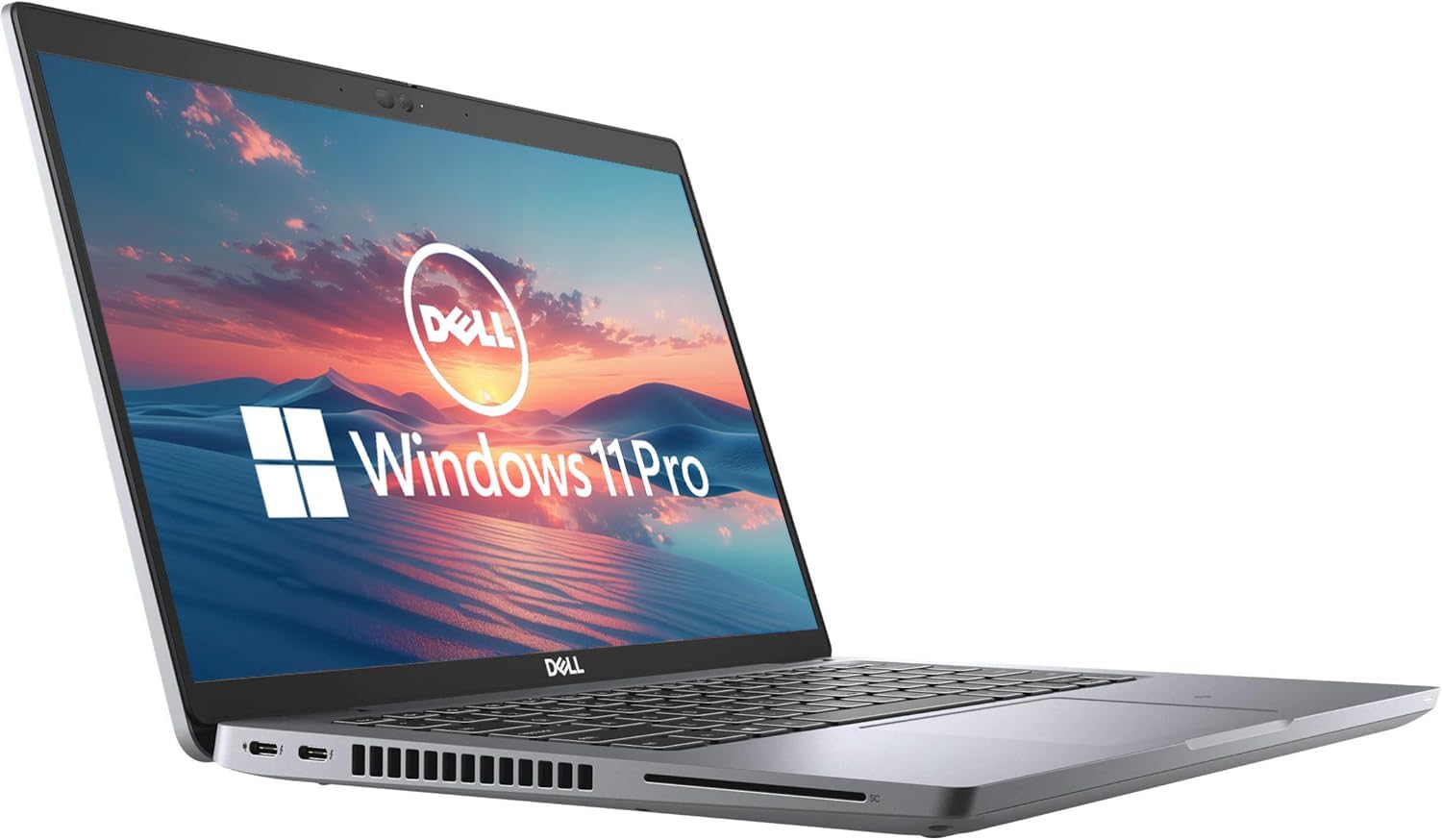
Laptop Views:



3. Setup Instructions
3.1 Initial Power-On
- Unpack: Carefully remove the laptop and all accessories from the packaging.
- Connect Power: Plug the AC adapter into the laptop's power port and then into a wall outlet.
- Power On: Open the laptop lid and press the power button, usually located on the top-right of the keyboard deck.
- Windows Setup: Follow the on-screen prompts to complete the Windows 11 Pro setup. This includes selecting your region, language, connecting to a Wi-Fi network, and creating a user account.
3.2 Connecting Peripherals
You can connect external devices such as a mouse, keyboard, or external monitor using the available ports:
- USB Ports: Use the USB-A or USB-C ports for connecting external storage, mouse, or keyboard.
- HDMI Port: Connect an external display using an HDMI cable.
- Ethernet Port: For a wired network connection.
- Audio Jack: For headphones or external speakers.
4. Operating Instructions
4.1 Basic Operation
- Power On/Off: Press the power button to turn on. To shut down, click the Start button, then Power > Shut down.
- Keyboard and Touchpad: Use the integrated keyboard for typing and the touchpad for navigation. The touchpad supports multi-touch gestures.
- Adjusting Volume: Use the function keys (F-keys) on the keyboard, often F1-F12, in combination with the Fn key, to adjust volume. Refer to the keyboard icons for specific functions.

4.2 Connecting to Wi-Fi
- Click the Network icon (Wi-Fi or Ethernet) in the taskbar.
- Select your desired Wi-Fi network from the list.
- Click Connect and enter the network security key (password) if prompted.
5. Maintenance
5.1 Cleaning the Laptop
- Screen: Use a soft, lint-free cloth lightly dampened with water or a screen cleaner. Do not spray liquid directly onto the screen.
- Keyboard and Chassis: Use a soft, dry cloth. For stubborn dirt, a slightly damp cloth with mild soap can be used, ensuring no liquid enters openings.
- Ventilation: Periodically clean the ventilation grilles with compressed air to prevent dust buildup and ensure proper cooling.
5.2 Battery Care
- Avoid extreme temperatures.
- Do not fully discharge the battery frequently.
- For prolonged storage, charge the battery to about 50-60%.
5.3 Software Updates
Regularly check for and install Windows updates and Dell driver updates to ensure optimal performance and security. Go to Settings > Windows Update to check for updates.
6. Troubleshooting
This section addresses common issues you might encounter with your Dell Latitude 5420 laptop.
6.1 Laptop Does Not Power On
- Ensure the AC adapter is securely connected to both the laptop and a working power outlet.
- Check if the power outlet is functional by plugging in another device.
- If the battery is completely drained, it may take a few minutes of charging before the laptop can power on.
6.2 Wi-Fi Connectivity Issues
- Verify that Wi-Fi is enabled in Windows settings.
- Restart your router and modem.
- Ensure you are entering the correct Wi-Fi password.
- Try connecting to a different Wi-Fi network if available to isolate the issue.
6.3 Slow Performance
- Close unnecessary applications running in the background.
- Check for and install any pending Windows updates.
- Ensure your storage (SSD) is not nearly full.
- Run a malware scan.
For more complex issues, refer to the Dell support website or contact the seller for assistance.
7. Specifications
| Feature | Detail |
|---|---|
| Model Name | Latitude 5420 |
| Screen Size | 14 Inches |
| Screen Resolution | 1920 x 1080 pixels (FHD) |
| Processor | 2.4 GHz Intel Core i5-1145G7 |
| RAM | 16 GB DDR4 SDRAM |
| Hard Drive | 256 GB SSD |
| Graphics Coprocessor | Intel Integrated Graphics |
| Operating System | Windows 11 Pro |
| Wireless Type | 802.11n |
| Item Weight | 2.2 pounds |
| Product Dimensions | 8.35 x 12.76 x 0.76 inches |
| Special Feature | HD Audio |
8. Warranty and Support
As a renewed product, the Dell Latitude 5420 typically comes with a limited warranty provided by the seller or the Amazon Renewed program. Please refer to your purchase documentation for specific warranty details. The buybox winner indicates a 90-day return policy.
8.1 Contacting Support
- For product-specific issues or technical support, visit the official Dell Support website.
- For questions regarding your purchase, returns, or the renewed product condition, please contact the seller directly through your Amazon order history.
8.2 Amazon Renewed Conditions
Amazon Renewed products are pre-owned and professionally inspected, tested, and cleaned by Amazon-qualified suppliers. They are fully functional and come with generic or original accessories and packaging. Cosmetic condition varies by grade (Excellent, Good, Acceptable).


