Introduction
The MEETION K9880 is an ultra-thin, portable, and rechargeable Bluetooth keyboard designed for business travel and mobile productivity. Its ergonomic split-key layout promotes a natural typing posture, reducing strain during extended use. This manual provides detailed instructions for setting up, operating, maintaining, and troubleshooting your keyboard to ensure a seamless experience across various devices.
Product Features
- Ergonomic Split Design: Features a V-shaped 166° angle and split-key layout to minimize hand and wrist strain.
- Multi-Device Connectivity: Supports simultaneous connection to up to 3 devices via Bluetooth channels, allowing one-click switching.
- Wide Compatibility: Compatible with iOS, Android, Windows, and Mac OS systems.
- Silent Scissor-Switch Keys: Provides quiet, precise, and responsive typing with a laptop-like feel.
- Enhanced Stability: Magnetic adsorption for secure folding and a metal support wire on the back for stable typing on uneven surfaces.
- Long-Lasting Battery: Equipped with a 140mAh lithium battery, offering up to 60 hours of standby time on a single charge.
- Optimized Key Layout: 6-row key layout with a dedicated number key row and shortcut keys for efficient workflow.
- Compact and Portable: Ultra-slim and foldable design for easy storage and transport.

Image: The MEETION K9880 keyboard shown in both its compact folded state and its fully unfolded, ready-to-use configuration, highlighting its portability and ergonomic design.

Image: A comparison illustrating the ergonomic advantage of the MEETION K9880's 166-degree split design over traditional flat keyboards, emphasizing reduced wrist strain.
Setup Guide
1. Charging the Keyboard
Before first use, fully charge the keyboard. Connect the provided USB Type-C cable to the keyboard's charging port and the other end to a USB power source (e.g., computer USB port, wall adapter). The power indicator light will show charging status.
- Battery Capacity: 140mAh Lithium Battery
- Charging Time: Approximately 2 hours for a full charge.
- Standby Time: Up to 60 hours.
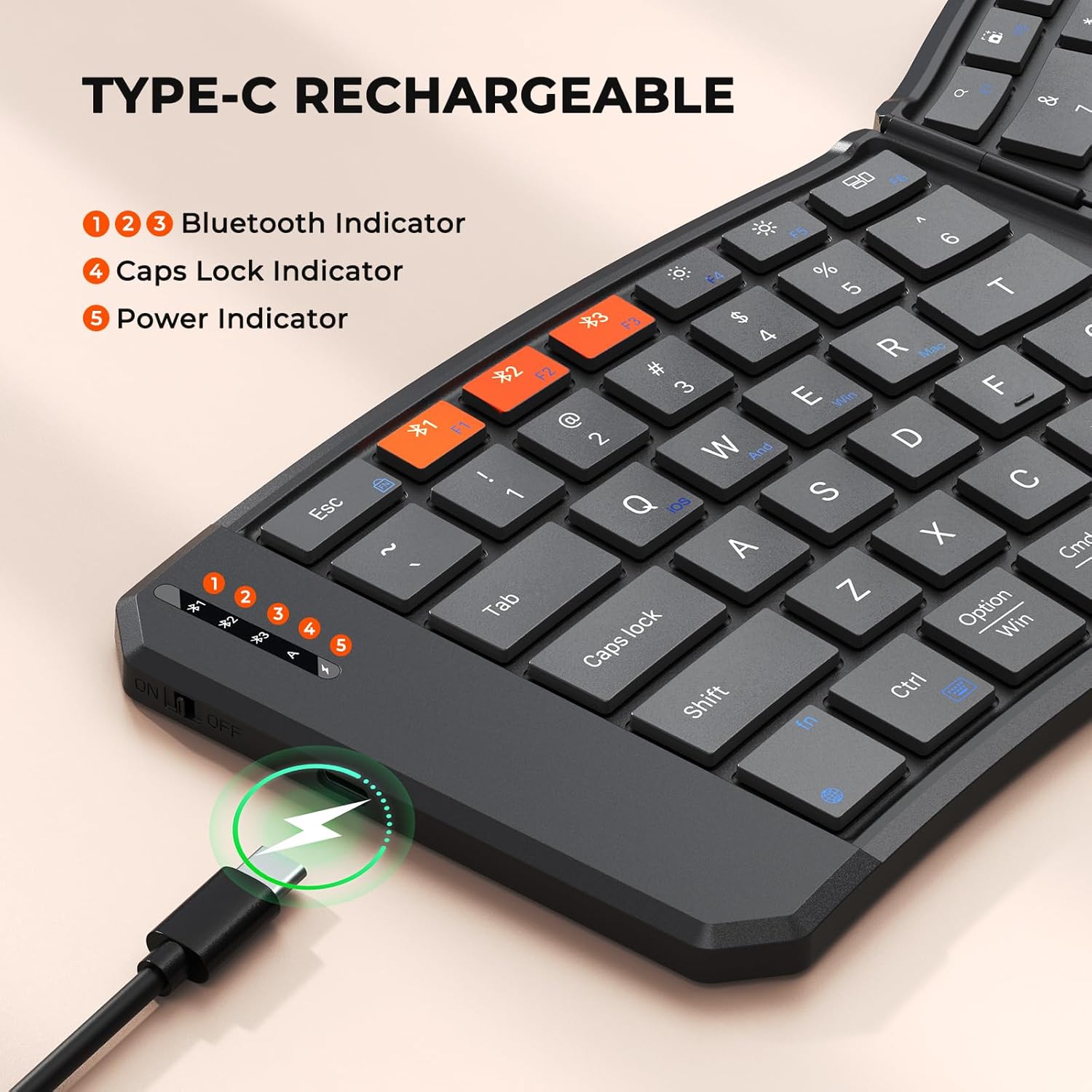
Image: The MEETION K9880 keyboard with a USB Type-C cable connected, illustrating the charging process and the location of the power indicator light.
2. Bluetooth Pairing
- Locate the power switch on the side of the keyboard and slide it to the "ON" position.
- Press the Fn key simultaneously with one of the Bluetooth channel keys (*1, *2, or *3) to select a channel and initiate pairing mode. The corresponding Bluetooth indicator light will begin to blink, indicating it is ready for pairing.
- On your device (smartphone, tablet, laptop), navigate to the Bluetooth settings and ensure Bluetooth is enabled.
- Search for available devices. You should see "Meetion-KB-BT1", "Meetion-KB-BT2", or "Meetion-KB-BT3" appear in the list, corresponding to the channel you selected.
- Select the keyboard from the list to connect. Once connected, the indicator light will stop blinking and remain solid for a few seconds before turning off.

Image: A visual guide detailing the four steps for establishing a Bluetooth connection with the MEETION K9880 keyboard, from powering on to selecting the device.
3. System Switching
The keyboard supports multiple operating systems. Use the following key combinations to switch between system modes for optimal compatibility:
- Fn + Q: For iOS devices
- Fn + W: For Android devices
- Fn + E: For Windows devices
- Fn + R: For Mac OS devices

Image: A diagram illustrating the specific Fn key combinations (Fn+Q, Fn+W, Fn+E, Fn+R) required to switch the MEETION K9880 keyboard between iOS, Android, Windows, and Mac operating systems.
Operating Instructions
Key Functions
The K9880 keyboard features a comprehensive set of keys for enhanced productivity:
- Standard Keys: Full QWERTY layout with a dedicated number row.
- Function (Fn) Keys: Access various multimedia and system functions. Note that on this keyboard, the function keys (F1-F12) are the default action, and you may need to press the Fn key to access the secondary white-labeled functions (e.g., brightness, volume control).
- Emoji Shortcut Key: A dedicated key to quickly access emoji input (supports Windows, MacBook (macOS), iPad (iPadOS), and Android Samsung devices; does not support iPhone (iOS)).
- Additional Shortcut Keys: Includes keys for app switching, search, screenshot, play/pause, mute, and virtual keyboard access.

Image: A close-up view of the scissor-switch key mechanism and the dedicated emoji shortcut key on the MEETION K9880 keyboard, with a note about emoji key compatibility.
Typing Stability
The keyboard is designed for stable typing in various environments:
- Magnetic Adsorption: The folding mechanism uses magnetic adsorption to prevent accidental opening when stored.
- Metal Support Wire: A built-in metal support wire on the back of the keyboard can be deployed to securely fix the keyboard in an open state, providing stability even on uneven surfaces like your lap.

Image: A user typing on the MEETION K9880 keyboard placed on their lap, demonstrating the stability provided by the integrated metal support wire on the back.
Maintenance
Cleaning
The keyboard's high-quality PU leather exterior is designed to be scratch-resistant and easy to clean. Use a soft, damp cloth to wipe down the surface. Avoid using harsh chemicals or abrasive materials that could damage the finish.
Battery Care
To prolong battery life:
- The keyboard automatically enters sleep mode after 20 minutes of inactivity to conserve power. Press any key to wake it up.
- Turn off the keyboard using the side power switch when not in use for extended periods.
- Avoid exposing the keyboard to extreme temperatures.
Troubleshooting
| Problem | Possible Cause | Solution |
|---|---|---|
| Keyboard does not connect via Bluetooth. | Low battery; Bluetooth off on keyboard or device; incorrect channel selected; interference. | Ensure keyboard is charged. Turn keyboard ON. Verify Bluetooth is enabled on your device. Select the correct Bluetooth channel (*1, *2, or *3) on the keyboard. Move closer to the device. |
| Keys are unresponsive or typing is delayed. | Low battery; connection issue; system mode mismatch. | Recharge the keyboard. Re-pair the keyboard with your device. Ensure the correct system mode (Fn+Q/W/E/R) is selected for your device. |
| Function (F1-F12) keys do not perform expected multimedia actions. | Function keys are set to default F-key behavior. | Press the Fn key simultaneously with the desired function key to activate its secondary multimedia action. |
| Emoji key does not work. | Incompatible operating system. | The emoji key function supports Windows, MacBook (macOS), iPad (iPadOS), and Android Samsung devices. It does not support iPhone (iOS). |
Specifications
- Model Number: K9880
- Dimensions (Folded): Approximately 7.72 x 6.1 x 1.14 inches
- Dimensions (Unfolded): Approximately 14.06 x 5.7 x 0.74 inches
- Item Weight: 12 ounces
- Connectivity: Bluetooth
- Battery: 140mAh Lithium Battery (Rechargeable via USB Type-C)
- Number of Keys: 80
- Key Type: Scissor-Switch
- Material: Plastic with PU Leather exterior
- Color: Black
- Compatible Devices: Laptop, PC, Smartphone, Tablet (iOS, Android, Windows, Mac OS)

Image: A technical drawing of the MEETION K9880 keyboard displaying its unfolded and folded dimensions in inches, emphasizing its compact and portable design.
Warranty and Support
For warranty information, technical support, or any product-related inquiries, please contact Meetion Direct, the manufacturer. Refer to the product packaging or the official Meetion website for the most current contact details and warranty policy.


