1. Introduction
This user manual provides detailed instructions for the setup, operation, and maintenance of your MEETION C2000 Wireless Keyboard and Mouse Combo. This versatile combo offers both 2.4GHz wireless and Bluetooth connectivity, designed for seamless use across multiple devices such as PCs, laptops, tablets, and smartphones. Please read this manual thoroughly before using the product to ensure optimal performance and longevity.
2. Package Contents
- MEETION C2000 Wireless Keyboard
- MEETION C2000 Wireless Mouse
- USB Receiver (stored in the mouse or keyboard)
- USB-C Charging Cable
- User Manual (this document)
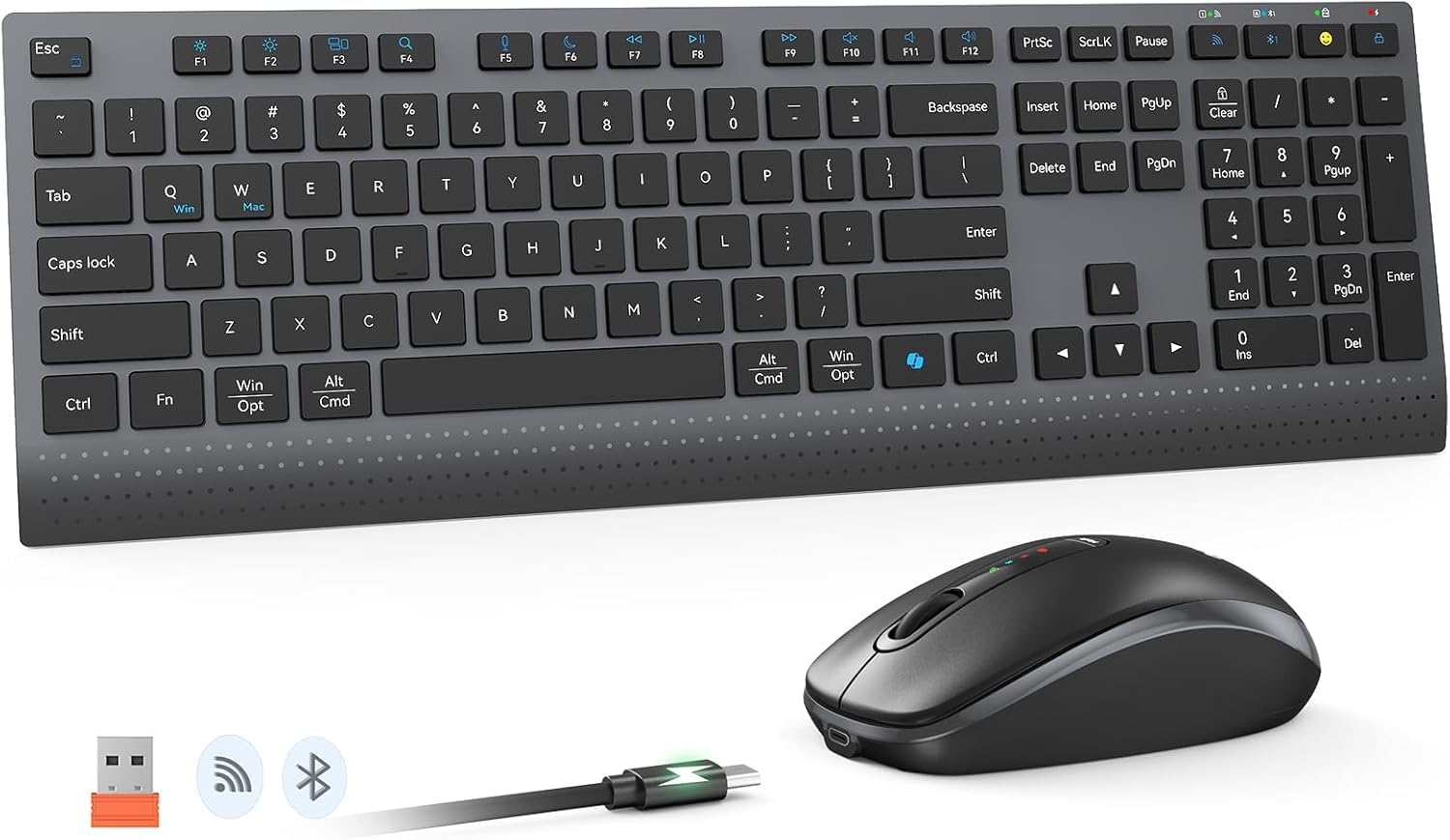
3. Product Overview
3.1 Keyboard Components
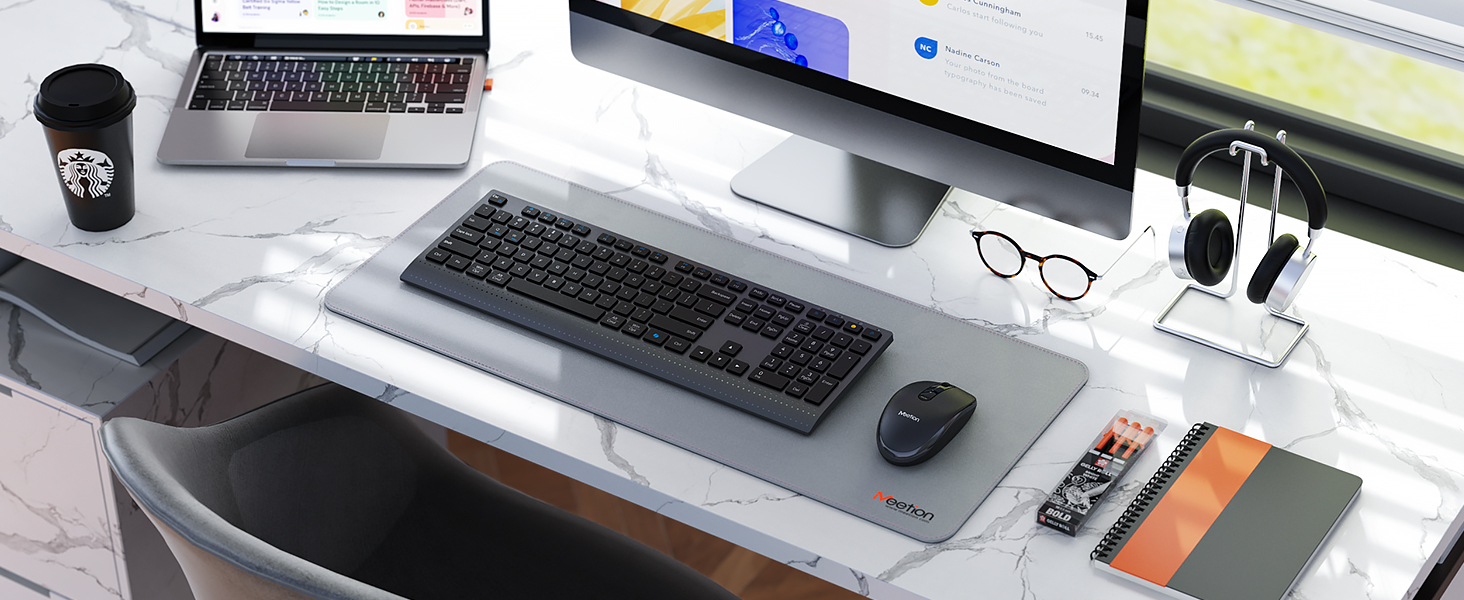
The keyboard features a full-size layout with a numeric keypad. Key components include:
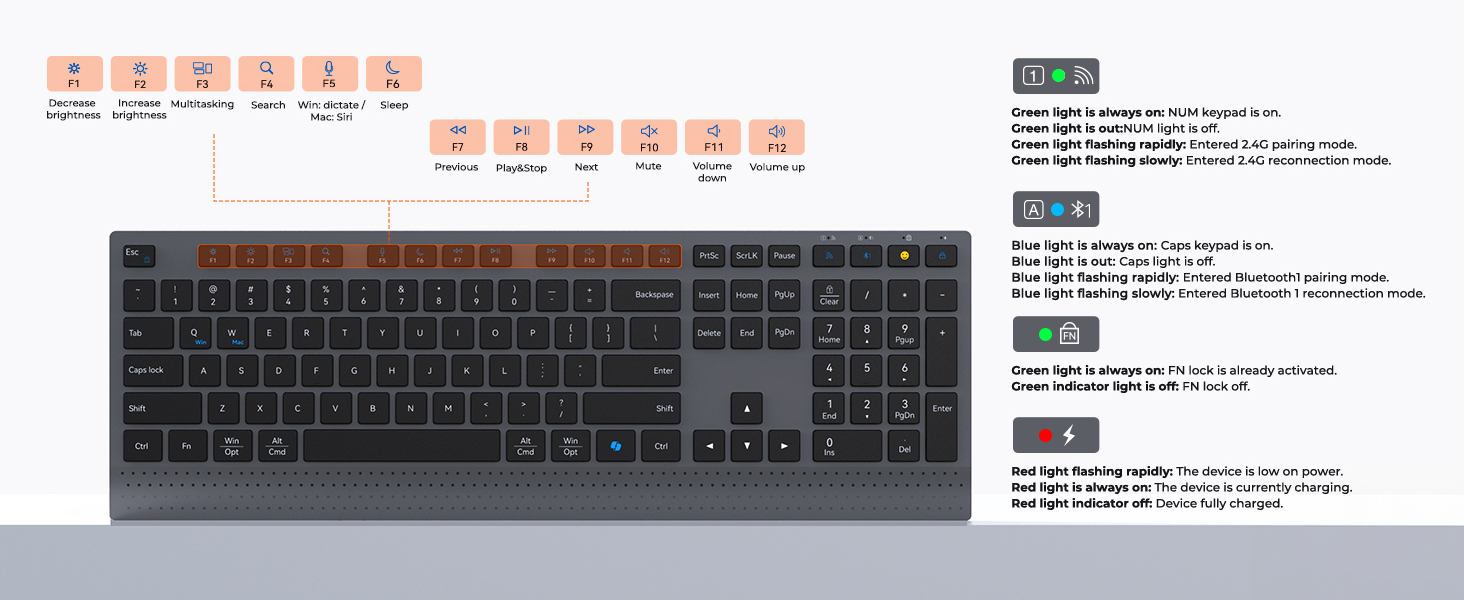
- Function Keys (F1-F12): Provide multimedia control and system shortcuts when used with the FN key.
- Indicator Lights:
- Green Light: 2.4G mode indicator (solid for connected, flashing for pairing/reconnection).
- Blue Light: Bluetooth mode indicator (solid for connected, flashing for pairing/reconnection).
- Red Light: Battery status (flashing for low power, solid for charging, off for fully charged).
- Caps Lock/FN Lock Indicators.
- Mode Switching Keys: Dedicated keys to switch between 2.4G and Bluetooth modes.
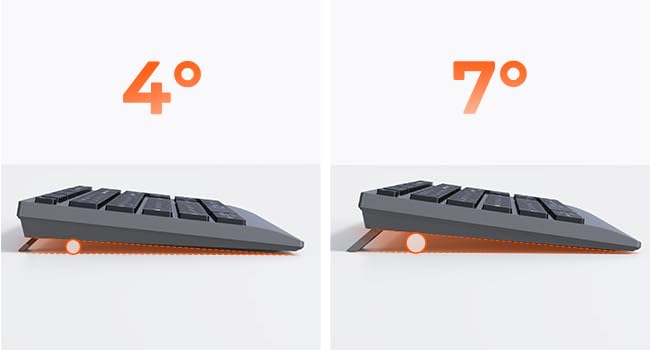
- Adjustable Kickstands: Located on the underside for 4° and 7° tilt angles.
3.2 Mouse Components
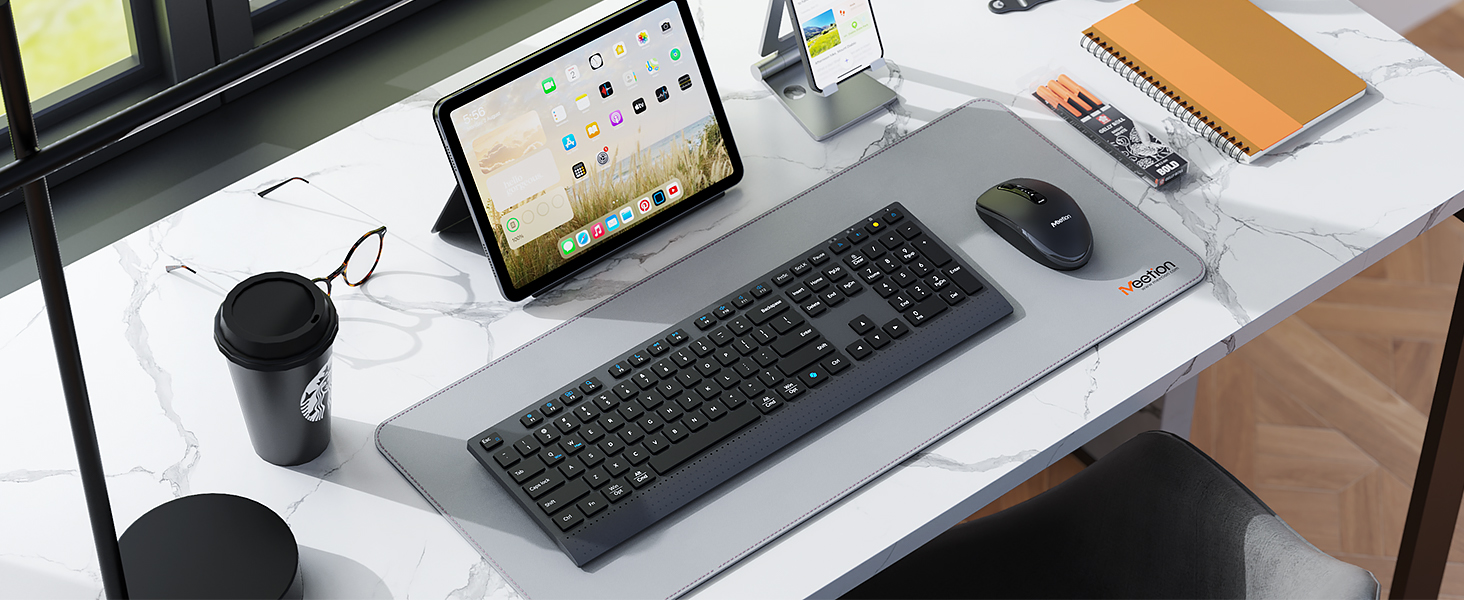
The mouse features a comfortable ergonomic design with silent click buttons. Key components include:
- Left/Right Click Buttons: Silent operation.
- Scroll Wheel: For navigation.
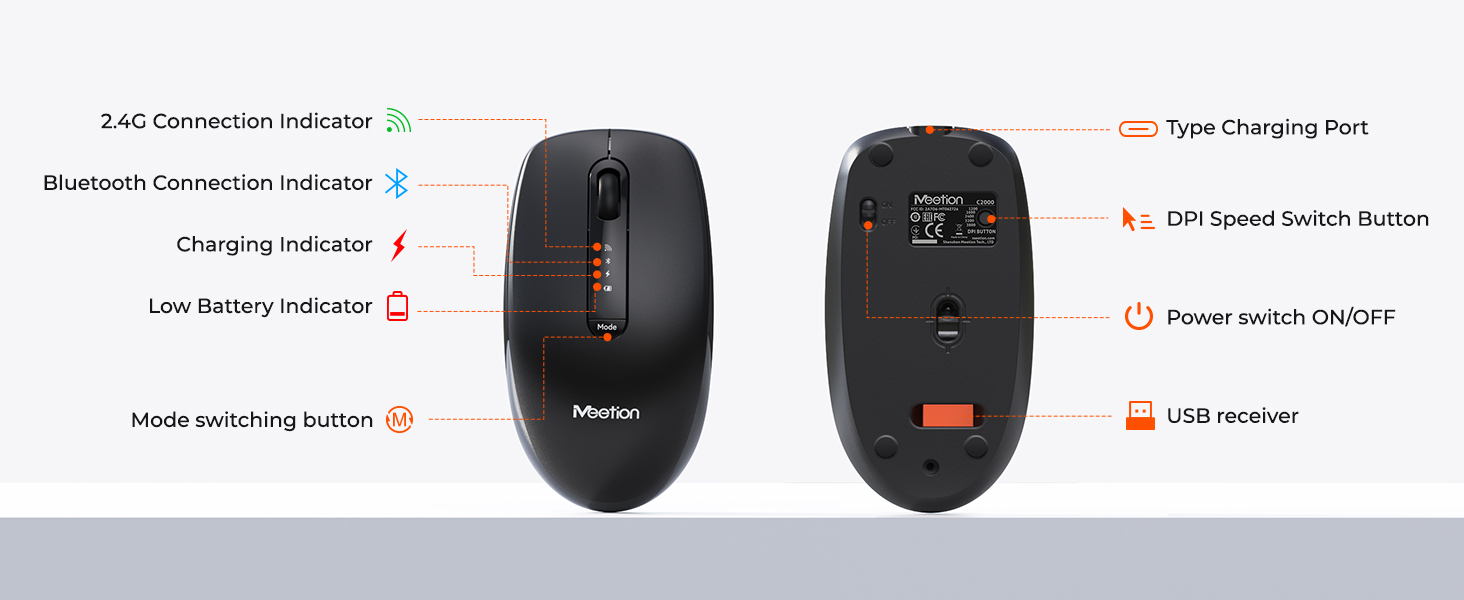
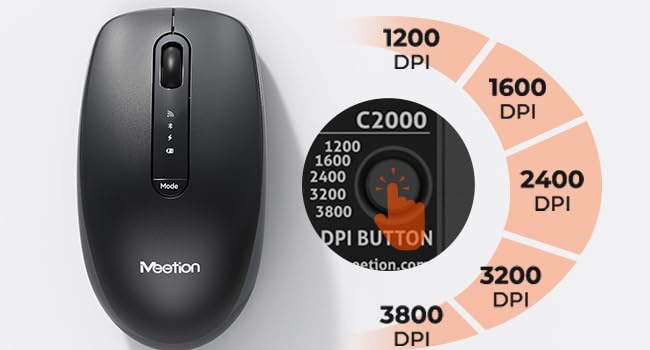
- DPI Speed Switch Button: Adjusts cursor sensitivity (1200/1600/2400/3200/3800 DPI).
- Mode Switching Button: Switches between 2.4G and Bluetooth modes.
- Power Switch: ON/OFF switch on the underside.
- USB Receiver Storage: Compartment on the underside for the 2.4GHz USB receiver.
- Type-C Charging Port: For recharging the internal battery.
- Connection Indicators: Lights for 2.4G, Bluetooth, charging, and low battery.
4. Setup
4.1 Charging the Devices
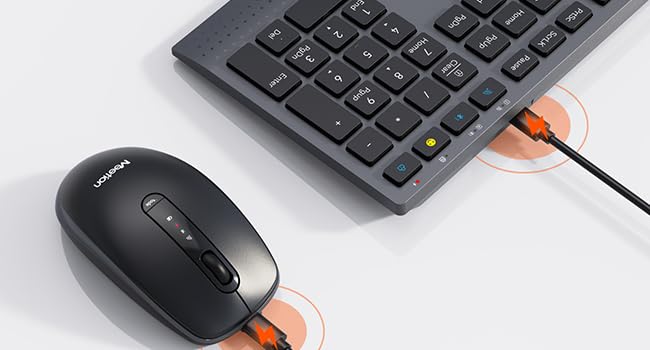
Both the keyboard and mouse are equipped with built-in rechargeable lithium batteries. Use the provided USB-C charging cable to charge them.
- Connect the USB-C end of the charging cable to the charging port on the keyboard (top right) or mouse (front).
- Connect the USB-A end of the charging cable to a USB power source (e.g., computer USB port, USB wall adapter).
- The red indicator light on the device will illuminate while charging. It will turn off when fully charged.
A full charge takes approximately 2 hours. The keyboard provides up to 300 hours of use, and the mouse provides up to 150 hours of use on a single charge.
4.2 2.4GHz Wireless Connection
This mode uses the included USB receiver for a stable wireless connection.
- Locate the USB receiver, typically stored in the mouse's battery compartment or a dedicated slot.
- Insert the USB receiver into an available USB-A port on your computer or device.
- For Keyboard: Turn the keyboard's power switch (located on the back) to the "ON" position. Press the 2.4G mode switching key (usually indicated by a wireless icon) on the keyboard. The corresponding green indicator light will illuminate.
- For Mouse: Toggle the power switch on the underside of the mouse to the "ON" position. Press the "Mode" button on the mouse until the green 2.4G indicator light illuminates.
- The devices should automatically connect. If not, the indicator lights will flash, indicating pairing mode.
4.3 Bluetooth Connection
This mode allows connection to devices without a USB port, such as tablets and smartphones.
- For Keyboard: Turn the keyboard's power switch to the "ON" position. Press the Bluetooth mode switching key (usually indicated by a Bluetooth icon) on the keyboard. The blue indicator light will flash, indicating it's in pairing mode.
- For Mouse: Toggle the power switch on the underside of the mouse to the "ON" position. Press the "Mode" button on the mouse until the blue Bluetooth indicator light flashes, indicating pairing mode.
- On your device (PC, laptop, tablet, smartphone), go to Bluetooth settings and search for new devices.
- Select "Meetion_KB_BT1" (for keyboard) and "Meetion_Mouse_BT1" (for mouse) from the list of available devices.
- Follow any on-screen prompts to complete the pairing process. The blue indicator light will become solid once connected.
The C2000 combo supports multi-device connectivity, allowing you to switch between up to three devices (one 2.4G and two Bluetooth) effortlessly using the mode switching keys.
5. Operating Instructions
5.1 Keyboard Functions
The keyboard offers various functions accessible via the FN key combinations:
| Key Combination | Function |
|---|---|
| FN + F1 | Decrease Brightness |
| FN + F2 | Increase Brightness |
| FN + F3 | Multitasking |
| FN + F4 | Search |
| FN + F5 | Win Dictate / Mac Siri |
| FN + F6 | Sleep |
| FN + F7 | Previous Track |
| FN + F8 | Play/Pause |
| FN + F9 | Next Track |
| FN + F10 | Mute |
| FN + F11 | Volume Down |
| FN + F12 | Volume Up |
| FN + Q/W/E | Switch between connected devices (PC, laptop, tablet, phone). |
| Dedicated Copilot Key | Instant access to AI tools (Windows only). |
| Dedicated Smiley Face Key | Easily insert emojis (supports Windows, macOS, iPadOS, Android Samsung; not iPhone iOS). |
The keyboard also features dual kickstands on the underside, allowing you to adjust the typing angle to 4° or 7° for improved ergonomics and comfort during long typing sessions.
5.2 Mouse Functions
The mouse offers precise control and quiet operation:
- DPI Adjustment: Press the DPI button (located near the scroll wheel) to cycle through five sensitivity settings: 1200, 1600, 2400, 3200, and 3800 DPI. Choose the setting that best suits your needs for smooth and precise cursor control.
- Mode Switching: Use the "Mode" button on the mouse to switch between 2.4G wireless and Bluetooth connections.
- Silent Clicks: The mouse buttons are designed for quiet operation, reducing noise in quiet environments.
6. Maintenance
To ensure the longevity and optimal performance of your MEETION C2000 combo, follow these maintenance guidelines:
- Cleaning:
- Use a soft, dry, lint-free cloth to wipe down the surfaces of the keyboard and mouse.
- For stubborn dirt, slightly dampen the cloth with water or a mild, non-abrasive cleaner. Avoid excessive moisture.
- Do not spray cleaning solutions directly onto the devices.
- Use compressed air to remove dust and debris from between the keyboard keys.
- Storage:
- When not in use for extended periods, turn off both the keyboard and mouse to conserve battery life.
- Store the devices in a cool, dry place, away from direct sunlight and extreme temperatures.
- Keep the USB receiver stored in its designated slot in the mouse to prevent loss.
- Battery Care:
- Avoid fully discharging the batteries frequently. Recharge them when the low battery indicator appears.
- Do not expose the devices to extreme heat or cold, as this can affect battery life.
7. Troubleshooting
If you encounter issues with your MEETION C2000 combo, please refer to the following common solutions:
| Problem | Possible Solution |
|---|---|
| Keyboard/Mouse not responding |
|
| Lag or intermittent connection |
|
| Mouse cursor erratic or not moving smoothly |
|
| Keyboard keys not working |
|
| Cannot switch between devices |
|
8. Specifications
| Feature | Detail |
|---|---|
| Model Number | C2000 |
| Connectivity | 2.4GHz Wireless, Bluetooth 5.2 |
| Keyboard Layout | Full Size with Numeric Keypad |
| Keyboard Battery Life | Up to 300 hours (on 2-hour charge) |
| Mouse DPI Settings | 1200 / 1600 / 2400 / 3200 / 3800 DPI |
| Mouse Battery Life | Up to 150 hours (on 2-hour charge) |
| Charging Port | USB-C |
| Compatible Devices | Windows, macOS, Laptop, PC, Desktop, iPad, Phone (Android) |
| Keyboard Dimensions | Approximately 17.2 x 5.8 x 1 inches |
| Mouse Dimensions | Approximately 4.4 x 2.4 x 1.49 inches |
| Item Weight | 2.18 pounds (combo) |

9. Warranty and Support
MEETION products are designed for reliability and performance. For warranty information and technical support, please refer to the following:
- Warranty: This product comes with a standard manufacturer's warranty. Please retain your proof of purchase for warranty claims. Specific warranty terms and duration may vary by region.
- Technical Support: For assistance with setup, troubleshooting, or any other product-related inquiries, please visit the official MEETION website or contact their customer support.
- Online Resources: Additional FAQs and support resources may be available on the MEETION brand store page on Amazon or the manufacturer's website.
Note: As per the provided data, specific warranty details or direct contact information for support are not available. Please refer to the manufacturer's official channels for the most up-to-date support information.


