
1. Introduction
This manual provides comprehensive instructions for the installation, operation, and maintenance of your BXLIYER 10.1-inch Android Car Radio. Please read this manual thoroughly before using the product to ensure proper functionality and safety. Keep this manual for future reference.
2. Setup and Installation
2.1 What's in the Box
Verify that all components are present before beginning installation:
- 10.1-inch Android Car Radio Unit
- Custom Frame for Hyundai IX35 (2010-2017)
- Power Cables and Wiring Harnesses
- GPS Antenna
- USB Cables
- RCA Output Sockets (A, B, C, D)
- AUX In/Out Cables
- WIFI Antenna
- 4G Antenna
- External Microphone
- Rear Camera
- Installation Brackets
- User Manual (this document)
2.2 Installation Tips
The car radio is designed for a plug-and-play installation for Hyundai IX35 models from 2010 to 2017. Professional installation is recommended. Refer to the wiring diagram for correct connections.
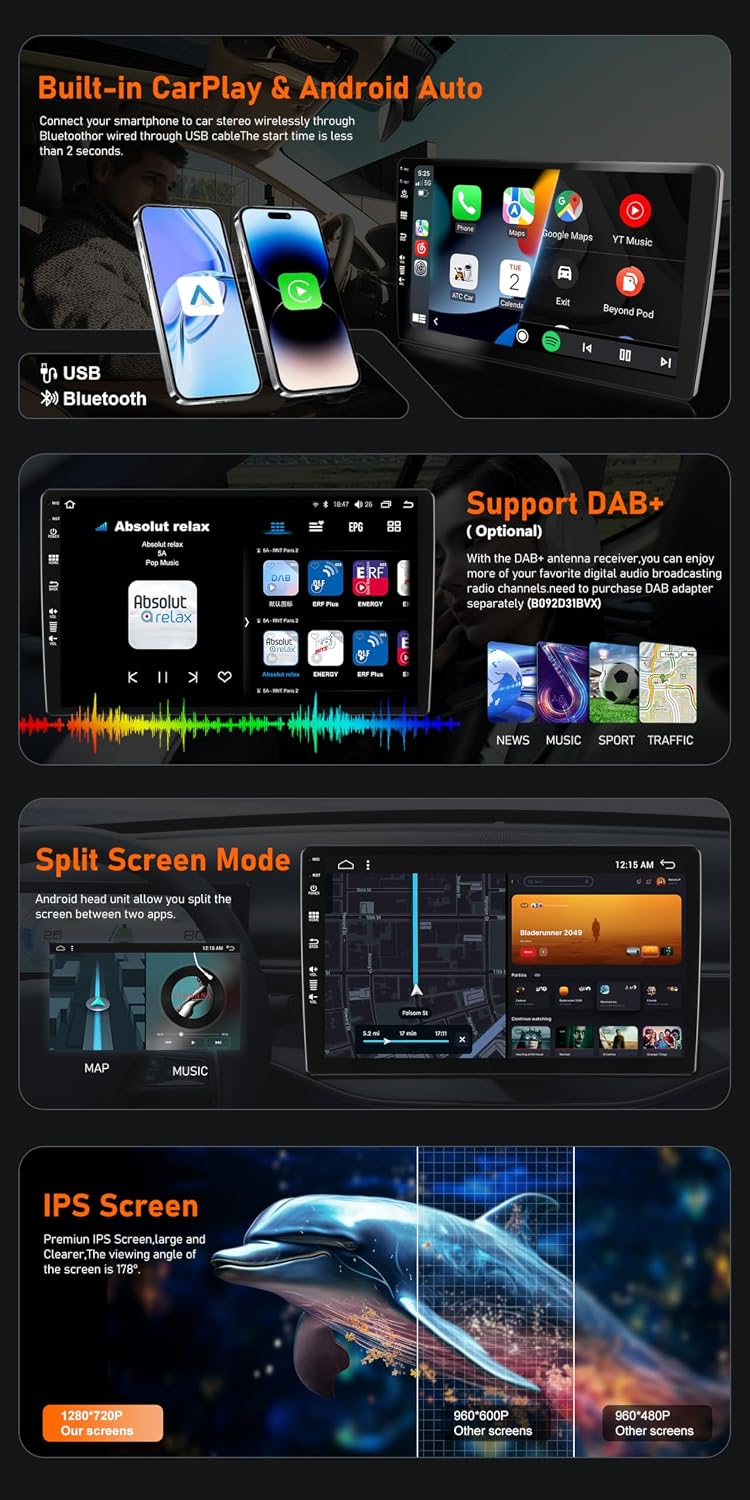
Image: Wiring diagram and included package contents. This diagram illustrates the various input and output connections for the car radio, including power, USB, GPS, and RCA cables. Below the diagram, the image displays all components included in the package, such as the autoradio unit, OEM panel, power cables, RCA cables, USB cables, camera, GPS antenna, instructions, and installation brackets.
Ensure all cables are securely connected to their corresponding ports. The included frame is specifically designed to integrate seamlessly into your vehicle's dashboard.
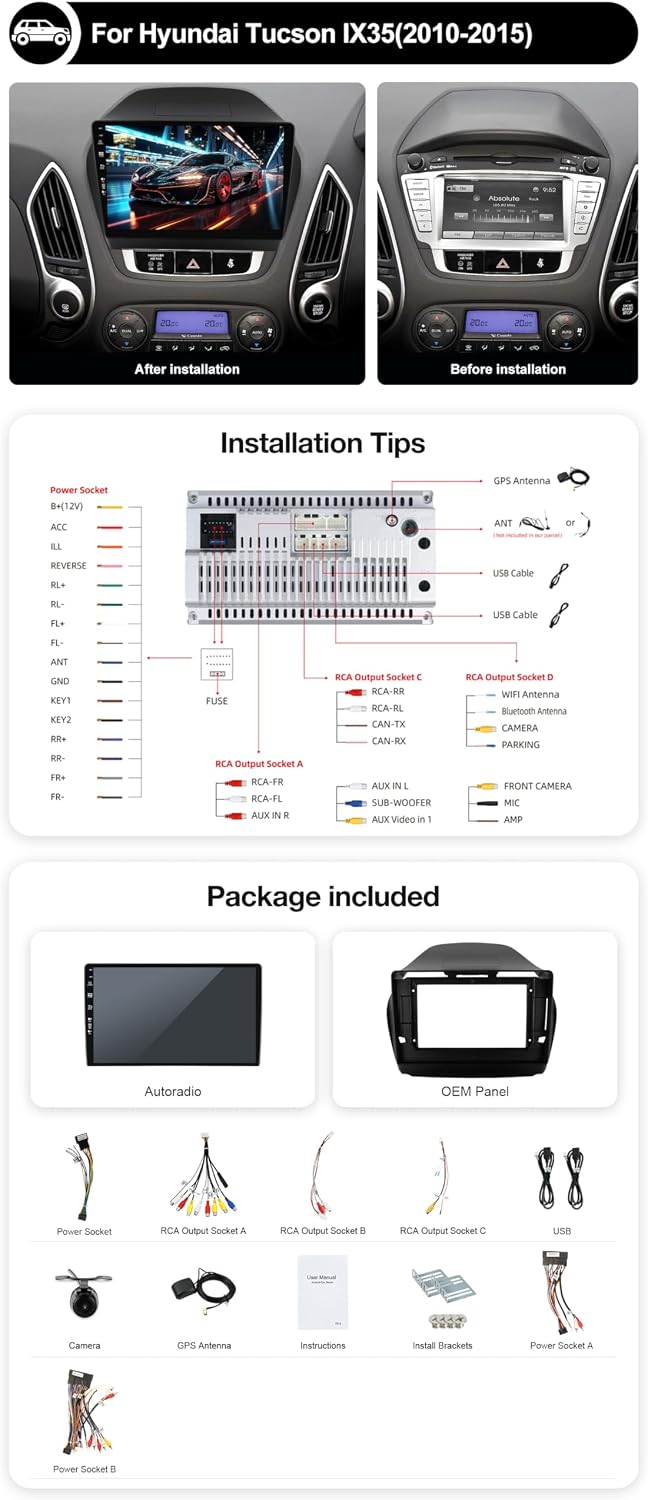
Image: Before and After Installation. This image shows a Hyundai IX35 dashboard with the original radio (Before installation) and then with the new 10.1-inch Android car radio installed (After installation), demonstrating the integrated fit.
3. Operating Instructions
3.1 Power On/Off
Press and hold the power button on the unit or use the vehicle's ignition to turn the unit on or off. The system features a fast-boot function, allowing access to the Android system in less than 2 seconds.
Image: Fast-boot feature. The car radio screen shows a power button icon and text indicating the fast boot capability, allowing quick access to the Android system.
3.2 CarPlay and Android Auto
The unit supports both wireless Apple CarPlay and Android Auto. Connect your smartphone via Bluetooth for wireless connection or via USB for a wired connection. This allows you to access navigation, music, calls, and messages directly from your car radio display.
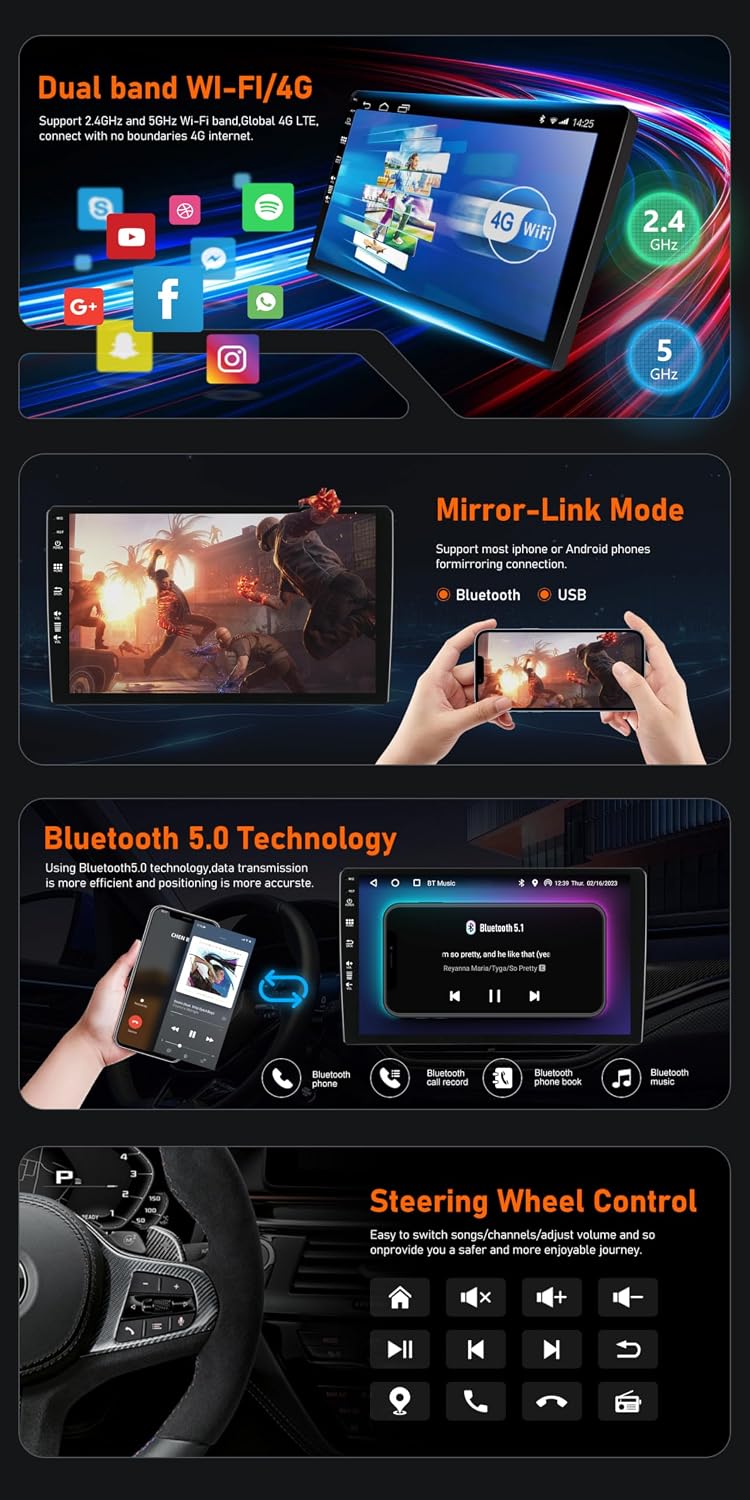
Image: Built-in CarPlay & Android Auto. This image displays the car radio screen with both Apple CarPlay and Android Auto interfaces, showing various app icons and connected smartphones, highlighting the seamless integration.
3.3 MirrorLink Mode
MirrorLink allows you to mirror your iOS or Android smartphone screen onto the car radio display. Connect your phone via Bluetooth or USB to enable this feature.
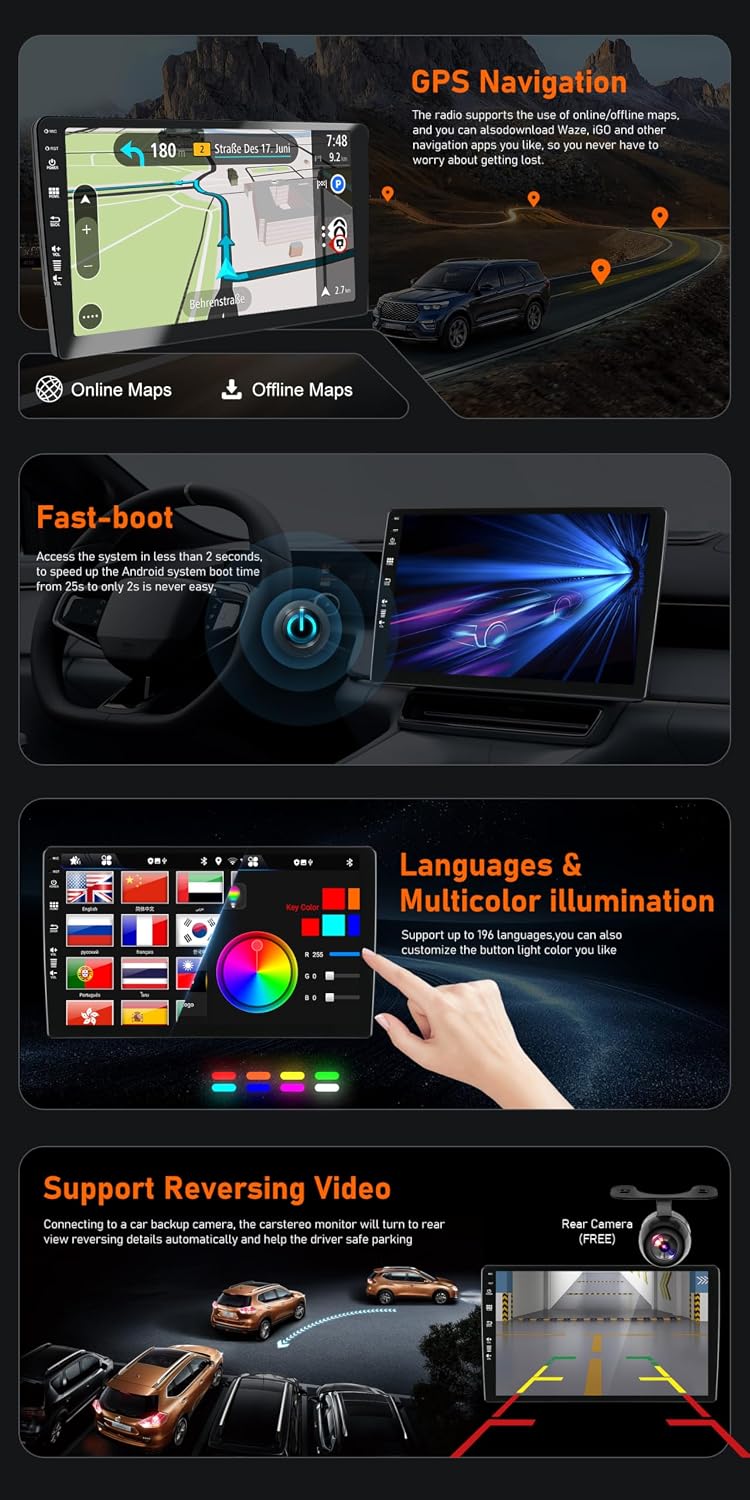
Image: Mirror-Link Mode. The car radio screen shows a mirrored smartphone display, with hands holding the phone below, illustrating the MirrorLink functionality.
3.4 Bluetooth 5.0 Connectivity
Utilize Bluetooth 5.0 for stable and fast data transmission. Pair your phone to make hands-free calls, stream audio, and manage contacts directly from the car radio.
Image: Bluetooth 5.0 Technology. The car radio screen displays the Bluetooth connection interface, featuring icons for phone calls, music playback, and contact management, emphasizing the advanced Bluetooth 5.0 capabilities.
3.5 GPS Navigation
The unit supports both online and offline GPS navigation. Download maps for offline use or use online navigation apps. The system supports 3D maps and voice guidance to help you reach your destination.
Image: GPS Navigation. The car radio screen shows a detailed GPS navigation map with route information, including distance and directions, along with options for online and offline maps.
3.6 DAB+ Radio (Optional)
For enhanced digital audio broadcasting, the unit supports DAB+ with an optional adapter (B083Q7YG4F). Enjoy a wider selection of radio stations with superior sound quality.
Image: Support DAB+. The car radio screen displays the DAB+ radio interface, showing various station logos, current track information, and an audio spectrum visualizer, indicating support for digital audio broadcasting.
3.7 Steering Wheel Control
The unit is compatible with your vehicle's steering wheel controls. Configure the buttons to manage audio playback, volume, and calls without taking your hands off the wheel.
Image: Steering Wheel Control. This image shows a car steering wheel with control buttons, and the car radio screen displaying various audio control options, demonstrating how to manage the unit safely from the steering wheel.
3.8 Split Screen Mode
The split screen feature allows you to run two applications simultaneously on the display. For example, you can view navigation on one side and control music playback on the other.
Image: Split Screen Mode. The car radio screen is divided, showing a navigation map on one side and a music player interface on the other, illustrating the ability to run two applications concurrently.
3.9 Rear Camera Support
The included rear camera automatically displays the view behind your vehicle when reversing, providing parking assistance and enhancing safety.
Image: Support Reversing Video. The car radio screen displays the rear camera feed with parking guidelines, alongside an illustrative overhead view of a car reversing, demonstrating the reversing video functionality.
3.10 Dual Band Wi-Fi and 4G Connectivity
The unit supports 2.4GHz and 5GHz Wi-Fi bands for a stronger signal and faster network speed. It also includes 4G support for internet access on the go (SIM card not included).
Image: Dual band WI-FI/4G. The car radio screen displays various app icons and indicators for 2.4GHz and 5GHz Wi-Fi, along with 4G connectivity, highlighting the unit's robust internet capabilities.
3.11 Languages and Multicolor Illumination
Customize the user interface with support for multiple languages. You can also personalize the button light color to match your vehicle's interior or your preference.
Image: Languages & Multicolor illumination. The car radio screen displays options for language selection and a color palette for customizing button illumination, allowing for personalized settings.
3.12 Built-in DSP
The integrated Digital Sound Processor (DSP) allows for advanced audio customization, including equalizer settings and sound field adjustments, to optimize your listening experience.

Image: Built-in DSP. The car radio screen shows the DSP interface with various audio settings, including equalizer adjustments and sound field controls, demonstrating the unit's advanced sound processing capabilities.
4. Maintenance
To ensure the longevity and optimal performance of your car radio, follow these maintenance guidelines:
- Cleaning: Use a soft, dry cloth to clean the screen and exterior. Avoid abrasive cleaners or solvents that may damage the surface.
- Software Updates: Periodically check for available software updates to ensure you have the latest features and performance improvements. Follow the on-screen instructions for updating.
- Temperature: Avoid exposing the unit to extreme temperatures.
5. Troubleshooting
If you encounter issues with your car radio, refer to the following common problems and solutions:
- No Power: Check all power connections and fuses. Ensure the vehicle's ignition is on.
- No Sound: Verify speaker connections. Check volume levels and ensure the mute function is not active.
- GPS Signal Loss: Ensure the GPS antenna is properly installed and has a clear view of the sky. Move the vehicle to an open area if necessary.
- Bluetooth Connection Issues: Ensure Bluetooth is enabled on both the car radio and your smartphone. Try unpairing and re-pairing the devices.
- Touchscreen Unresponsive: Restart the unit. If the issue persists, a factory reset may be required (note: this will erase all user data).
- Rear Camera Not Displaying: Check the camera's power and video signal connections. Ensure the vehicle is in reverse gear.
For persistent issues not covered here, please contact customer support.
6. Specifications
| Feature | Specification |
|---|---|
| Screen Size | 10.1 Inches |
| Operating System | Android 15 |
| Processor | Cortex A7 Quad-core |
| Memory Storage | 32 GB |
| Display Type | Touchscreen / Color Display |
| Connectivity | Bluetooth 5.0, Dual Band Wi-Fi (2.4GHz/5GHz), 4G (SIM not included) |
| Special Features | Wireless CarPlay, Android Auto, MirrorLink, GPS Navigation, DAB+ Support (adapter required), DSP, Steering Wheel Control, Fast Boot, Split Screen, Rear Camera Input |
| Supported Video | 4K (3840 × 2160 pixels), 1080P HD |
| Supported Audio | AM/FM RDS Radio |
| Memory Card Support | USB and MicroSD (up to 500GB) |
| Weight | 2.3 Kilograms |
| Compatible Vehicle Type | Hyundai IX35 (2010-2017) |
7. Warranty and Support
This product comes with a standard manufacturer's warranty. For detailed warranty information, please refer to the documentation provided with your purchase or contact the seller directly. For technical support or service inquiries, please reach out to BXLIYER customer service through the contact information provided at the point of purchase.