
MENTUME K50
MENTUME K50 Android Tablet User Manual
Model: K50
Brand: MENTUME
1. Introduction
This manual provides essential information for the proper use and maintenance of your MENTUME K50 Android Tablet. Please read this manual thoroughly before operating the device to ensure optimal performance and longevity. Keep this manual for future reference.
2. What's in the Box
Upon opening your MENTUME K50 Android Tablet package, verify that all the following items are included:
- MENTUME K50 Android Tablet
- Protective Case
- Instruction Manual
- Charger (Power Adapter)
- Charging Cable (USB-C)

Image: Package contents and tablet port diagram.
3. Product Overview
Familiarize yourself with the physical components of your MENTUME K50 Android Tablet:
- Power Button: Located on the side, used to power on/off or wake/sleep the device.
- Volume Keys: Adjust audio volume.
- USB-C Port: For charging and data transfer.
- MicroSD Card Slot: For expandable storage up to 1TB.
- 3.5mm Audio Jack: For connecting headphones.
- Front Camera: 5.0 MP, located on the front bezel.
- Rear Camera: 8.0 MP, located on the back panel.
- Stereo Speakers: For audio output.
Image: Tablet physical features and port locations.
4. Setup
4.1 Initial Charging
Before first use, fully charge your tablet using the provided charger and USB-C cable. Connect the USB-C cable to the tablet's USB-C port and the charger to a power outlet. The battery indicator on the screen will show charging progress.
4.2 Powering On/Off
- To Power On: Press and hold the Power Button until the MENTUME logo appears.
- To Power Off: Press and hold the Power Button until the power options appear on screen, then select 'Power Off'.
- To Sleep/Wake: Briefly press the Power Button.
4.3 Initial Setup Wizard
Upon first power-on, the tablet will guide you through the initial setup process:
- Language Selection: Choose your preferred language.
- Wi-Fi Connection: Connect to a Wi-Fi network to enable internet access and download necessary updates.
- Google Account: Sign in with your Google account or create a new one. This is required for accessing Google Play Store and other Google services.
- Date & Time: Set the correct date and time, or allow network synchronization.
- Security: Set up a screen lock (PIN, pattern, password, or face unlock).

Image: MENTUME K50 Android Tablet and included accessories.
5. Operating Instructions
5.1 Display and Navigation
- The tablet features a 10.1-inch 1280x800 IPS display.
- Touch Gestures: Navigate the interface using taps, swipes, pinches, and long presses.
- Home Screen: Customize with widgets and app shortcuts.
- Notification Panel: Swipe down from the top of the screen to access notifications and quick settings.
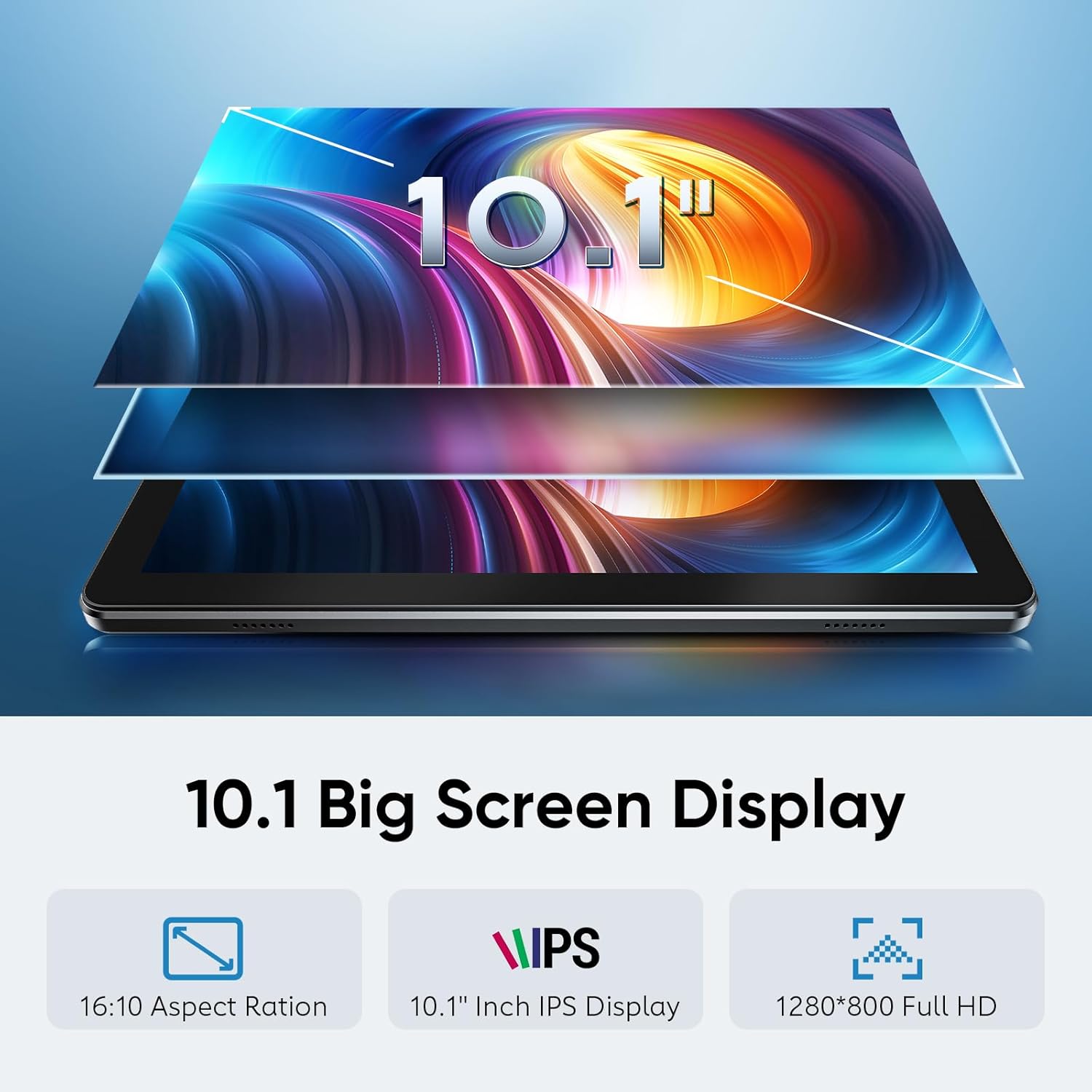
Image: 10.1-inch IPS Display.
5.2 Connectivity
- Wi-Fi: Supports dual-band 2.4G/5G Wi-Fi 6 for stable internet connection. Access Wi-Fi settings via the Settings app.
- Bluetooth: Features Bluetooth 5.4 for connecting wireless accessories like headphones or keyboards. Pair devices through Bluetooth settings.
- GPS: Integrated GPS for navigation and location-based services.

Image: Connectivity and core specifications.
5.3 Storage Management
The tablet comes with 128GB of internal storage and 18GB (6GB physical + 12GB virtual) RAM. Storage can be expanded up to 1TB using a microSD card (not included).
- Inserting a MicroSD Card: Locate the microSD card slot on the side of the tablet. Gently insert the card until it clicks into place.
- Managing Storage: Access 'Storage' in the Settings app to view usage and manage files.

Image: Storage and memory capabilities.
5.4 Camera Usage
The tablet is equipped with a 5.0 MP front camera and an 8.0 MP rear camera.
- Opening the Camera: Tap the Camera app icon on the home screen or app drawer.
- Taking Photos/Videos: Use the on-screen shutter button to capture images or start/stop video recording.
- Switching Cameras: Tap the camera switch icon to toggle between front and rear cameras.

Image: Front and rear camera specifications.
5.5 Multimedia
The MENTUME K50 supports various multimedia functions:
- Video Playback: With Widevine L1 certification, the tablet can stream Full HD content from platforms like Netflix and Prime Video.
- Audio: Dual speakers provide audio output for music, videos, and games.
- Headphones: Connect 3.5mm headphones for private listening.

Image: Tablet usage for entertainment and productivity.
5.6 Applications
The tablet comes with Google Play pre-installed, allowing access to a wide range of applications.
- Downloading Apps: Open the Google Play Store app, search for desired applications, and follow the on-screen instructions to install.
- Managing Apps: Apps can be uninstalled or managed through the 'Apps' section in the Settings app.
6. Maintenance
6.1 Cleaning
- Use a soft, lint-free cloth to clean the screen and body of the tablet.
- Avoid using harsh chemicals, abrasive cleaners, or aerosol sprays.
- Do not allow moisture to enter openings.
6.2 Software Updates
Regularly check for and install software updates to ensure your tablet has the latest features, security patches, and performance improvements. Access 'System' or 'About tablet' in Settings to check for updates.
6.3 Battery Care
- Avoid exposing the tablet to extreme temperatures.
- Do not leave the tablet fully charged or fully discharged for extended periods.
- Use only the provided charger or a certified compatible charger.

Image: Battery capacity and estimated usage times.
7. Troubleshooting
If you encounter issues with your MENTUME K50 Android Tablet, refer to the following common solutions:
7.1 Tablet Does Not Power On
- Ensure the battery is charged. Connect the tablet to the charger for at least 30 minutes.
- Press and hold the Power Button for 10-15 seconds to perform a forced restart.
7.2 Wi-Fi Connection Issues
- Restart your Wi-Fi router and the tablet.
- Ensure you are within range of the Wi-Fi signal.
- Verify the Wi-Fi password is entered correctly.
- Forget the network in Wi-Fi settings and reconnect.
7.3 Slow Performance
- Close unnecessary background applications.
- Clear cache for frequently used apps in 'Apps' settings.
- Ensure sufficient free storage space.
- Restart the tablet.
7.4 Factory Reset
If problems persist, a factory reset may resolve them. Warning: This will erase all data on your tablet. Back up important data before proceeding.
- Go to Settings > System > Reset options.
- Select Erase all data (factory reset).
- Confirm your choice and follow the on-screen prompts.
8. Specifications
| Feature | Specification |
|---|---|
| Model Name | K50 |
| Operating System | Android 15 |
| Processor | Octa-Core (Unisoc) |
| RAM | 18GB (6GB physical + 12GB virtual) |
| Internal Storage | 128GB ROM |
| Expandable Storage | Up to 1TB via MicroSD card |
| Screen Size | 10.1 Inches |
| Screen Resolution | 1280 x 800 IPS |
| Front Camera | 5.0 MP |
| Rear Camera | 8.0 MP |
| Battery Capacity | 6000mAh |
| Wireless Connectivity | Wi-Fi 6 (802.11a/b/g/n/ac, 2.4G/5G) |
| Bluetooth | Bluetooth 5.4 |
| GPS | Yes |
| Ports | USB-C, 3.5mm Audio Jack, MicroSD Card Slot |
| Dimensions (LxWxH) | 9.7 x 6.42 x 0.39 inches |
| Item Weight | 1.13 pounds |
9. Warranty and Support
9.1 Warranty Information
The MENTUME K50 Android Tablet comes with a 1-year warranty covering manufacturing defects. This warranty does not cover damage caused by misuse, accidents, unauthorized modifications, or normal wear and tear.
9.2 Customer Support
For any questions or assistance with your MENTUME K50 Android Tablet, please contact our customer service team. We provide 24-hour service to address your concerns.
How to contact support:
- Log in to your Amazon account.
- Navigate to 'Your Orders'.
- Locate the order for your MENTUME K50 Android Tablet.
- Click on 'Contact Seller'.
Related documentsK50


Ask a question about this manual
Ask about setup, troubleshooting, compatibility, parts, safety, or missing instructions. Manuals+ will review the question and use this page’s manual context to help answer it.