
1. Introduction
The SIMO Solis Pro 5G Mobile Hotspot is a versatile 2-in-1 device designed to provide reliable internet connectivity and portable power. It functions as a next-generation 5G mobile hotspot and includes a built-in 8000mAh power bank to keep your devices charged. This manual provides essential information for setting up, operating, maintaining, and troubleshooting your Solis Pro device.

Figure 1: SIMO Solis Pro 5G Mobile Hotspot with included data cards.
Key features include:
- 2-in-1 Functionality: Combines a 5G mobile hotspot with an 8000mAh power bank.
- Global Connectivity: Access to 300+ mobile networks in over 140 countries.
- No SIM Card or Contract Required: Utilizes patented virtual SIM (vSIM) technology.
- SignalScan Technology: Automatically connects to the strongest available signal.
- Rugged Design: IP68-rated for dust, water, and drop protection.
- Data Plans: Includes 1GB/month Lifetime Data and an additional 10GB Global Data.
- Device Sharing: Connect up to 20 devices simultaneously.
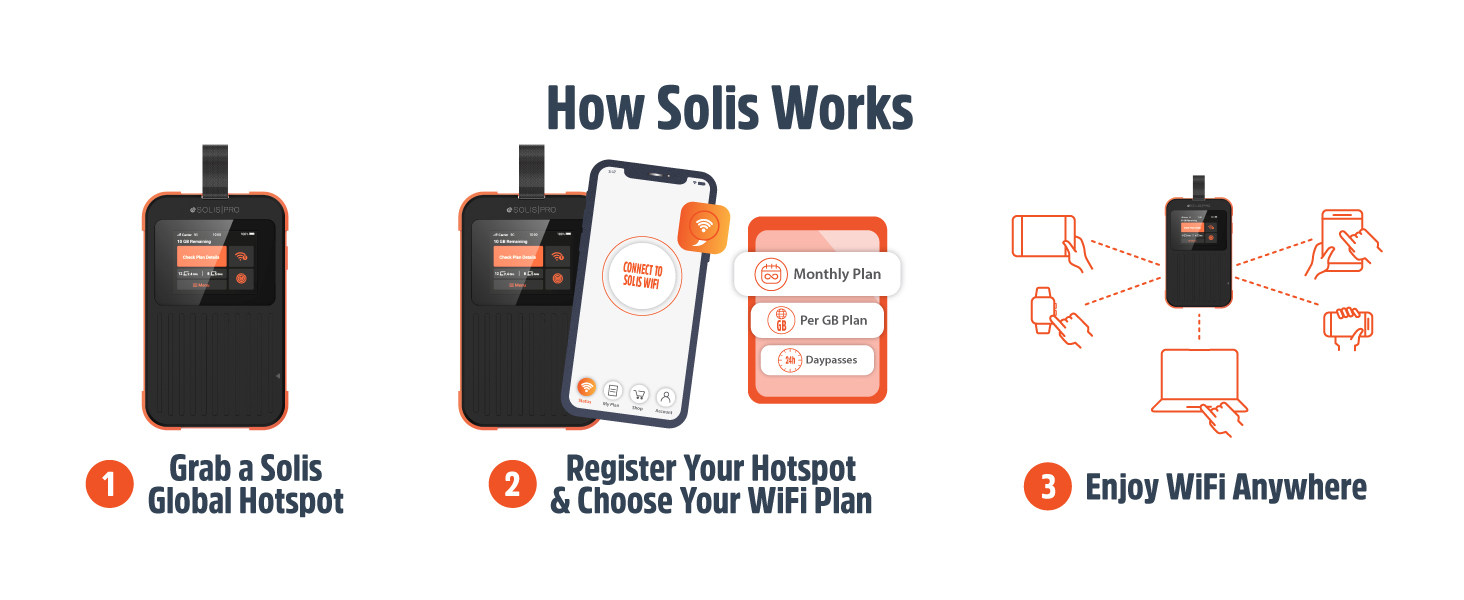
Figure 2: Overview of Solis Pro key features.
2. Setup
2.1 Unboxing Your Solis Pro
Upon receiving your SIMO Solis Pro, carefully unbox the device and its accessories. The package typically includes the Solis Pro 5G WiFi Mobile Hotspot, a charging cable, and a quick start guide.
Video 1: SIMO Solis 5G Pro Mobile Hotspot Unboxing. This video demonstrates the contents of the Solis Pro package and the initial unboxing process.
2.2 Initial Charging
Before first use, it is recommended to fully charge your Solis Pro device. Connect the provided charging cable to the device and a compatible USB power adapter (not included). The device's display will indicate charging status.
2.3 Device Registration and App Download
To activate your data plans and manage your device, download the official Solis app from your smartphone's app store. Follow the in-app instructions to register your device. This typically involves scanning a QR code displayed on the Solis Pro's screen or entering a serial number.

Figure 3: Steps to get started with your Solis Pro device.
3. Operating Instructions
3.1 Powering On/Off
To power on the Solis Pro, press and hold the power button located on the side of the device until the screen illuminates. To power off, press and hold the power button until the shutdown prompt appears, then confirm.
3.2 Connecting to Wi-Fi
Once powered on, the Solis Pro will automatically search for the strongest available network. On your Wi-Fi enabled device (smartphone, tablet, laptop), search for available Wi-Fi networks. Select the network name (SSID) displayed on your Solis Pro screen and enter the password (Wi-Fi Key) also shown on the screen.
3.3 Managing Data Plans
Your Solis Pro comes with a 1GB/month Lifetime Data plan and an additional 10GB Global Data. You can monitor your data usage and purchase additional data plans (monthly plans, per GB plans, or day passes) through the Solis app or by accessing the device's web interface via the QR code on the screen. The device automatically switches to the strongest local network for reliable connection.

Figure 4: The Solis Pro automatically connects to the strongest local network.
3.4 Using as a Power Bank
The Solis Pro features an 8000mAh power bank. To charge external devices, connect them to the appropriate USB port on the Solis Pro using their charging cable.
4. Maintenance
To ensure the longevity and optimal performance of your SIMO Solis Pro, follow these maintenance guidelines:
- Cleaning: Use a soft, dry cloth to clean the device. Avoid using harsh chemicals or abrasive materials.
- Storage: Store the device in a cool, dry place away from direct sunlight and extreme temperatures.
- Water and Dust Protection: While the device is IP68-rated for dust and water protection, avoid prolonged submersion or exposure to high-pressure water jets. Ensure all ports are dry before charging.
- Software Updates: Periodically check for firmware updates through the Solis app or device interface to ensure optimal performance and security.
5. Troubleshooting
If you encounter issues with your Solis Pro, refer to the following common troubleshooting steps:
| Problem | Possible Cause | Solution |
|---|---|---|
| No Internet Connection | No data remaining, weak signal, device not registered. | Check data balance in the Solis app. Move to an area with better signal. Ensure device is registered and activated. Restart the device. |
| Cannot Connect to Wi-Fi | Incorrect Wi-Fi password, device too far from hotspot. | Verify the Wi-Fi password on the Solis Pro screen. Move your device closer to the hotspot. Restart both devices. |
| Slow Internet Speed | Weak signal, too many connected devices, network congestion. | Move to an area with stronger signal. Disconnect unnecessary devices. Try connecting at a different time. |
| Device Not Charging | Faulty cable/adapter, dirty charging port. | Try a different USB-C cable and power adapter. Clean the charging port gently. |
| Device Unresponsive | Software glitch, low battery. | Perform a hard reset by holding the power button for 10-15 seconds. Charge the device. |
If the issue persists, please contact SIMO customer support for further assistance.
6. Specifications
| Feature | Detail |
|---|---|
| Model Name | 5G Pro (M6E) |
| Connectivity Technology | Wi-Fi (5G/4G LTE) |
| Wireless Communication Standard | 802.11ax |
| Frequency Band Class | Dual-Band (2.4 GHz, 5 GHz, 6 GHz) |
| Battery | 8000mAh Lithium Ion (included) |
| Item Weight | 1.08 pounds |
| Package Dimensions | 7.99 x 6.54 x 2.17 inches |
| Special Feature | Weatherproof (IP68-rated for dust, water, and drop protection) |
| Compatible Devices | Smart Phones, Tablets, Laptops and Any Wi-Fi Compatible Devices |
| Included Components | Solis Pro 5G WiFi Mobile Hotspot |
| Country of Origin | China |
7. Warranty and Support
7.1 Warranty Information
For detailed warranty information regarding your SIMO Solis Pro device, please refer to the warranty card included in your product packaging or visit the official SIMO website. Protection plans may also be available for extended coverage.
7.2 Customer Support
If you require assistance with your Solis Pro, SIMO offers customer support. You can typically find contact information (phone, email, or online chat) on the official SIMO website or within the Solis app. Please have your device model number (M6E) and serial number ready when contacting support.
For more information, visit the SIMO Store on Amazon.