
1. Introduction
This manual provides essential information for setting up, operating, and maintaining your Lenovo IdeaPad 15.6" Laptop. Please read this guide thoroughly to ensure proper use and to maximize the performance and longevity of your device.
The Lenovo IdeaPad 15.6" Laptop features an Intel Celeron processor, 20GB DDR4 RAM, and 1.6TB of storage (1TB SSD, 128GB eMMC, and 512GB SD Card). It comes pre-installed with Windows 11 Pro and includes a 1-year Microsoft Office 365 subscription. The laptop is designed for efficient multitasking and includes a 15.6" HD LED anti-glare display, an integrated camera with a privacy shutter, and a numeric keypad.
2. What's in the Box
- Lenovo IdeaPad 15.6" Laptop
- AC Adapter
- Internal Battery (pre-installed)
- Quick Start Guide
- PLUSERA Earphones

Image: The contents of the product box, including the Lenovo IdeaPad laptop, AC adapter, and a quick start guide.
3. Product Overview
3.1 Laptop Components

Image: Front view of the Lenovo IdeaPad laptop, displaying the screen with Windows 11 Pro and Microsoft Office branding.
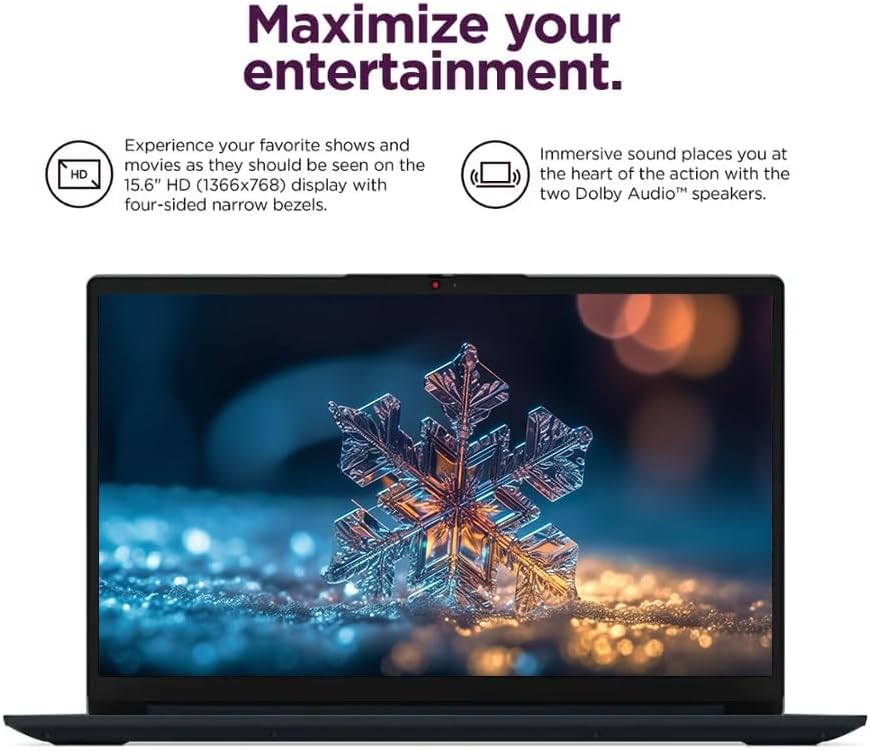
Image: Close-up of the laptop screen, highlighting the 15.6" HD display with narrow bezels and the Dolby Audio feature.

Image: Top-down view of the laptop's keyboard, showcasing the numeric keypad and the camera privacy shutter.
3.2 Ports and Connectors

Image: Side profile of the laptop, illustrating the various ports and their labels, including power input, USB-C, HDMI, USB-A, headphone/mic combo, and SD card reader.
- Power Input: Connect the AC adapter here.
- USB-C 3.2 Gen 1: For data transfer and connecting compatible devices.
- USB-A 3.2 Gen 1 (x2): For connecting USB peripherals.
- HDMI: For connecting to external displays.
- Headphone/Microphone Combo Jack: For audio input and output.
- SD Card Reader: For reading and writing to SD memory cards.
- USB-A 2.0: For connecting USB peripherals.
4. Setup
4.1 Initial Power-On
- Unpack the laptop and all accessories.
- Connect the AC adapter to the laptop's power input and then to a power outlet.
- Open the laptop lid and press the power button, usually located on the top right of the keyboard or on the side.
- Follow the on-screen instructions to complete the Windows 11 Pro setup, including language, region, network connection, and user account creation.
4.2 Windows 11 Pro Configuration
During the initial setup, Windows 11 Pro will guide you through personalizing your experience. Ensure you connect to a stable internet connection to download necessary updates and activate your Microsoft Office 365 subscription.
5. Operating Instructions
5.1 Basic Usage
- Power On/Off: Press the power button to turn on. To shut down, click the Start button, then Power > Shut down.
- Sleep Mode: Close the lid or click the Start button, then Power > Sleep.
- Restart: Click the Start button, then Power > Restart.
5.2 Keyboard and Touchpad
- The laptop features a full-size keyboard with a dedicated numeric keypad for data entry.
- The touchpad supports multi-touch gestures for navigation, scrolling, and zooming. Refer to Windows settings for customization.
5.3 Camera and Audio
- The integrated camera includes a physical privacy shutter. Slide the shutter to cover the camera lens when not in use to ensure privacy.
- The laptop is equipped with Dolby Audio speakers for enhanced sound quality.
- The Smart Noise Cancelling feature helps reduce background distractions during video calls.
6. Connectivity
6.1 Wireless Connections
- Wi-Fi: The laptop supports 802.11ac wireless connectivity. To connect to a Wi-Fi network, click the Wi-Fi icon in the taskbar, select your desired network, and enter the password if required.
- Bluetooth: Bluetooth 5.2 is integrated for connecting wireless peripherals such as headphones, mice, or keyboards. Enable Bluetooth from Windows settings to pair devices.
6.2 External Devices
Utilize the available ports to connect external devices:
- USB Devices: Connect USB flash drives, external hard drives, printers, or other USB accessories to the USB-A or USB-C ports.
- External Display: Use the HDMI port to connect to a monitor, TV, or projector.
- SD Cards: Insert an SD card into the SD card reader for accessing photos, videos, or other files.
7. Storage Management
Your Lenovo IdeaPad laptop comes with a total of 1.6TB storage, comprising a 1TB SSD, 128GB eMMC, and a 512GB SD Card. This configuration provides a balance of speed and capacity.
- SSD (Solid State Drive): The 1TB SSD offers fast boot times and application loading. It is recommended for the operating system and frequently used programs.
- eMMC (embedded MultiMediaCard): The 128GB eMMC provides additional storage, suitable for documents and less frequently accessed files.
- SD Card: The included 512GB SD Card expands storage further, ideal for media files, backups, or portable data.
Regularly manage your files and uninstall unused applications to maintain optimal performance. Utilize cloud storage services for additional backup and accessibility.
8. Maintenance
8.1 Cleaning
- Turn off the laptop and disconnect the power adapter before cleaning.
- Use a soft, lint-free cloth dampened with water or a mild screen cleaner to clean the display.
- Wipe the keyboard and chassis with a soft, dry cloth. Avoid harsh chemicals or abrasive materials.
8.2 Software Updates
- Regularly check for and install Windows updates to ensure system security and performance. Go to Settings > Windows Update.
- Keep your drivers updated. Lenovo provides driver updates through their official support website.
8.3 Battery Care
- Avoid fully discharging the battery frequently.
- Store the laptop in a cool, dry place if not used for extended periods.
9. Troubleshooting
| Issue | Possible Solution |
|---|---|
| Laptop does not power on | Ensure the AC adapter is securely connected and the power outlet is functional. Try a different power outlet. |
| Slow performance | Close unnecessary applications. Check for Windows updates. Ensure sufficient free storage space. |
| Wi-Fi connection issues | Restart your router and modem. Check Wi-Fi settings on the laptop. Ensure Wi-Fi drivers are updated. |
| Camera not working | Ensure the camera privacy shutter is open. Check camera permissions in Windows settings. |
| Battery not charging | Verify the AC adapter connection. Check for any physical damage to the adapter or port. |
10. Specifications
| Feature | Detail |
|---|---|
| Brand | Lenovo |
| Model Name | Lenovo 15 |
| Operating System | Windows 11 Pro |
| Processor | Intel Celeron (2 Cores, 2 Threads, Max Boost Clock Up to 2.8Ghz, 4MB Cache) |
| RAM | 20 GB DDR4 |
| Storage | 1.6 TB (1TB SSD + 128GB eMMC + 512GB SD Card) |
| Graphics Coprocessor | Intel UHD Graphics (Integrated) |
| Display | 15.6" HD LED Anti-Glare (1366 x 768 pixels) |
| Wireless Type | 802.11ac |
| Bluetooth | Bluetooth 5.2 |
| Ports | 1x USB-C 3.2 Gen 1, 2x USB-A 3.2 Gen 1, 1x USB-A 2.0, 1x HDMI, 1x Headphone/Microphone Combo Jack, 1x SD Card Reader |
| Special Features | Anti Glare Coating, HD Audio, Numeric Keypad, Camera Privacy Shutter |
| Item Weight | 4.6 pounds |
| Product Dimensions | 14.14 x 9.31 x 0.78 inches |
| Batteries | 1 Lithium Ion battery (included) |
11. Warranty and Support
Your Lenovo IdeaPad laptop is covered by a manufacturer's warranty. For specific warranty terms, conditions, and duration, please refer to the warranty card included with your product or visit the official Lenovo support website. The website also provides access to drivers, software updates, and additional troubleshooting resources.
For technical assistance, contact Lenovo customer support through their official channels. Keep your product's serial number handy when seeking support.