
PNY VCG50608DFXPB1-O
PNY NVIDIA GeForce RTX 5060 OC Dual Fan Graphics Card User Manual
Model: VCG50608DFXPB1-O | Brand: PNY
1. Introduction
Welcome to the user manual for your PNY NVIDIA GeForce RTX 5060 OC Dual Fan Graphics Card. This document provides essential information for the proper installation, operation, and maintenance of your new graphics card. Please read this manual thoroughly before installation and retain it for future reference.
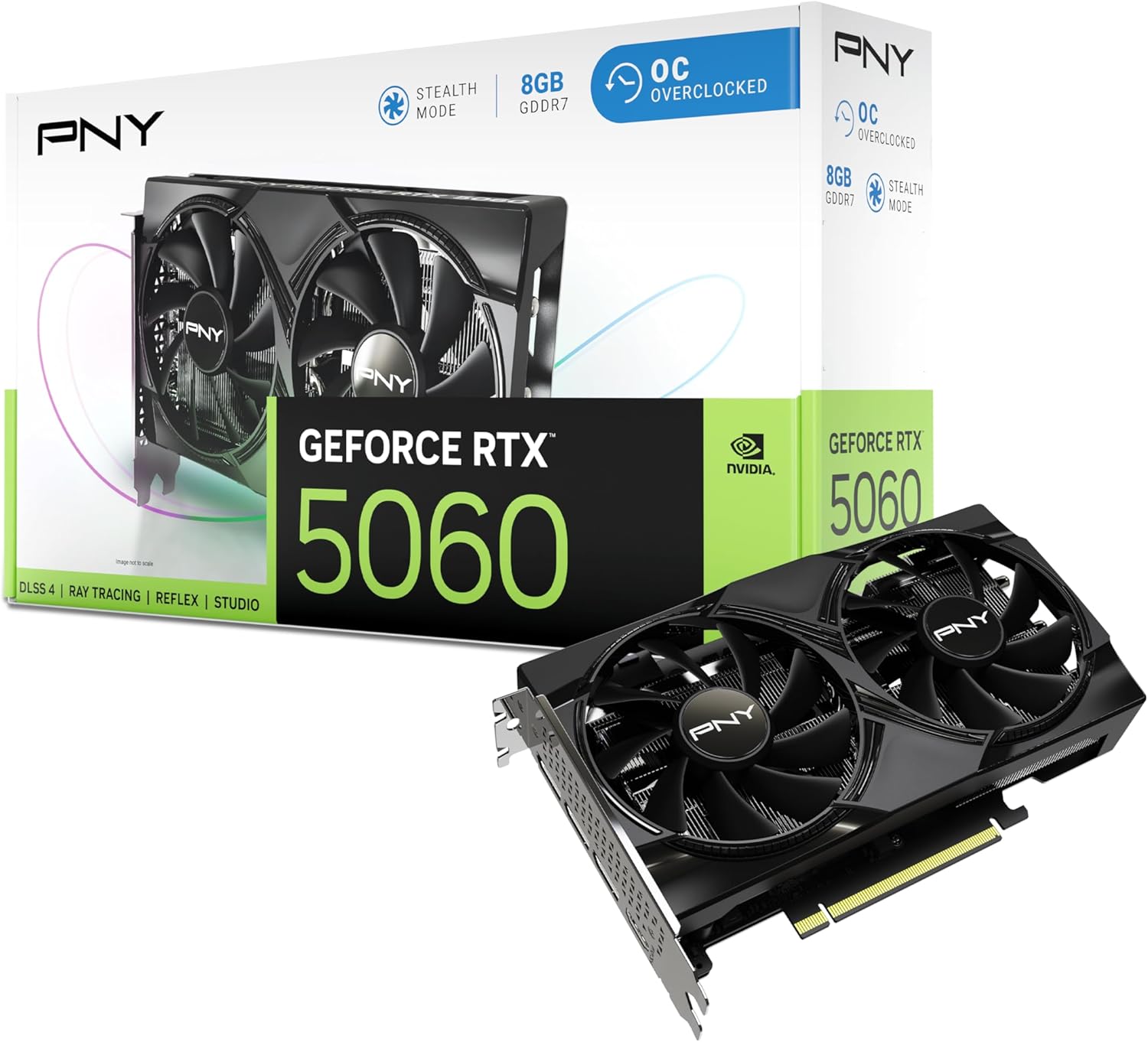
Image 1.1: PNY NVIDIA GeForce RTX 5060 OC Dual Fan Graphics Card and Retail Packaging.
2. Package Contents
Verify that all items are present in your package:
- PNY NVIDIA GeForce RTX 5060 OC Dual Fan Graphics Card
- NVIDIA App (Software download information)
3. Key Features
The PNY NVIDIA GeForce RTX 5060 OC Dual Fan Graphics Card offers advanced features for an enhanced computing experience:
- DLSS 4 Technology: A revolutionary suite of neural rendering technologies that uses AI to boost FPS, reduce latency, and improve image quality.
- NVIDIA Blackwell Architecture: Featuring Fifth-Gen Tensor Cores, New Streaming Multiprocessors, and Fourth-Gen Ray Tracing Cores for superior performance.
- NVIDIA Reflex: Optimizes the graphics pipeline for ultimate responsiveness, providing faster target acquisition, quicker reaction times, and improved aim precision in competitive games.
- AI Acceleration: Upgrade to advanced AI with NVIDIA GeForce RTX GPUs to accelerate gaming, creativity, productivity, and development. Built-in AI processors power world-leading AI technology on your Windows PC.
- NVIDIA Studio: Experience RTX accelerations in top creative applications, world-class NVIDIA Studio drivers for maximum stability, and a suite of exclusive tools harnessing RTX power for AI-assisted creative workflows.

Image 3.1: Front view of the graphics card highlighting the dual fan design.
4. Setup and Installation
4.1. System Requirements
- PCI Express-compliant motherboard with one dual-width x16 graphics slot.
- Minimum 550W or greater system power supply.
- 8GB system memory (16GB recommended).
- Microsoft Windows 10 64-bit (April 2018 Update or later), Windows 11 64-bit, or Linux 64-bit.
- Internet connection for driver installation.
4.2. Physical Installation
Follow these steps to install your graphics card:
- Power off your computer and disconnect all cables.
- Open your computer case.
- Locate an available PCI Express x16 slot on your motherboard.
- Remove any expansion slot covers that block the installation.
- Carefully insert the graphics card into the PCI Express x16 slot until it is firmly seated.
- Secure the graphics card to the chassis with screws.
- Connect the required power cables from your power supply to the graphics card (if applicable).
- Close your computer case and reconnect all cables.

Image 4.1: Angled view of the graphics card, illustrating its form factor and connectors.

Image 4.2: Display output ports (HDMI and DisplayPort) on the graphics card.
4.3. Driver Installation
After physical installation, power on your computer and install the latest NVIDIA drivers. Visit the official NVIDIA website (www.nvidia.com/drivers) to download the appropriate drivers for your operating system and graphics card model.
5. Operation
5.1. Gaming Performance with DLSS 4 and Reflex
Your PNY GeForce RTX 5060 OC graphics card leverages NVIDIA's cutting-edge technologies to deliver superior gaming experiences. DLSS 4 (Deep Learning Super Sampling) uses AI to render fewer pixels and then reconstructs sharp, higher-resolution images, significantly boosting frame rates. NVIDIA Reflex reduces system latency, providing a competitive edge in fast-paced games.
5.2. PNY VelocityX Software
Unlock the full potential of your graphics card with PNY's VelocityX Overclocking Software. This utility allows you to monitor performance metrics, customize LED lighting, adjust fan speeds, and fine-tune clock settings for optimal performance. Download the software from the official PNY website.
6. Maintenance
To ensure the longevity and optimal performance of your graphics card, consider the following maintenance tips:
- Cleaning: Regularly clean dust from the fans and heatsink using compressed air. Ensure the computer is powered off and unplugged before cleaning.
- Driver Updates: Keep your graphics drivers updated to the latest version from the NVIDIA website to benefit from performance improvements and bug fixes.
- System Airflow: Ensure your PC case has adequate airflow to prevent overheating.
7. Troubleshooting
If you encounter issues with your graphics card, refer to the following common troubleshooting steps:
- No Display: Ensure the monitor cable is securely connected to the graphics card and the monitor. Verify the graphics card is properly seated in the PCIe slot and all power connectors are attached.
- Performance Issues: Update your graphics drivers. Check for overheating using monitoring software like PNY VelocityX. Ensure your power supply meets the minimum wattage requirement.
- System Instability/Crashes: This could be due to outdated drivers, overheating, or insufficient power. Check drivers, monitor temperatures, and verify power connections.
- Software Conflicts: If issues arise after installing new software, try uninstalling it or performing a system restore.
8. Technical Specifications
| Feature | Specification |
|---|---|
| Brand | PNY |
| Series | GeForce RTX™ 5060 |
| Model Number | VCG50608DFXPB1-O |
| Graphics Coprocessor | NVIDIA GeForce RTX 5060 |
| Chipset Brand | NVIDIA |
| Graphics Card RAM Size | 8 GB GDDR7 |
| Memory Speed | 2280 MHz |
| GPU Clock Speed | 2535 MHz |
| Max Screen Resolution | 7680x4320 |
| Video Output Interface | DisplayPort, HDMI |
| Item Weight | 1.7 pounds |
| Color | Black |
9. Warranty and Support
For detailed warranty information, technical support, and frequently asked questions, please visit the official PNY website or contact PNY customer service. Keep your proof of purchase for warranty claims.
PNY Support: www.pny.com/support
Related documentsVCG50608DFXPB1-O


Ask a question about this manual
Ask about setup, troubleshooting, compatibility, parts, safety, or missing instructions. Manuals+ will review the question and use this page’s manual context to help answer it.