
1. Introduction
The Radiacode-102 is a smart nuclear radiation detector designed for accurate and rapid measurement of radiation levels. This device utilizes advanced scintillation technology to detect gamma, X-ray, and hard beta radiation, offering features such as isotope identification, real-time radiation mapping, and food analysis. It connects seamlessly with dedicated mobile and desktop applications to provide comprehensive data analysis and tracking capabilities.

Image 1.1: Radiacode-102 device with companion mobile and smartwatch applications.
2. Product Overview
2.1 Key Features
- Rapid Detection Speed: Measures radiation up to 20 times faster than conventional devices, enhancing the ability to quickly identify radiation sources. The reference count rate is 1 µSv/h = 30 cps on Cs-137.
- Isotope Identification: Provides radiation source spectrum visualization, enabling the recognition of isotopes such as Cs-137, Ra-226, Th-232, U-238, and decay products of Radon-222 (e.g., Lead-214, Bismuth-214). Spectral resolution (FWHM) is 9.5% (+/- 0.4%).
- Radiation Mapping: Offers real-time radiation maps via the Radiacode mobile application, displaying GPS-logged Count Per Second (CPS) and microSievert per hour (µSv/h) readings with color-coded levels on online Google Maps or offline Open Street Maps. Tracked routes can be saved and shared.
- Cross-Platform Applications: Complimentary mobile and desktop applications are available for iOS, Android, macOS, and Windows. These applications provide access to advanced features including dose rate graphs, spectrum analysis, radiation GPS tracking, spectrograms, event logs, and a food analyzer. Continuous updates are provided free of charge.
- Multiple Alarm Modes: Features up to seven alarm modes, including two adjustable sound levels, an LED indicator, and vibration alerts. Three additional app-based sound and vibration alerts are also available.
- Measurement Units: Displays measurements in CPS, CPM, µSv/h, and µR/h, with classic Geiger click sounds.
- Display: Equipped with a transflective blue-backlit display.
- Detection Capabilities: Supports gamma, X-ray, and hard beta detection.
2.2 What's in the Box
- Radiacode-102 Device
- Charging Cable
3. Setup
3.1 Initial Charging
Before first use, fully charge your Radiacode-102 device. Connect the provided charging cable to the device's charging port and a standard USB power adapter (not included). The device contains a Lithium Polymer battery. A full charge ensures optimal performance and extended operating time.
3.2 Application Installation
To access the full range of features, download and install the official Radiacode application on your preferred device:
- Mobile Devices: Search for "Radiacode" in the Apple App Store (for iOS) or Google Play Store (for Android).
- Desktop Computers: Visit the official Radiacode website to download the application for macOS or Windows.
3.3 Bluetooth Pairing
- Ensure your Radiacode-102 device is powered on.
- Enable Bluetooth on your mobile or desktop device.
- Open the Radiacode application.
- Follow the in-app instructions to search for and pair with your Radiacode-102 device. The device will typically appear as "Radiacode-102" or a similar identifier.
4. Operating Instructions
4.1 Basic Operation
To power on the device, press and hold the main button until the display illuminates. To power off, press and hold the button again until the device shuts down. The display will show current radiation readings in various units.
4.2 Radiation Detection and Measurement
The Radiacode-102 continuously monitors radiation levels. Readings are displayed on the device and transmitted to the connected application. Common measurement units include:
- CPS: Counts Per Second
- CPM: Counts Per Minute
- µSv/h: microSievert per hour (dose rate)
- µR/h: microRoentgen per hour (dose rate)
4.3 Spectrum Visualization and Isotope Identification
The device can analyze the energy spectrum of detected radiation, allowing for the identification of specific radioactive isotopes. This feature is primarily accessed through the mobile or desktop application.
- Ensure the device is connected to the Radiacode application.
- Navigate to the "Spectrum" section within the application.
- The application will display a graph showing the energy distribution of detected radiation. Peaks in the spectrum correspond to specific isotopes.
- The application provides tools to help identify common isotopes such as Cesium-137, Radium-226, Thorium-232, and Uranium-238.

Image 4.1: Spectrum visualization in the Radiacode app, showing isotope patterns.
4.4 Radiation Mapping
Utilize the radiation mapping feature to record and visualize radiation levels along a geographical path.
- Connect the Radiacode-102 to the mobile application.
- Ensure your mobile device's GPS is active.
- Start a new tracking session in the "Track" section of the application.
- As you move, the application will log GPS coordinates with corresponding radiation readings (CPS and µSv/h) and display them on a map (Google Maps or Open Street Maps) with color-coded levels.
- You can save and share your recorded routes for later analysis.
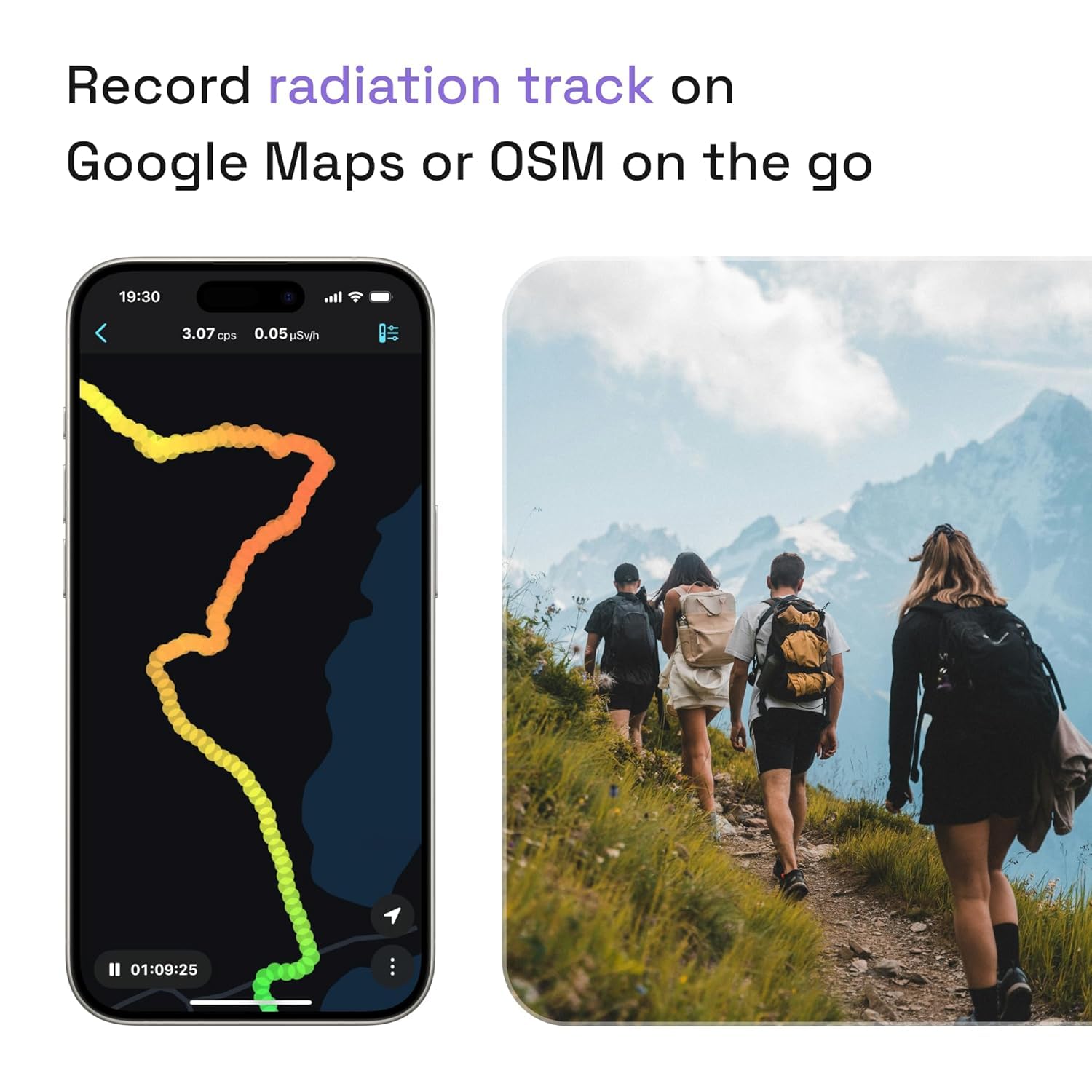
Image 4.2: Radiation tracking feature on the Radiacode mobile application.
4.5 Food Analysis
The food analyzer feature helps assess potential Cesium-137 contamination in food items.
- Place the Radiacode-102 device near or within the food sample.
- Open the Radiacode application and navigate to the "Food Analyzer" section.
- Follow the in-app instructions to initiate an analysis. The application will provide readings related to Cesium-137 activity.
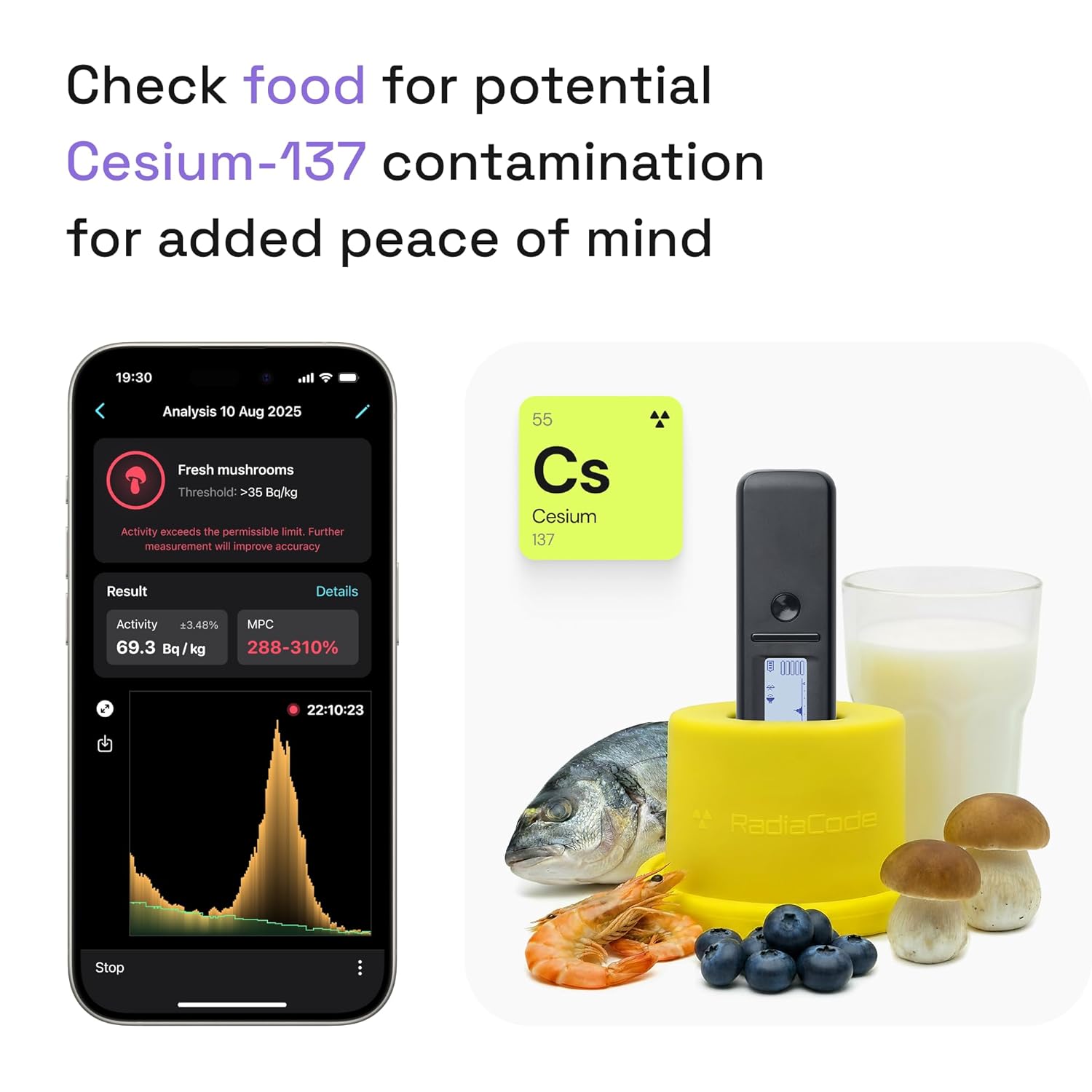
Image 4.3: Food analysis for Cesium-137 using the Radiacode-102 and mobile app.
4.6 Alarm Modes
The Radiacode-102 offers multiple alarm options to alert users to elevated radiation levels:
- Device Alarms: Two adjustable sound levels, an LED indicator, and vibration alerts directly from the device.
- App-Based Alarms: Three additional sound and vibration alerts configurable within the mobile application.
4.7 Advanced App Features
The Radiacode applications provide a comprehensive interface for data visualization and analysis:
- Dose Rate Graphs: Visualize radiation dose rates over time.
- Spectrogram: A visual representation of radiation spectrum changes over time.
- Event Logs: Records significant radiation events.
- Data Export: Export measurement data for further analysis.

Image 4.4: Overview of the Radiacode mobile application interface.
5. Maintenance
5.1 Cleaning
Wipe the device with a soft, dry cloth. Avoid using abrasive cleaners or solvents, as these can damage the device's casing or display.
5.2 Battery Care
To prolong battery life, avoid fully discharging the device frequently. Charge the device regularly, especially if it will be stored for an extended period. Use only the provided charging cable.
5.3 Storage
Store the Radiacode-102 in a cool, dry place away from direct sunlight and extreme temperatures. Keep it away from strong magnetic fields.
6. Troubleshooting
6.1 Device Not Powering On
- Ensure the device is fully charged. Connect it to a power source and allow it to charge for at least 30 minutes before attempting to power it on again.
- If the issue persists, contact customer support.
6.2 Unable to Connect via Bluetooth
- Verify that Bluetooth is enabled on both the Radiacode-102 and your mobile/desktop device.
- Ensure the Radiacode application is open and attempting to connect.
- Move the devices closer to each other to ensure they are within Bluetooth range.
- Try restarting both the Radiacode-102 and your mobile/desktop device.
- If previously paired, try unpairing and re-pairing the device through your mobile/desktop device's Bluetooth settings.
6.3 Inaccurate Readings
- Ensure the device is not exposed to extreme temperatures or strong electromagnetic interference.
- Perform a background radiation measurement in a known low-radiation environment to establish a baseline.
- If you suspect a malfunction, contact customer support for assistance.
7. Specifications
| Specification | Value |
|---|---|
| Model Number | RC102 |
| Product Dimensions | 5.71 x 4.13 x 1.38 inches |
| Weight | 2.36 ounces (67 g) |
| Battery Type | 1 Lithium Polymer battery |
| Spectral Resolution (FWHM) | 9.5% (+/- 0.4%) |
| Manufacturer | Radiacode |

Image 7.1: Key specifications and features of the Radiacode-102.
8. Support
For technical assistance, troubleshooting beyond this manual, or warranty inquiries, please contact Radiacode customer support through their official website or the contact information provided with your purchase. Ensure you have your device's model number (RC102) and purchase details available when contacting support.