
Introduction
Welcome to the user manual for your new Samsung Galaxy S25 Ultra. This guide is designed to help you unlock the full potential of your device, providing clear, step-by-step instructions and expert tips for effortless use. Whether you are a new Samsung user or upgrading from a previous model, this manual will assist you in navigating every feature, setting, and capability of your cutting-edge smartphone.
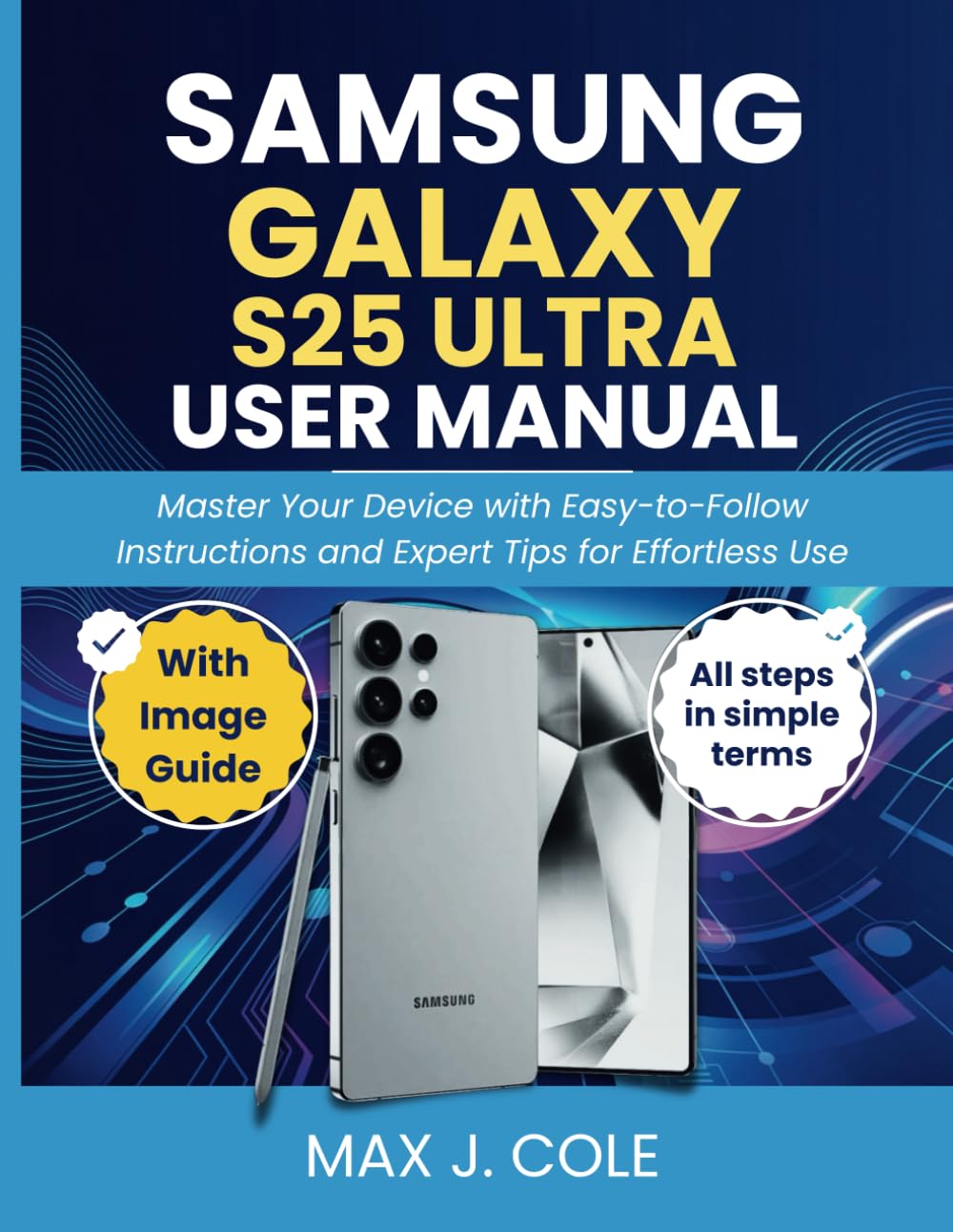
Image: Front cover of the Samsung Galaxy S25 Ultra User Manual book, displaying the device and S Pen.
1. Setup and Initial Configuration
This section guides you through the initial setup process of your Samsung Galaxy S25 Ultra, ensuring a smooth start from the moment you unbox your device.
1.1 Unboxing and Power On
- Carefully unbox your Galaxy S25 Ultra and check for all included accessories.
- Press and hold the Power button (located on the right side of the device) until the Samsung logo appears.
- Follow the on-screen prompts to select your language and region.
1.2 SIM Card and Network Setup
- Locate the SIM tray on the side of your device. Use the provided SIM ejector tool to open the tray.
- Insert your Nano-SIM card(s) into the tray with the gold contacts facing down.
- Gently push the tray back into the device until it clicks into place.
- Connect to a Wi-Fi network during initial setup for faster downloads and updates.
1.3 Account Setup
- Sign in with your Google Account to access services like the Play Store, Gmail, and Google Drive.
- Sign in or create a Samsung Account to utilize Samsung-specific features, cloud backup, and SmartThings.
2. Operating Your Device
Learn how to navigate the intuitive interface and utilize the core functionalities of your Galaxy S25 Ultra.
2.1 Navigation and Interface
- Gestures: Swipe up from the bottom for the home screen, swipe from the sides for back, and swipe up and hold for recent apps.
- Buttons: Understand the functions of the Power/Side key and Volume buttons.
- Customization: Personalize your home screen, widgets, and notification panel.
2.2 Camera System
The Galaxy S25 Ultra features a revolutionary camera system. Explore its capabilities for professional-quality photos and videos.
- Photo Modes: Switch between various modes like Portrait, Night, Pro, and Single Take.
- Video Recording: Learn about resolution settings, frame rates, and advanced video features.
- Zoom and Lenses: Utilize the multiple lenses for wide-angle, telephoto, and ultra-wide shots.
2.3 S Pen Functionality
Maximize productivity and creativity with the integrated S Pen.
- Air Command: Access quick S Pen features by hovering and clicking the S Pen button.
- Screen Off Memo: Jot down notes instantly even when the screen is off.
- Air Actions: Control your phone remotely with S Pen gestures.
2.4 Samsung DeX
Transform your smartphone into a desktop experience with Samsung DeX.
- Connecting DeX: Connect to a monitor or TV using a USB-C to HDMI adapter or wirelessly.
- DeX Interface: Navigate the desktop-like environment for enhanced multitasking.
3. Connectivity
Seamlessly connect your Galaxy S25 Ultra with other devices and networks.
- Wi-Fi: Connect to wireless networks for internet access.
- Bluetooth: Pair with headphones, speakers, and other Bluetooth-enabled accessories.
- NFC: Use Near Field Communication for contactless payments and quick data transfer.
- USB-C: Connect for charging, data transfer, and external accessories.
4. Security and Privacy
Protect your personal data and device with advanced security features.
- Biometrics: Set up fingerprint recognition or facial recognition for secure unlocking.
- Samsung Knox: Understand the multi-layered security platform protecting your device from hardware to software.
- Secure Folder: Create a private, encrypted space for sensitive apps and data.
- Privacy Dashboard: Monitor and manage app permissions and data access.
5. Maintenance and Optimization
Keep your Galaxy S25 Ultra running smoothly and efficiently.
- Battery Care: Tips for extending battery life and optimizing charging habits.
- Software Updates: Regularly check for and install the latest One UI features and security updates.
- Storage Management: Free up space by managing files, apps, and cached data.
- Device Care: Utilize the built-in Device Care feature to optimize performance, battery, storage, and security.
6. Troubleshooting Common Issues
This section provides solutions for common problems you might encounter with your device.
- Device Not Responding: Perform a force restart by holding the Power and Volume Down buttons simultaneously for about 7 seconds.
- Battery Draining Quickly: Check app usage in Device Care, reduce screen brightness, and disable unnecessary features.
- Connectivity Problems: Toggle Wi-Fi or Bluetooth off and on, restart your device, or reset network settings.
- App Crashing: Clear the app's cache and data, or uninstall and reinstall the app.
- Overheating: Avoid using the device in direct sunlight or while charging heavily. Close background apps.
7. Specifications
For detailed technical specifications of the Samsung Galaxy S25 Ultra, please refer to the official Samsung product page or your device's 'About phone' section in Settings. Key specifications typically include:
- Display: Dynamic AMOLED 2X, adaptive refresh rate
- Processor: Latest generation flagship mobile processor
- RAM: High-capacity LPDDR5X RAM
- Storage: UFS 4.0 internal storage options
- Camera: Multi-lens rear camera system with advanced sensors, high-resolution front camera
- Battery: Large capacity battery with fast charging and wireless charging support
- Operating System: Android with Samsung One UI
- Connectivity: 5G, Wi-Fi 6E/7, Bluetooth 5.3, NFC, GPS
- Water Resistance: IP68 rating
8. Warranty and Support
Your Samsung Galaxy S25 Ultra comes with a limited manufacturer's warranty. For specific warranty terms, conditions, and duration, please refer to the warranty card included with your device or visit the official Samsung website for your region.
For further assistance, technical support, or service inquiries, please contact Samsung Customer Service or visit an authorized Samsung service center. You can find contact information and support resources on the official Samsung support website.
- Official Samsung Support: www.samsung.com/support
- Service Center Locator: Use the Samsung website to find the nearest authorized service center.


