
Lehwey 4982ee92-3611-4dda-b952-6e415111d406
Lehwey 9-inch Android Car Radio User Manual
Model: 4982ee92-3611-4dda-b952-6e415111d406 | Compatible with Seat Ibiza 6J IV (2008-2014)
1. Introduction
This manual provides instructions for the installation, operation, and maintenance of your Lehwey 9-inch Android Car Radio. This unit is specifically designed for Seat Ibiza 6J IV models manufactured between 2008 and 2014, offering advanced features such as Android 14, Apple CarPlay, Android Auto, navigation, and multimedia capabilities. Please read this manual thoroughly before installation and use to ensure proper function and safety.
2. Package Contents
Verify that all items listed below are present in your package:
- Lehwey 9-inch Android Car Radio Unit
- Wiring Harnesses (Vehicle-specific)
- CANBUS Box
- GPS Antenna
- USB Cable
- Receiving Antenna
- Rear View Camera Cable (if included)
- RCA Cable
- Original Auto USB Cable Adapter
- Installation Tools
- User Manual (this document)

Image: Overview of the Lehwey Car Radio unit and its included accessories, such as wiring harnesses, GPS antenna, CANBUS box, USB cables, and installation tools.
3. Installation Guide
Professional installation is recommended. Ensure the vehicle's battery is disconnected before beginning installation.
3.1 Pre-Installation Checks
- Confirm compatibility with your Seat Ibiza 6J IV (2008-2014).
- Verify all package contents are present.
3.2 Wiring Connections
- Main Power Harness: Connect the vehicle-specific wiring harness to the car radio. The included CANBUS box integrates with your vehicle's system to retain functions like ignition (ACC), steering wheel controls, reversing view, and handbrake control.
- GPS Antenna: Connect the GPS antenna and mount it in a location with a clear view of the sky, typically on the dashboard or under the windshield.
- USB Cables: Connect the provided USB cables for external device connectivity.
- Radio Antenna: Connect the vehicle's radio antenna to the unit.
- Rear View Camera (Optional): If installing a rear view camera, connect its video input to the designated port on the car radio. Ensure the camera's power is correctly wired to the reverse light circuit.
- RCA Cables: Connect any external audio/video devices using the RCA cables as needed.
3.3 Mounting the Unit
- Carefully remove the original car radio and trim panels from your vehicle.
- Secure the Lehwey car radio into the dashboard opening using the provided installation tools and brackets.
- Reconnect the vehicle's battery and test the unit before fully reassembling the dashboard trim.
4. Initial Setup and Operating Instructions
4.1 Power On and Basic Configuration
After installation, turn on your vehicle's ignition. The car radio will power on automatically. Follow any on-screen prompts for initial language and time zone settings.
4.2 User Interface Overview
The unit features a 9-inch capacitive touch screen running on Android 14. Navigate through applications and settings by tapping, swiping, and pinching gestures. The interface supports split-screen functionality, allowing two applications to be viewed simultaneously.
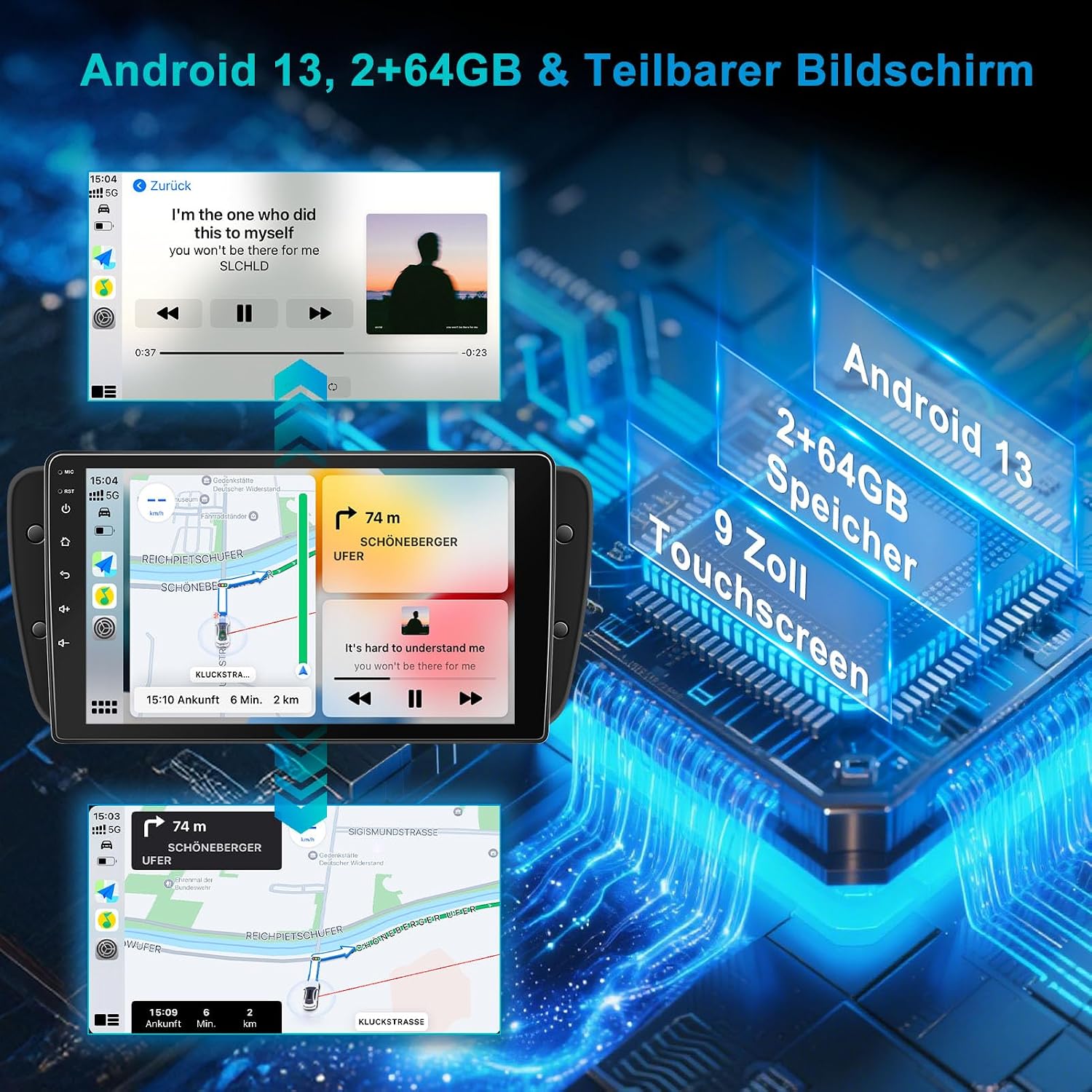
Image: The car radio display demonstrating split-screen functionality, showing a navigation app and a music player running concurrently. Key features like Android 14, 2GB RAM, 64GB storage, and the 9-inch touchscreen are highlighted.
4.3 Wi-Fi and Internet Access
The unit includes a built-in 2.4/5 GHz WiFi module. To connect to the internet:
- Go to Settings > Network & Internet > Wi-Fi.
- Select your desired Wi-Fi network and enter the password if required.
- Once connected, you can stream music, use web-based apps, and access online navigation services.
4.4 Navigation
The car radio supports both online and offline navigation. Pre-installed navigation applications or those downloaded from the app store (e.g., Google Maps, Waze) can be used. For offline navigation, ensure maps are downloaded in advance.

Image: The car radio screen showing a navigation map in use, alongside indicators for 2.4 & 5GHz Wi-Fi connectivity, enabling online services and map updates.
4.5 Radio (AM/FM/DAB+)
Access the Radio application from the main menu.
- FM/AM: Tune to your desired frequency (FM: 87.5-107.9KHz, AM: 530-1710KHz). The RDS function provides station information.
- DAB/DAB+: Digital Audio Broadcasting is supported. A separate DAB/DAB+ adapter (not included) is required for digital radio reception.
4.6 Bluetooth Connectivity
Pair your mobile phone via Bluetooth for hands-free calling and wireless music streaming.
- Enable Bluetooth on your mobile phone.
- On the car radio, go to the Bluetooth application.
- Search for available devices and select your phone. Confirm the pairing code if prompted.
- Once connected, you can make/receive calls, sync your phonebook, and stream audio.

Image: The car radio display illustrating Bluetooth functionality for hands-free calling and music playback. The image also shows the integration with steering wheel controls for convenient operation.
4.7 Apple CarPlay, Android Auto, and Mirror Link
These features allow seamless integration of your smartphone with the car radio.
- Wireless Connection: Connect your iPhone or Android phone wirelessly to access navigation, music, messages, and voice assistants (Siri/Google Assistant) directly on the car radio screen.
- Mirror Link: Display your smartphone's screen content directly on the car radio.

Image: The car radio screen showcasing the interfaces for Apple CarPlay, Android Auto, and Mirror Link, demonstrating how smartphone applications and voice control can be integrated into the vehicle's display.
4.8 Steering Wheel Control
The CANBUS box ensures that your original steering wheel controls remain functional with the Lehwey car radio. You can typically configure or re-map buttons in the unit's settings menu under 'Steering Wheel Control' or 'SWC'.
4.9 Rear View Camera
When a compatible rear view camera is connected and the vehicle is shifted into reverse gear, the car radio will automatically display the camera feed, assisting with parking and maneuvering.
4.10 Audio Settings
Customize your audio experience using the built-in DSP (Digital Signal Processor) and 15-band equalizer. Access these settings through the 'Sound' or 'EQ' application to adjust sound profiles, bass, treble, and other audio parameters to your preference.
5. Maintenance
- Screen Cleaning: Use a soft, lint-free cloth slightly dampened with water or a screen cleaner specifically designed for electronics. Avoid abrasive materials or harsh chemicals.
- Software Updates: Periodically check for available software updates through the unit's settings (if an internet connection is available) or the manufacturer's website to ensure optimal performance and access to new features.
- General Care: Avoid exposing the unit to extreme temperatures, direct sunlight for prolonged periods, or excessive moisture.
6. Troubleshooting
If you encounter issues, refer to the following common problems and solutions:
| Problem | Possible Cause | Solution |
|---|---|---|
| Unit does not power on. | Incorrect wiring, blown fuse, vehicle battery issue. | Check power connections, vehicle fuses, and battery charge. Ensure the CANBUS box is correctly connected. |
| No sound. | Volume too low, incorrect audio settings, speaker wiring issues. | Increase volume. Check audio output settings and speaker connections. Verify DSP/EQ settings. |
| Bluetooth not connecting. | Bluetooth off on phone/unit, pairing mode not active, interference. | Ensure Bluetooth is enabled on both devices. Put the unit in pairing mode. Restart both devices. |
| GPS signal weak or inaccurate. | GPS antenna improperly placed or faulty. | Relocate the GPS antenna to a position with a clear view of the sky. Check antenna connection. |
| Steering wheel controls not working. | CANBUS not connected or configured, incorrect settings. | Verify CANBUS connection. Check steering wheel control settings in the unit's menu. |
| Screen unresponsive or frozen. | Software glitch, temporary system error. | Perform a soft reset (refer to unit's specific reset procedure, often a small reset button or holding power button). If persistent, disconnect power for a few minutes. |
7. Specifications
| Feature | Description |
|---|---|
| Brand | Lehwey |
| Model Number | 4982ee92-3611-4dda-b952-6e415111d406 |
| Compatible Devices | Seat Ibiza 6J IV (2008-2014) |
| Operating System | Android 14 |
| Memory (RAM + ROM) | 2GB RAM + 64GB Storage |
| Display | 9-inch Touch Screen |
| Connectivity | Bluetooth, Wi-Fi (2.4 & 5GHz), Apple CarPlay (Wireless), Android Auto (Wireless), Mirror Link |
| Radio Tuner | FM (87.5-107.9KHz), AM (530-1710KHz), RDS, DAB/DAB+ ready (adapter not included) |
| Audio Features | DSP Noise Masking, 15-band Equalizer, 5.1 Surround Sound Channel Configuration |
| Video Output | Supports 4K video playback |
| Media Formats | 4K, AVI, Blu-ray, DVD, Dolby, HD DVD, MP3 Audio, MPEG, MPEG-2.5, WMA |
| Control Method | Touch Screen |
| Special Features | Steering Wheel Control, Rear View Camera Support, Split Screen, Voice Control |
| Item Weight | 0.75 Kilograms |
| Total HDMI Ports | 2 |
8. Warranty and Support
For warranty information, technical support, or service inquiries, please refer to the documentation provided at the point of purchase or contact your retailer. Keep your proof of purchase for warranty claims.
Ask a question about this manual
Ask about setup, troubleshooting, compatibility, parts, safety, or missing instructions. Manuals+ will review the question and use this page’s manual context to help answer it.