
IWOBAC HDV-8K
IWOBAC 8K Video Camera HDV-8K User Manual
Model: HDV-8K
1. Introduction
This manual provides detailed instructions for the proper use and care of your IWOBAC 8K Video Camera HDV-8K. Please read this manual thoroughly before operating the device to ensure optimal performance and longevity. This camera is designed to capture high-resolution video and photos, featuring 8K UHD video recording, 64MP still images, 18X digital zoom, infrared night vision, and Wi-Fi connectivity.
2. Package Contents
Verify that all items listed below are included in your package. If any items are missing or damaged, please contact customer support.
- IWOBAC 8K Video Camera (HDV-8K)
- Remote Control
- 1500mAh Batteries (x2)
- 64GB SD Card
- User Manual
- Charging Cable (Type-C)
- Lens Cap

Figure 2.1: Included accessories with the IWOBAC 8K Video Camera.
3. Camera Components
Familiarize yourself with the main parts of your camera:

Figure 3.1: IWOBAC 8K Video Camera and accessories.
- Lens: Captures video and photo.
- 3-inch IPS Touchscreen: For viewing, menu navigation, and playback. The screen can flip 270 degrees.
- Power Button: Turns the camera on or off.
- Record/Shutter Button: Starts/stops video recording or takes a photo.
- Zoom Lever: Controls the 18X digital zoom.
- Fill Light: Provides additional illumination in low-light conditions.
- Hot Shoe Mount: For attaching external accessories like microphones or flashlights.
- Ports: HDMI output, Type-C interface (for charging/data transfer), MIC Jack for external microphone.

Figure 3.2: Camera ports for connectivity and expansion.

Figure 3.3: The 3.0-inch 270-degree flip touch screen.
4. Initial Setup
4.1. Charging the Battery
Before first use, fully charge both included 1500mAh batteries. Connect the camera to a power source using the provided Type-C charging cable. The charging indicator will show the charging status.
4.2. Installing the Battery
- Open the battery compartment cover located on the bottom of the camera.
- Insert a charged battery, ensuring the contacts align correctly.
- Close the battery compartment cover securely.
4.3. Inserting the SD Card
The camera supports SD cards up to 128GB. A 64GB SD card is included.
- Locate the SD card slot, usually near the battery compartment or on the side.
- Insert the 64GB SD card with the metal contacts facing the correct direction until it clicks into place.
- To remove, gently push the card until it springs out.
4.4. Powering On/Off
Press and hold the Power button to turn the camera on or off. The screen will illuminate upon startup.
5. Operating Instructions
5.1. Basic Video Recording and Photo Capture
- Turn on the camera.
- To record video, press the Record button once. Press again to stop.
- To take a photo, switch to photo mode (if applicable via menu) and press the Shutter button.
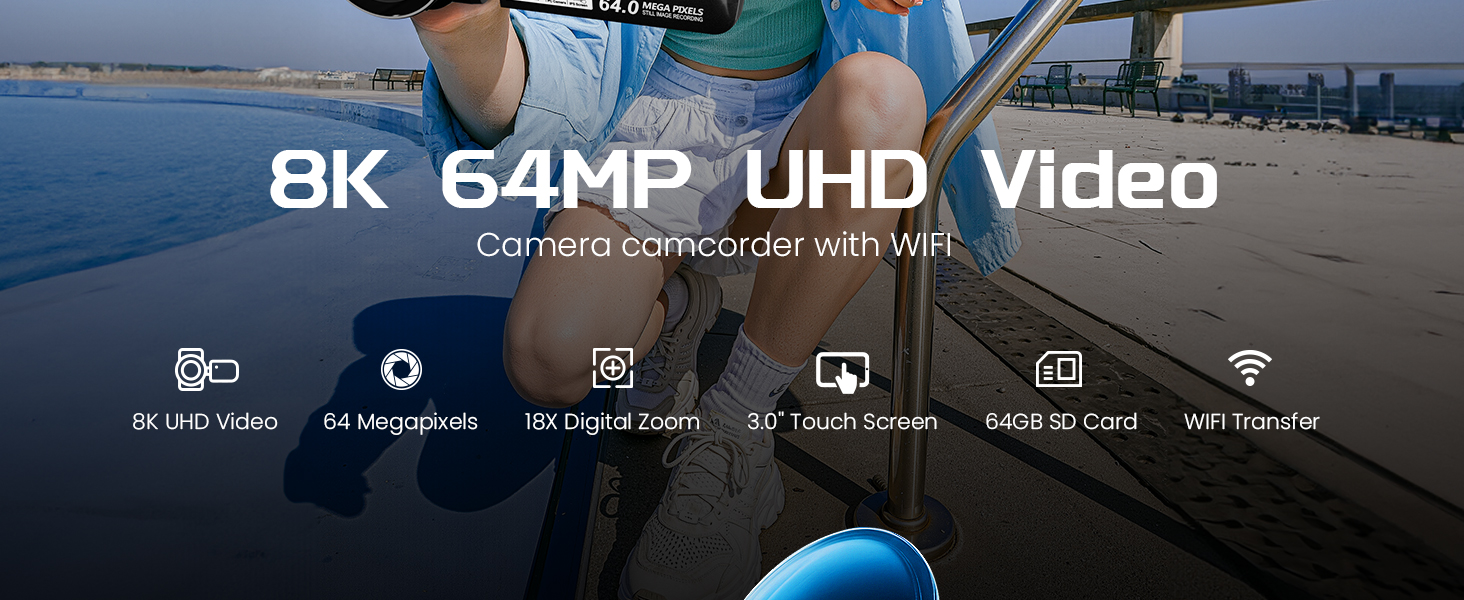
Figure 5.1: Capturing moments with 8K video and 64MP photos.
5.2. Using Digital Zoom
Use the zoom lever to adjust the 18X digital zoom. Push the lever forward to zoom in and backward to zoom out. Note that digital zoom may reduce image quality at higher magnifications.

Figure 5.2: Digital zoom in action.
5.3. Infrared Night Vision
Activate infrared night vision for clear recording in low-light or complete darkness. This feature is ideal for night scenes or indoor environments with minimal lighting.

Figure 5.3: Infrared night vision capturing a squirrel in low light.
5.4. Wi-Fi Connectivity and Webcam Function
The camera features built-in Wi-Fi for wireless transfer of files to your smartphone or tablet. It can also function as a webcam for live streaming or video calls.
- Wi-Fi Transfer: Enable Wi-Fi in the camera settings. Connect your mobile device to the camera's Wi-Fi network. Use the dedicated app (refer to the camera's on-screen instructions or manual for app name) to browse and transfer files.
- Webcam Mode: Connect the camera to your computer via the Type-C cable. Select 'Webcam Mode' on the camera's screen. The camera will then be recognized as a webcam by your computer's software (e.g., for video conferencing or live streaming platforms).

Figure 5.4: Wireless control and instant sharing via Wi-Fi.

Figure 5.5: Webcam functionality for live streaming and video calls.
5.5. Using the Remote Control
The included remote control allows you to operate the camera from a distance, useful for self-recording or group shots. Point the remote directly at the camera's IR receiver.

Figure 5.6: Remote control for convenient operation.
5.6. Touch Screen Operation
The 3-inch IPS touchscreen provides intuitive control over camera settings, playback, and menu navigation. Tap icons to select options, and swipe to navigate through menus or review media.
6. Advanced Features
- Pause Function: During video recording, you can pause and resume without creating a new file.
- Recording While Charging: The camera supports continuous operation while connected to a power source.
- Anti-shake: Digital image stabilization helps reduce blur from camera movement.
- Face Detection & Beauty Mode: Enhance portraits by automatically detecting faces and applying subtle beautification effects.
- Selfie Mode: Utilize the flip screen for easy self-portraits or vlogging.
- Continuous Shooting: Capture a rapid sequence of photos.
- Slow Motion Recording: Record videos at a higher frame rate for slow-motion playback.
- Time-Lapse Recording: Capture images at set intervals to create time-lapse videos.
- Filters: Apply various creative filters to your photos and videos.

Figure 6.1: Various video and photo modes available.
7. Maintenance and Care
- Cleaning the Lens and Screen: Use a soft, lint-free cloth specifically designed for optical surfaces. Avoid abrasive materials or harsh chemicals.
- Battery Care: Store batteries in a cool, dry place. Do not expose them to extreme temperatures. Fully charge batteries before extended storage and recharge every few months to maintain their health.
- Storage: When not in use, store the camera in a dry, dust-free environment, preferably in a protective case.
- Avoid Moisture: This camera is not waterproof. Keep it away from water and high humidity.
8. Troubleshooting
If you encounter issues with your camera, refer to the following common problems and solutions:
| Problem | Possible Solution |
|---|---|
| Camera does not power on. | Ensure the battery is fully charged and correctly inserted. Try using the second battery. |
| Cannot record video or take photos. | Check if the SD card is inserted correctly and has sufficient free space. Ensure the camera is not in playback mode. |
| Poor image/video quality. | Clean the lens. Ensure adequate lighting. Avoid excessive digital zoom. Check resolution settings. |
| Wi-Fi connection issues. | Ensure Wi-Fi is enabled on the camera and your mobile device. Restart both devices. Verify the correct app is installed on your phone. |
| Touchscreen unresponsive. | Restart the camera. Ensure your fingers are clean and dry. |
9. Specifications
| Feature | Detail |
|---|---|
| Brand | IWOBAC |
| Model Number | HDV-8K |
| Video Capture Resolution | 8K UHD |
| Photo Resolution | 64 Megapixels |
| Digital Zoom | 18X |
| Screen Size | 3 Inches (IPS Touchscreen, 270° Flip) |
| Connectivity | Wi-Fi, USB (Type-C), HDMI |
| Storage Media | SD Card (up to 128GB, 64GB included) |
| Battery Type | 1500mAh Nonstandard Battery (x2 included) |
| Special Features | IR Night Vision, Fill Light, Remote Control, Pause Function, Anti-shake, Face Detection, Beauty Mode, Webcam Function |
| Item Weight | 1.3 pounds |
| Dimensions | 6.73 x 5.59 x 3.43 inches |
10. Warranty and Customer Support
10.1. Warranty Information
Your IWOBAC 8K Video Camera HDV-8K is covered by a manufacturer's warranty. Please refer to the warranty card included in your package or visit the official IWOBAC website for detailed warranty terms and conditions. Keep your proof of purchase for warranty claims.
10.2. Customer Support
For technical assistance, troubleshooting not covered in this manual, or warranty inquiries, please contact IWOBAC customer support through the following channels:
- Email: Refer to the contact information provided on the IWOBAC official website or your purchase documentation.
- Website: Visit the IWOBAC Store on Amazon for FAQs and support resources.
Ask a question about this manual
Ask about setup, troubleshooting, compatibility, parts, safety, or missing instructions. Manuals+ will review the question and use this page’s manual context to help answer it.