
ANNKE
Contents
ANNKE 16CH 1080P Lite Hybrid 5-in-1 CCTV DVR User Manual
Model: B0F4X3ZTX2
Introduction
This manual provides detailed instructions for the installation, operation, and maintenance of your ANNKE 16-channel 1080P Lite Hybrid 5-in-1 CCTV DVR system. This system includes a digital video recorder and four 1080P cameras, designed for comprehensive surveillance. Please read this manual thoroughly before using the product to ensure proper setup and functionality.
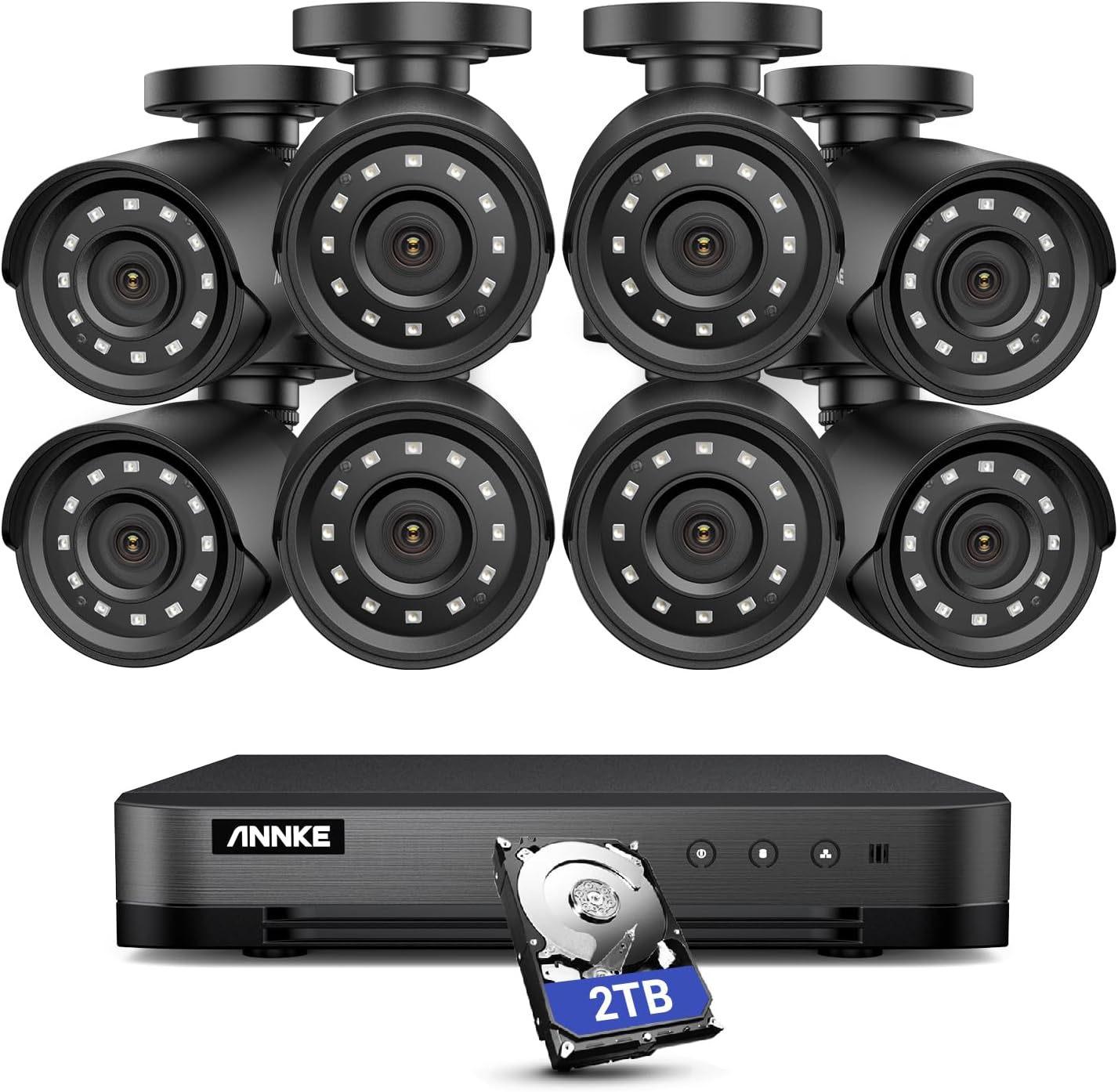
Image: The complete ANNKE 16-channel DVR system, showcasing the DVR unit, four bullet cameras, and a 2TB hard drive.
What's in the Box
Verify that all components listed below are included in your package:
- 1 x ANNKE 16CH 1080P Lite Hybrid 5-in-1 DVR
- 4 x ANNKE 1080P Cameras
- 1 x 2TB Security-Grade Hard Drive (pre-installed or separate)
- 3 x Power Supplies (for DVR and cameras)
- 1 x USB Mouse
- 8 x 60 ft BNC Cables
- 2 x 1-to-4 Splitter Cables
- 1 x HDMI Cable
- 1 x Network Cable
- 1 x Wall Sticker
- 1 x User Manual
- 8 x Screws (for camera mounting)

Image: A visual representation of all items included in the ANNKE DVR system package, detailing quantities for each component.
Product Overview
The ANNKE 16CH DVR is a versatile 5-in-1 hybrid system, supporting multiple camera technologies. This allows for flexible integration with various camera types, including TVI, AHD, CVI, CVBS, and IP cameras.

Image: A graphic demonstrating the ANNKE DVR's compatibility with five different camera technologies: TVI, AHD, IP, CVI, and CVBS.
Setup
1. Hard Drive Installation (if not pre-installed)
- Unscrew the cover of the DVR unit.
- Connect the SATA data and power cables from the DVR to the 2TB hard drive.
- Secure the hard drive inside the DVR chassis using the provided screws.
- Replace and secure the DVR cover.
2. Physical Connections
- Connect Cameras: Use the BNC cables to connect each camera to the corresponding video input ports on the back of the DVR.
- Power Cameras: Use the 1-to-4 splitter cables and power adapters to provide power to the cameras.
- Connect Monitor: Connect a monitor to the DVR using the HDMI cable.
- Connect Mouse: Plug the USB mouse into a USB port on the DVR.
- Network Connection: Connect the DVR to your router using the provided network cable for remote access and online features.
- Power On: Connect the DVR's power adapter and plug it into an electrical outlet. The DVR will power on automatically.
Operating Instructions
1. Initial Setup Wizard
Upon first boot, the DVR will guide you through an initial setup wizard. Follow the on-screen prompts to set up language, date/time, network settings, and create a strong password for security.
2. Live View
After setup, the DVR will display the live view from all connected cameras. You can switch between single-camera view and multi-camera grid view using the controls on the screen or with the mouse.
3. Recording
The DVR supports continuous recording and motion-triggered recording. The 2TB hard drive provides ample storage, enhanced by H.265+ video compression.
- Continuous Recording: Records 24/7. Configure schedules in the DVR settings.
- Motion Detection Recording: Records only when motion is detected. This system features advanced Human & Vehicle Detection to minimize false alarms.

Image: An illustration of the AI Motion Detection 2.0 feature, highlighting its ability to distinguish between human and vehicle movements for more accurate alerts.

Image: The ANNKE DVR system is designed for continuous 24/7 recording, ensuring constant surveillance coverage.

Image: A visual comparison demonstrating the efficiency of H.265+ video compression, which reduces data storage requirements by up to 80% compared to H.264.
4. Playback
Access recorded footage through the playback menu. You can search by date, time, and event type (e.g., motion detection). The advanced smart playback feature allows for quick location of specific events.

Image: The Advanced Smart Playback feature, which helps users quickly locate and review specific events on a timeline, saving time during footage review.
5. Remote Access (ANNKE Vision App)
To access your DVR remotely, download the ANNKE Vision App from the App Store (iOS) or Google Play (Android). Link your DVR to the app by scanning the QR code or manually entering the device details. This enables live viewing, playback, and system control from your smartphone, tablet, or computer.

Image: The ANNKE Vision app provides easy remote control and monitoring capabilities across various devices, including smartphones, tablets, and computers.
Maintenance
- Regular Cleaning: Keep the DVR unit and cameras free from dust and debris. Use a soft, dry cloth for cleaning.
- Hard Drive Management: Periodically check the hard drive status in the DVR settings. Ensure sufficient storage space is available. The H.265+ compression helps optimize storage.
- Firmware Updates: Check the ANNKE official website for the latest firmware updates. Updating firmware can improve system performance and security.
- Password Security: Regularly change your DVR and app passwords to strong, unique combinations.
Troubleshooting
| Problem | Possible Cause | Solution |
|---|---|---|
| No video output on monitor. | Loose HDMI/VGA cable; incorrect monitor input; DVR not powered on. | Check cable connections; ensure monitor is on correct input; verify DVR power. |
| Cameras show "No Signal". | Loose BNC cable; camera not powered; faulty cable/camera. | Check BNC and power connections for the specific camera; test with a known working cable/port. |
| Cannot access DVR remotely. | Network connection issue; incorrect app settings; firewall blocking. | Ensure DVR is connected to the internet; verify app settings (device ID, password); check router/firewall settings. |
| Hard drive not recording. | Hard drive not initialized/formatted; recording schedule not set; hard drive full. | Initialize/format HDD in DVR settings; configure recording schedule; check HDD status and space. |
Specifications
- DVR Type: 16-Channel 5-in-1 Hybrid (TVI/AHD/CVI/CVBS/IP)
- Video Resolution: 1080P Lite
- Video Compression: H.265+
- Hard Drive: 2TB Security-Grade HDD
- Motion Detection: Innovative Human & Vehicle Detection
- Remote Access: ANNKE Vision App (iOS/Android), Web Browsers
- Certifications: UL, CE, HDMI, GDPR Compliant
- Security: 128-bit AES, HTTPS, Private Protocols
Warranty and Support
ANNKE products typically come with a limited warranty. For specific warranty terms and conditions, please refer to the warranty card included in your package or visit the official ANNKE website. For technical support, product inquiries, or troubleshooting assistance, please contact ANNKE customer service through their official support channels. Keep your purchase receipt and product serial number handy when contacting support.
Official Website: www.annke.com
Ask a question about this manual
Ask about setup, troubleshooting, compatibility, parts, safety, or missing instructions. Manuals+ will review the question and use this page’s manual context to help answer it.