
Introduction
This manual provides essential information for setting up, operating, maintaining, and troubleshooting your ATOZEE 10-inch Android 15 Tablet (Model AT-CP20). Please read this guide thoroughly to ensure optimal performance and longevity of your device.
What's in the Box
Upon unboxing your ATOZEE AT-CP20 Tablet, please verify that all the following items are included:
- ATOZEE 10-inch Android 15 Tablet
- Bluetooth Keyboard
- Wireless Mouse
- Protective Case
- Stylus Pen
- USB Type-C Charging Cable

Image: The ATOZEE tablet displayed with its full set of accessories, including the keyboard, mouse, stylus, protective case, and USB-C cable.
Setup
1. Initial Charging
Before first use, fully charge the tablet using the provided USB Type-C cable and a compatible power adapter (not included). The battery indicator on the screen will show charging status.
2. Power On/Off
- To Power On: Press and hold the Power button located on the side of the tablet until the ATOZEE logo appears.
- To Power Off: Press and hold the Power button, then select "Power off" from the on-screen options.
- To Restart: Press and hold the Power button, then select "Restart" from the on-screen options.
3. Connecting Accessories
The included keyboard and mouse connect via Bluetooth. The stylus is typically passive and does not require pairing.
Bluetooth Keyboard/Mouse Pairing:
- Ensure the keyboard/mouse is charged and powered on.
- On your tablet, navigate to Settings > Connected devices > Bluetooth.
- Toggle Bluetooth On.
- Put the keyboard/mouse into pairing mode (refer to their individual instructions, usually by pressing a dedicated button or key combination).
- Select the device name (e.g., "Bluetooth Keyboard," "Bluetooth Mouse") from the list of available devices on your tablet.
- Follow any on-screen prompts to complete pairing.

Image: A user interacting with the ATOZEE tablet, keyboard, and mouse, demonstrating the accessory setup.
4. Wi-Fi Connection
- Go to Settings > Network & internet > Internet.
- Toggle Wi-Fi On.
- Select your desired Wi-Fi network from the list.
- Enter the network password if prompted, then tap Connect.
Operating the Tablet
1. Basic Navigation
- Touch Gestures: Tap to select, swipe to scroll, pinch to zoom.
- Home Screen: Access apps, widgets, and notifications.
- Notification Panel: Swipe down from the top of the screen to view notifications and quick settings.
- App Drawer: Swipe up from the bottom of the screen to access all installed applications.
2. Installing Applications
Your tablet comes with Google Mobile Services (GMS) certification, allowing full access to the Google Play Store.
- Ensure you are connected to Wi-Fi.
- Open the Play Store app from your home screen or app drawer.
- Search for the desired application.
- Tap Install to download and install the app.

Image: The tablet screen displaying the Google Play Store interface, ready for app downloads.
3. Camera Usage
The tablet features an 8MP rear camera and a 2MP front camera.
- Open the Camera app.
- Tap the shutter button to take a photo.
- Use the camera switch icon to toggle between front and rear cameras.
- Access settings within the app for various modes and adjustments.

Image: Visual representation of the tablet's dual camera system, highlighting its 8MP rear and 2MP front cameras.
4. Storage Management
The tablet comes with 64GB of internal storage and supports expansion up to 1TB via a microSD card (not included).
- To insert a microSD card: Locate the card slot on the side of the tablet and gently insert the card until it clicks into place.
- To manage storage: Go to Settings > Storage to view usage and manage files.
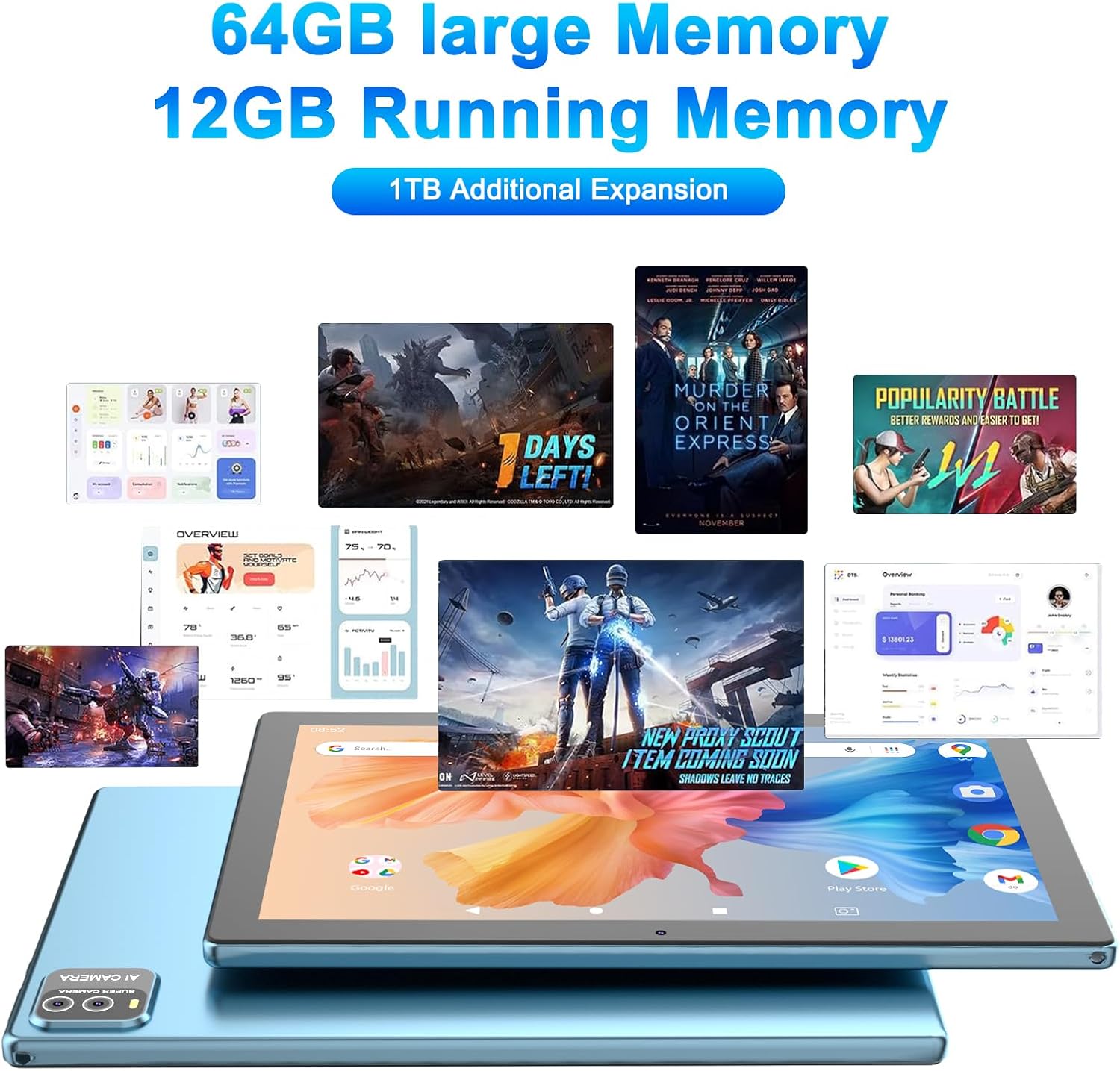
Image: A visual demonstrating the tablet's memory and storage capacities, including 64GB ROM, 12GB RAM, and 1TB expansion.
Maintenance
1. Cleaning
- Use a soft, lint-free cloth to clean the screen and body of the tablet.
- Avoid using harsh chemicals or abrasive materials.
- For stubborn smudges, slightly dampen the cloth with water or a screen-specific cleaner.
2. Battery Care
- Avoid extreme temperatures, as they can degrade battery life.
- Do not leave the tablet charging for extended periods after it reaches 100%.
- For long-term storage, charge the battery to about 50% and power off the device.
3. Software Updates
Regularly check for and install system updates to ensure your tablet has the latest features, security patches, and performance improvements.
- Ensure your tablet is connected to Wi-Fi and has sufficient battery.
- Go to Settings > System > System update.
- Follow the on-screen instructions to check for and install updates.
Troubleshooting
This section addresses common issues you might encounter with your ATOZEE tablet.
Tablet Not Turning On
- Ensure the tablet is sufficiently charged. Connect it to a power source for at least 30 minutes.
- Press and hold the Power button for 10-15 seconds to perform a forced restart.
Wi-Fi Connectivity Issues
- Toggle Wi-Fi off and on in Settings.
- Restart your Wi-Fi router.
- Forget the network in tablet settings and reconnect.
Bluetooth Accessory Pairing Failure
- Ensure the accessory is charged and in pairing mode.
- Restart both the tablet and the accessory.
- Clear Bluetooth cache (Settings > Apps > Show system apps > Bluetooth > Storage > Clear cache/data).
Slow Performance
- Close unused applications running in the background.
- Clear cache for frequently used apps (Settings > Apps > [App Name] > Storage > Clear cache).
- Free up storage space by deleting unnecessary files or apps.
- Restart the tablet periodically.
Specifications
Below are the technical specifications for the ATOZEE 10-inch Android 15 Tablet (Model AT-CP20):
| Feature | Specification |
|---|---|
| Model Name | AT-CP20 |
| Operating System | Android 15 |
| Screen Size | 10.1 Inches |
| Max Screen Resolution | 1280 x 800 Pixels |
| Processor | 2.0 GHz Octa-Core |
| RAM | 12GB (4GB physical + 8GB virtual) |
| Internal Storage (ROM) | 64GB |
| Expandable Storage | Up to 1TB via microSD card |
| Rear Camera | 8 MP |
| Front Camera | 2 MP |
| Battery Capacity | 6000mAh |
| Average Battery Life | Up to 8 Hours |
| Wireless Connectivity | 5G, Wi-Fi 6 (802.11g) |
| Dimensions (LxWxH) | 9.8 x 6.7 x 0.3 inches |
| Item Weight | 1 pound |

Image: A visual summary of the tablet's core specifications, emphasizing its performance and storage capabilities.
Warranty and Support
For warranty information and technical support, please refer to the documentation included with your purchase or visit the official ATOZEE website. Keep your proof of purchase for warranty claims.
If you encounter issues not covered in this manual, please contact ATOZEE customer service for further assistance.
