1. Introduction
Thank you for purchasing the iFFALCON 40S55T 40-inch Full HD Google TV. This manual provides essential information for the safe and efficient use of your television. Please read it thoroughly before operating the device and retain it for future reference.
The iFFALCON 40S55T is a tunerless smart TV designed for streaming content, offering a Full HD display, Google TV operating system, Chromecast built-in, and Dolby Audio for an immersive entertainment experience.
2. Safety Information
Always follow basic safety precautions when using this television to reduce the risk of fire, electric shock, and injury.
- Do not expose the TV to rain or moisture.
- Do not open the TV casing; refer all servicing to qualified personnel.
- Ensure proper ventilation around the TV.
- Keep the TV away from direct sunlight, heat sources, and strong magnetic fields.
- Use only the power cord and accessories supplied by the manufacturer.
- Unplug the TV during lightning storms or when unused for long periods.
3. Package Contents
Verify that all items are present in the box:
- iFFALCON 40S55T 40-inch Full HD Google TV
- Remote Control
- TV Stand (2 pieces)
- Screws for TV Stand
- Power Cable
- Warranty Card
- Instruction Manual (this document)
4. Setup
4.1 Attaching the TV Stand
- Carefully place the TV face-down on a soft, flat surface to prevent screen damage.
- Align each stand piece with the corresponding slots on the bottom of the TV.
- Secure the stands using the provided screws. Ensure they are tightened firmly.
4.2 Connecting Power
Connect the power cable to the TV's power input and then plug it into a wall outlet. The TV will enter standby mode.
4.3 Initial Setup (Google TV & Network)
Upon first power-on, the TV will guide you through the initial setup process for Google TV. This includes:
- Language selection.
- Connecting to a Wi-Fi network.
- Signing in with your Google account to access personalized content and apps.
- Accepting terms and conditions.
4.4 Connectivity
The iFFALCON 40S55T offers various connection options for external devices.

Image: Overview of the TV's connectivity options, including HDMI, USB, Bluetooth, and Wi-Fi.
- HDMI Ports: Connect external devices like gaming consoles, Blu-ray players, or set-top boxes.
- USB Port: For connecting USB storage devices to play media files.
- Wi-Fi: For wireless internet connection to access streaming services and online features.
- Bluetooth: For connecting wireless headphones, speakers, or other Bluetooth-enabled accessories.
4.5 Tunerless Operation
This TV is designed as a tunerless model, meaning it does not have a built-in tuner for terrestrial (over-the-air) broadcasts. To watch terrestrial, BS, or CS broadcasts, an external tuner is required and must be purchased separately.

Image: The iFFALCON 40S55T TV showcasing its smart features, highlighting its tunerless design and ability to enjoy internet video content without an antenna connection.
5. Operating the TV
5.1 Remote Control Overview
The remote control provides access to all TV functions, including power, volume, channel navigation, and smart TV features. It also supports voice search via 'Hey Google'.

Image: The TV remote control, featuring quick access buttons for popular streaming services and a dedicated microphone button for voice commands.
- Power Button: Turns the TV on or off.
- Navigation Buttons: Use the directional pad and OK button to navigate menus.
- Volume/Channel Buttons: Adjust volume and change channels (if an external tuner is connected).
- App Shortcut Buttons: Direct access to popular streaming services like Netflix, YouTube, etc.
- Microphone Button: Press and hold to activate 'Hey Google' voice search.
5.2 Google TV Features
Your iFFALCON TV runs on Google TV, providing a personalized and integrated entertainment experience.
- Content Aggregation: Google TV organizes movies, shows, and live TV from all your apps and subscriptions into one place.
- Personalized Recommendations: Based on your viewing history and preferences, Google AI suggests content you might enjoy.
- Voice Search: Use the 'Hey Google' feature on your remote to quickly find content, get information, or control smart home devices.
- Chromecast Built-in: Easily cast content from your smartphone, tablet, or computer directly to your TV screen.

Image: A smartphone screen mirroring content to the iFFALCON TV, demonstrating the Chromecast built-in feature for enjoying mobile content on a larger display.
5.3 Picture Settings
The TV incorporates advanced image processing technologies to deliver a superior viewing experience.
- AI PQ Processor: TCL's proprietary AiPQ Processor intelligently adjusts image quality at the pixel level, enhancing clarity, color, and contrast for a vivid and realistic picture.
- Full HD (FHD): Experience sharp and detailed images with Full High Definition resolution, offering 200% more detail than standard HD screens.

Image: A visual comparison illustrating the enhanced detail and clarity provided by Full HD resolution compared to standard HD.
- HDR10/HLG Support: Enjoy a wider range of colors and contrast with HDR10 and HLG compatibility, revealing stunning detail in both bright and dark scenes.

Image: The TV screen showcasing the vibrant and detailed picture quality achieved with HDR10/HLG technology.
- Micro Dimming: This technology analyzes the image in hundreds of separate zones to adjust brightness and darkness independently, enhancing contrast and picture quality.

Image: A visual representation of Micro Dimming technology, illustrating how it enhances contrast and picture depth by adjusting brightness in specific areas of the screen.
5.4 Sound Settings (Dolby Audio)
The TV features Dolby Audio for clear, rich, and immersive sound.
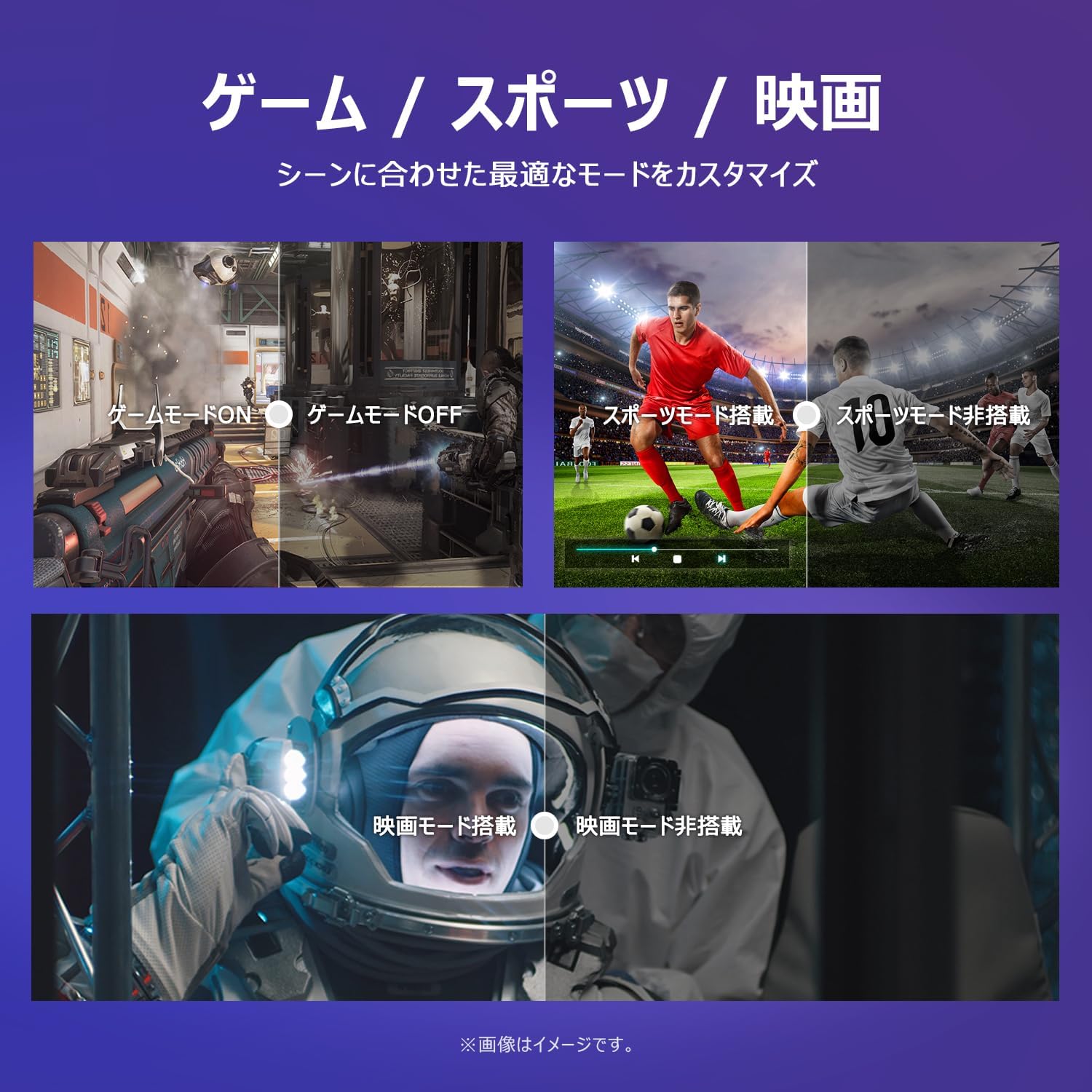
Image: The TV screen with a visual representation of sound, highlighting the immersive audio experience provided by Dolby Audio.
Access the sound settings menu to adjust modes like Standard, Music, Movie, or Custom to suit your preferences.
5.5 Game Mode
Activate Game Mode for an optimized gaming experience with reduced input lag.
Image: Visual comparisons demonstrating the optimized settings for Game Mode, Sports Mode, and Movie Mode, adapting the TV's performance to different content types.
The TV also offers dedicated Sports Mode and Movie Mode to enhance viewing for specific content types.
5.6 System Settings
The quick settings menu allows you to customize frequently used system settings and rearrange their order for intuitive and convenient access.

Image: A view of the TV's quick system settings interface, illustrating how users can easily access and customize various functions like brightness, picture mode, and network settings.
6. Maintenance
Proper care and maintenance will extend the life of your television.
- Cleaning the Screen: Gently wipe the screen with a soft, lint-free cloth. For stubborn marks, use a screen cleaner specifically designed for TVs, applied to the cloth, not directly to the screen.
- Cleaning the Casing: Use a soft, dry cloth to wipe the TV casing. Do not use abrasive cleaners or solvents.
- Ventilation: Ensure the ventilation openings on the back of the TV are not blocked to prevent overheating.
- Power Cord: Regularly check the power cord for any damage. If damaged, contact customer support for replacement.
7. Troubleshooting
If you encounter issues with your TV, refer to the following common problems and solutions. If the problem persists, contact customer support.
| Problem | Possible Cause | Solution |
|---|---|---|
| No power | Power cable not connected; Power outlet not working | Ensure power cable is securely plugged in; Test outlet with another device |
| No picture, but sound is present | Incorrect input source; External device issue | Press the 'Input' button on the remote to select the correct source; Check external device connections |
| No sound, but picture is present | Volume muted or too low; External audio system issue | Unmute or increase volume; Check audio cable connections to external sound system |
| Remote control not working | Batteries depleted; Obstruction between remote and TV | Replace batteries; Remove any obstructions; Ensure remote is pointed at the TV's IR sensor |
| Cannot connect to Wi-Fi | Incorrect password; Router issue; TV too far from router | Verify Wi-Fi password; Restart router; Move TV closer to router or use a Wi-Fi extender |
8. Specifications
Detailed technical specifications for the iFFALCON 40S55T TV:

Image: Dimensional drawing of the iFFALCON 40S55T TV, indicating its physical measurements.
| Feature | Specification |
|---|---|
| Screen Size | 40 inches |
| Display Type | VA Liquid Crystal |
| Resolution | Full HD (1920 x 1080) |
| Refresh Rate | 60 Hz |
| Aspect Ratio | 16:9 |
| Contrast Ratio | 1000:1 |
| Operating System | Google TV |
| Audio Output | 20 Watts (2.1 channels) |
| HDMI Ports | 2 |
| USB Ports | 1 |
| Wireless Connectivity | Wi-Fi, Bluetooth |
| Product Dimensions (W x H x D) | 89.2 x 55.8 x 18.4 cm (with stand) |
| Product Weight | 4.63 kg |
| Wall Mount Compatible | Yes |
| Included Accessories | Stand, Remote Control, Warranty Card, Power Cable |
9. Warranty and Support
Your iFFALCON 40S55T TV comes with a manufacturer's warranty. Please refer to the included warranty card for specific terms, conditions, and duration of coverage.
For technical support, troubleshooting assistance beyond this manual, or warranty claims, please contact iFFALCON customer service. Contact information can typically be found on the warranty card or the official iFFALCON website.
Please have your model number (40S55T) and purchase date ready when contacting support.


