
1. Introduction
Welcome to the user manual for your Generic S85 Pro Portable Audio Translator. This advanced device is designed to facilitate seamless communication across various languages, offering both online and offline translation capabilities, smart recording, and an integrated AI assistant. Please read this manual carefully to understand the device's functions and ensure optimal performance.

Image 1.1: The S85 Pro Portable Audio Translator in a usage scenario. The device features a clear display with various function icons, designed for intuitive interaction.
2. Product Overview & Package Contents
2.1 Product Overview
The S85 Pro is a versatile translation device featuring a 3.0-inch IPS display with a resolution of 480*854, a 1500 mAh battery, 1GB RAM, and 8GB storage. It supports 138 online languages, 18 offline languages, and extensive photo translation functions, making it an ideal companion for travel, business, and language learning.
2.2 Package Contents
Please check the package for the following items:
- S85 Pro Translator x 1
- Data Cable x 1
- User Manual x 1
3. Device Layout
Familiarize yourself with the physical components and controls of your S85 Pro translator for efficient operation.

Image 3.1: This diagram illustrates the various buttons, ports, and features of the S85 Pro translator. On the top, you'll find the charging port, headphone jack, and microphone. On the right side, from top to bottom, are the power switch, volume up key, and volume down key. The left side features a memory card slot. The front panel includes the display, a backspace key, a blue translation key, a megaphone speaker, and a red translation key. A rope hole is located at the bottom right.
4. Initial Setup
4.1 Charging the Device
Before first use, fully charge the S85 Pro using the provided data cable and a compatible USB power adapter (not included). The charging port is located at the top of the device. A charging indicator will show the battery status.
4.2 Powering On/Off
- To Power On: Press and hold the Power switch (located on the right side) until the screen illuminates.
- To Power Off: Press and hold the Power switch, then follow the on-screen prompts to shut down the device.
4.3 Initial Language Selection
Upon first startup, you will be prompted to select your preferred system language for the device interface. Follow the on-screen instructions to complete this step.
5. Operating Instructions
5.1 Connecting to Wi-Fi
For online translation features and software updates, connect your device to a stable Wi-Fi network. Navigate to Settings > Wi-Fi and select your desired network. Enter the password if required.
5.2 Online Translation (138 Languages)
This mode allows real-time translation using an internet connection.
- From the main menu, select 'Online translation'.
- Choose your source and target languages from the displayed options.
- Press and hold the blue translation key to speak your source language. Release the key when finished.
- Press and hold the red translation key to speak the other language. Release the key when finished.
- The device will translate and speak the output.
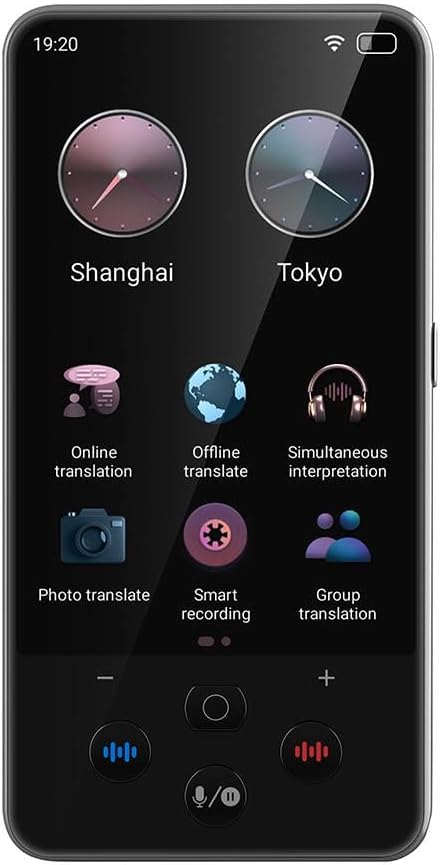
Image 5.1: The main screen of the S85 Pro translator displays various function icons. These include 'Online translation', 'Offline translate', 'Simultaneous interpretation', 'Photo translate', 'Smart recording', and 'Group translation'. Two clock widgets show different time zones.
5.3 Offline Translation (18 Languages)
The device supports offline translation for 18 languages without an internet connection.
- Ensure the necessary language packages are downloaded in advance via Wi-Fi (Settings > Offline Packages).
- Select 'Offline translate' from the main menu.
- Choose your source and target languages.
- Use the blue and red translation keys as in online translation mode.

Image 5.2: This image highlights the offline translation capability of the S85 Pro. The screen displays 'Offline translation' and states that it has 'Built-in 17 kinds of accurate offline translation packages'. It also mentions 'Built-in INMT offline engine' and 'Translate without a signal', emphasizing its functionality without network access.
5.4 Simultaneous Interpretation
For real-time, continuous translation in conversations, select 'Simultaneous interpretation' from the main menu. This mode is ideal for dialogues where both parties speak continuously, providing a fluid communication experience.
5.5 Photo Translation (74 Online, 40 Offline Languages)
Translate text from images using the device's camera.
- Select 'Photo translate' from the main menu.
- Point the device's camera at the text you wish to translate (e.g., menus, signs, documents).
- Tap the screen to capture the image.
- The device will process the image and display the translated text.
5.6 Smart Recording & Real-time Translation
Record audio and get instant transcriptions and translations.
- Select 'Smart recording' from the main menu.
- Tap the record button to start recording. The device supports 13 source languages for recording and 138 online languages for translation.
- Recordings can be transcribed and translated in real-time or reviewed later.

Image 5.3: This image illustrates the 'Intelligent recording' function of the S85 Pro. The screen shows the main interface with recording options. Text overlays highlight features such as 'Professional noise reduction', 'Record while translating', and 'Real-time translation', indicating advanced audio processing and translation capabilities.
5.7 Group Translation (117 Crowd Chat)
Facilitate communication among multiple users speaking different languages.
- Select 'Group translation' from the main menu.
- Follow the on-screen instructions to create a new group or join an existing one.
- Participants can communicate in their native languages, and the device will translate messages for all members.

Image 5.4: This image displays the 'Group translation' interface on the S85 Pro. It shows a chat window with messages like 'hello' and 'How are you?' in different languages, demonstrating its ability to facilitate communication among multiple people speaking various languages. Overlays mention 'Online in 138 languages' and 'Support simultaneous 117 crowd chat'.
5.8 ChatGPT AI Assistant
The S85 Pro integrates a ChatGPT AI assistant for intelligent Q&A and information queries. Access this feature to get quick answers, definitions, or general information, enhancing your communication and knowledge access.
5.9 Language Learning Tools
Beyond translation, the S85 Pro serves as a language learning companion. It offers features such as reading text aloud and intelligent scoring to help users practice pronunciation and improve their language skills.
5.10 Exchange Rate and Unit Conversion
Utilize the built-in tools for practical conversions. This feature is particularly useful for travelers and individuals involved in international business, providing quick access to exchange rates and various unit conversions.
5.11 Mobile Translation (App Connection)
Connect the S85 Pro to your mobile phone for enhanced translation and communication management.
- Select 'Mobile translation' from the main menu.
- Scan the QR code displayed on the translator's screen with your smartphone to connect to the dedicated app.
- Manage translations and communications directly from your mobile device.

Image 5.5: This image demonstrates the 'Mobile translation' feature, showing the S85 Pro translator alongside a smartphone. The smartphone screen displays a chat interface, and the translator's screen indicates 'Mobile translation' with instructions to 'Long press to speak'. This illustrates how the device can connect to a mobile app for enhanced translation and communication.
6. Maintenance
Proper care and maintenance will extend the life of your S85 Pro translator.
- Cleaning: Keep the device clean with a soft, dry, lint-free cloth. Do not use liquid cleaners or abrasive materials.
- Storage: Avoid exposure to extreme temperatures, high humidity, or direct sunlight. Store the device in a cool, dry place.
- Handling: Do not drop, bend, or attempt to disassemble the device. This can cause damage and void the warranty.
7. Troubleshooting
If you encounter any issues with your S85 Pro, please refer to the following common problems and solutions.
7.1 Device Not Powering On
- Solution: Ensure the battery is sufficiently charged. Connect the device to a power source using the provided data cable and allow it to charge for at least 30 minutes before attempting to power on again.
- Solution: Press and hold the Power switch for at least 10 seconds to perform a hard reset.
7.2 Translation Inaccurate or Not Working
- Solution: For online translation, check your Wi-Fi connection to ensure it is stable and active.
- Solution: Verify that the correct source and target languages are selected on the device.
- Solution: Speak clearly and at a moderate pace, close to the microphone. Avoid speaking too quickly or too softly.
- Solution: For offline translation, ensure that the necessary language packages have been downloaded and installed.
7.3 Screen Unresponsive
- Solution: Restart the device by holding the Power switch until the power options appear, then select restart. If unresponsive, perform a hard reset as described in section 7.1.
- Solution: If the issue persists after restarting, contact customer support for further assistance.
8. Technical Specifications
| Feature | Detail |
|---|---|
| Model | S85 Pro |
| Memory | 1GB RAM + 8GB Storage |
| Battery | 1500 mAh |
| Screen | 3.0" IPS (480*854 resolution) |
| Online Translation | 138 Languages |
| Offline Translation | 18 Languages |
| Photo Offline Translation | 40 Languages |
| Photo Online Translation | 74 Languages |
| AI Assistant | Integrated ChatGPT |
| Manufacturer | UD8JOA |
| ASIN | B0F4WT9JDR |
| Batteries Required | No (Built-in rechargeable) |
9. Warranty & Support
9.1 Warranty Information
This product comes with a 3-month warranty from the date of purchase. Please retain your proof of purchase for any warranty claims. The warranty covers manufacturing defects but does not cover damage caused by misuse, accidents, unauthorized repairs, or normal wear and tear.
9.2 Customer Support
For further assistance, technical support, or warranty inquiries, please contact your retailer or the manufacturer directly. Refer to your purchase documentation for contact details.


