
1. System Overview
The TUGARD G34-EB006 is a comprehensive 4G wireless home security system designed to provide continuous protection for your property. This 13-piece system includes a central host, a 1080P surveillance camera, door/motion sensors, an SOS button, a 120dB alarm siren, RFID tags, and remote controls. The system supports both 2.4G Wi-Fi and 4G SIM card connectivity, ensuring functionality even without internet access. It is expandable, supporting up to 3 wired defense zones and 100 wireless defense zones.
The system is pre-programmed for easy DIY installation and is compatible with smart home platforms like Amazon Alexa and Google Assistant. It offers multi-language support, including English, Italian, French, Spanish, and German.
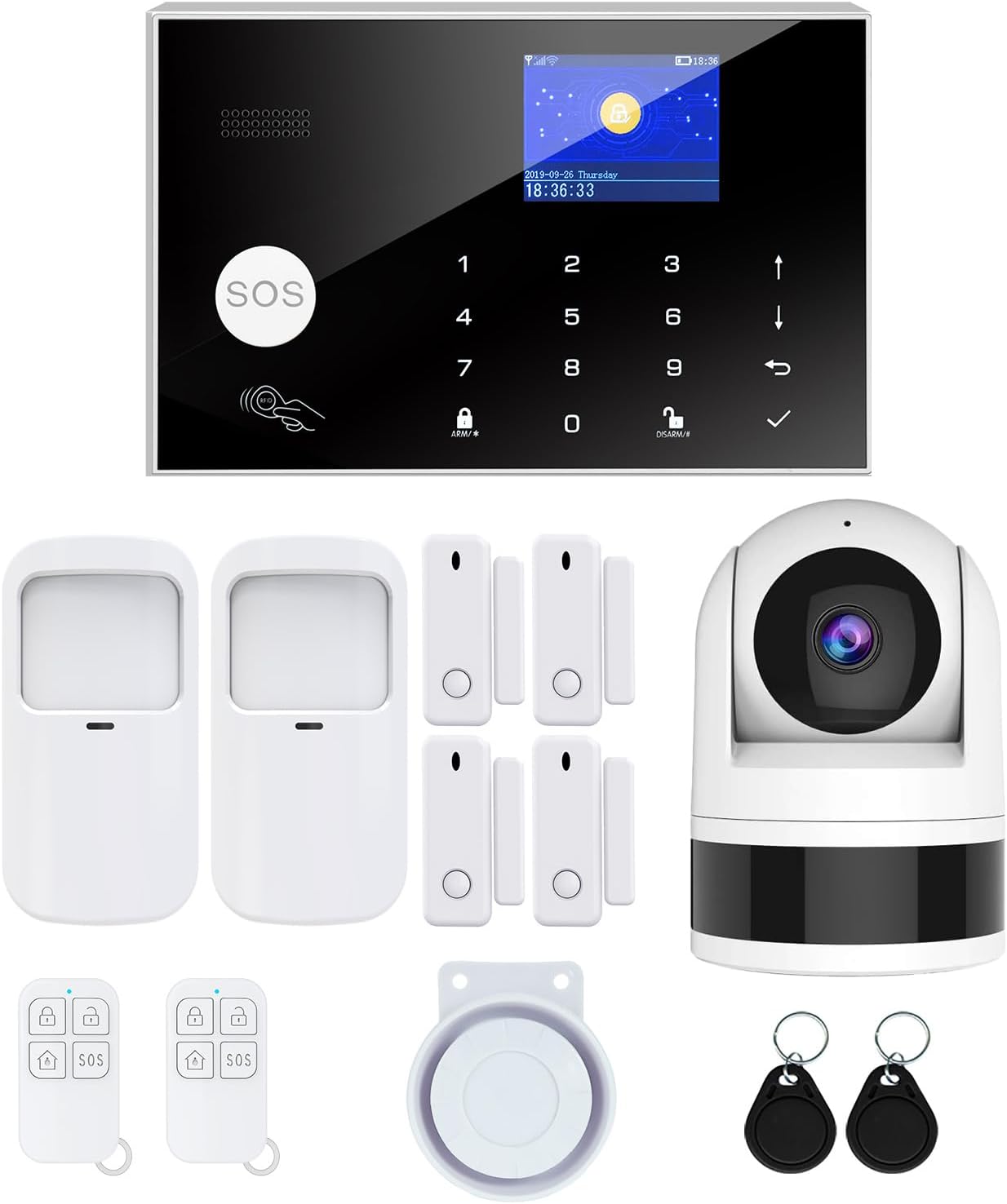
Image: Complete TUGARD G34-EB006 13-piece home security system kit, showing the control panel, camera, motion sensors, door/window sensors, remote controls, wired siren, and RFID tags.
2. Setup and Installation
The TUGARD G34-EB006 system is designed for easy DIY installation without specialized tools. All accessories are pre-programmed at the factory, simplifying the initial setup process.
2.1 Unpacking and Initial Power-Up
- Carefully unpack all components from the box. Verify that all items listed in the package contents are present.
- Connect the main control panel (host) to a power outlet using the provided power adapter. The host has a built-in backup battery that provides power for 3-4 hours during outages.
- Ensure batteries are installed in all wireless sensors (door/window sensors, motion sensors) and remote controls. These are typically pre-installed or included.
2.2 Network Configuration (Wi-Fi & 4G)
The system supports dual network connectivity for enhanced reliability.
- Wi-Fi Connection: Download the Smart Life or Tuya Smart app on your smartphone. Follow the in-app instructions to connect the control panel to your 2.4G Wi-Fi network. This enables app notifications and remote control.
- 4G SIM Card (Optional): For 4G functionality, insert a standard 4G SIM card (not included) into the designated slot on the control panel. This allows for voice calls and SMS alerts in case of an alarm, even if Wi-Fi is unavailable. Note that data-only or debit cards are not supported.

Image: The TUGARD control panel displaying Wi-Fi and 4G dual network capability, with an illustration of a SIM card being inserted.
2.3 Sensor and Camera Placement
Strategically place your sensors and camera for optimal coverage.
- Door/Window Sensors: Install on entry points such as doors and windows. Ensure the two parts of the sensor are aligned and within 1 cm of each other when the door/window is closed.
- Motion Sensors: Place in high-traffic areas or rooms where intrusion is likely. The PIR motion sensor offers a 110-degree wide angle and 15 vertical detectors, covering up to 26-40 feet (8-12 meters).
- Surveillance Camera: Position the 1080P camera to monitor key areas. It features 360-degree pan and 160-degree tilt, motion detection, two-way audio, and infrared night vision.
- Wired Siren: Connect the wired siren to the control panel. It will activate at up to 120dB during an alarm event.

Image: Diagram showing a house with various TUGARD security components (control panel, sensors, siren) installed at different entry points and rooms, illustrating easy DIY installation and multipurpose application.
3. Operating the System
The TUGARD G34-EB006 system offers multiple methods for control and monitoring.
3.1 Arming and Disarming
You can arm or disarm your system using several methods:
- Remote Control: Press the arm or disarm button on the provided remote control.
- RFID Tag: Tap an RFID tag on the control panel's designated area to quickly arm or disarm.
- Mobile App: Use the Smart Life or Tuya Smart app on your smartphone for remote arming and disarming from anywhere.
- Control Panel Keypad: Enter your PIN on the control panel's keypad. Default passwords are typically 1234 or 6666 (refer to the specific manual section for keypad lock settings).
- Voice Control: Integrate with Amazon Alexa or Google Assistant for voice-activated arming and disarming.

Image: Icons representing three security modes: Arm Away (all sensors armed), Disarm (all sensors disarmed), and Arm Home (interior sensors disarmed, exterior sensors armed).
3.2 Security Modes
The system offers flexible security modes to suit your needs:
- Arm Away: Activates all sensors (interior and exterior) when you leave your home.
- Arm Home (Stay Armed): Activates only exterior sensors, allowing you to move freely inside your home while maintaining perimeter security.
- Disarm: Deactivates all sensors, allowing free entry and exit.
3.3 Advanced Features
- Timing Arm and Disarm: Set schedules for automatic arming and disarming to match your daily routine, avoiding repeated manual operations.
- Sensor Renaming: Use the mobile app to rename individual door/motion sensors (e.g., "Front Door," "Living Room Motion") to easily identify which sensor triggered an alarm.
- Anti-Tamper Device: The control panel features an anti-tamper mechanism that triggers an alarm if malicious disassembly or vandalism is detected.
- Device Sharing: Share access to your security system with family members by adding their mobile numbers or email addresses through the app.

Image: An illustration showing scheduled arming at 8:00 AM and disarming at 6:00 PM, demonstrating how the system adapts to your lifestyle.

Image: A smartphone screen displaying the mobile app interface for editing and renaming a door/motion sensor, allowing users to customize sensor names for better management.
4. Maintenance
Regular maintenance ensures the optimal performance and longevity of your TUGARD security system.
- Battery Replacement: Wireless sensors are battery-operated. Monitor battery levels via the mobile app. Replace batteries promptly when indicated. The main control panel's backup battery is a Lithium-ion type, and its lifespan is approximately 3 years.
- Cleaning: Gently wipe the control panel, camera lens, and sensor surfaces with a soft, dry cloth. Avoid using harsh chemicals or abrasive materials.
- Power Supply: Ensure the main control panel remains connected to a stable power source. In case of a power outage, the built-in backup battery will activate.
- Firmware Updates: Periodically check the mobile app for available firmware updates for the control panel and camera. Updates can improve performance and add new features.
- Sensor Checks: Regularly test your door/window and motion sensors to ensure they are functioning correctly and communicating with the main panel.
5. Troubleshooting
This section addresses common issues you might encounter with your TUGARD security system.
5.1 Common Issues and Solutions
- No App Notifications:
Issue: You are not receiving alarm notifications on your smartphone app.
Solution: Check your Wi-Fi connection. If the Wi-Fi network is disconnected or unavailable, the system will only provide a local alarm (siren) and will not send app notifications. Ensure your phone has internet access and app notifications are enabled. - False Alarms:
Issue: The alarm triggers without an actual intrusion.
Solution: Ensure motion sensors are not placed near heat sources, direct sunlight, or areas with pets (if not pet-immune). Adjust sensor sensitivity settings in the app. Utilize the entry/exit delay feature to prevent accidental triggers when arming/disarming. - Sensors Not Responding:
Issue: A specific sensor does not trigger the alarm or show status in the app.
Solution: Check the sensor's battery and replace if necessary. Ensure the sensor is within range of the control panel (up to 50-80 meters with obstacles, 100 meters in open areas). Re-pair the sensor with the control panel if communication issues persist. - Difficulty with Configuration:
Issue: You find the system difficult to configure or program.
Solution: Refer to the detailed instructions in this manual. The system is designed for DIY setup, but complex configurations may require careful attention to the steps. If issues persist, contact customer support. - Adding More Sensors:
Issue: You want to expand your system with additional sensors.
Solution: The system supports up to 100 wireless sensors. Refer to the mobile app or control panel settings for instructions on how to add and pair new sensors to specific defense zones.
6. Product Specifications
| Feature | Specification |
|---|---|
| Model Number | G34-EB006 |
| Dimensions (L x W x H) | 18.01 x 11.51 x 2.21 cm (7.09 x 4.53 x 0.87 inches) |
| Weight | 907.18 grams (2 pounds) |
| Power Source | Main unit: AC powered with Lithium-ion backup battery; Sensors: Battery powered (CR2032 for some components) |
| Backup Battery Life | 3-4 hours (main unit) |
| Connectivity Technology | Wireless (2.4G Wi-Fi, 4G SIM card support) |
| Video Recording Resolution | 1080p (Surveillance Camera) |
| Siren Sound Level | Up to 120 dB |
| Control Method | Remote Control, Mobile App (Smartphone), Voice (Alexa, Google Assistant) |
| Installation Type | DIY (Do-It-Yourself) |
| Expandability | Up to 3 wired defense zones, 100 wireless defense zones |
| Compatible Devices | Smartphone, Amazon Alexa, Google Assistant |
7. Warranty Information
TUGARD products are manufactured to high-quality standards. This product is covered by a manufacturer's warranty against defects in materials and workmanship. The specific terms and duration of the warranty may vary by region and retailer. Please retain your proof of purchase for warranty claims.
For detailed warranty information, please refer to the warranty card included in your product packaging or contact TUGARD customer support directly.
8. Customer Support
If you encounter any issues or have questions regarding the installation, operation, or maintenance of your TUGARD G34-EB006 Home Security System, please refer to the following support options:
- Online Resources: Visit the official TUGARD website for FAQs, updated manuals, and troubleshooting guides.
- Mobile App Support: The Smart Life or Tuya Smart app often includes a support or feedback section where you can find assistance or report issues.
- Contact Retailer: For purchase-related issues or initial support, contact the retailer from whom you purchased the product.
- Manufacturer Support: For technical assistance or warranty claims, contact TUGARD customer service directly. Contact information can typically be found on the product packaging or the official TUGARD website.