
1. Introduction
This manual provides detailed instructions for the installation, operation, and maintenance of your AMprime Android 13 Car Stereo. Please read this manual thoroughly before using the product to ensure proper function and safety. This unit is designed specifically for Dodge Caliber models from 2010 to 2012.
This video provides a general overview of the AMprime Android 13 Car Stereo's features and interface.
2. Product Features
- Android 13 System: Equipped with a 9-inch capacitive touch screen (1280*720 resolution) and 4GB RAM + 64GB ROM for smooth operation.
- Wireless CarPlay & Android Auto: Seamlessly integrate your smartphone for navigation, calls, music, and other applications via Bluetooth connection.
- Mirror Link: Supports both iOS and Android devices for screen mirroring.
- GPS Navigation & WiFi: Built-in WiFi module and offline North America maps. Supports online maps and app installation via the Application Store.
- EQ Setting & DSP: Features DSP tuning technology with 32-band equalization for enhanced sound quality. Includes smart voice assistant for hands-free control.
- FM/RDS Radio & Bluetooth: Automotive-grade chipset for optimal radio signal reception. Bluetooth for hands-free calling and music streaming.
- Steering Wheel Control (SWC): Compatible with existing steering wheel buttons for remote control of radio functions.
- AHD Rear View Camera: Includes a waterproof camera with excellent night vision and a 170° ultra-wide field of view for reversing assistance.
3. Package Contents
Verify that all items listed below are included in your package:
- AMprime Android 13 Car Stereo Unit
- Power Cable
- USB Cable
- RCA Input/Output Cables
- Reversing Camera Input Cable
- GPS Antenna
- Radio Antenna
- User Manual
- Microphone
- AHD Rear View Camera
- Canbus Decoder (if applicable for your vehicle)
- Installation Tool

This image details the items included in the product package, such as cables, antennas, and the user manual, along with the stereo's physical dimensions.
4. Installation
Professional installation is recommended for this car stereo. Ensure the vehicle's power is disconnected before beginning installation. Refer to the wiring diagram provided in the user manual for specific connections.
- Remove the original car stereo unit and trim panel.
- Connect the power cable, USB cable, RCA cables, GPS antenna, and radio antenna to the new AMprime unit.
- If installing the AHD rear view camera, route the camera cable to the rear of the vehicle and connect it to the designated input on the stereo.
- Connect the steering wheel control wires (if applicable) according to your vehicle's wiring.
- Carefully fit the new stereo unit into the dashboard opening and secure it.
- Reinstall the trim panel.
- Reconnect the vehicle's power and test all functions.

This image illustrates the appearance of the Dodge Caliber dashboard before and after the AMprime Android 13 Car Stereo installation, highlighting the integrated fit.
5. Initial Setup and Connectivity
5.1 Wireless CarPlay & Android Auto
To use Wireless CarPlay or Android Auto, ensure your phone's Bluetooth is enabled and paired with the car stereo. Follow the on-screen prompts to establish the connection. Once connected, your phone's compatible apps will appear on the stereo display.
5.2 Mirror Link
For iOS devices, connect via WiFi. For Android devices, connect via WiFi. Follow the instructions on the stereo's Mirror Link application to cast your phone's screen.
5.3 GPS Navigation
The unit comes with pre-installed offline maps for North America. For online navigation, connect the stereo to a WiFi hotspot. You can download additional navigation apps from the Application Store.
5.4 WiFi Connection
Access the settings menu, select 'Network & Internet', then 'Wi-Fi'. Choose your desired network and enter the password to connect. This enables online features, app downloads, and online map updates.

This image displays the user interfaces for Wireless CarPlay, Android Auto, and Mirror Link, demonstrating how smartphone features are integrated into the car stereo.

This image illustrates the GPS navigation map display and the WiFi hotspot connection screen, showing how to access online maps and applications.
6. Operating Instructions
6.1 FM/RDS Radio
Navigate to the 'Radio' application. You can manually tune frequencies or use the auto-scan function to find and save stations. RDS (Radio Data System) provides station information where available.
6.2 Bluetooth Functions
After pairing your phone, access the 'Bluetooth' application to make hands-free calls, view contacts, and stream audio from your device.
6.3 EQ and DSP Settings
Open the 'EQ' or 'Sound Settings' application. Adjust the 32-band equalizer to customize audio output. DSP (Digital Signal Processor) features allow for fine-tuning of sound effects and speaker balance.
6.4 Steering Wheel Control (SWC)
If your vehicle supports it, you can program the steering wheel buttons to control the stereo. Go to 'Settings' > 'Steering Wheel Control' and follow the on-screen instructions to map functions like volume, track skip, and call answer/end.
6.5 Reversing Display
When the vehicle is shifted into reverse gear, the stereo will automatically display the feed from the connected AHD rear view camera. Guidelines may appear on the screen to assist with parking.
6.6 Split Screen Functionality
Some applications support split-screen mode, allowing you to run two apps simultaneously (e.g., navigation and music player). Drag an app to one side of the screen to activate this feature.
6.7 UI Themes
The system offers various user interface themes. You can change the theme through the 'Settings' menu to personalize the look of your stereo.
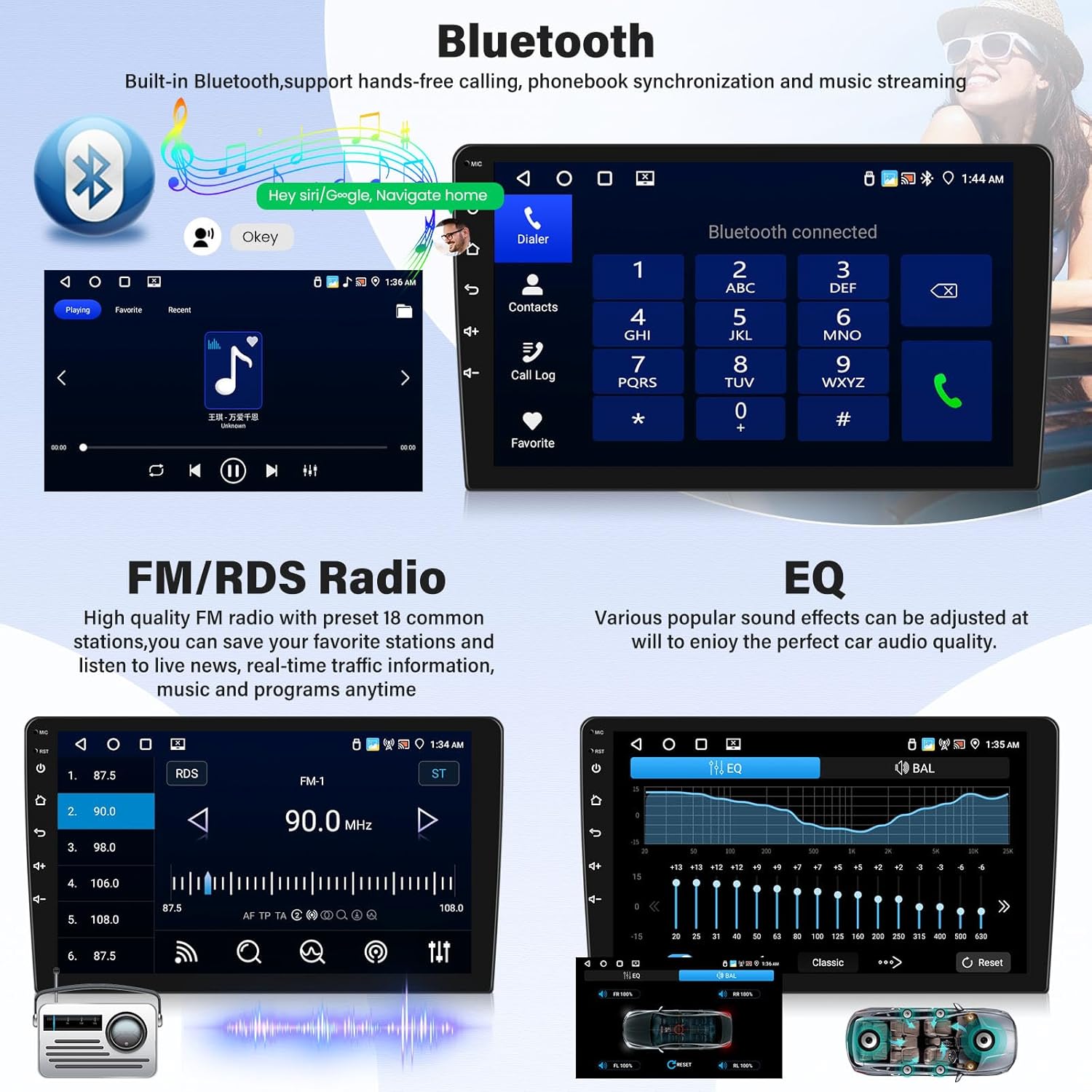
This image shows the Bluetooth pairing screen, FM/RDS radio interface with station presets, and the graphic equalizer for sound customization.

This image demonstrates the automatic display of the rear view camera when reversing and the interface for programming steering wheel controls.
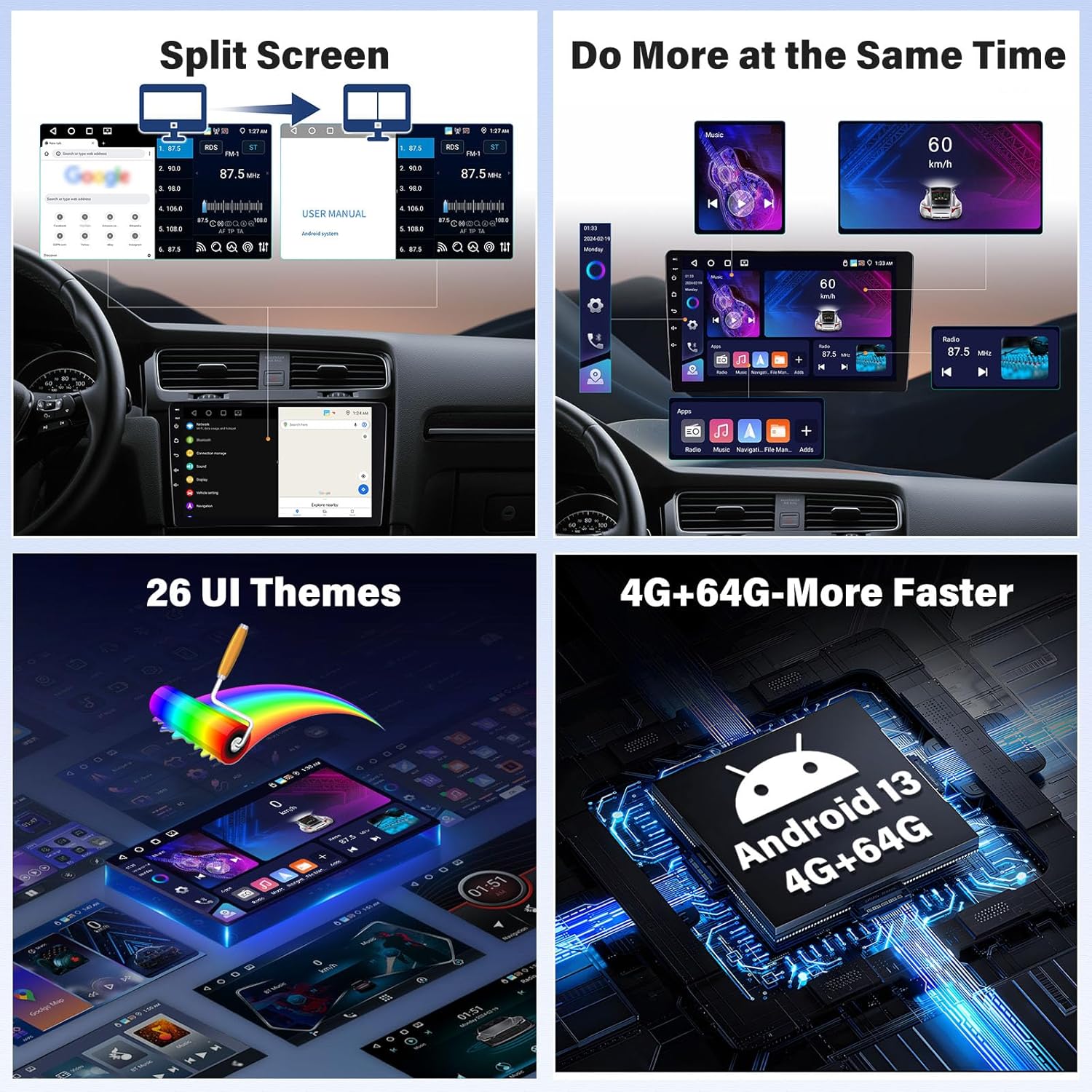
This image highlights the split-screen feature for running two applications simultaneously, examples of different user interface themes, and the system's memory and storage capacity.
7. Maintenance
- Cleaning: Use a soft, dry cloth to clean the screen and unit. Avoid abrasive cleaners or solvents.
- Software Updates: Periodically check for software updates through the system settings or the manufacturer's website to ensure optimal performance and access to new features.
- Temperature: Avoid exposing the unit to extreme temperatures, which can affect performance and lifespan.
8. Troubleshooting
| Problem | Possible Cause | Solution |
|---|---|---|
| Unit does not power on | Incorrect wiring; Blown fuse; Vehicle battery low | Check power connections; Inspect vehicle fuses; Charge vehicle battery |
| No sound output | Speaker wires disconnected; Volume too low; Mute activated | Verify speaker connections; Increase volume; Deactivate mute function |
| GPS signal lost or inaccurate | GPS antenna obstructed or disconnected; Poor satellite coverage | Ensure GPS antenna has clear view of sky and is connected; Move to an open area |
| Bluetooth connection issues | Phone not discoverable; Incorrect pairing process; Interference | Ensure phone Bluetooth is on and discoverable; Re-pair device; Move away from other wireless devices |
| Rear view camera not displaying | Camera cable disconnected; Reverse trigger wire not connected | Check camera connections; Verify reverse trigger wire is correctly wired to reverse light signal |
If you encounter issues not listed here or if the suggested solutions do not resolve the problem, please contact customer support.
9. Specifications
- Operating System: Android 13
- RAM: 4GB
- Internal Storage: 64GB
- Screen Size: 9 Inches
- Display Resolution: 1280x720
- Connectivity: Wi-Fi, Bluetooth
- Special Features: Wireless CarPlay, Android Auto, Mirror Link, GPS Navigation, FM/RDS Radio, EQ, DSP, Steering Wheel Control, AHD Backup Camera
- Compatible Vehicle: Dodge Caliber 2010-2012
- Item Weight: 2.42 pounds
- Package Dimensions: 10.24 x 7.09 x 2.76 inches
10. Warranty and Support
This product comes with a 1-year warranty. For technical assistance, troubleshooting, or warranty claims, please contact AMprime customer support.
Online Customer Support: AmprimeTechSupport@yeah.net
Optional extended protection plans are available for purchase:
- 2-Year Protection Plan
- 3-Year Protection Plan
For more information about AMprime products and support, visit the AMprime Store on Amazon.