
1. Introduction
The tfscar X-TOOL D8W is an advanced automotive diagnostic system designed for mechanics, electricians, and auto repair shops. This intelligent device features an 8-inch LCD screen and supports comprehensive OBDII functions and full-system vehicle diagnostics. It offers wireless WiFi connectivity for enhanced efficiency and stability, reducing the complexity associated with wired connections and providing a more reliable diagnostic experience compared to Bluetooth alternatives. This manual provides detailed instructions for setting up, operating, and maintaining your X-TOOL D8W diagnostic scanner.
2. Safety Information
Always observe the following safety precautions when using the X-TOOL D8W:
- Ensure the vehicle's ignition is off before connecting or disconnecting the diagnostic tool.
- Operate the device in a well-ventilated area.
- Do not expose the device to extreme temperatures, moisture, or direct sunlight.
- Avoid dropping the device or subjecting it to severe impact.
- Only use the provided power adapter and cables.
- Refer to the vehicle's service manual for specific diagnostic procedures and safety warnings.
3. Package Contents
Verify that all items are present in your package:
- X-TOOL D8W Diagnostic Unit
- VCI (Vehicle Communication Interface) Module
- OBDII Main Cable
- Power Adapter
- USB Cable
- User Manual
- Protective Carrying Case

Image: The X-TOOL D8W diagnostic tool, its VCI module, and a protective carrying case, illustrating the main components included in the package.
4. Product Overview
The X-TOOL D8W is a powerful diagnostic tool featuring an 8-inch touchscreen, Android 10 operating system, a 1.5 GHz quad-core processor, 4GB RAM, and 64GB storage. It supports dual-band WiFi (2.4 GHz and 5 GHz) for stable and fast wireless communication, and is equipped with a 10000 mAh battery for extended operation.
Key Features:
- Full System Diagnostics: Access and scan all available modules and systems (ECM, TCM, ABS, SRS, BCM, IMMO, BMS, TPMS, SAS, fuel system, lighting system, wiper system, A/C system, etc.) to perform OE-level diagnostic functions.
- Advanced ECU Coding: Perform online coding, component matching, adaptive data reset, and flash hidden functions to enhance vehicle performance and customize settings after ECU replacement.
- Powerful Key Programming: Includes PIN code reading, adding new keys (fob/smart), remote learning, key matching, and all-key-lost functions.
- Intelligent Topology Mapping: Visually displays the communication structure between modules, showing diagnostic status with color-coded results for faster troubleshooting.
- 38+ Special Functions: Covers common maintenance functions like ABS bleeding, injector coding, EPB reset, oil reset, TPMS reset, BMS reset, SAS reset, throttle adaptation, and advanced reset/learning/matching/calibration/initialization functions for specific vehicle brands.
- Bidirectional Controls (Active Tests): Send commands to vehicle systems/components to perform active tests such as EVAP test, fuel pump test, fuel injector test, A/C clutch cycle, window/door lock/unlock, horn test, EGR test, etc.
- CAN FD & DoIP Protocol Support: Compatible with new communication protocols for GM MY2020+ models (CAN FD) and BavarianMotoWork E/F/G chassis, Jaguar, Land Rover vehicles (DoIP), ensuring stable communication without additional adapters.
- Guided Functions (V-AG): Provides OE-level operational guidance for complex special functions on V-AG vehicles (Audi, Skoda, VW) to simplify diagnosis.
- Programmable Module Installation (PMI): Allows copying original module data and installing it onto a new unit for Ford, Lincoln, Mazda vehicles when replacing or initializing modules.
- Automatic VIN Scan: Automatically identifies vehicle information, speeding up the diagnostic process.
- Multi-language Support: Supports 21 languages including English, Spanish, German, Japanese, French, and more.
- Wide Vehicle Coverage: Compatible with over 88 vehicle brands and 10,000 car models, with continuous updates.
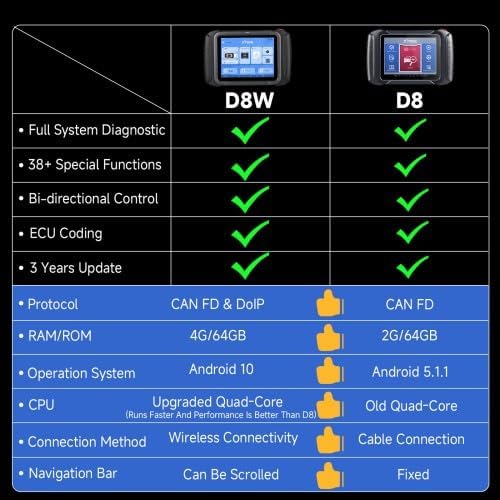
Image: The X-TOOL D8W diagnostic scanner displaying its user interface, which includes options for diagnosis, special functions, reports, and updates.

Image: A comparison table highlighting the upgraded features of the X-TOOL D8W over the D8 model, including full system diagnostic, special functions, bidirectional control, ECU coding, 3 years update, CAN FD & DoIP protocol, 4G/64GB RAM/ROM, Android 10, upgraded quad-core CPU, wireless connectivity, and scrollable navigation bar.
5. Setup
5.1 Initial Power On and Configuration
- Charge the Device: Before first use, fully charge the X-TOOL D8W using the provided power adapter.
- Power On: Press and hold the power button to turn on the device.
- Language Selection: Follow the on-screen prompts to select your preferred language (e.g., English).
- Wi-Fi Connection: Connect the device to a stable Wi-Fi network. This is crucial for software updates and online functions.
- Software Updates: After connecting to Wi-Fi, check for and install any available software updates to ensure optimal performance and the latest vehicle coverage.
5.2 Connecting to the Vehicle
- Locate OBDII Port: Identify the vehicle's OBDII diagnostic port, usually located under the dashboard on the driver's side.
- Connect VCI Module: Plug the VCI (Vehicle Communication Interface) module into the vehicle's OBDII port. Ensure a secure connection.
- Power On Vehicle: Turn the vehicle's ignition to the "ON" position (engine off).
- Establish Wireless Connection: The X-TOOL D8W unit will automatically attempt to establish a wireless (WiFi) connection with the VCI module. The VCI indicator light will flash green when communicating with the vehicle.

Image: A diagram illustrating the wireless WiFi connection between the X-TOOL D8W diagnostic tablet and the VCI module plugged into a vehicle's OBDII port, highlighting the WiFi indicator light, power indicator light, and VCI indicator.
6. Operating Instructions
6.1 Automatic VIN Scan and Vehicle Selection
Once connected to the vehicle, the X-TOOL D8W can automatically identify vehicle information via VIN scan. Alternatively, you can manually select the vehicle model from the menu.
- From the main menu, select "Diagnosis".
- Choose "Auto Scan" for automatic VIN detection or "Vehicle Selection by Area" to manually select the vehicle make and model.
- Confirm vehicle details to proceed.
6.2 Full System Diagnostics
This function allows you to access and diagnose all electronic control units (ECUs) in the vehicle.
- After vehicle identification, select "Full System Scan".
- The tool will scan all available systems (Engine, Transmission, ABS, SRS, etc.).
- Review the diagnostic results, which include:
- Read Codes: Retrieve Diagnostic Trouble Codes (DTCs).
- Clear Codes: Erase DTCs after repairs.
- Live Data: View real-time sensor data in text or graph format (e.g., engine RPM, sensor temperatures).
- Freeze Frame: View a snapshot of vehicle conditions when a DTC was set.
- ECU Information: Display ECU version details.
- Active Tests: Perform bidirectional controls on components.

Image: A visual representation of the X-TOOL D8W performing OE-level diagnostics across various vehicle systems such as Engine, Wiper System, SRS, Light System, Transmission, Fuel System, ABS, and Brake System, showing options for Read Code, Clear Code, Live Data, Freeze Frame, ECU Information, and Active Tests.
6.3 Advanced ECU Coding
ECU Coding allows for customization and optimization of vehicle settings. Caution: Incorrect coding can lead to vehicle malfunctions. Always ensure you have the correct procedures and data.
- From the main menu, select "Special Functions" or navigate to the specific ECU.
- Choose "ECU Coding".
- Follow the on-screen instructions to perform functions such as:
- Online Coding
- Component Matching
- Adaptive Data Reset
- Flash Hidden Functions
- Customize OE-Settings
- Confirm changes and exit the function.

Image: A graphic depicting the advanced ECU coding features, including matching components, refreshing hidden functions, disabling annoying functions, and customizing OE settings, all aimed at optimizing vehicle performance.
6.4 Key Programming
This function allows for adding new keys, matching remotes, and other immobilizer-related tasks.
- Select "IMMO/Key Programming" from the main menu.
- Choose the specific key programming function required (e.g., Add Key, All Keys Lost, Remote Learning).
- Follow the detailed on-screen instructions, which may include reading PIN codes or performing specific steps with the vehicle's ignition and keys.
6.5 Intelligent Topology Mapping
The topology map provides a visual representation of the vehicle's communication network, showing the status of each module.
- After a full system scan, select "Topology Map" (if available for the vehicle).
- Observe the color-coded modules:
- Green: No fault codes.
- Red: Fault codes present.
- Yellow: Pending fault codes or warnings.
- Grey: Not equipped or not scanned.
- Click on a module to view its specific diagnostic information or perform functions.
6.6 Special Functions (38+)
The X-TOOL D8W offers over 38 special maintenance and service functions.
- From the main menu, select "Special Functions".
- Choose the desired function from the list (e.g., Oil Reset, EPB Reset, TPMS Reset, ABS Bleeding, Injector Coding, SAS Reset, Throttle Adaptation).
- Follow the on-screen prompts and specific vehicle procedures to execute the function.

Image: A visual display of various special functions, including Oil Reset, EPB Reset, TPMS Reset, BMS, SAS Reset, Throttle, ABS Bleeding, and Injector Coding, along with other functions like Key Programming, Gearbox Match, Seat Calibration, Suspension, Airbag Repair, and Tire Upgrade.
6.7 Bidirectional Controls (Active Tests)
Active tests allow you to command vehicle components to perform specific actions, aiding in diagnosis.
- During a full system diagnostic, select "Active Tests" for the relevant system.
- Choose the component you wish to test (e.g., Fuel Pump, Injectors, A/C Clutch, Windows/Mirrors).
- Follow the on-screen instructions to activate or deactivate the component and observe its response.
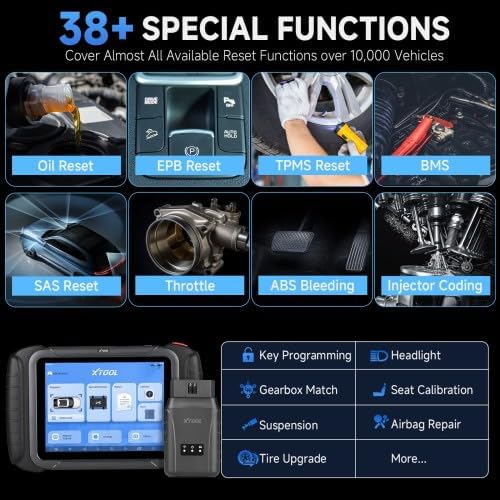
Image: A graphic demonstrating the OE-level full diagnostic and bidirectional control capabilities, showing examples like fuel pump activation, ABS pump test, A/C clutch cycling, and window/mirror tests, all performed through the diagnostic tool.
6.8 Guided Functions (V-AG)
For V-AG vehicles (Audi, Skoda, VW), the X-TOOL D8W provides step-by-step guidance for complex service functions.
- When performing a service function on a compatible V-AG vehicle, look for the "Guided Function" option.
- Follow the on-screen prompts and instructions to complete the procedure.
7. Maintenance
- Software Updates: Regularly check for and install software updates to ensure the latest vehicle coverage, bug fixes, and new features. Connect to a stable Wi-Fi network and navigate to the "Update" section.
- Cleaning: Clean the device with a soft, damp cloth. Do not use abrasive cleaners or solvents.
- Storage: Store the device in its protective case in a cool, dry place when not in use.
- Battery Care: To prolong battery life, avoid fully discharging the battery frequently and store the device with a partial charge if not used for extended periods.
8. Troubleshooting
| Problem | Possible Cause | Solution |
|---|---|---|
| Device does not power on. | Low battery; power button not pressed long enough. | Charge the device; press and hold the power button for 3-5 seconds. |
| Cannot connect to vehicle. | VCI module not properly connected; vehicle ignition off; Wi-Fi interference. | Ensure VCI is securely plugged in; turn ignition to ON; check Wi-Fi signal or try moving closer to the vehicle. |
| Diagnostic functions not working. | Software outdated; vehicle not supported; incorrect vehicle selection. | Perform software updates; verify vehicle compatibility; ensure correct vehicle model is selected. |
| Slow performance. | Too many applications running; low storage. | Close unnecessary applications; clear cache; ensure sufficient storage. |
If you encounter issues not listed here or require further assistance, please contact tfscar customer support.
9. Specifications
| Feature | Detail |
|---|---|
| Brand | tfscar |
| Model Number | X-TOOL D8W |
| Display | 8-inch Touchscreen, 1024*762 Resolution |
| Operating System | Android 10 |
| Processor | 1.5 GHz Quad-Core |
| Memory | 4GB RAM, 64GB ROM |
| Battery | 10000 mAh (up to 10 hours working time) |
| Connectivity | Dual-band WiFi (2.4 GHz & 5 GHz), Wireless OBD2 Connection |
| Supported Protocols | CAN FD, DoIP, OBDII |
| Vehicle Coverage | 88+ Brands, 10,000+ Car Models |
| Languages | 21 languages supported |
| UPC | 761651614168 |
| ASIN | B0F4RFJMPX |
10. Warranty and Support
The tfscar X-TOOL D8W comes with a 1-year manufacturer's warranty. For warranty claims, technical support, or any inquiries, please contact tfscar customer service through their official channels or the retailer where the product was purchased.
Software updates are typically provided free for a period, as indicated by "3 Years Software Free Updates" in the product features. Ensure your device is connected to Wi-Fi to receive these updates.