
JIMIIOT JC400P
JIMIIOT JC400P 4G Live Video Dashcam User Manual
Model: JC400P
1. Product Overview
The JIMIIOT JC400P is an advanced 4G live video dashcam designed for comprehensive vehicle monitoring. It features dual cameras (front and interior), built-in GPS tracking, and remote monitoring capabilities, providing real-time insights and security for your vehicle.

Figure 1.1: JC400P Dashcam with mobile application displaying live vehicle tracking and map location.
2. Key Features
- Live Video 24-Hour Monitoring: Remotely view live video of your vehicle via platform website or mobile application.
- Dual Channel Dash Cam: Equipped with a 1080P 145° wide-angle front camera and a 720P 140° wide-angle inside camera with night vision.
- Real-time GPS Tracking: Built-in GPS system records driving route, real-time speed, and location, accessible through the application.
- Loop Recording: Continuously records video, automatically overwriting older footage when the memory card is full.
- Multiple Alerts & Event Video Upload: Automatically uploads event videos to the cloud upon detection of vibration, speeding, geo-fence entry/exit, or harsh driving behaviors (acceleration, braking, sharp turns).
- G-sensor: High-performance G-sensor detects collisions and triggers event video uploads to the platform.
- Device Hotspot: Connect to the device's hotspot via the app to view recorded videos on the memory card directly from your phone without removal.
- 10-year Platform Access: Includes access to LNCOON and Tracksolid Pro platforms for web and app monitoring.

Figure 2.1: Illustration of dual-channel recording, showing both front and interior camera views.
3. Package Contents
Verify that all items are present in the package before proceeding with installation.
- JC400P Dashcam Unit
- Power Cable
- Installation Tool
- User Manual (this document)
- SIM Card (if included with package)
- Mounting Accessories (e.g., 3M adhesive pads, keys for SIM/TF card slot cover)
- Relay (for fuel cut-off feature, if applicable)
- SOS Button (if applicable)
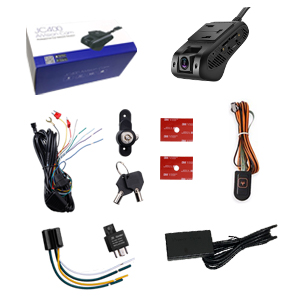
Figure 3.1: Typical package contents for the JC400P dashcam system.
4. Setup and Installation
4.1 SIM Card and TF Card Insertion
Before installation, ensure the device is powered off. Insert a compatible 4G SIM card and a TF (microSD) card into their respective slots. The SIM card provides 4G connectivity for live video and tracking, while the TF card stores recorded footage.
- Locate the SIM and TF card slots on the side of the dashcam.
- Carefully insert the 4G SIM card into the SIM slot with the gold contacts facing down, ensuring it clicks into place.
- Insert the TF card into the TF card slot until it clicks.
- Secure the card slots with the provided cover and key to prevent tampering.
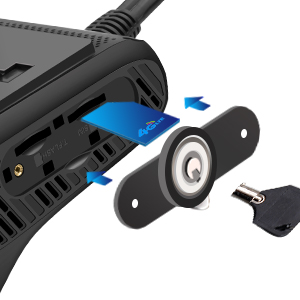
Figure 4.1: Proper insertion of the SIM card into the JC400P dashcam.
4.2 Mounting the Dashcam
The JC400P is designed for windshield mounting. Choose a location that does not obstruct the driver's view and allows both cameras to capture their intended fields of view.
- Clean the chosen area on the windshield thoroughly.
- Attach the mounting bracket to the dashcam.
- Peel off the protective film from the 3M adhesive pad on the bracket.
- Press the dashcam firmly onto the windshield for at least 30 seconds to ensure secure adhesion.
- Adjust the angle of the front and interior cameras to ensure optimal coverage.
4.3 Power Connection
Connect the dashcam to your vehicle's power supply using the provided power cable. It is recommended to connect to a constant power source for 24-hour monitoring capabilities, or to an ACC (Accessory) power source if you only require recording when the vehicle is on.
- Connect the power cable to the dashcam's power input port.
- Route the cable neatly along the vehicle's interior trim to the power source (e.g., fuse box).
- Ensure all connections are secure.
5. Operating the Device
5.1 Initial Power On and Indicator Lights
Once connected to power, the device will automatically power on. Observe the indicator lights for status.
- Power Indicator: Solid green when powered on.
- Network Indicator: Flashing blue indicates searching for network; solid blue indicates connected to 4G network.
- GPS Indicator: Flashing green indicates searching for GPS signal; solid green indicates GPS signal acquired.
5.2 Mobile Application and Web Platform Usage
The JC400P utilizes mobile applications (LNCOON or Tracksolid Pro) and web platforms for remote monitoring and management.
- Download the App: Download the LNCOON app (recommended if using the included IoT card) or Tracksolid Pro from your device's app store.
- Register/Login: Create an account or log in using your credentials.
- Add Device: Add your JC400P device to your account using its IMEI number, typically found on the device or packaging.
- Live Monitoring: Access live video streams from both front and interior cameras.
- Real-time Tracking: View your vehicle's current location, speed, and driving route on a map.
- Historical Playback: Review past driving routes and recorded videos.
- Alerts: Receive notifications for various events such as vibration, speeding, geo-fence breaches, or harsh driving.

Figure 5.1: Real-time GPS tracking interface on the mobile application, displaying location, speed, and mileage.
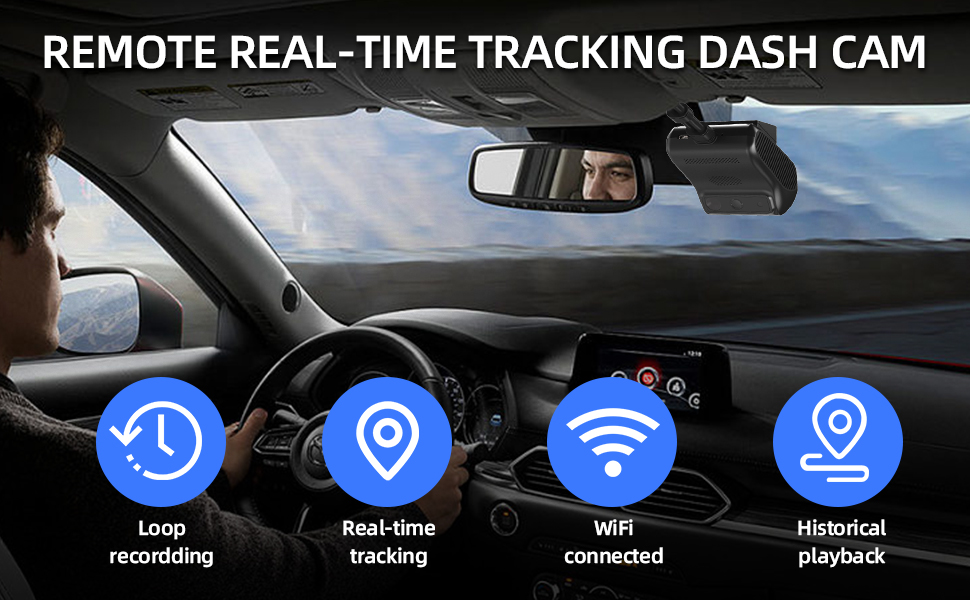
Figure 5.2: Overview of key operational features including loop recording, real-time tracking, WiFi connectivity, and historical playback.
5.3 Event Recording and Cloud Upload
The JC400P automatically records and uploads event videos to the cloud when specific triggers are detected by the G-sensor or other monitoring functions.
- Collision Detection: Upon detecting a collision via the G-sensor, the device will record and upload an event video.
- Vibration Alert: If significant vibration is detected while parked, an alert and video will be triggered.
- Speeding Alert: Configurable speed limits can trigger alerts and video uploads if exceeded.
- Geo-fence Alert: Receive alerts and videos when the vehicle enters or exits predefined geographical boundaries.
- Harsh Driving Behavior: Sudden acceleration, harsh braking, or sharp turns can trigger event recordings.
Note: The device records video automatically only when in ACC ON state, unless configured for 24-hour parking monitoring. Event video length can often be customized (e.g., 10s/15s/30s/60s) via the platform settings.

Figure 5.3: Examples of events that trigger automatic video uploads to the cloud platform.
5.4 Device Hotspot Functionality
The JC400P can create a local Wi-Fi hotspot, allowing you to connect your smartphone directly to the dashcam to review recorded footage without removing the TF card.
- Ensure you are within close proximity to the device.
- Open the mobile application.
- Navigate to the device hotspot connection option within the app.
- Connect your phone to the dashcam's Wi-Fi network.
- Browse and download videos stored on the TF card directly to your phone.
5.5 Remote Fuel Cut-off (Optional)
For advanced fleet management or security, the JC400P supports remote fuel cut-off functionality, provided the device is wired to the vehicle's fuel system via a relay. This feature should only be used responsibly and in accordance with local laws.
- This feature requires professional installation of the relay.
- The fuel cut-off command can be issued via the mobile application or web platform.
- For safety, the fuel cut-off function typically only activates when the vehicle speed is below 20 km/h.

Figure 5.4: Interface for remotely cutting off fuel, typically activated at low speeds for safety.
5.6 Multiple Device Management
The platform supports managing multiple JC400P devices, ideal for fleet management, logistics, or vehicle rental businesses.
- Organize devices into groups (e.g., "Truck Group 1", "Car Group 2").
- Monitor the status, location, and video feeds of all registered devices from a single account.
- Access historical data and alerts for each device individually or collectively.

Figure 5.5: The mobile application interface demonstrating the ability to manage multiple dashcam devices simultaneously.
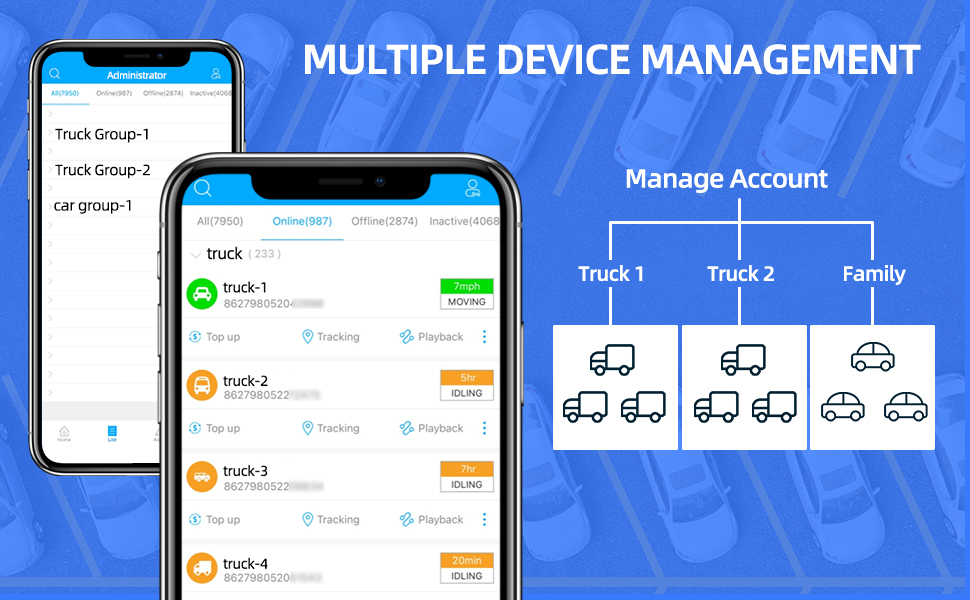
Figure 5.6: Hierarchical management of multiple devices within the platform, categorized by vehicle type or group.
6. Maintenance
- Regular Cleaning: Gently wipe the camera lenses and device body with a soft, dry cloth to remove dust and smudges. Avoid abrasive cleaners.
- TF Card Management: Periodically format the TF card (e.g., monthly) through the app settings to ensure optimal performance and prevent data corruption. Back up important videos before formatting.
- Firmware Updates: Check the official JIMIIOT website or app for available firmware updates. Keep your device's firmware updated for improved performance and new features.
- Cable Inspection: Regularly inspect power cables and connections for any signs of wear or damage. Replace damaged cables immediately.
- Environmental Considerations: Avoid exposing the device to extreme temperatures, direct sunlight for prolonged periods, or excessive moisture.
7. Troubleshooting
| Problem | Possible Cause | Solution |
|---|---|---|
| Device not powering on. | No power supply; loose cable connection; faulty power cable. | Check vehicle's power source (e.g., fuse box); ensure power cable is securely connected; try a different power cable if available. |
| No 4G network connection (Network Indicator flashing blue). | SIM card not inserted correctly; no data plan on SIM; poor network coverage. | Reinsert SIM card; verify SIM card has an active data plan; move to an area with better network coverage. |
| GPS signal not acquired (GPS Indicator flashing green). | Device is indoors or in an area with obstructed sky view; initial GPS lock takes time. | Move vehicle to an open area; allow several minutes for initial GPS lock. |
| Cannot view live video or historical playback. | No network connection; incorrect device ID in app; server issues. | Check network indicator; verify device IMEI in app; contact platform support if server issues are suspected. |
| TF card error or recording issues. | TF card full; corrupted TF card; incompatible TF card. | Format TF card via app; try a new, high-quality TF card (Class 10 or higher). |
| Device hotspot not visible or cannot connect. | Device is too far; hotspot feature not enabled; temporary software glitch. | Ensure close proximity to the device; restart the device; check app settings for hotspot activation. |
8. Specifications
| Feature | Detail |
|---|---|
| Model | JC400P |
| Front Camera Resolution | 1080P (1920x1080) |
| Front Camera Angle | 145° Wide-angle |
| Inside Camera Resolution | 720P (1280x720) |
| Inside Camera Angle | 140° Wide-angle with Night Vision |
| Connectivity | 4G LTE, Wi-Fi (for hotspot) |
| GPS | Built-in GPS for real-time tracking |
| G-Sensor | Yes, for collision detection and event recording |
| Storage | Supports TF (microSD) card (capacity not specified, typically up to 128GB or 256GB) |
| Power Source | Power Cable (Vehicle's 12V/24V system) |
| Dimensions | 3.93 x 2.04 x 2.71 inches |
| Weight | 1.82 pounds |
| Operating Platforms | LNCOON, Tracksolid Pro (Web & Mobile App) |
9. Warranty and Support
JIMIIOT provides a warranty for the JC400P dashcam against defects in materials and workmanship under normal use. The specific warranty period may vary by region and retailer. Please retain your proof of purchase for warranty claims.
9.1 Technical Support
For technical assistance, troubleshooting, or inquiries regarding your JC400P dashcam, please contact JIMIIOT customer support through the following channels:
- Online Support: Visit the official JIMIIOT website for FAQs, support articles, and contact forms.
- Email Support: Refer to your product packaging or the official website for the customer support email address.
- Platform Support: For issues related to the LNCOON or Tracksolid Pro platforms, utilize the support features within the respective applications or websites.
Note: The device includes 10-year platform access for web and APP. If using the IoT card that comes with the package, please download the LNCOON APP; if using a local SIM card, both LNCOON and Tracksolid Pro can be used.
Related documentsJC400P


Ask a question about this manual
Ask about setup, troubleshooting, compatibility, parts, safety, or missing instructions. Manuals+ will review the question and use this page’s manual context to help answer it.