
1. Introduction
The MOOER GE200 Plus is an intelligent multi-effects guitar processor pedal designed to provide guitarists with a comprehensive suite of tools for practice, performance, and recording. It features a brand-new GE series design language and user interface, retaining the iconic quick-access effect module buttons along with additional buttons for simple function access. This device offers a vast array of effects, amplifier models, and cabinet simulations, making it a versatile solution for any guitarist.
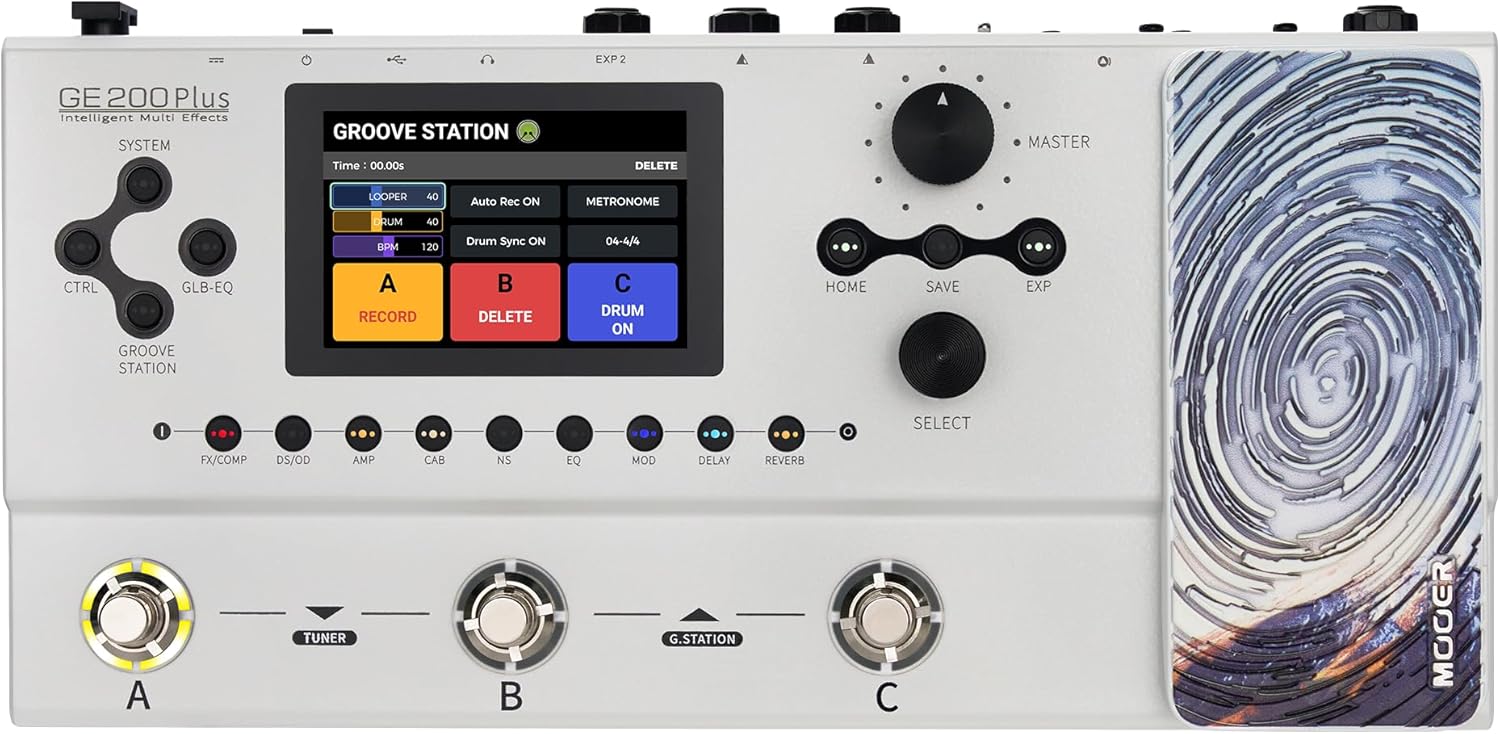
Figure 1.1: Front view of the MOOER GE200 Plus Multi Effects Pedal, showcasing its display, control knobs, and footswitches.
2. Key Features
- Extensive Effect Library: Over 270 effect models, including preamps, amplifier simulations, cabinet simulations, modulation, reverb, delay, and noise reduction.
- Memory Slots: 255 memory slots for custom preset combinations.
- Integrated Tools: Built-in drum machine with 70 realistic groove samples, metronomes, and a 60-second looper for practice and composition.
- MNRS & IR Support: 40 dedicated slots for MOOER's in-house MNRS files (20 for amps, 20 for cabinets) and support for third-party IR cabinet simulations up to 2048 points.
- Versatile Connectivity: 1/4" input, stereo 1/4" outputs, stereo XLR outputs, 3.5mm headphone output, and an external expression pedal input.
- USB & MIDI Compatibility: USB port for MIDI control, low-latency ASIO USB audio interface for recording, and firmware updates.
- Bluetooth 5.0: For audio playback.
- Dedicated Software: PC preset editing software compatible with MOOER Cloud for uploading and downloading presets and sample files.

Figure 2.1: Illustration highlighting the Gen 4.0 algorithm and the wide range of effects available in the MOOER GE200 Plus.
3. Setup
3.1 Unpacking and Initial Inspection
Carefully remove the GE200 Plus from its packaging. Inspect the unit for any signs of damage that may have occurred during shipping. Ensure all included accessories are present.
3.2 Powering On
Connect the provided power adapter to the DC 9V Power Input port on the rear of the GE200 Plus. Plug the adapter into a suitable power outlet. The unit will power on automatically or can be turned on using the Power Switch.
3.3 Connecting Your Equipment
The GE200 Plus offers a variety of input and output options to integrate into your setup.
- Guitar Input: Connect your guitar to the 1/4" INPUT jack.
- Audio Outputs: For connecting to an amplifier, mixer, or audio interface, use the stereo 1/4" OUTPUTs (L/R) or the balanced stereo XLR OUTPUTs (L/R).
- Headphones: For silent practice, connect headphones to the 3.5mm PHONES jack.
- Expression Pedal: An external expression pedal can be connected to the EXP2 port for real-time control over various parameters.
- USB Connection: Connect the USB-C port to your computer for firmware updates, PC editing software, and using the GE200 Plus as an audio interface or MIDI controller.

Figure 3.1: Detailed view of the rear panel connections for the GE200 Plus, including input, XLR output, stereo output, USB-C, and DC 9V power input.
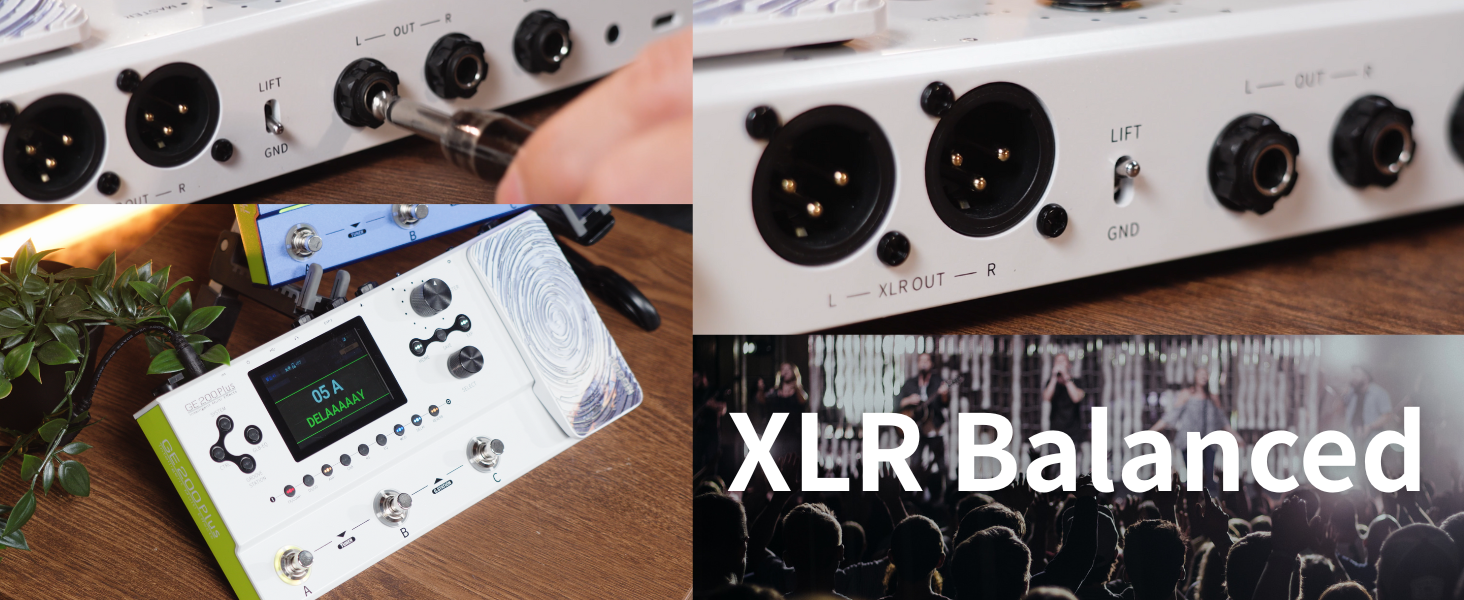
Figure 3.2: The GE200 Plus connected to a computer, illustrating its capability as a low-latency ASIO USB audio interface and for USB MIDI control.
4. Operation
4.1 User Interface Overview
The GE200 Plus features an intuitive user interface with a clear display, dedicated quick-access effect module buttons, and a combination of knobs and footswitches for navigation and parameter adjustment. The main display shows the current preset, effect chain, and parameter values.
4.2 Navigating Presets and Effects
The unit comes with 255 memory slots, allowing you to store and recall your custom presets. You can combine over 270 effect models to create unique sounds. Use the footswitches to cycle through presets or engage/disengage individual effects within a preset. The dedicated effect module buttons allow for quick access to specific effect blocks like FX/COMP, DS/OD, AMP, CAB, NS, EQ, MOD, DELAY, and REVERB.
4.3 Using the Drum Machine and Looper
The GE200 Plus includes an integrated drum machine with 70 realistic groove samples and metronomes, perfect for practice. The 60-second looper allows you to record and layer guitar phrases, aiding in songwriting and solo practice.
4.4 MNRS and IR Loading
Expand your tonal palette by loading MOOER's in-house MNRS files (20 slots for amps, 20 for cabinets) or third-party Impulse Responses (IRs) for cabinet simulations. The device supports IRs up to 2048 points, offering detailed and realistic cabinet tones.
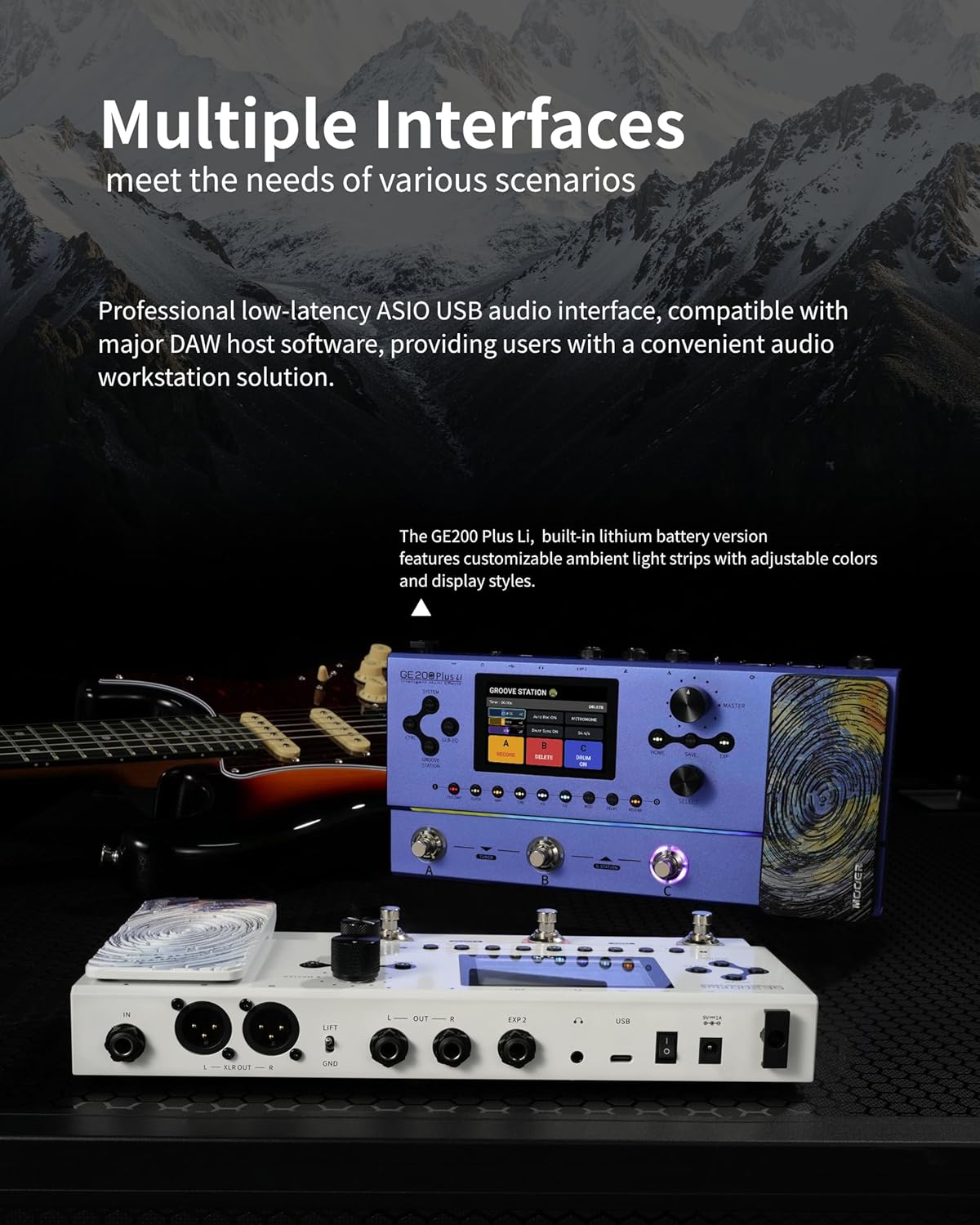
Figure 4.1: The GE200 Plus allows users to expand their tonal library through 255 memory slots and over 270 effect models, with integration for MOOER Studio and GE Cloud APP.
4.5 Software and Cloud Integration
Utilize the dedicated PC preset editing software to manage and fine-tune your presets with ease. The GE200 Plus is compatible with the MOOER Cloud, enabling you to upload and download presets and sample files, sharing and discovering new tones within the MOOER community.
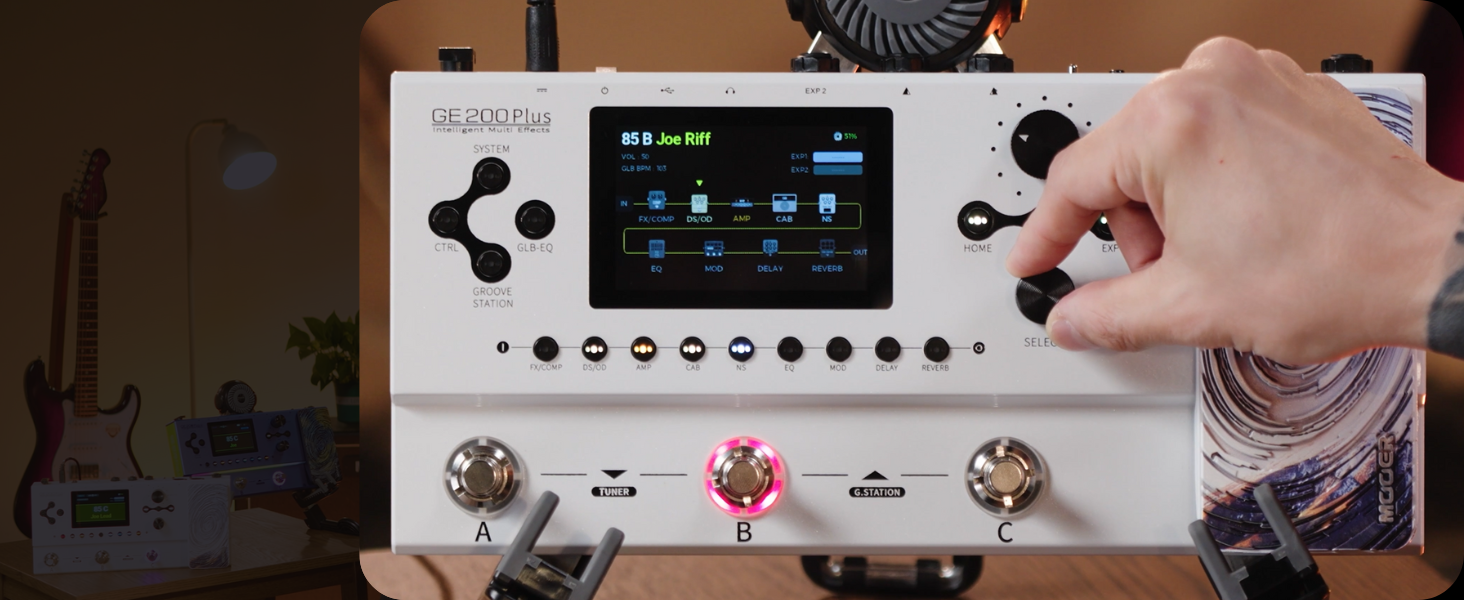
Figure 4.2: The GE200 Plus integrates seamlessly with dedicated PC editing software and the GE Cloud APP for convenient preset management and file sharing.
5. Specifications
| Feature | Specification |
|---|---|
| Item Weight | 4.6 pounds (2.09 Kilograms) |
| Package Dimensions | 12.83 x 8.58 x 2.87 inches |
| Item Model Number | GE200 Plus |
| Color Name | GE200 Plus |
| Connector Type | USB |
| Hardware Interface | USB |
| Signal Format | Analog |
| Power Source | USB Powered |
| Audio Output Effects | Distortion, Delay, Chorus, Reverb, Metronome |
| Number of Effects | Over 270 |
| Number of Presets | 255 |
| Amp Models | 74 |
| Cab Sims | 77 |
| Drum Machine Grooves | 70 |
| Looper Duration | 60 seconds |
| IR Loading Points | Up to 2048 |
6. Maintenance
To ensure the longevity and optimal performance of your MOOER GE200 Plus, follow these maintenance guidelines:
- Cleaning: Use a soft, dry cloth to wipe down the unit. Avoid using abrasive cleaners, solvents, or waxes, as they may damage the finish or internal components.
- Storage: When not in use, store the pedal in a cool, dry place away from direct sunlight, extreme temperatures, and high humidity.
- Handling: Handle the unit with care. Avoid dropping it or subjecting it to strong impacts.
- Connections: Periodically check all cable connections for wear and tear. Ensure they are securely plugged in during operation.
7. Troubleshooting
If you encounter any issues with your GE200 Plus, refer to the following common troubleshooting steps:
- No Power: Ensure the power adapter is correctly connected to the unit and a working power outlet. Verify the power switch is in the 'ON' position.
- No Sound Output: Check all audio cable connections. Ensure the volume levels on the GE200 Plus, your amplifier, and any connected devices are turned up. Verify that the correct output (1/4" or XLR) is selected if applicable in the settings.
- Distorted or Unwanted Noise: Check for proper grounding. Ensure all cables are in good condition. Try reducing input gain or adjusting noise gate settings on the GE200 Plus.
- Footswitch Unresponsive: Ensure the unit is powered on and not in a frozen state. Try restarting the unit.
- Software Connection Issues: Ensure the USB cable is securely connected. Install the latest drivers for the GE200 Plus on your computer. Try a different USB port or cable.
- Factory Reset: If issues persist, a factory reset may resolve them. Refer to the official MOOER website or support documentation for instructions on how to perform a factory reset, as this will erase all user data.
For more detailed troubleshooting or issues not covered here, please contact MOOER customer support.
8. Warranty and Support
The MOOER GE200 Plus comes with a manufacturer's warranty. Please refer to the warranty card included with your product or visit the official MOOER website for detailed warranty terms and conditions.
For technical support, product registration, or to download the latest firmware and software, please visit the official MOOER website or their Amazon Brand Store:
Visit the MOOER Amazon Brand Store
You can also find additional resources, FAQs, and community forums on the MOOER website to help you get the most out of your GE200 Plus.