
Introduction
Welcome to the Samsung Galaxy A16 5G User Manual. This guide provides detailed, easy-to-follow instructions to help you set up, operate, and troubleshoot your new Samsung Galaxy A16 5G smartphone. Whether you are a first-time smartphone user or looking to master specific features, this manual is designed to enhance your experience and ensure you get the most out of your device.
Please read this manual carefully before using your device to ensure safe and optimal performance. Keep it for future reference.
Getting Started: Setup
This section guides you through the initial setup process of your Samsung Galaxy A16 5G.
1. Unboxing and Initial Charge
- Carefully remove your phone and all accessories from the packaging.
- Connect the USB cable to the charging adapter and plug it into a power outlet. Connect the other end to your phone's USB-C port.
- Allow the phone to charge for at least 30 minutes before initial use, or until the battery indicator shows sufficient charge.
2. Inserting SIM and SD Card (Optional)
- Locate the SIM tray on the side of your phone.
- Insert the ejection pin into the small hole next to the tray to open it.
- Place your Nano-SIM card into the SIM slot with the gold contacts facing down. If using a microSD card for expanded storage, place it in the designated slot.
- Gently push the tray back into the phone until it clicks into place.
3. Powering On and Initial Setup Wizard
- Press and hold the Power/Side key until the Samsung logo appears.
- Follow the on-screen prompts to select your language, connect to a Wi-Fi network, accept terms and conditions, and sign in with your Google account.
- You may also be prompted to transfer data from an old device or set up security features like a fingerprint or PIN.
4. Customizing Your Device (Easy Mode)
For a simpler interface with larger icons and text, you can enable Easy Mode:
- Go to Settings > Display > Easy mode.
- Toggle the switch to turn Easy mode On.
Operating Your Samsung Galaxy A16 5G
Learn how to use the core functions of your smartphone.
1. Making Calls and Sending Messages
- To make a call: Tap the Phone icon, enter the number, and tap the green call button.
- To send a text message: Tap the Messages icon, tap the new message icon, enter the recipient's number or select from contacts, type your message, and tap send.
- Managing Contacts: Tap the Contacts app to add, edit, or delete contacts.
2. Capturing Photos and Videos
Your Galaxy A16 5G features a powerful 50MP camera.
- Open the Camera app.
- Select PHOTO or VIDEO mode.
- Tap the shutter button to take a photo or start/stop recording a video.
- Pinch in or out on the screen to use the zoom feature.
- Tap on the screen to adjust focus.
3. 5G Connectivity
Experience ultra-fast internet speeds with 5G. Ensure you are in a 5G coverage area and have a 5G-enabled plan from your carrier.
- To check 5G status, look for the 5G icon in your status bar.
- For optimal performance, ensure your device's software is up to date.
4. Navigating Menus and Apps
- Home Screen: Swipe left or right to access different home screens.
- App Drawer: Swipe up from the home screen to view all installed apps.
- Notifications Panel: Swipe down from the top of the screen to access quick settings and notifications.
- Recent Apps: Tap the Recent Apps button (usually a square icon) to switch between open applications.
Maintenance
Proper maintenance ensures the longevity and optimal performance of your device.
1. Cleaning Your Device
- Use a soft, lint-free cloth to gently wipe the screen and back of the phone.
- Avoid using harsh chemicals or abrasive materials.
- For stubborn smudges, slightly dampen the cloth with water or a screen cleaner designed for electronics.
2. Software Updates
- Regularly check for and install software updates to ensure your device has the latest features, security patches, and performance improvements.
- Go to Settings > Software update > Download and install.
3. Battery Care
- Avoid extreme temperatures, as they can degrade battery life.
- Use only Samsung-approved chargers and cables.
- For optimal battery health, try to keep the charge between 20% and 80% when possible.
Troubleshooting Common Issues
This section addresses common problems you might encounter and provides solutions.
1. Device Not Responding / Frozen Screen
- Perform a force restart: Press and hold the Volume Down button and the Side key simultaneously for more than 7 seconds.
2. Connectivity Issues (Wi-Fi/Mobile Data)
- Toggle Wi-Fi or Mobile Data off and on from the Quick Settings panel.
- Restart your phone.
- For Wi-Fi, try restarting your router.
- Go to Settings > General management > Reset > Reset network settings.
3. Apps Crashing or Not Responding
- Close the app and reopen it.
- Clear the app's cache: Go to Settings > Apps, select the app, then Storage > Clear cache.
- If the issue persists, try Clear data (this will delete app data) or uninstall and reinstall the app.
Specifications
Key technical specifications for the Samsung Galaxy A16 5G.
| Feature | Detail |
|---|---|
| Model Name | Samsung Galaxy A16 5G |
| Main Camera | 50 Megapixels |
| Network Connectivity | 5G Capable |
| Operating System | Android (version may vary) |
| Battery | (Refer to official Samsung documentation) |
| Display | (Refer to official Samsung documentation) |
For a complete list of specifications, please refer to the official Samsung product page or the documentation included with your device.
Warranty and Support
Your Samsung Galaxy A16 5G is covered by a limited manufacturer's warranty. For detailed warranty information, please refer to the warranty card included with your device or visit the official Samsung website.
For technical support, software updates, or service inquiries, please visit the official Samsung support website or contact their customer service. Have your device's model number and serial number ready when seeking support.
Product Image
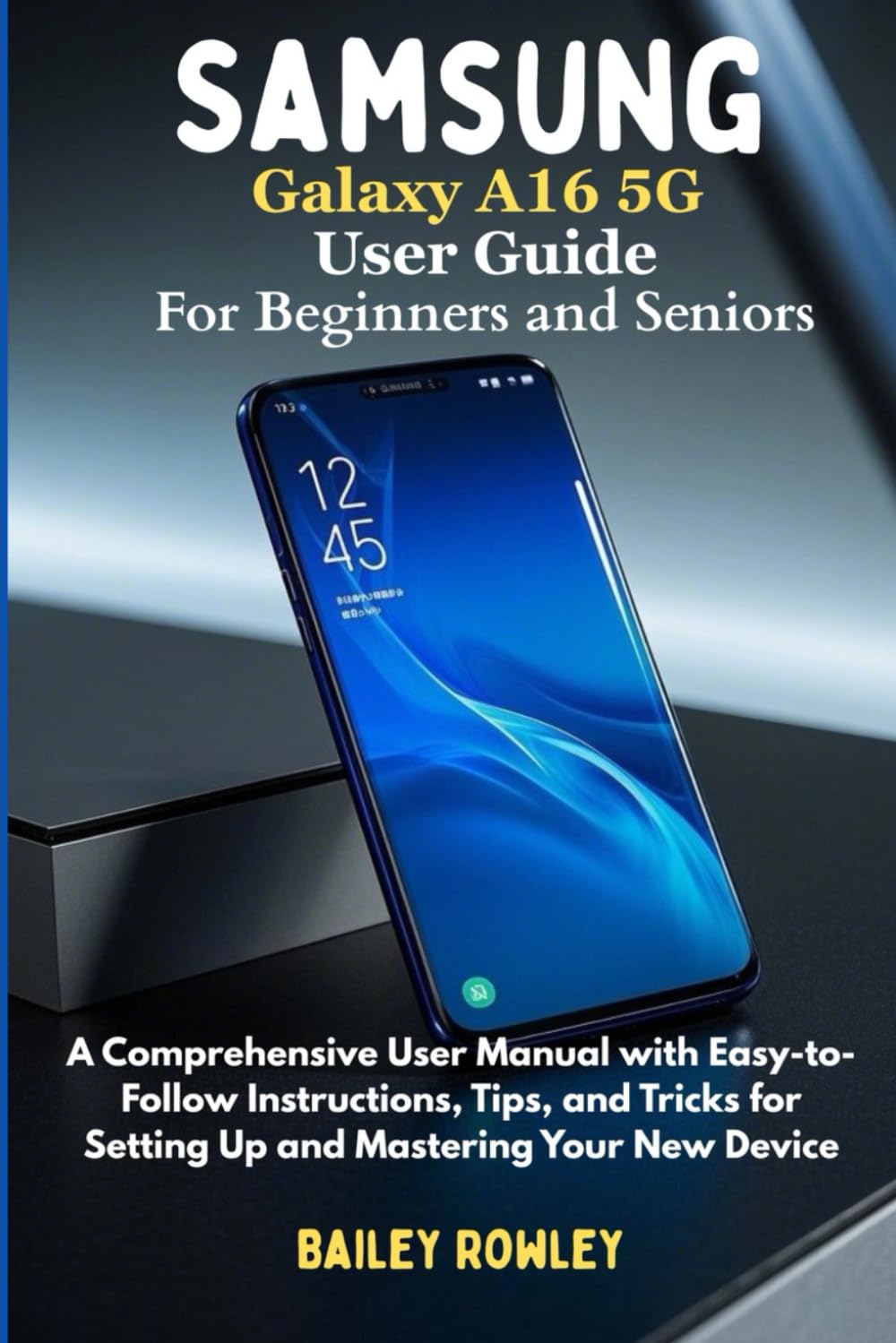
This image displays the front cover of the user guide, featuring the title 'SAMSUNG GALAXY A16 5G USER GUIDE' in white text against a dark gray background with blue accents. The ISBN barcode is visible at the bottom right.


