1. Introduction
This manual provides essential information for the safe and efficient operation of your wowlink W210 Portable Projector. Please read it thoroughly before using the device and retain it for future reference. The wowlink W210 is a compact projector featuring WiFi 6, Bluetooth 5.4, 4K 1080P support, auto keystone correction, and 180-degree rotation for versatile projection.

Image 1.1: Overview of wowlink W210 Portable Projector features.
2. Safety Instructions
- Proper Ventilation: Maintain at least 10 cm of clearance around the projector. Do not block ventilation openings or place the device in high-temperature environments.
- Temperature Management: After 4 hours of continuous use, allow the projector and adapter to cool down for at least 30 minutes. Avoid using this product in high temperatures without proper cooling measures.
- Power Supply: Use only the provided power adapter. Ensure the power source matches the projector's requirements.
- Liquid Exposure: Do not expose the projector to rain, moisture, or any liquids.
- Cleaning: Disconnect power before cleaning. Use a soft, dry cloth. Do not use liquid or aerosol cleaners.
- Servicing: Do not attempt to service this product yourself. Refer all servicing to qualified service personnel.
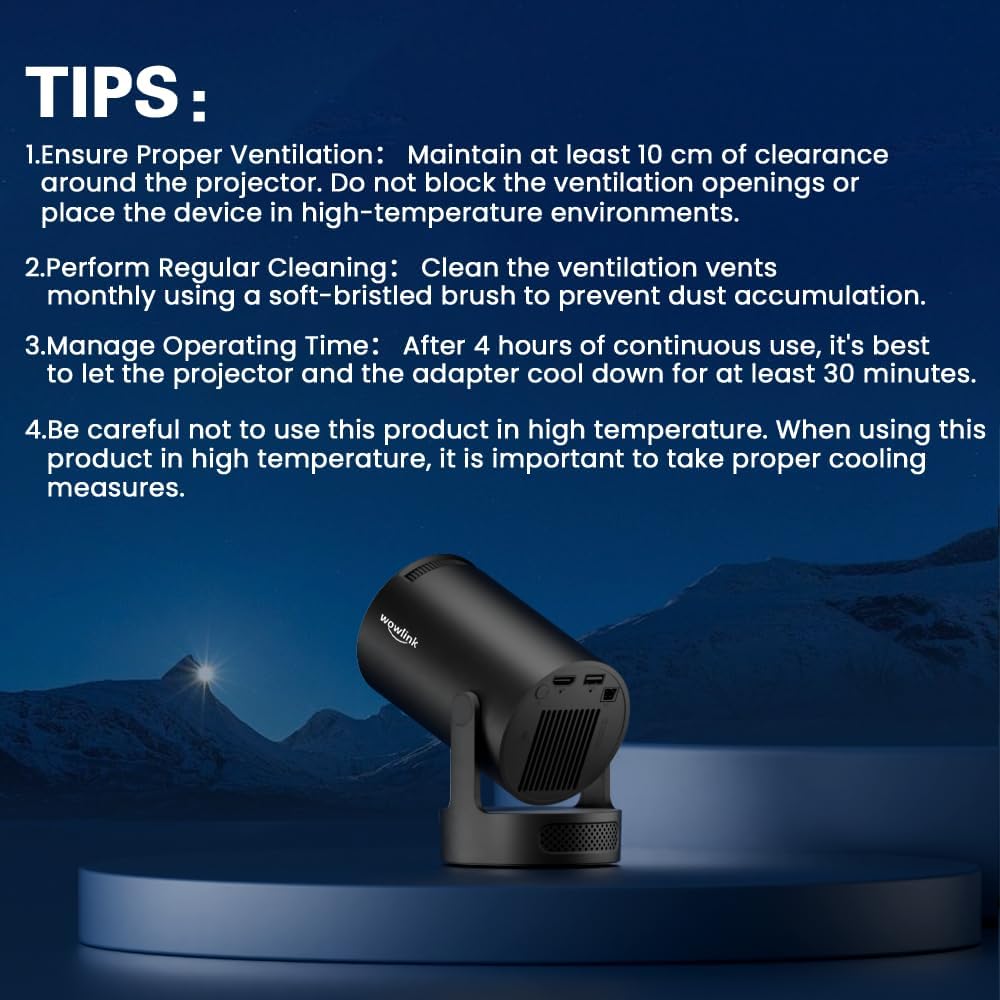
Image 2.1: Important safety and maintenance tips for the projector.
3. Package Contents
Please check the package contents upon unboxing. If any items are missing or damaged, contact customer support.
- wowlink W210 Portable Projector
- Power Adapter
- Remote Control (with Air Mouse function)
- User Manual
4. Product Overview
Familiarize yourself with the main components of your wowlink W210 projector.
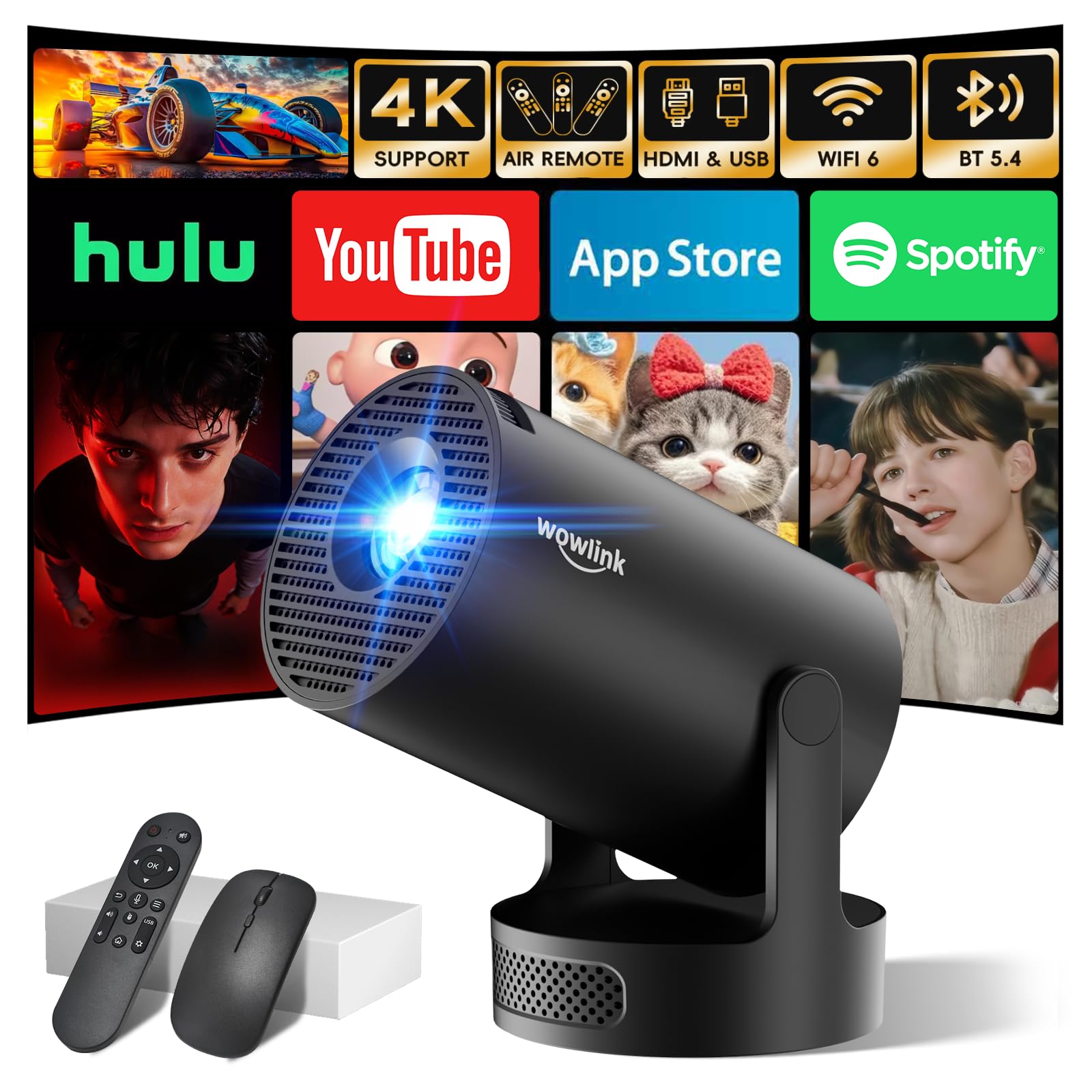
Image 4.1: Front view of the wowlink W210 Projector.

Image 4.2: Side view of the wowlink W210 Projector.
4.1. Interfaces
The projector features various ports for connectivity:
- HDMI Port: For connecting laptops, TV sticks, gaming consoles.
- USB Port: For connecting USB drives or other USB devices.
- Power Input: For connecting the power adapter.

Image 4.3: Projector connectivity options.
5. Setup
5.1. Power Connection
- Connect the power adapter to the projector's power input port.
- Plug the power adapter into a wall outlet.
- Press the power button on the projector or remote control to turn it on.
5.2. Placement and Positioning
The wowlink W210 offers flexible placement options with its 180-degree rotatable design.
- Table Placement: Place the projector on a stable, flat surface.
- Ceiling/Wall Projection: Adjust the projector's angle to project onto a wall or ceiling. The 180-degree rotation allows for versatile positioning.
- Tripod Mounting: A 0.25-inch screw hole is located at the base for tripod mounting (tripod sold separately).

Image 5.1: Flexible positioning with 180-degree rotation.
5.3. Focus and Keystone Correction
The projector features automatic keystone correction for a perfectly rectangular image.
- The projector will automatically adjust the image shape.
- For manual focus adjustment, use the focus ring on the projector lens if available, or the remote control.

Image 5.2: Automatic keystone correction in action.
6. Operating
6.1. Remote Control (Air Mouse Function)
The remote control features an Air Mouse function for intuitive navigation.
- Open Bluetooth: Ensure Bluetooth is enabled on the projector.
- Pair Remote: Press and hold the Left and Right buttons on the remote until the projector beeps.
- Activate Air Mouse: Press the "mouse" icon button on the remote.
- Use Air Mouse: Shake your wrist to move the cursor on the screen. The OK button confirms selections, and arrow keys can be used for browsing.

Image 6.1: Instructions for using the Air Mouse remote control.
6.2. Built-in Applications
The projector comes with integrated applications like YouTube and others, allowing direct access to content without external devices.
- Navigate to the app menu using the remote control.
- Select the desired application to launch it.

Image 6.2: Accessing built-in applications on the projector.
6.3. Connectivity (WiFi 6 & Bluetooth 5.4)
The projector supports dual-band WiFi 6 and Bluetooth 5.4 for fast and stable connections.
- WiFi Connection: Go to network settings, select your WiFi 6 (5GHz or 2.4GHz) network, and enter the password.
- Bluetooth Connection: Enable Bluetooth in settings to pair with external Bluetooth devices like headphones or speakers.

Image 6.3: Dual Band WiFi 6 and Bluetooth 5.4 connectivity.
6.4. Screen Mirroring
Mirror content from your smartphone, tablet, or laptop to the projector wirelessly.
- Ensure your device and the projector are connected to the same WiFi network.
- Select the screen mirroring function on the projector and follow the on-screen instructions for your specific device (Windows, Android, iOS).
6.5. Audio Output
The projector includes built-in stereo speakers. For an enhanced audio experience, connect external Bluetooth speakers.
- The built-in speakers provide clear highs and deep bass.
- Pair with Bluetooth speakers via the Bluetooth settings for a private audio space or louder sound.
7. Maintenance
- Regular Cleaning: Clean the ventilation vents monthly using a soft-bristled brush to prevent dust accumulation.
- Lens Care: Use a lens cleaning cloth to gently wipe the projector lens. Avoid harsh chemicals.
- Storage: When not in use for extended periods, store the projector in a cool, dry place, away from direct sunlight and extreme temperatures.
8. Troubleshooting
| Issue | Possible Solution |
|---|---|
| No power | Check power cable connection. Ensure the power outlet is functional. |
| No image | Ensure the projector is powered on. Check input source (HDMI, USB). Adjust focus. |
| Image blurry | Adjust the focus manually. Ensure the projection surface is flat. |
| Image distorted (not rectangular) | The projector has auto keystone correction. If issues persist, try repositioning the projector. |
| No sound | Check volume settings on the projector and connected device. Ensure external speakers are properly connected or paired via Bluetooth. |
| Remote control not working | Check battery levels. Ensure the remote is paired via Bluetooth (refer to section 6.1). |
| WiFi connection unstable | Ensure the projector is within range of the WiFi router. Reduce interference from other devices. |
9. Specifications
| Feature | Detail |
|---|---|
| Brand | wowlink |
| Model Number | W210 |
| Display Type | LCD |
| Native Resolution | 1280 x 720 (720P) |
| Max Display Resolution | 3840 x 2160 (4K Support) |
| Brightness | 200 ANSI Lumens |
| Contrast Ratio | 10,000:1 |
| Connectivity Technology | Bluetooth 5.4, HDMI, Wi-Fi 6 (Dual-Band) |
| Compatible Devices | Laptop, TV Stick, Smartphone, Tablet |
| Special Features | Built-in Apps and Speaker, 180° Rotatable, Auto Keystone |
| Product Dimensions (L x W x H) | 17.7 x 9.3 x 9.3 cm |
| Product Weight | 376 Grams |
| Recommended Use | Home cinema |

Image 9.1: Key specifications of the wowlink W210 Projector.
10. Warranty and Support
wowlink is committed to providing excellent customer service and product support.
- Manufacturer Warranty: 24 months.
- Return and Exchange: 30-day free return and exchange policy.
- Technical Support: Lifetime technical support.
- Customer Support: 24-hour customer support.

Image 10.1: wowlink Premier Care services.


