
1. Introduction
Welcome to the Lumos Nyxel Smart Bike Helmet instruction manual. This document provides essential information for the safe and effective use of your new smart helmet. The Lumos Nyxel is designed to enhance cyclist visibility and safety through integrated lighting, smart features, and robust head protection.
2. Key Features
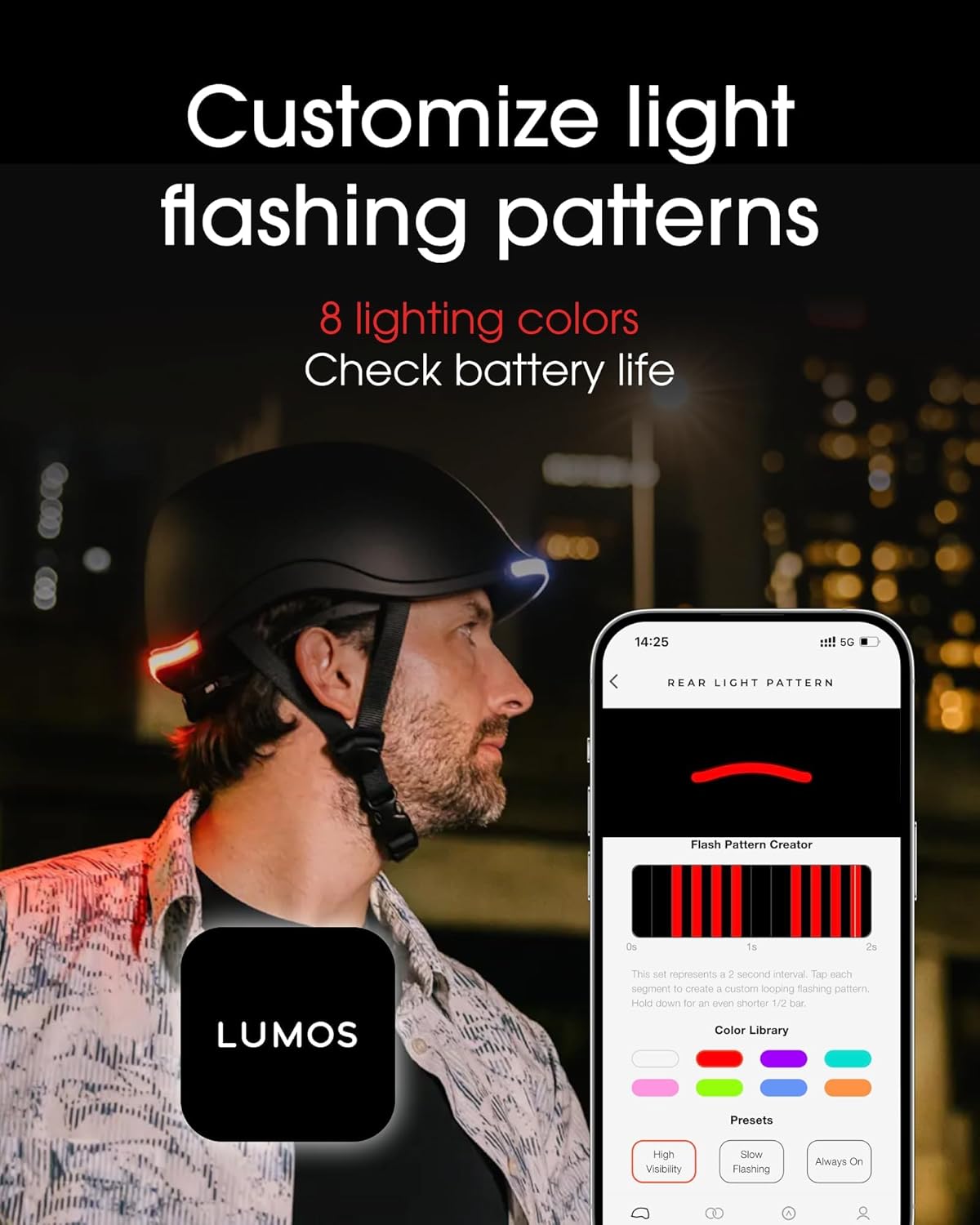
- 360° Visibility: Integrated front and back LED lights ensure cyclists are visible from all angles, maximizing safety in various environments.
- Turn Signals: Control lights with a remote to indicate turns, enhancing safety on city streets.
- All-in-One Control: Synchronize your helmet and bike lights for seamless performance, 360° visibility, and a personalized riding experience.
- Team Sync: Connect your Lumos helmet with other Lumos helmets in your riding group for coordinated lighting.
- Mips Safety System: Features an innovative low-friction liner that allows for small movements within the shell, absorbing extra energy during rotational impacts for enhanced head protection.



3. Setup
3.1 Unboxing and Initial Inspection
Upon receiving your Lumos Nyxel helmet, carefully open the packaging and inspect all components. The box should contain:
- Lumos Nyxel Smart Bike Helmet
- USB-C Charging Cable
- Lumos Remote (for turn signals)
- Silicone Bands (for remote attachment)
- Getting Started Cards / User Guide

3.2 Charging the Helmet
Before first use, fully charge your helmet. Connect the provided USB-C cable to the charging port located on the helmet and plug the other end into a compatible USB power source. The helmet's lights will indicate charging status.
3.3 Fitting the Helmet
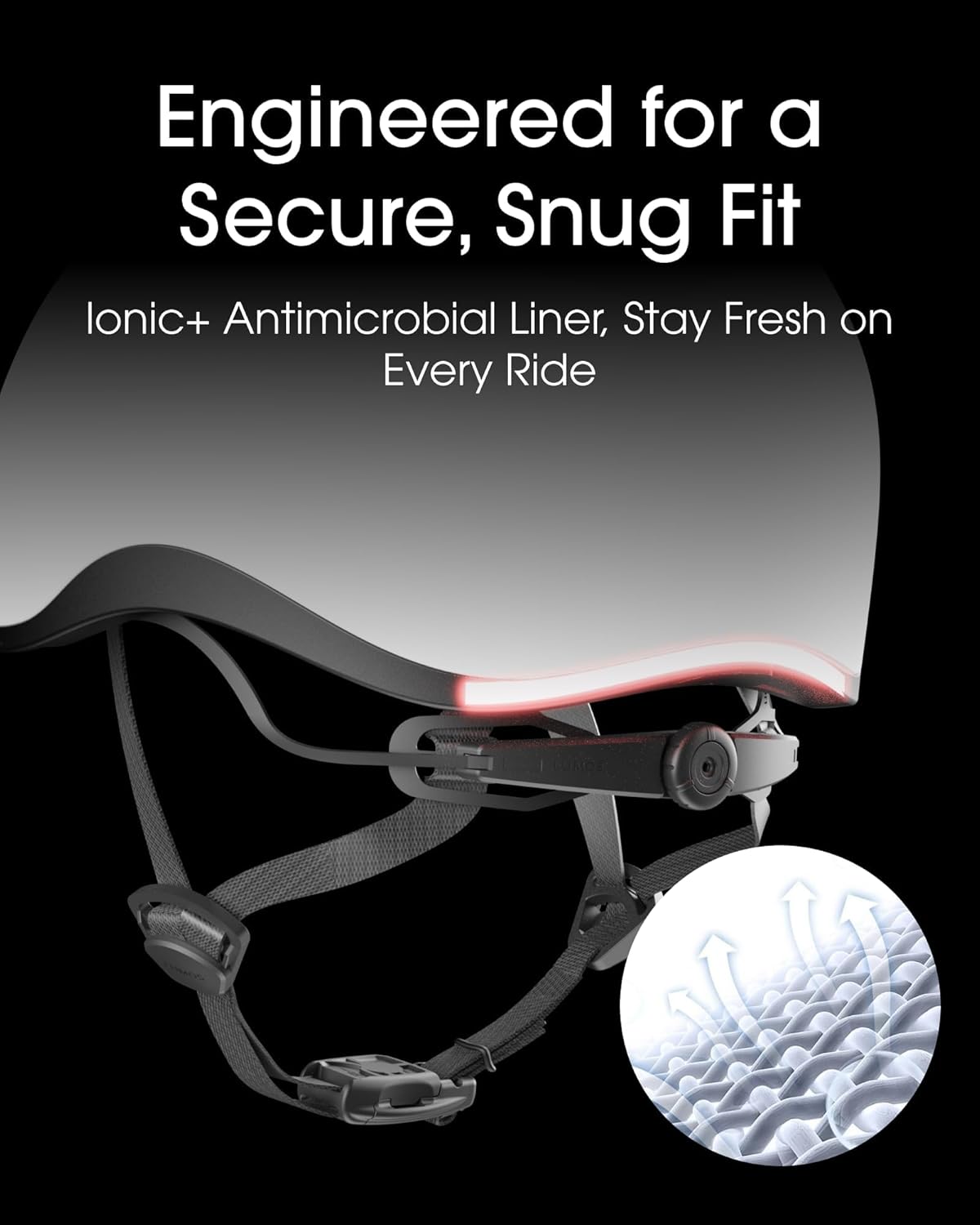
Ensure a secure and comfortable fit for optimal safety. Adjust the straps and the rear retention system until the helmet sits snugly on your head without obstructing your vision. The Ionic+ Antimicrobial Liner helps maintain freshness.

3.4 Pairing with the Lumos App
Download the Lumos App from your smartphone's app store. Follow the in-app instructions to pair your helmet via Bluetooth. This enables customization of light patterns, battery monitoring, and access to smart features like crash detection.
Official Lumos video demonstrating the pairing process of the Nyxel Smart Bike Helmet with the Lumos mobile application, showcasing app features and connectivity.
3.5 Attaching the Lumos Remote
Use the provided silicone bands to securely attach the Lumos Remote to your bike's handlebar. Ensure it is within easy reach for activating turn signals during your ride.
Official Lumos video highlighting the smart features of the helmet, including the remote-controlled turn signals and automatic brake lights, emphasizing enhanced safety for cyclists.
4. Operating Instructions
4.1 Powering On/Off and Changing Light Modes
Press the power button on your helmet to turn it on or off. Short presses will cycle through different pre-set light modes. Further customization of light patterns, colors, and brightness is available via the Lumos App.
Official Lumos video showcasing the programmable LED lights and smart turn signals of the helmet, demonstrating various light patterns and their functionality.
4.2 Using Turn Signals
Press the left or right button on your Lumos Remote to activate the corresponding turn signal on your helmet. The signal will flash for a set duration or until manually deactivated, clearly indicating your intentions to other road users.
4.3 Automatic Brake Lights
When paired with the Lumos Remote, the helmet can detect sudden deceleration and automatically activate its rear lights as brake lights, warning traffic behind you. This feature significantly enhances safety during stops or sudden speed changes.
4.4 Team Sync Functionality
Through the Lumos App, you can enable Team Sync to coordinate your helmet's lights with other Lumos helmets in your group. This creates a unified and highly visible presence on the road.
5. Maintenance
5.1 Cleaning Your Helmet
Clean the helmet shell with a soft, damp cloth and mild soap. Avoid harsh chemicals or abrasive materials that could damage the finish or electronic components. The internal padding can be removed and hand-washed with mild detergent, then air-dried.
5.2 Battery Care
Regularly charge your helmet to maintain optimal battery life. Avoid fully discharging the battery for extended periods. Store the helmet in a cool, dry place when not in use. The Nyxel features a replaceable battery module, contributing to a longer product lifespan and reduced waste.
5.3 Firmware Updates
Periodically check the Lumos App for available firmware updates. Keeping your helmet's firmware up-to-date ensures you have the latest features, performance enhancements, and bug fixes.
6. Troubleshooting
- Helmet not turning on: Ensure the battery is charged. Connect to the USB-C charger and check for charging indicators.
- Lights not working: Check battery level. Verify light mode settings via the helmet button or Lumos App.
- App connectivity issues: Ensure Bluetooth is enabled on your smartphone and the helmet is in pairing mode. Try restarting both the helmet and the app. Ensure the helmet's firmware is updated.
- Turn signals not responding: Check if the Lumos Remote is paired correctly with the helmet. Ensure the remote's battery is functional.
- Automatic brake lights not activating: This feature requires the Lumos Remote to be paired and functioning. Ensure the helmet is worn correctly for accurate motion detection.
7. Specifications
| Feature | Detail |
|---|---|
| Brand | Lumos |
| Model Name | Nyxel |
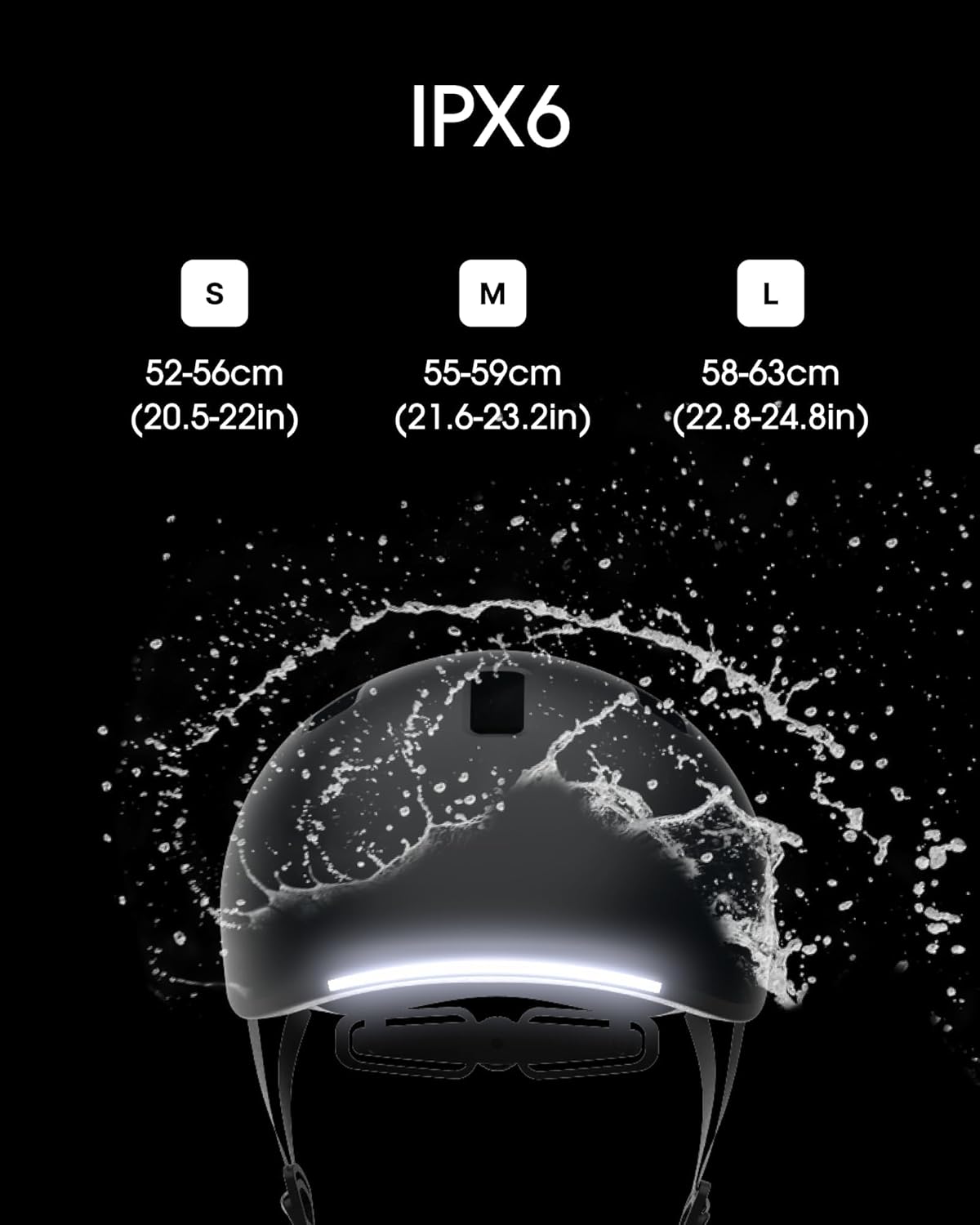
| Size | S (20.5 - 22in / 52 - 56cm) |
| Color | Black |
| Special Feature | MIPS Technology, Integrated LED Lights, Turn Signals |
| Outer Material | Plastic |
| Inner Material | Foam |
| Recommended Uses | Cycling |
| Item Package Dimensions | 10.75 x 8.39 x 6.38 inches |
| Package Weight | 0.67 Kilograms |
| Part Number | 220033001 |
| UPC | 810059474994 |
8. Warranty and Support
8.1 Warranty Information
For detailed warranty information, please refer to the warranty card included in your product packaging or visit the official Lumos website. Keep your proof of purchase for any warranty claims.
8.2 Contact Support
If you encounter any issues or have questions not covered in this manual, please contact Lumos customer support:
- Email: support@lumoshelmet.co
8.3 Lumos App Download
Download the Lumos App for full functionality and customization:
