1. Introduction
The KAYSION SK20 is a compact, inkless thermal label printer designed for various labeling needs in home and office environments. It offers convenient connectivity via Bluetooth for smartphones and tablets, and USB for computers. This manual provides detailed instructions for setting up, operating, and maintaining your SK20 label printer.
2. Package Contents
Please check the box for the following items:
- KAYSION SK20 Thermal Label Printer
- USB Charging Cable
- Label Roll (40x30mm, 230pcs)
- User Manual
3. Setup Guide
3.1 Charging the Printer
Before first use, fully charge the printer using the provided USB cable. Connect the USB cable to the printer's charging port and a standard USB power adapter (not included). The indicator light will show charging status.
3.2 Loading Label Paper
Follow these steps to load a new roll of label paper:
- Open Top Cover: Locate the 'OPEN' button or latch on the side of the printer and press/slide it to open the top cover.
- Adjust Bracket Position: Inside, you will see an adjustable bracket. Slide it to match the width of your label roll.
- Fix the Paper Roll: Place the label roll onto the bracket, ensuring the printing surface faces upwards and the leading edge extends slightly out of the printer's slot.
- Close Top Cover: Gently close the top cover until it clicks into place. Ensure the label paper is straight and not jammed.

Image: Steps for loading label paper into the KAYSION SK20 printer.
3.3 App Installation and Connectivity
The KAYSION SK20 printer connects wirelessly via Bluetooth to mobile devices and via USB to computers.
- For Android Devices: Download the "Print Label" app from the Google Play Store.
- For iOS Devices: Download the "Zlabel" app from the Apple App Store.
- Bluetooth Connection (Mobile):
- Turn on the SK20 printer.
- Enable Bluetooth on your smartphone or tablet.
- Open the installed label printing app ("Print Label" or "Zlabel").
- Within the app, navigate to the device connection settings and select the SK20 printer from the list of available Bluetooth devices.
- USB Connection (Mac OS/Windows):
- Connect the SK20 printer to your computer using the provided USB cable.
- Install the necessary printer drivers (usually available on the manufacturer's website or provided on a CD/USB drive, if included).
- The printer will then be recognized as a standard printer in your operating system.

Image: KAYSION SK20 printer connected to a smartphone via the app.
4. Operating Instructions
4.1 Power On/Off
Press and hold the power button on the printer for a few seconds to turn it on or off. The indicator light will illuminate when the printer is on.
4.2 Printing Labels
Once connected via Bluetooth or USB, you can create and print labels:
- Using the Mobile App:
- Open the "Print Label" or "Zlabel" app.
- Select a label template or create a new design.
- Add text, images, QR codes, or barcodes as needed.
- Preview your label to ensure it appears as desired.
- Tap the print button to send the label to the SK20 printer.
- Using a Computer (USB):
- Open your preferred label design software or document editor.
- Create your label content.
- Select the KAYSION SK20 printer from your printer options.
- Adjust print settings (e.g., label size, orientation) if necessary.
- Initiate the print command.
4.3 Supported Label Sizes
The SK20 printer supports label widths ranging from 20mm (0.79 inches) to 50mm (1.97 inches). Ensure you use thermal labels compatible with these dimensions for optimal performance.
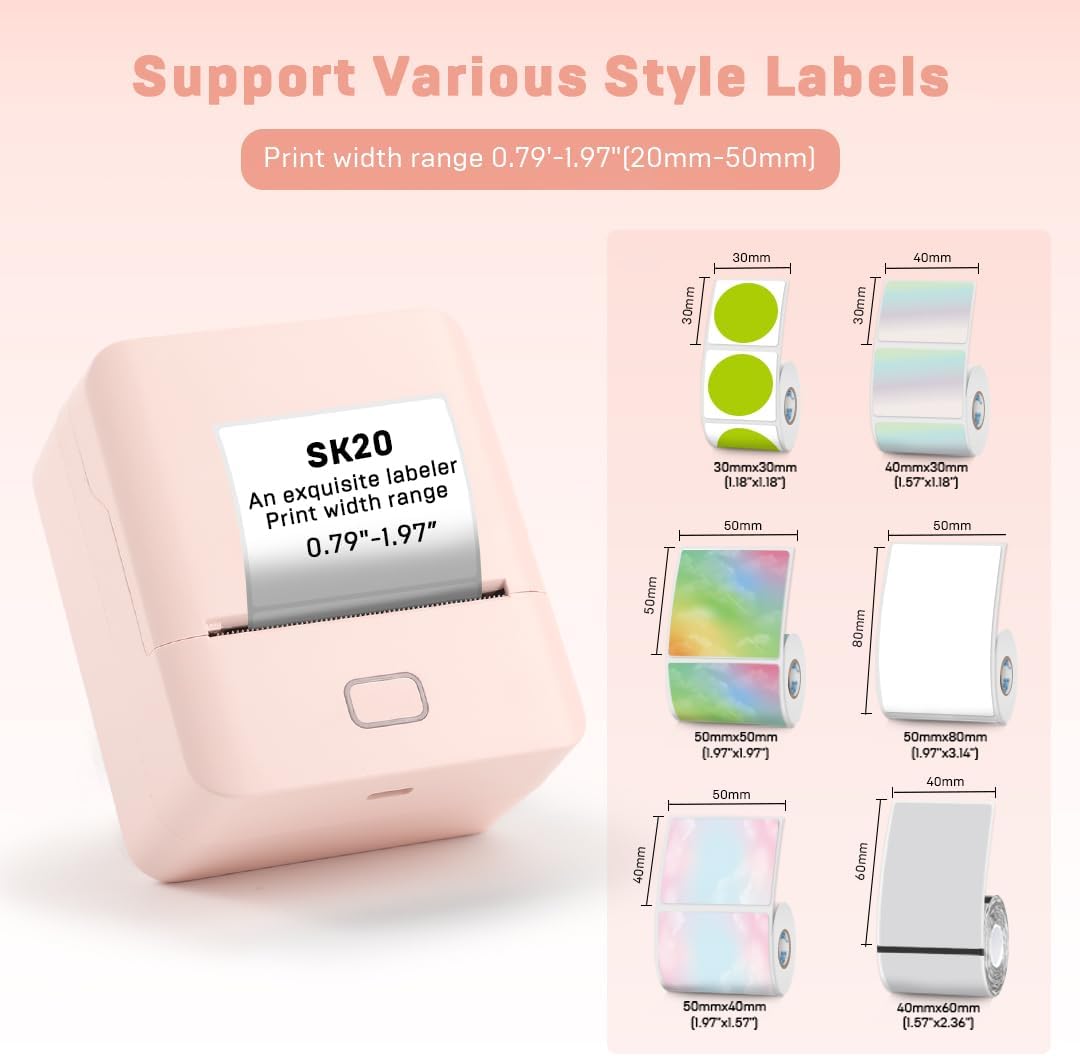
Image: KAYSION SK20 printer demonstrating support for various label sizes.
5. Maintenance
5.1 Cleaning the Print Head
To maintain print quality, periodically clean the thermal print head. Use a cotton swab lightly dampened with isopropyl alcohol. Gently wipe the print head surface. Allow it to dry completely before closing the cover and using the printer.
5.2 Battery Care
- Avoid fully discharging the battery frequently.
- If storing the printer for an extended period, charge it to about 50% and recharge every few months.
- Use only the provided USB cable for charging.
5.3 Storage
Store the printer in a cool, dry place away from direct sunlight and extreme temperatures. Keep it free from dust and moisture.
6. Troubleshooting
Printer Not Turning On
Possible Cause: Low battery or power issue.
Solution: Connect the printer to a power source using the USB cable and allow it to charge for at least 30 minutes before attempting to power on again.
Poor Print Quality / Faint Prints
Possible Cause: Dirty print head, incorrect label type, or low battery.
Solution: Clean the print head as described in Section 5.1. Ensure you are using thermal labels. Charge the printer fully.
Cannot Connect via Bluetooth
Possible Cause: Bluetooth not enabled, printer not in pairing mode, or app issue.
Solution: Ensure Bluetooth is enabled on your mobile device and the printer is on. Restart both the printer and your mobile device. Re-open the app and try pairing again. Check if the app has Bluetooth permissions.
Paper Jam
Possible Cause: Incorrectly loaded label paper or foreign object.
Solution: Turn off the printer, open the top cover, and carefully remove any jammed paper. Ensure the label roll is loaded correctly and the bracket is adjusted properly before closing the cover.
7. Specifications
| Feature | Specification |
|---|---|
| Model Name | SK20 |
| Printing Technology | Thermal |
| Connectivity Technology | Bluetooth, USB Type C |
| Print Resolution | 203 DPI |
| Max Print Speed (Monochrome) | 60mm/s (2.4''/s) |
| Maximum Media Size | 20-50mm (0.79-1.97 inches) |
| Printer Output | Monochrome |
| Control Method | App |
| Product Dimensions | 2.05 x 3.19 x 3.78 inches |
| Item Weight | 15.9 ounces (approx. 450 grams) |
| Included Components | Printer, USB Cable, Label Roll |
8. Warranty and Support
For warranty information and customer support, please refer to the documentation included with your purchase or visit the official KAYSION website. Keep your purchase receipt for warranty claims.


